Manage Internal Approver
As a CDO / CDO Team Manager, you can add / remove Internal Approvers (IA) within the CDO Team.
To begin, navigate to the CDO Team that you manage in the Users page and click on the "Internal Approvers" tab within.
Add Internal Approver
Click the "Internal Approvers" tab
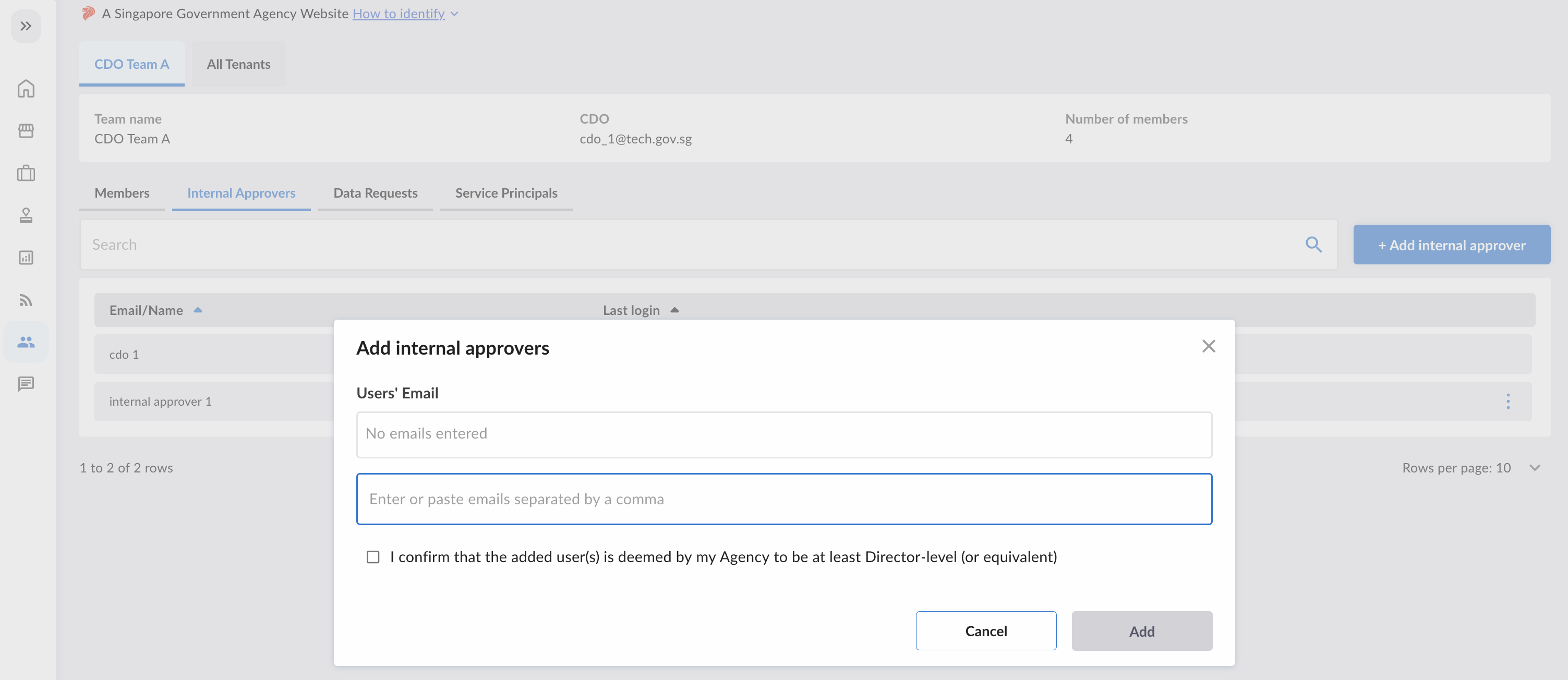
Click the "+ Add Internal Approver" button at the top right to start adding IAs for your CDO Team.
Only CDO and CDO Team Managers can add IAs for the CDO Team.

Type the emails of the users you want to add as IA in the textbox.
When you are done, confirm that the added user(s) is deemed to be at least Director-level (or equivalent), by checking the checkbox.
Click on the "Add" button to submit the changes.
Remove Internal Approver
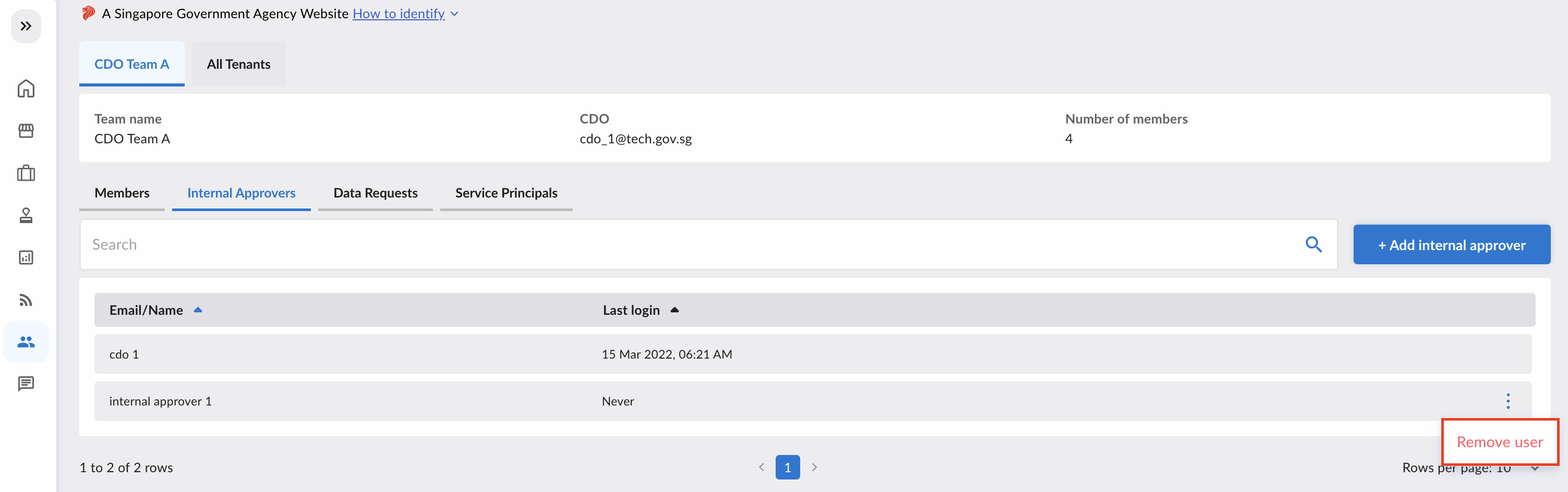
To remove an IA from your CDO Team, navigate to the specific IA user's row and click the ellipsis menu (⋮) on the right. Then, click the "Remove User" button.
Only CDO and CDO Team Managers can remove IAs for the CDO Team, apart from themselves. CDO cannot be removed as an IA.
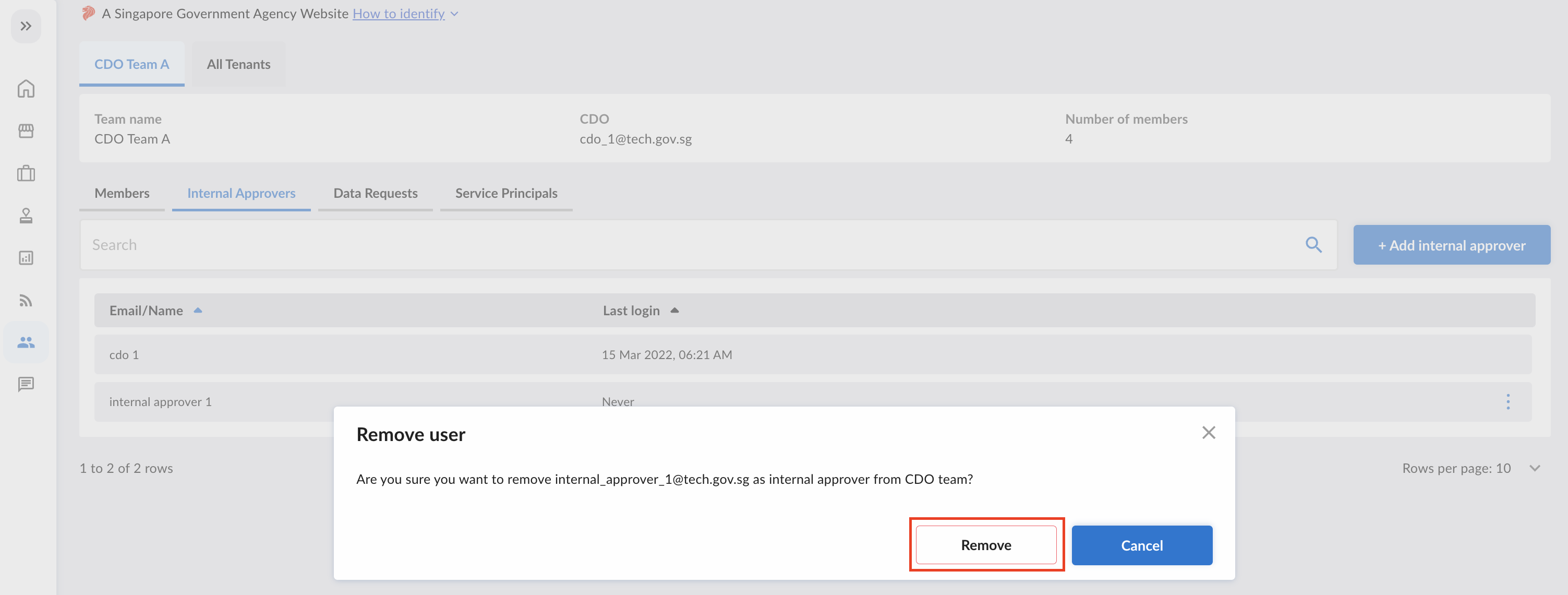
A popup will open, and click on the "Remove" button to confirm the removal.
Why Can't I Remove an Internal Approver?
If an Internal Approver has active Data Requests assigned to them, you will not be able to remove them as IA.
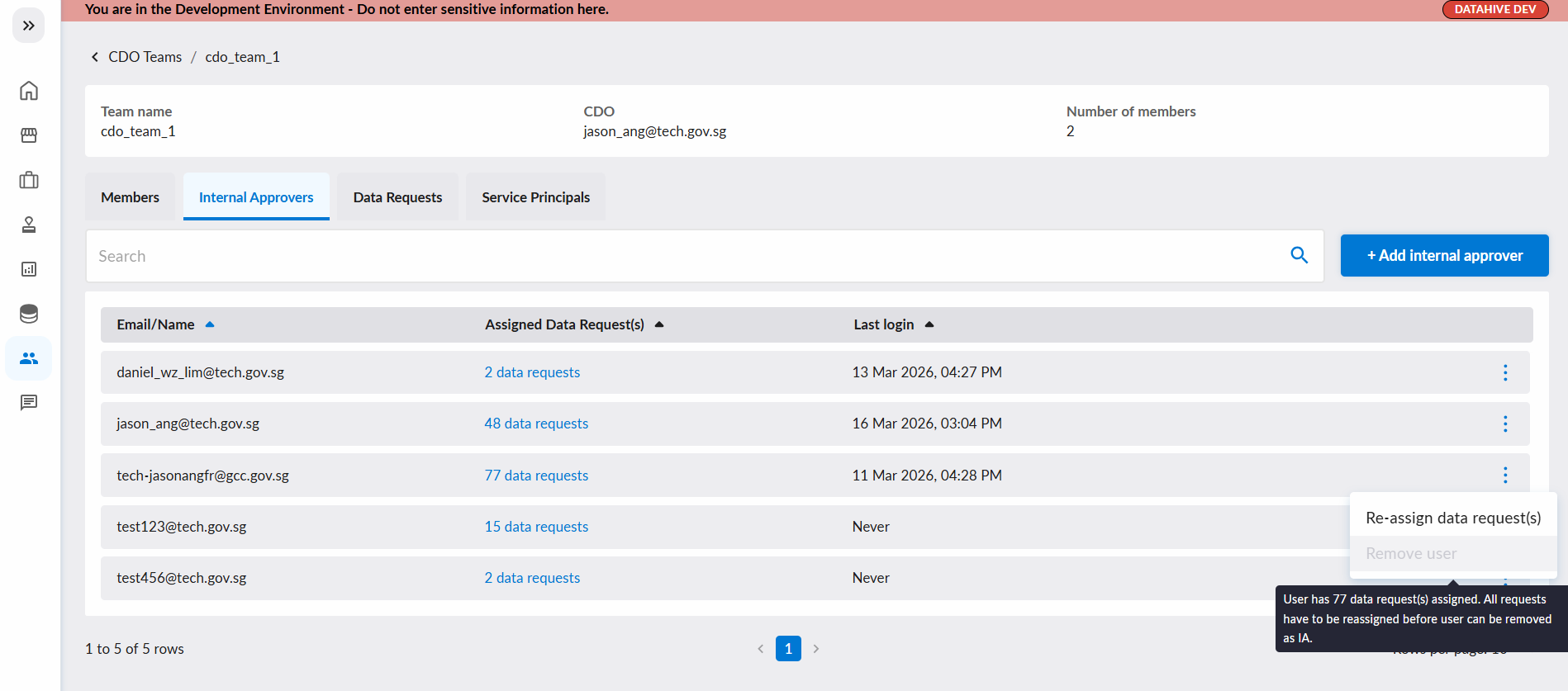
To remove the IA:
- Re-assign all their Data Requests to another Internal Approver.
- Wait for the new IA to accept the re-assignment requests.
- Once all Data Requests have been transferred, you can remove the IA.
This ensures that no Data Requests are left without an eligible Internal Approver.
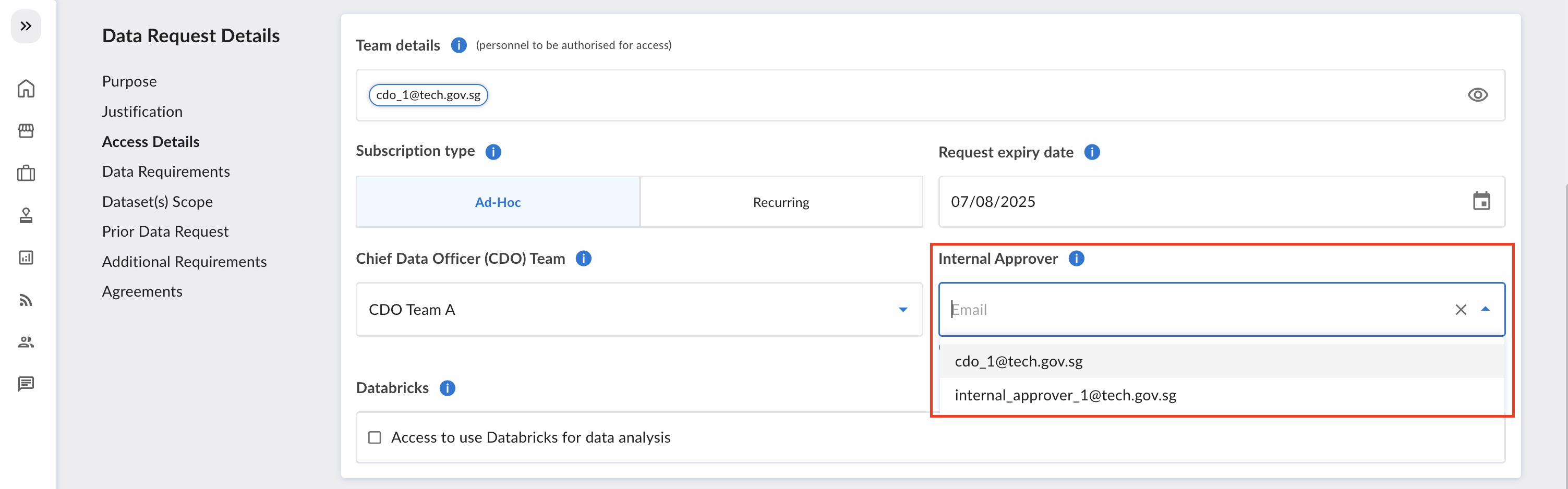
Selection of Internal Approver for Data Request Submission
IAs from the CDO Team can be selected to be the IA of a Data Request.
Upon selecting the CDO Team for the Data Request, the Data Requestor will see the list of IAs for the CDO Team, for their selection.