Re-assign Internal Approver of Data Request
As a CDO or CDO Team Manager, you can re-assign Data Requests from one Internal Approver (IA) to another.
To begin, navigate to the CDO Team that you manage in the Users page and click on the "Internal Approvers" tab within.
The table below shows the various Data Request statuses, along with whether the IA can be re-assigned at each stage, and whether the new IA's approval is required for the IA re-assignment.
If the IA re-assignment requires approval from the new IA, an IA re-assignment request will be created.
The new IA will receive an email notification to log into DataHive to accept or reject the IA re-assignment request.
| Data Request Status | Able to re-assign IA? | New IA's approval required? |
|---|---|---|
| Pending Verification | ✅ | |
| Pending Internal Approval | ✅ | |
| Pending Datafields Review | ✅ | ✅ |
| Pending Data Provision | ✅ | ✅ |
| Request Fulfilled | ✅ | ✅ |
| Pending Scopes Change Approval | ✅ | ✅ |
| Request Withdrawn | ||
| Request Expired | ||
| Expired Without Fulfilment | ||
| Rejected | ||
| Revoked |
If the IA re-assignment requires approval from the new IA, the new IA will have to accept the IA re-assignment request before the change takes effect.
Until accepted, the original IA remains responsible for the Data Request.
View Assigned Data Requests of Internal Approver
To view the Data Requests assigned to an Internal Approver, click on the Data Request count link in the IA table.
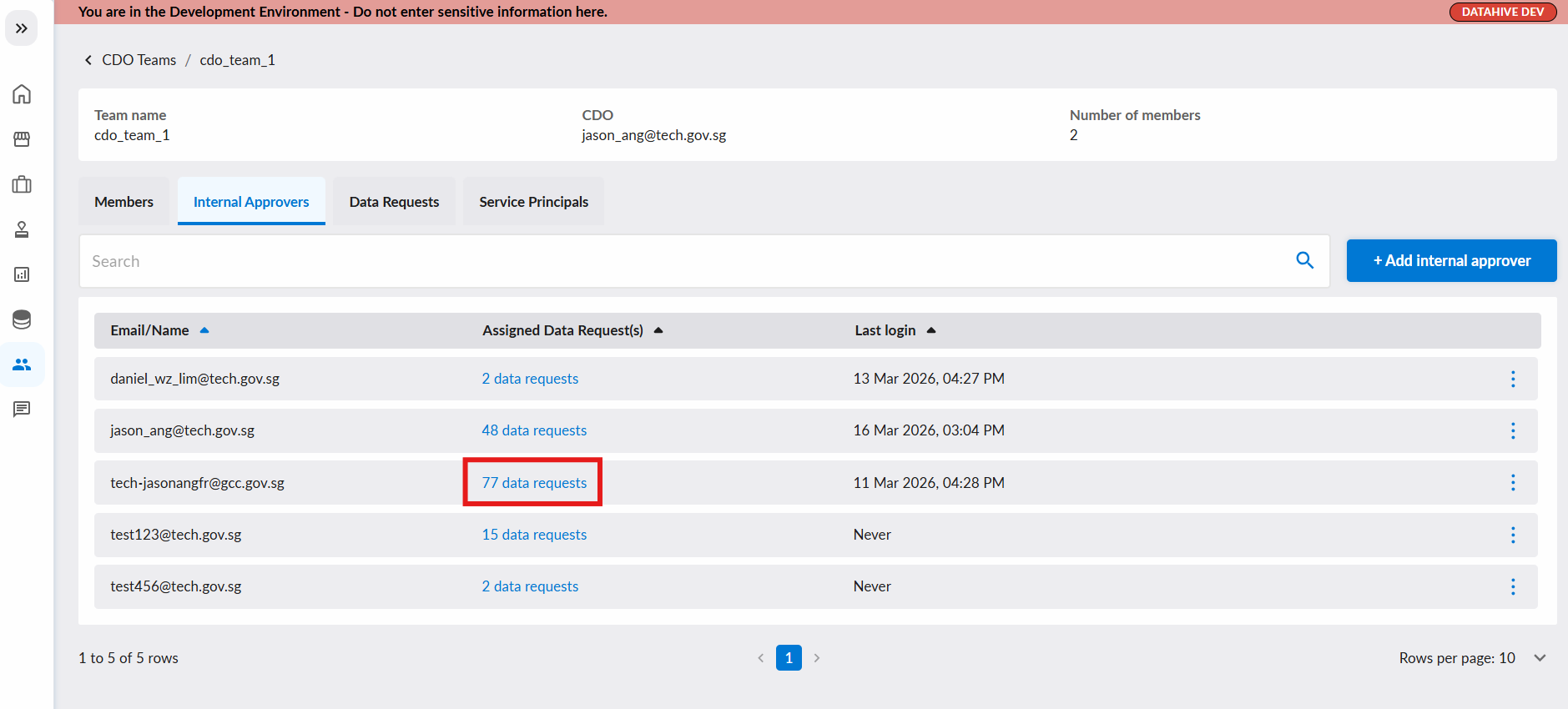
This will open the Assigned Data Requests page for that IA, showing all the Data Requests that are currently assigned to them.
There are 3 tabs within the page:
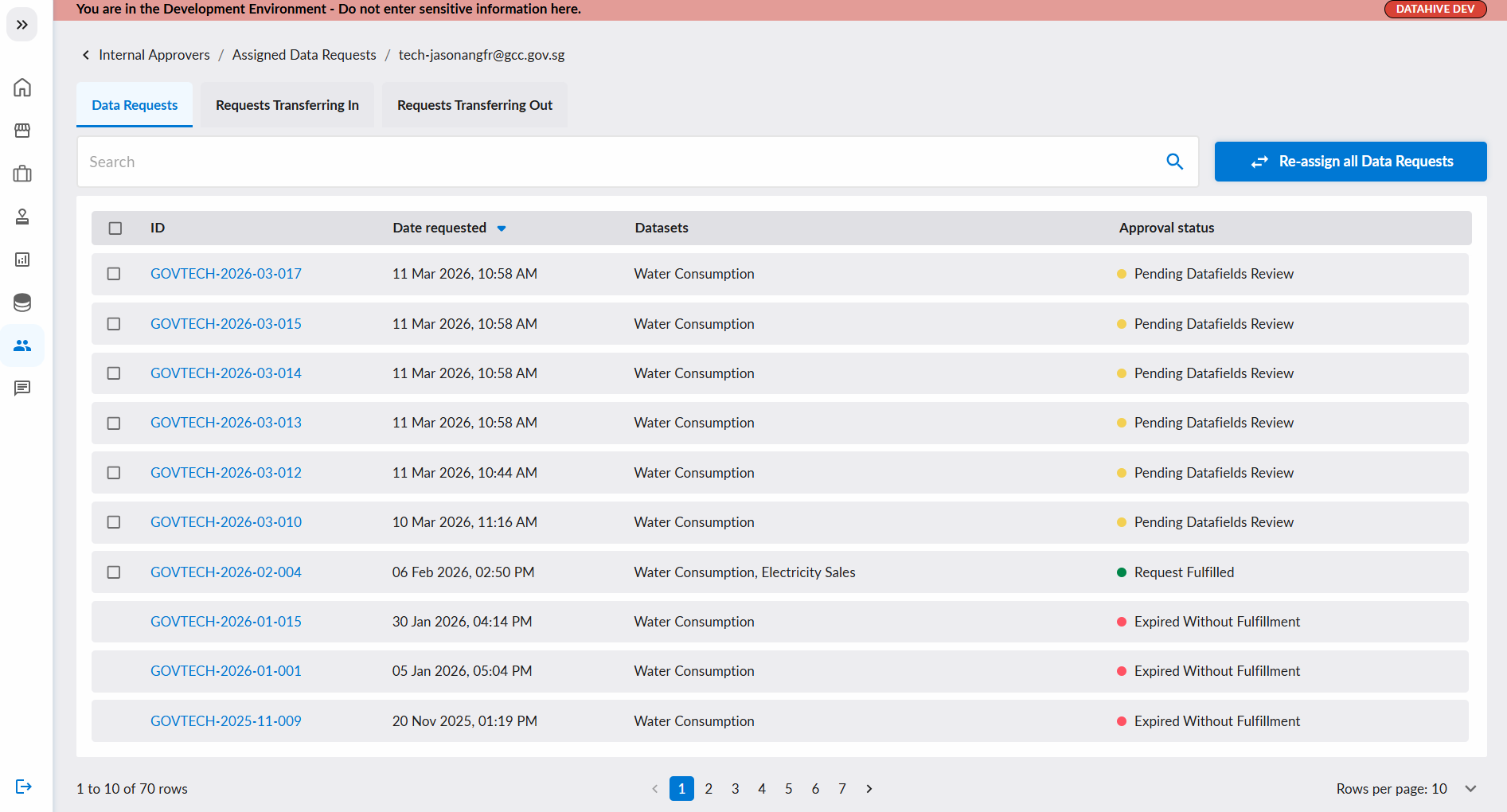
Data Requests Tab
This tab shows all Data Requests currently assigned to this Internal Approver and are not pending IA re-assignment.
Requests Transferring Out Tab
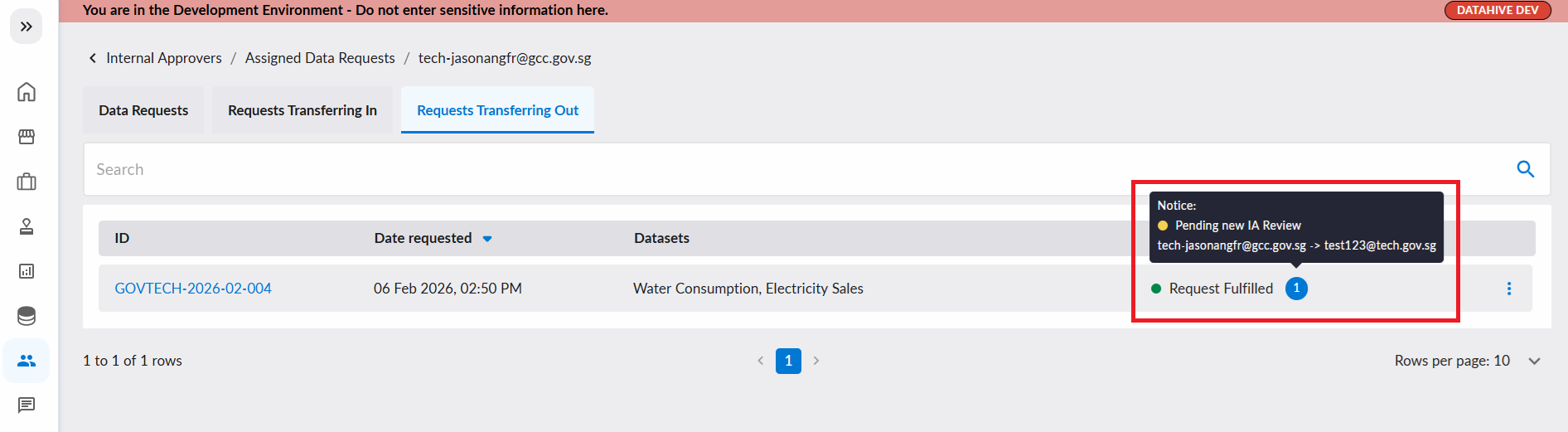
This tab shows Data Requests that are pending IA re-assignment, where this IA is the current IA.
Once the IA re-assignment is accepted by the new IA, these Data Requests will no longer be assigned to this IA and will disappear from his/her Assigned Data Requests page.
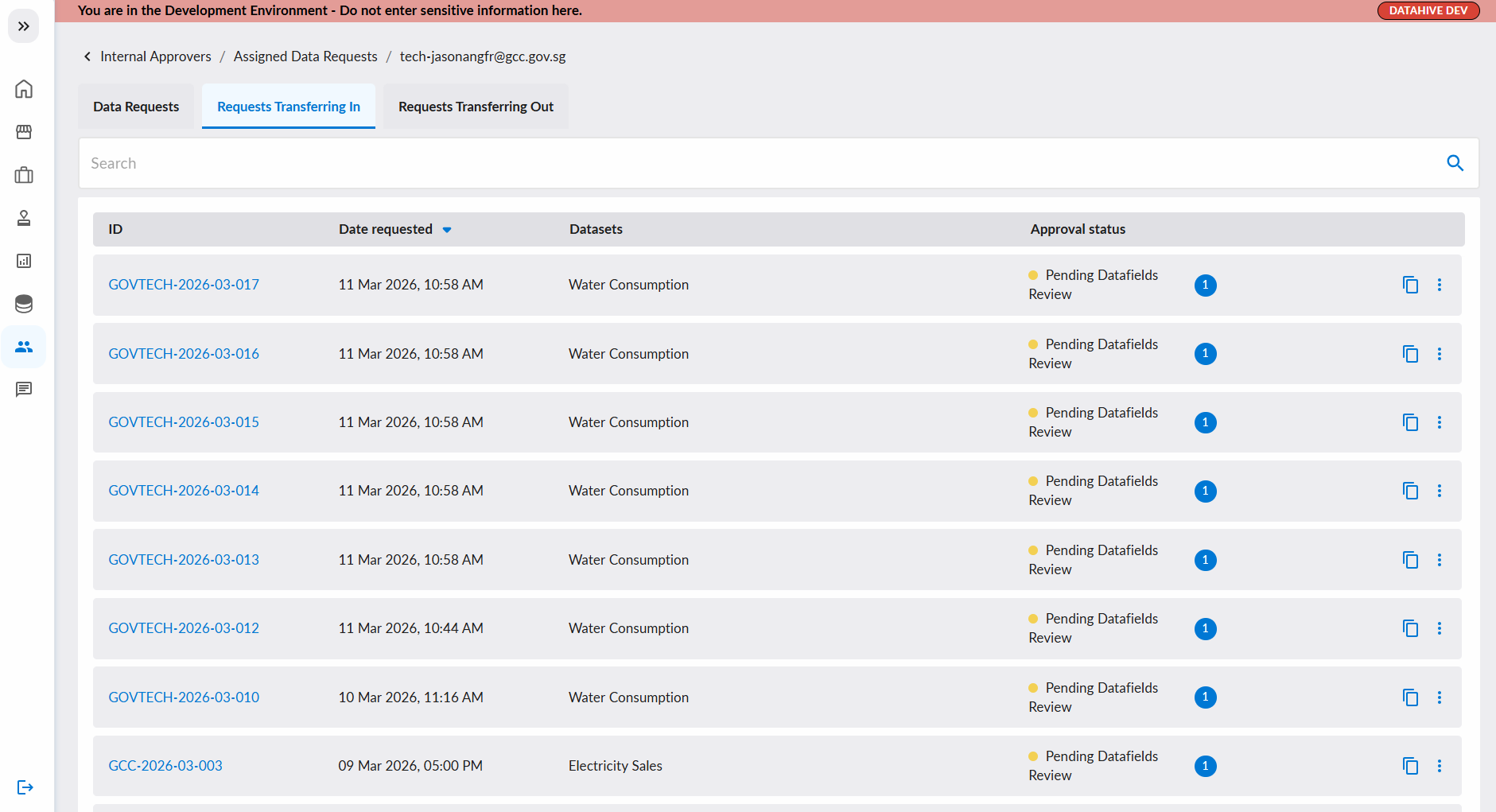
Requests Transferring In Tab
This tab shows Data Requests that are pending IA re-assignment, where this IA is the proposed new Internal Approver.
Once the IA re-assignment is accepted by this IA, these Data Requests will be assigned to this IA and will appear in the Data Requests tab of his/her Assigned Data Requests page.
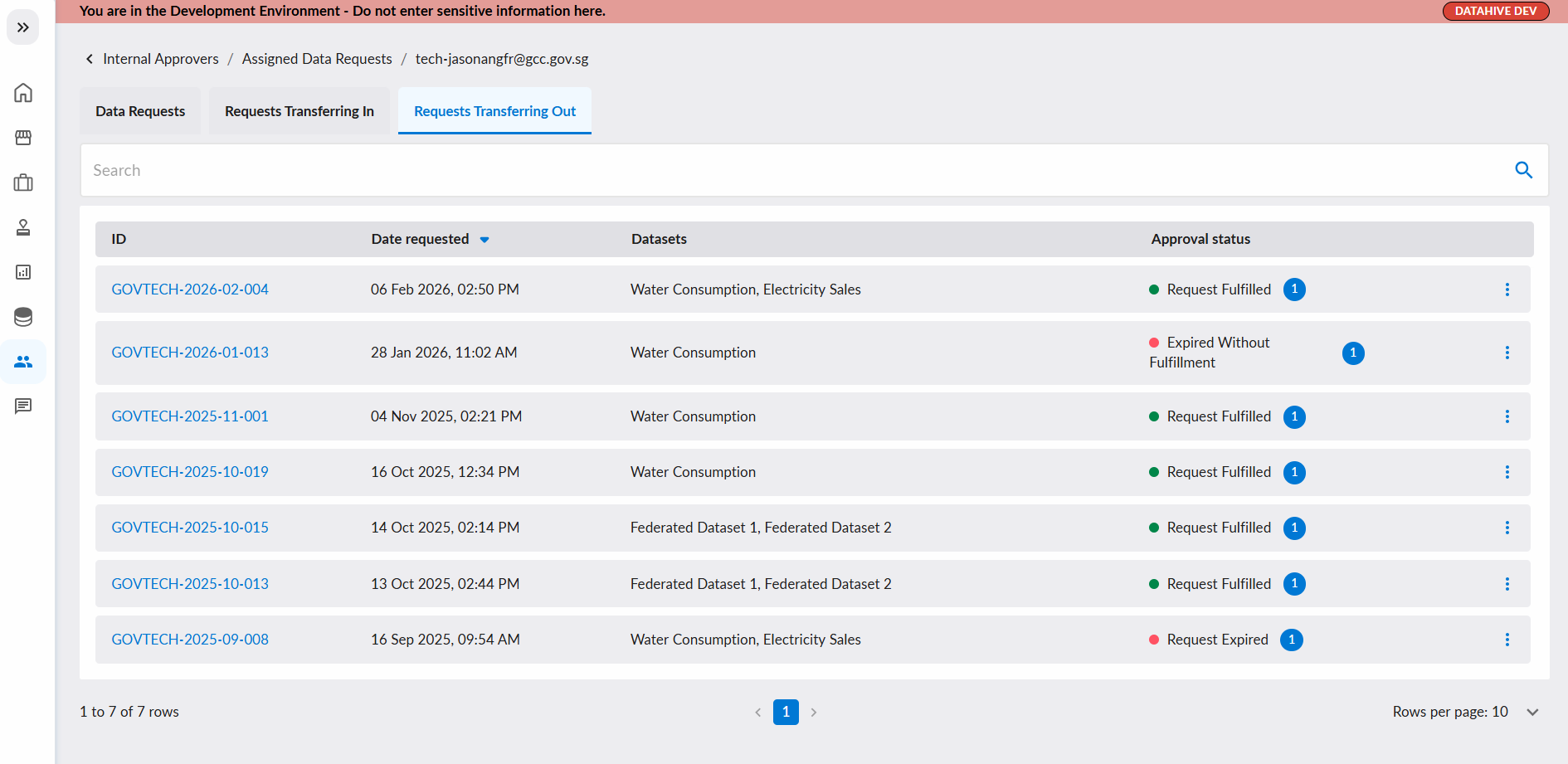
When the Data Request is pending IA re-assignment, a substatus indicator (number badge) will appear next to the request status. Hover over the indicator to see the substatus details.
Re-assign Data Requests to Another Internal Approver
A. Re-assign in 'Assigned Data Requests' page
To re-assign specific Data Requests:
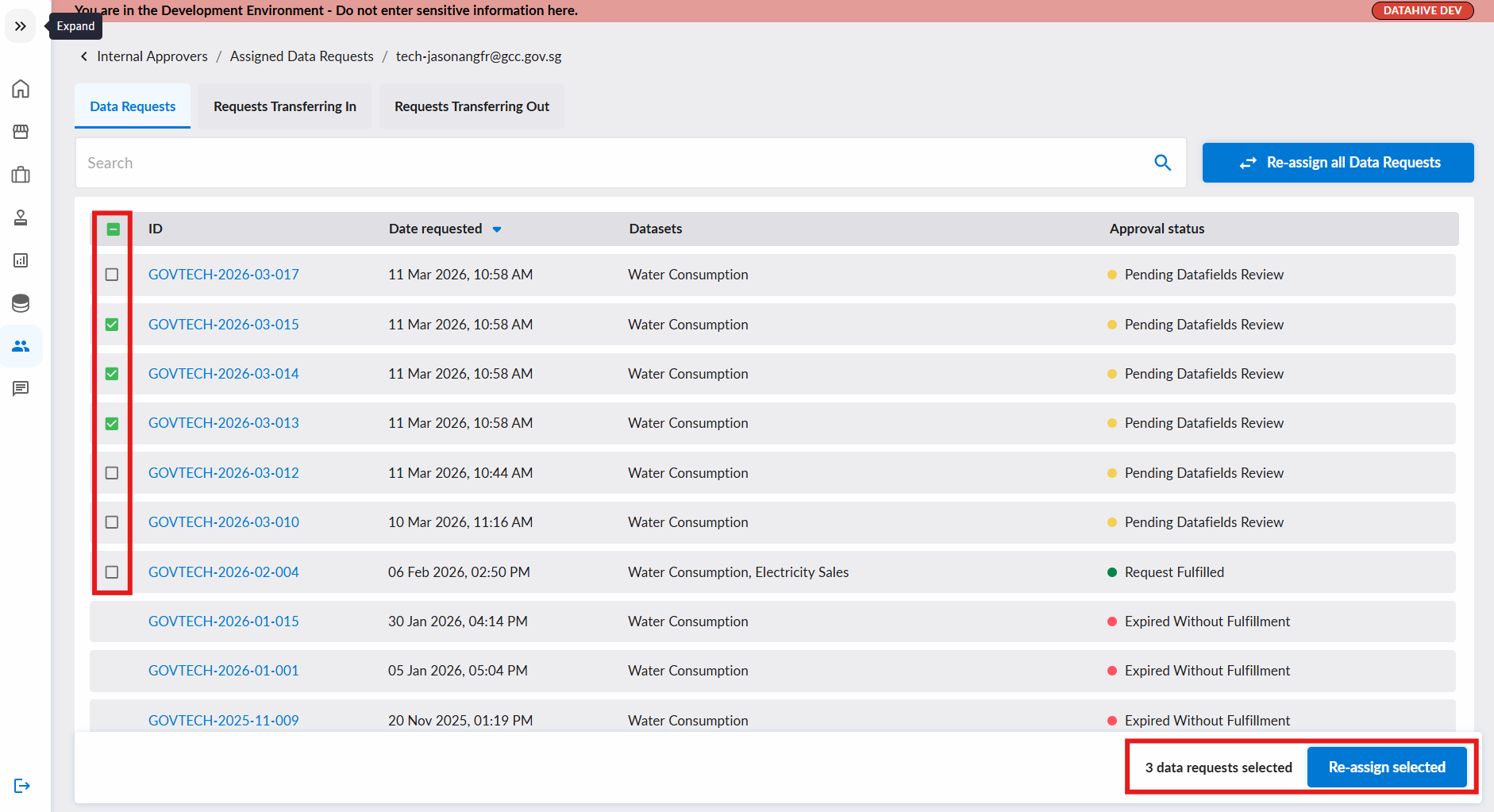
- Navigate to the IA's Assigned Data Requests page.
- Select the Data Requests you want to re-assign using the checkboxes on the left.
- Click the Re-assign button in the bottom navigation bar.
To re-assign all Data Requests from an IA at once:
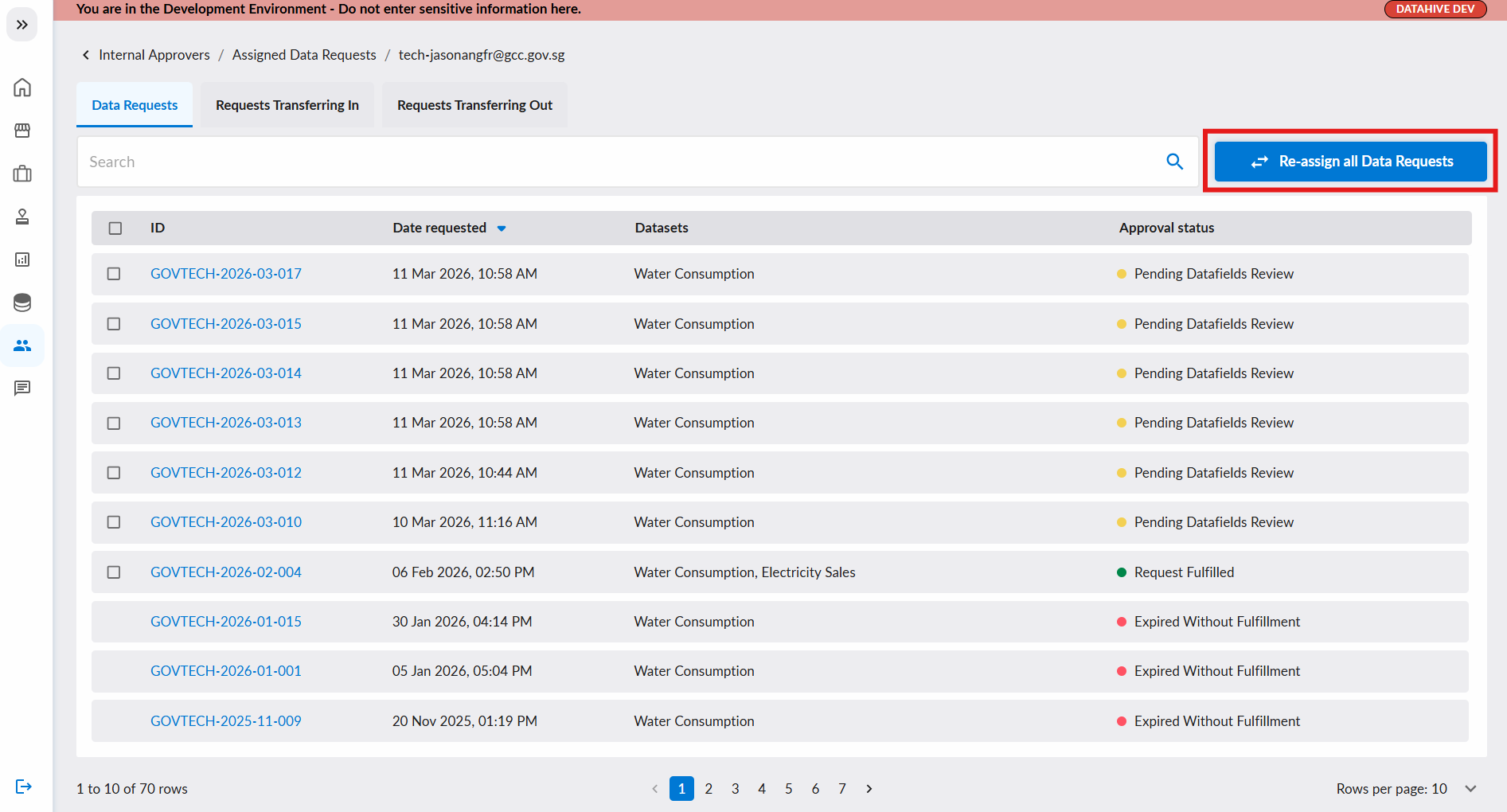
- Navigate to the IA's Assigned Data Requests page.
- Click the Re-assign All button at the top right of the page.
B. Re-assign in 'Internal Approver' tab
To re-assign Data Requests from the Internal Approvers tab:
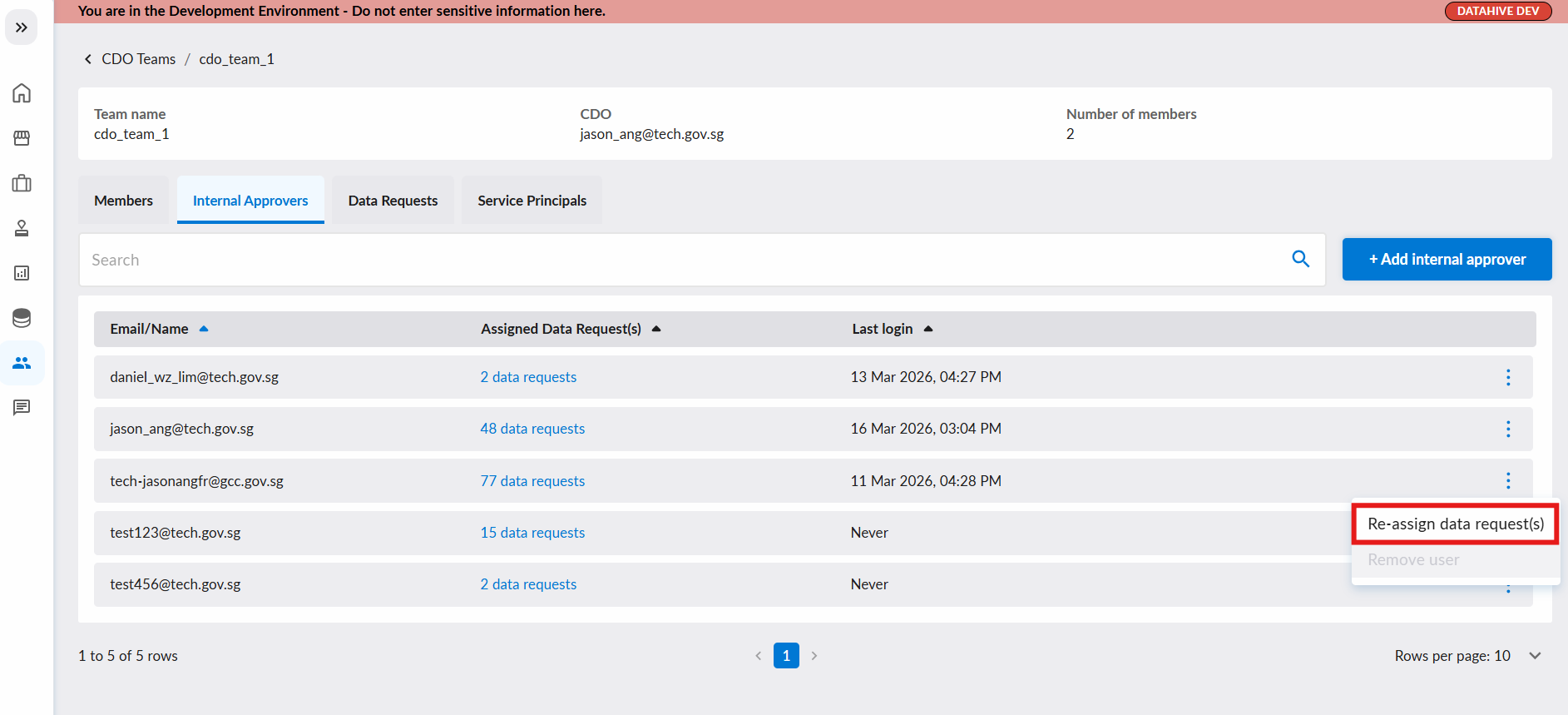
- Navigate to the Internal Approvers tab in your CDO Team page.
- Click the ellipsis menu (⋮) on the desired IA's row.
- Select Re-assign Data Request(s).
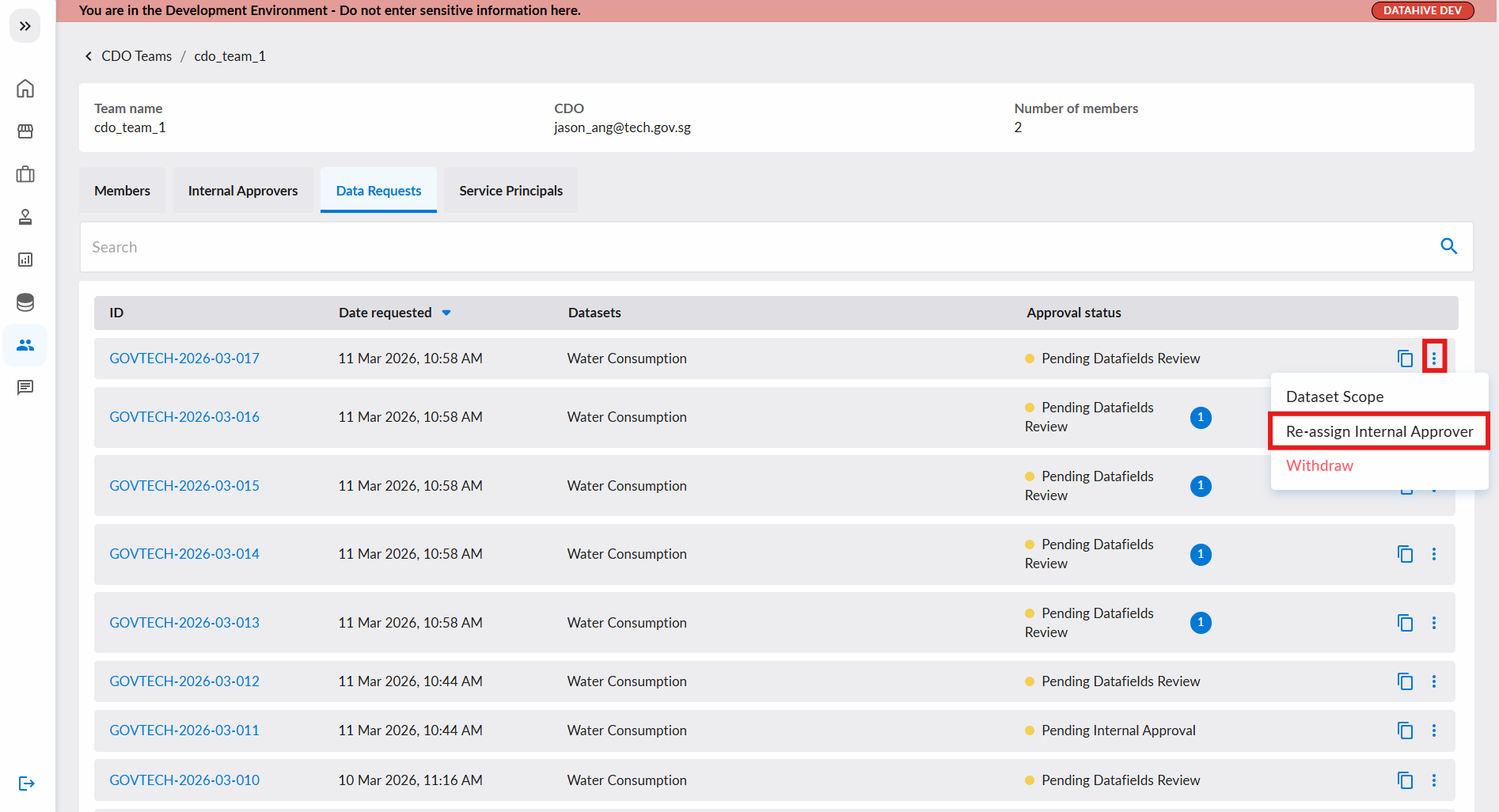
C. Re-assign in 'Data Requests' tab
To re-assign specific Data Requests:
- Navigate to the Data Requests tab in your CDO Team page.
- Click the ellipsis menu (⋮) on the desired Data Request's row.
- Select Re-assign Data Request(s).
Re-assignment Popup
When initiating a re-assignment, a popup will appear:
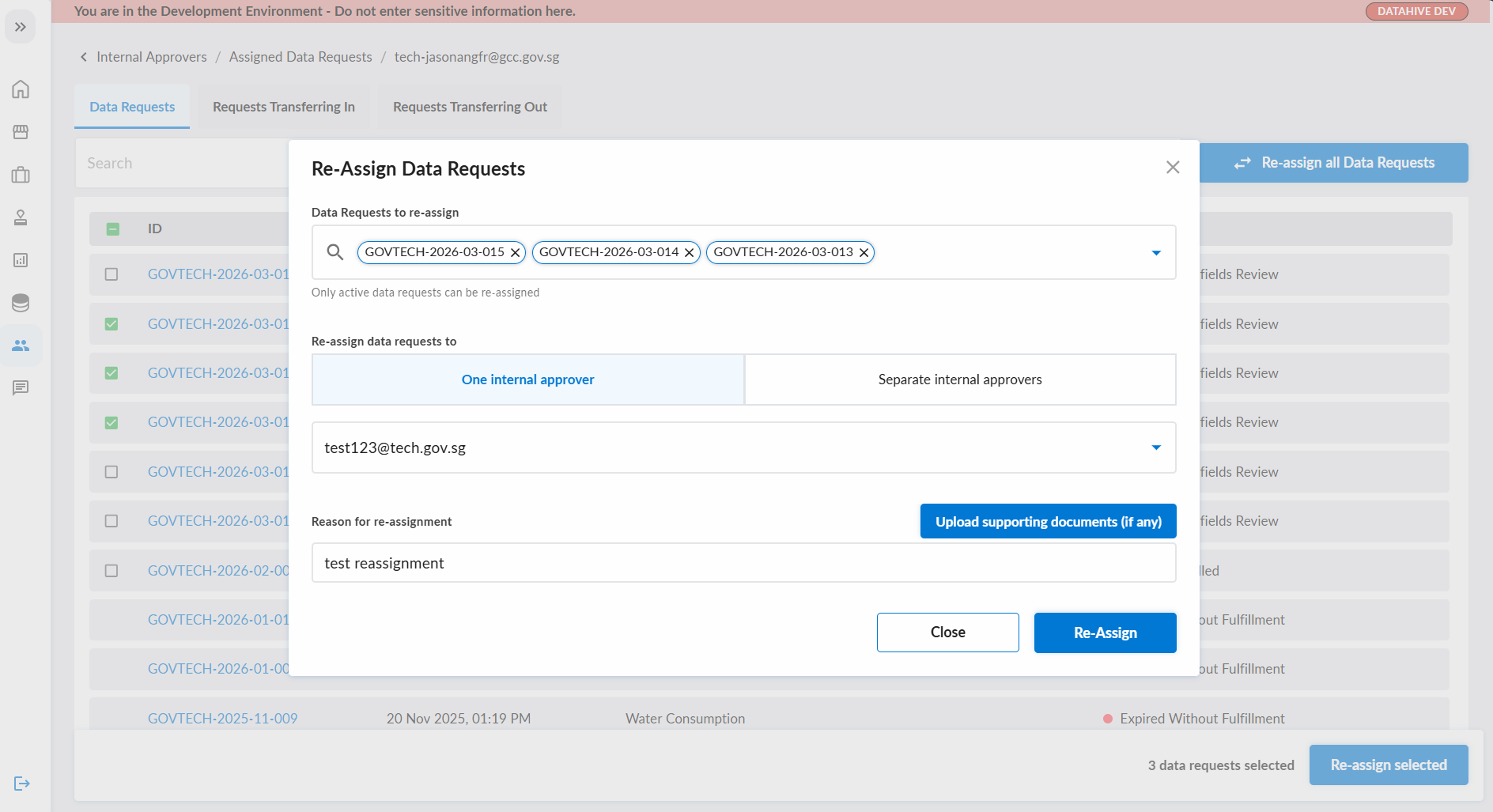
- Confirm / Select Data Requests: Confirm the Data Requests to re-assign, and add any additional ones if needed.
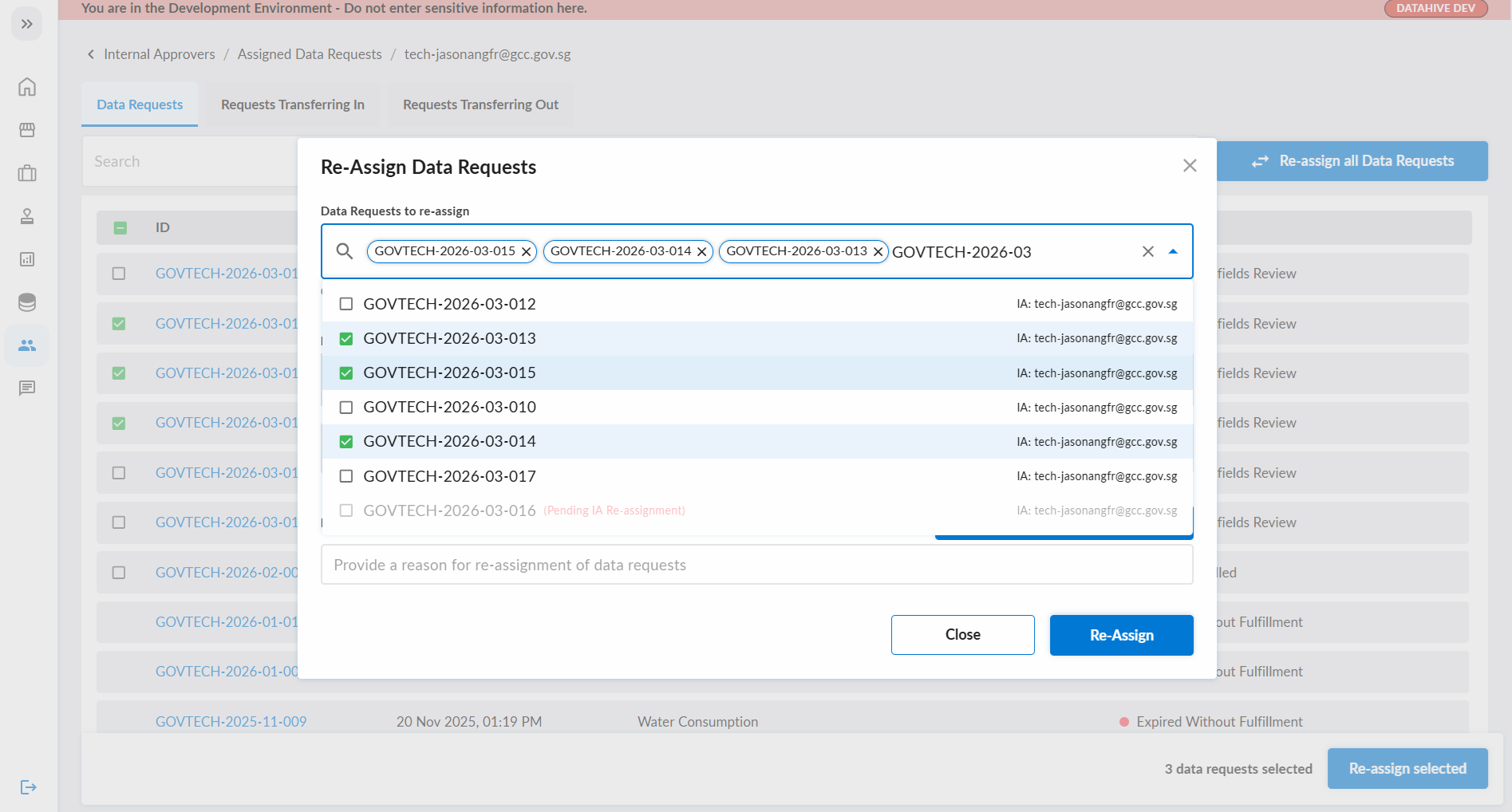
- For Data Requests that are 'Pending IA Re-assignment', a new IA re-assignment cannot be initiated, until the pending IA re-assignment is accepted / rejected / withdrawn.
- Choose Re-assignment Type:
- One internal approver: Assign all selected Data Requests to a single new IA.
- Separate internal approvers: Assign each Data Request to a different IA.
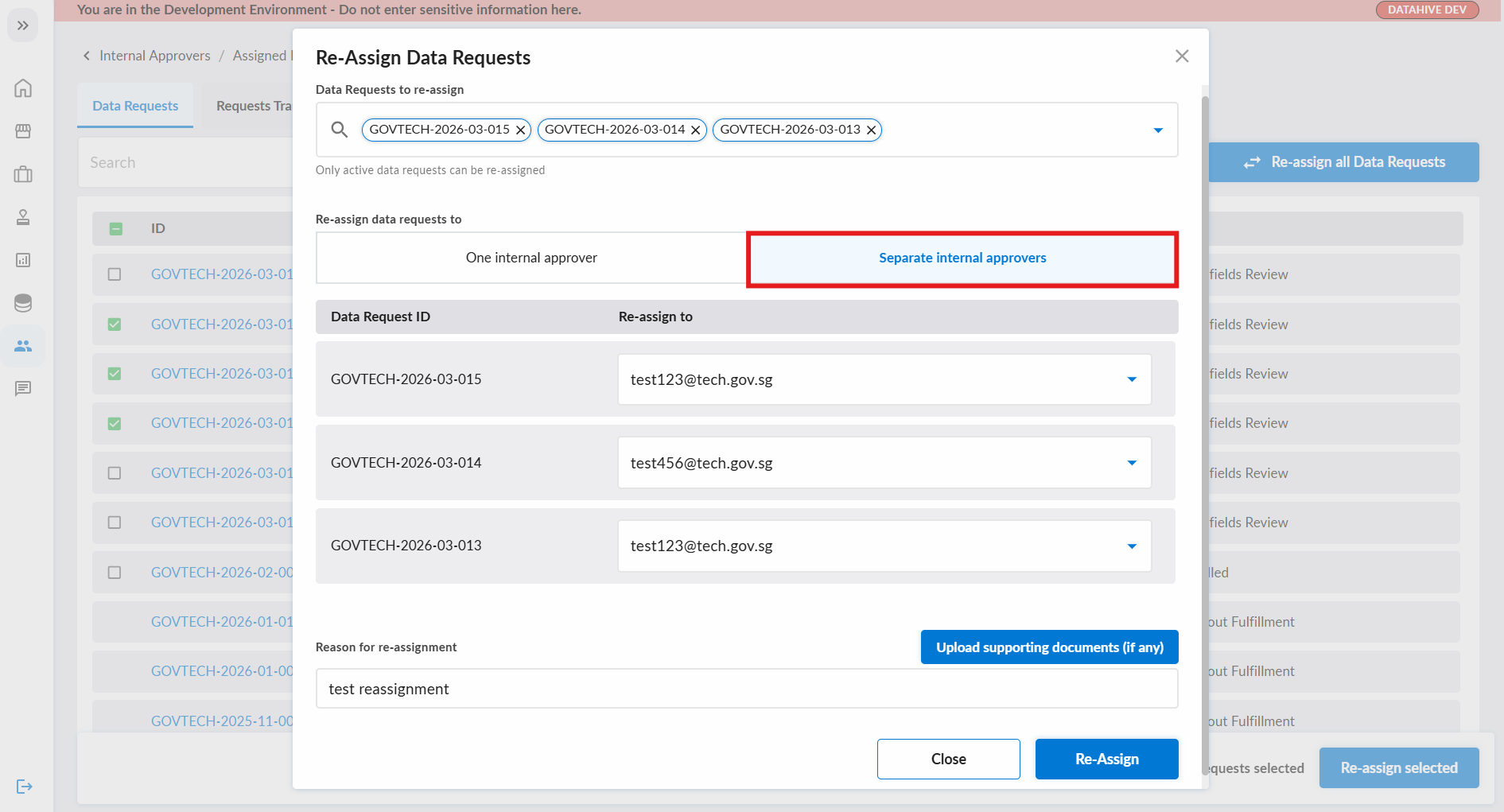
- Provide Reason: Enter a reason for the re-assignment.
- Click Re-Assign to submit the request.
Cancel IA Re-assignment Request
To cancel a pending IA re-assignment request:
- Navigate to the IA's Assigned Data Requests page.
- Go to the Requests Transferring Out tab.
- Click the ellipsis menu (⋮) on the Data Request row.
- Select Cancel IA Re-assignment Request.
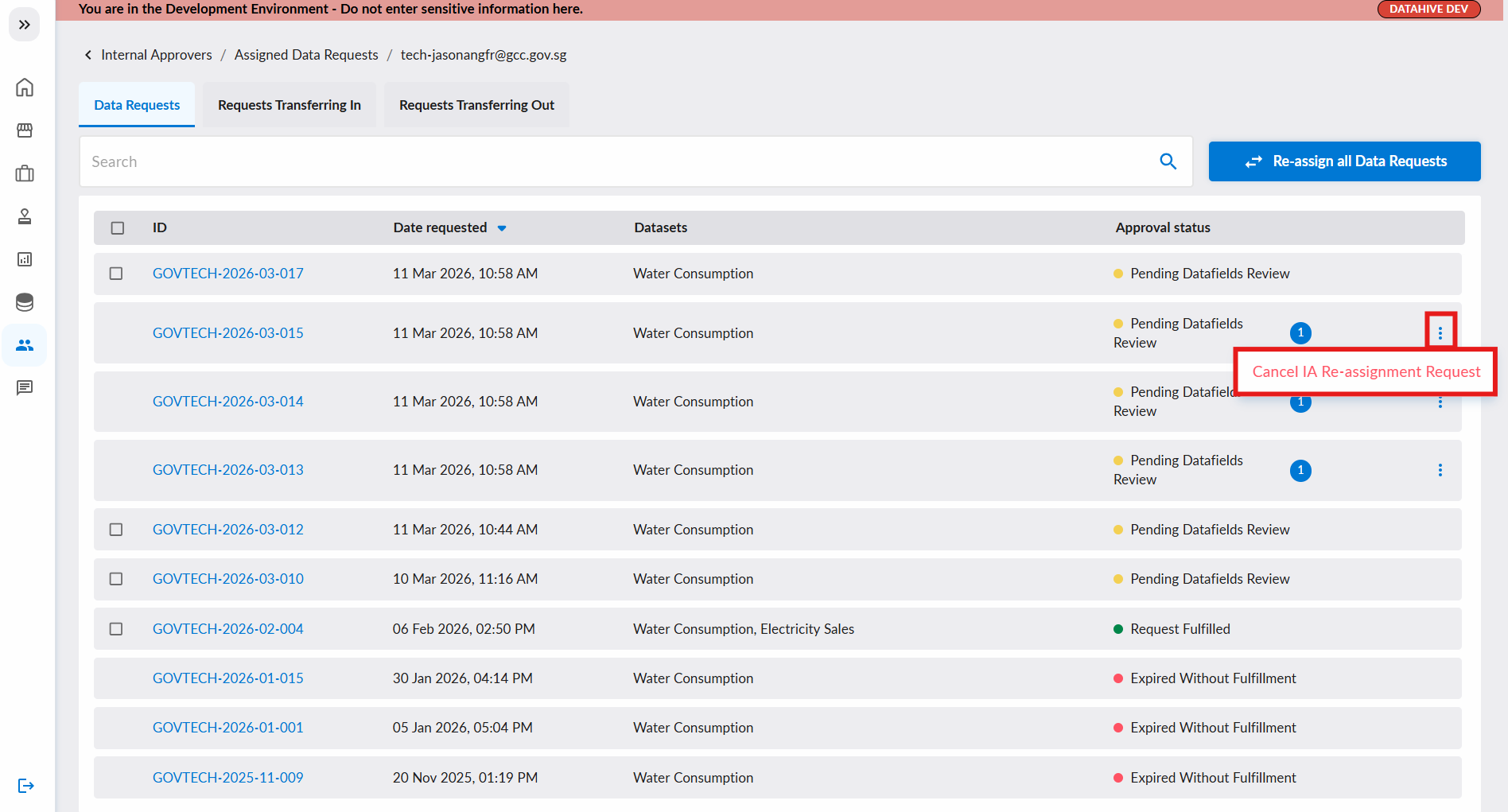
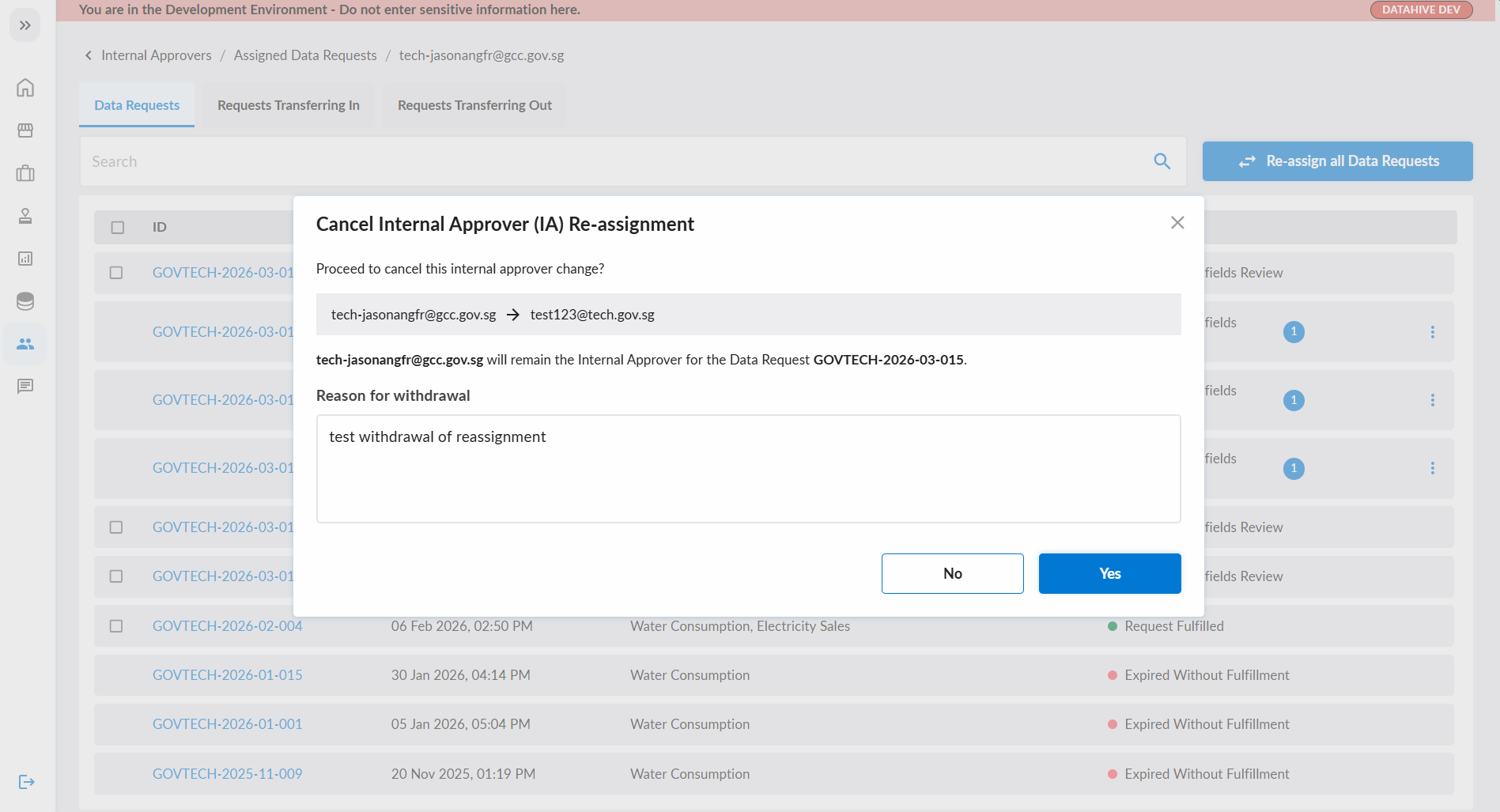
- A confirmation dialog will appear. Provide a reason for the cancellation and click Confirm.
-
The cancellation of an IA re-assignment request only applies to the lone selected Data Request, and not to all selected Data Requests in the case of a bulk IA re-assignment.
-
Only the requestor of the IA re-assignment can cancel the IA re-assignment request.