Managing Tenant Users
Only Tenant Managers can manage users in a Tenant.
Adding Users
You may assign multiple Tenant Managers and Tenant Admins as needed. Please note that a single user cannot hold both roles simultaneously.
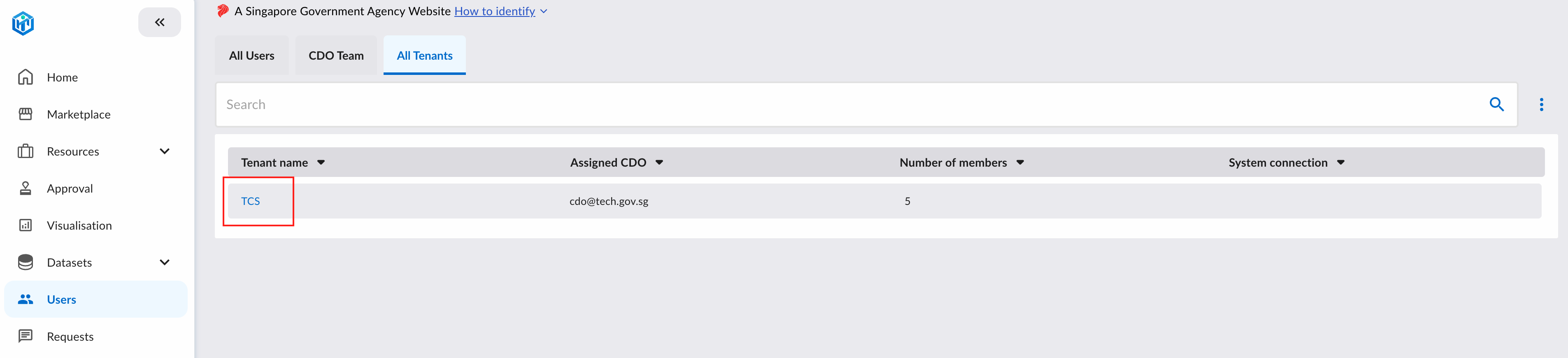
Click on the tenant that you want to add the user into.
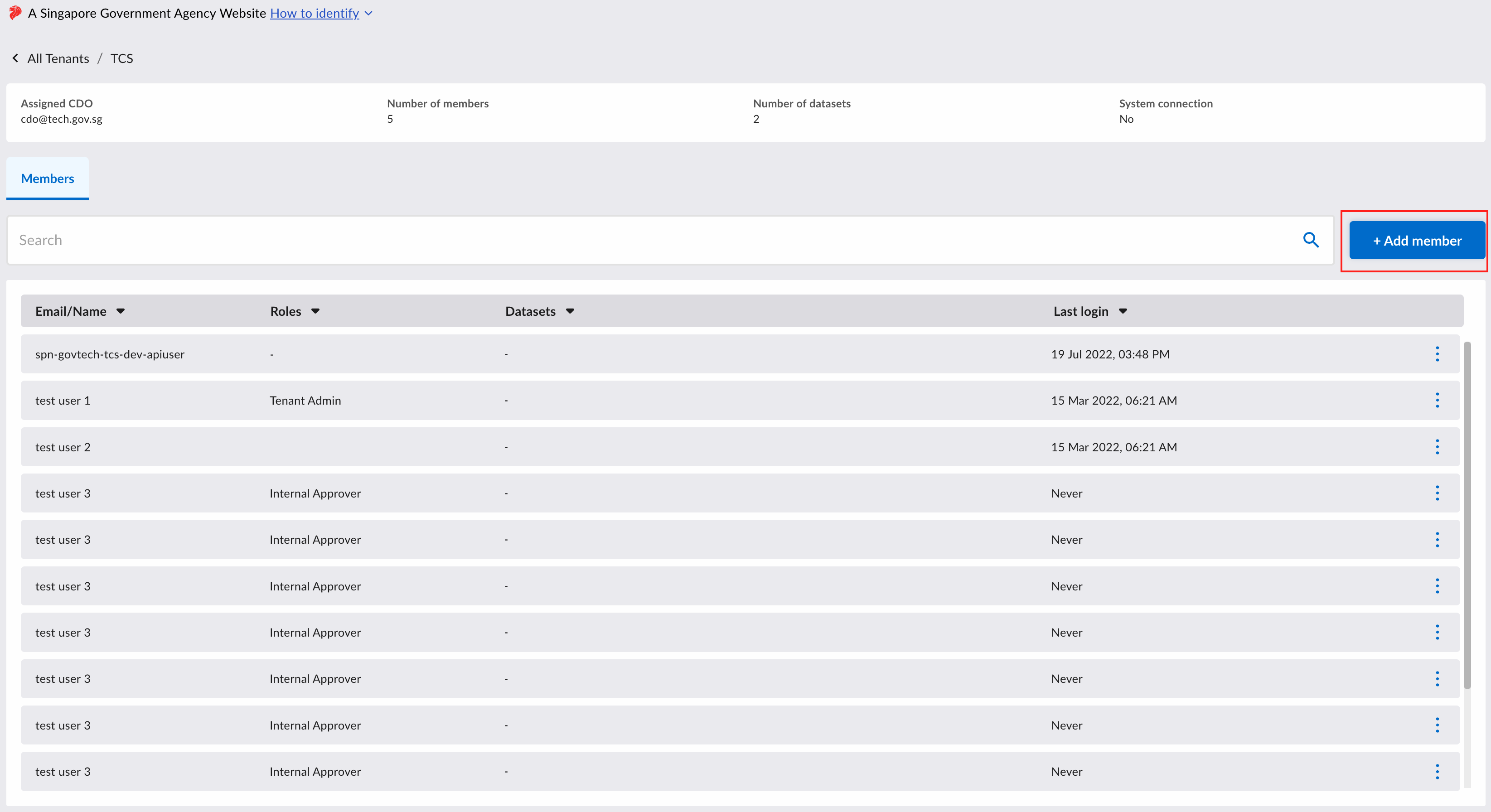
You will be redirected to the tenant page. Then click on the "+ Add Member" button on the top right of the users page.
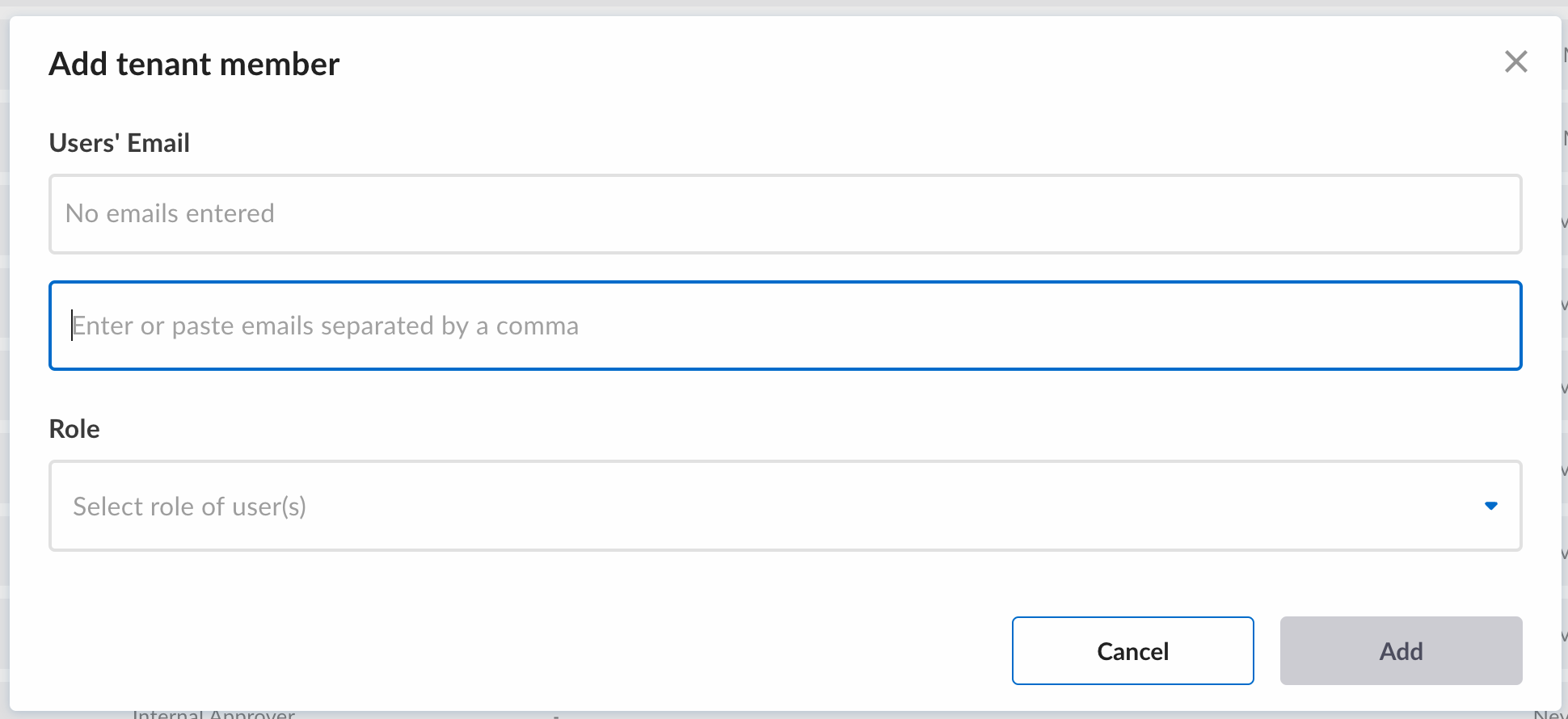
Enter the users’ email addresses, followed by selecting their roles. Once completed, click the “Add” button.
Removing User
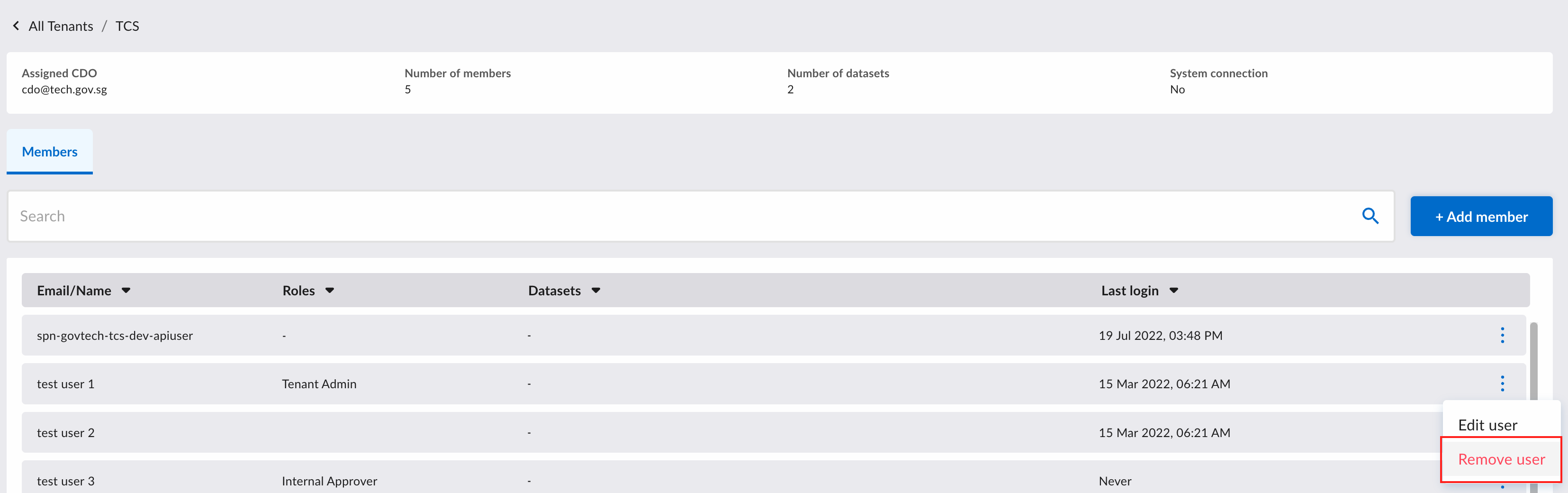
To remove a user from your tenant, navigate to the specific user's row and click the ellipsis on the right. Then, click the "Remove User" button.
Changing Role of User
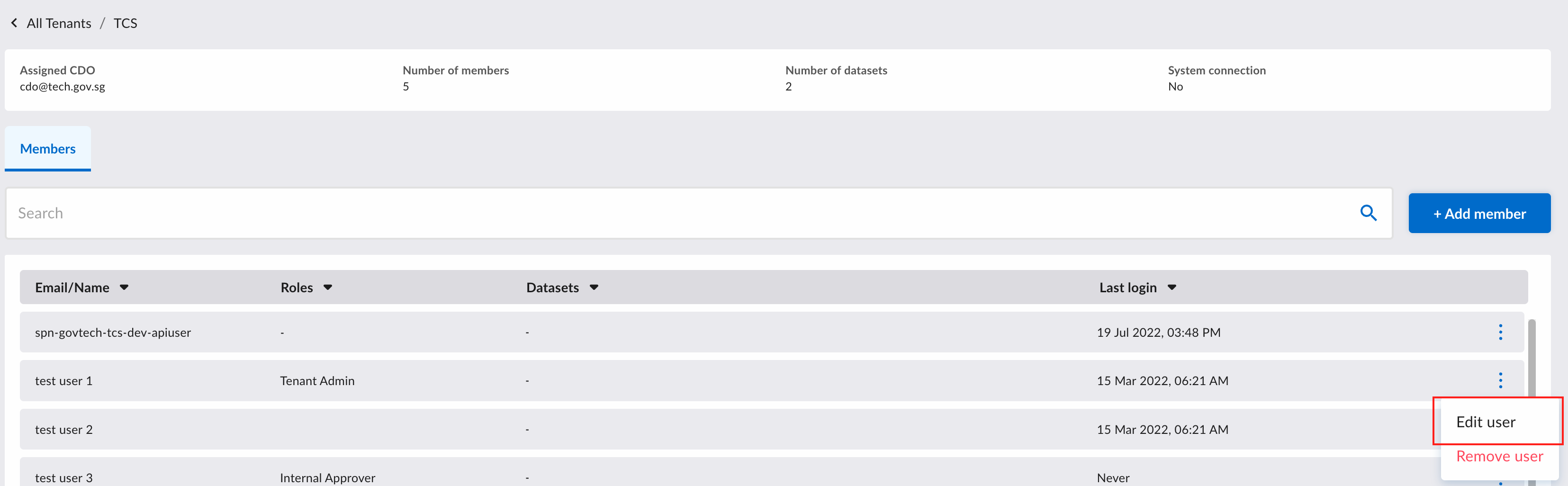
To change the role of a user in your tenant, navigate to the specific user's row and click the ellipsis on the right. Then, click the "Edit User" button.
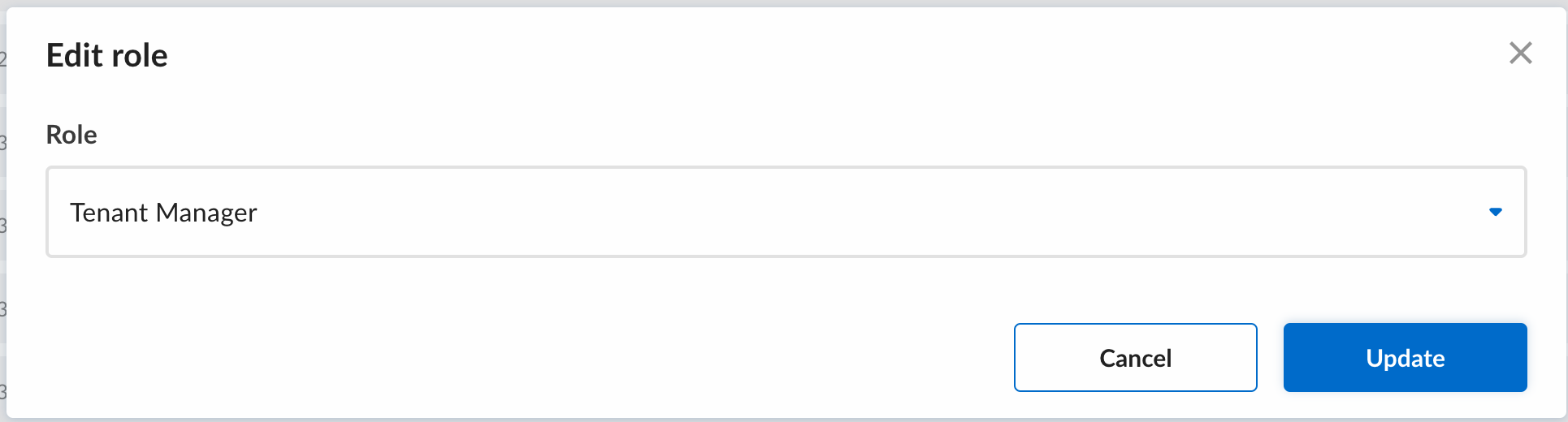
A popup will appear, allowing you to change the role of the user.
Changing Datasets Assigned to Tenant Admin
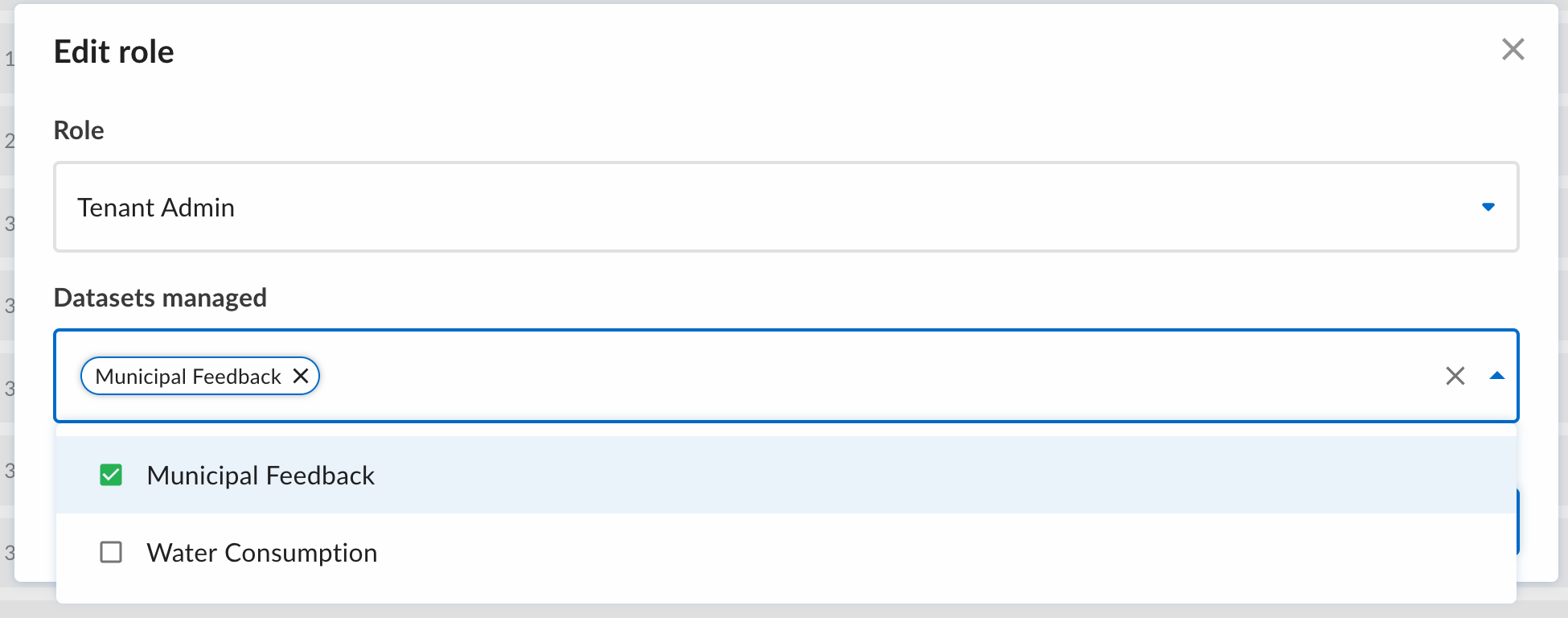
To modify the datasets assigned to the tenant admin, switch the role to tenant admin. Then, choose the datasets for which the tenant admin will be responsible for.