Onboarding an SDP-Connected Tenant
User Role Required: CDO / CDO Team Manager / CDO Team Member
This guide:
- Is for Agencies which have onboarded Standard Data Platform (SDP).
- Walks you through creating a tenant with a SDP system connection on DataHive.
Overview
An SDP-connected tenant is created when the tenant requires a system connection with SDP. Unlike a standard tenant, dataset management for an SDP-connected tenant is handled through SDP rather than directly within DataHive.
If you are looking to create a standard tenant instead, refer to the Creating Tenants guide.
Creating the SDP-Connected Tenant
-
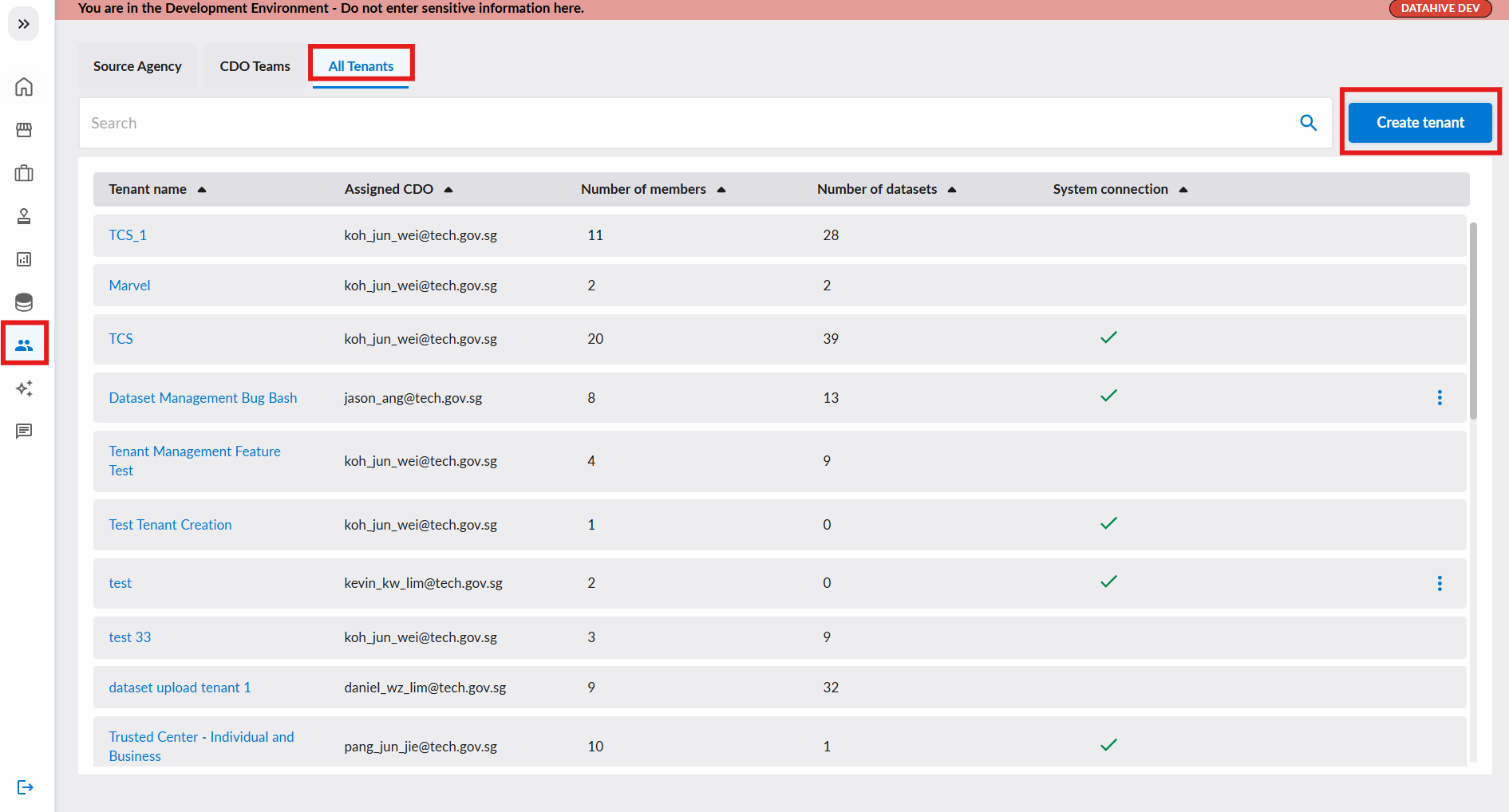
To create a new SDP-connected tenant, start by selecting "Users" from the sidebar to navigate to the "Users" page.
-
Click on the "All Tenants" tab.
-
You can then click on the "Create Tenant" button.
-
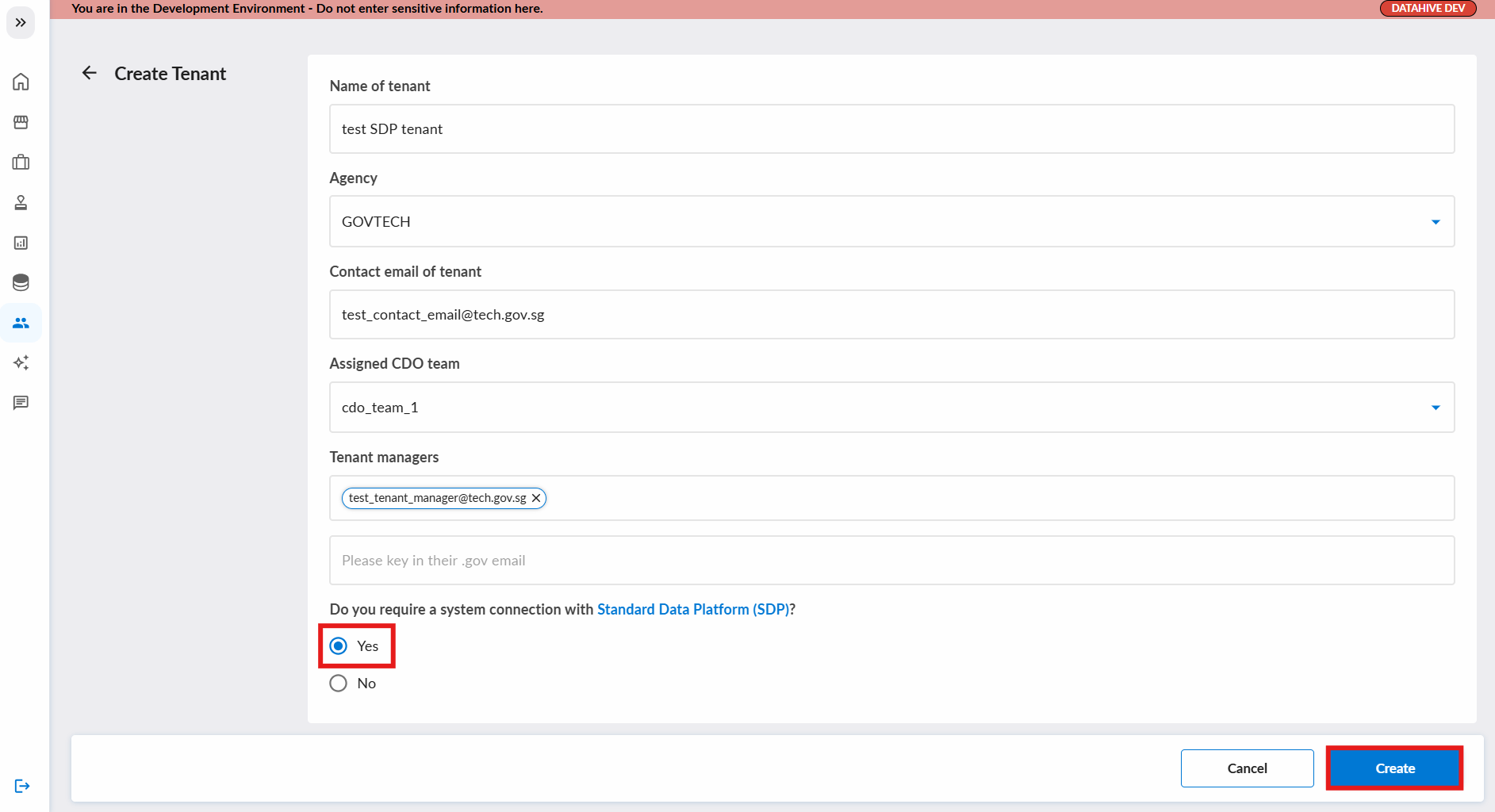
You will be redirected to a form as shown below. Fill up the tenant info accordingly.
-
When prompted "Do you require a system connection with Standard Data Platform (SDP)?", select Yes.
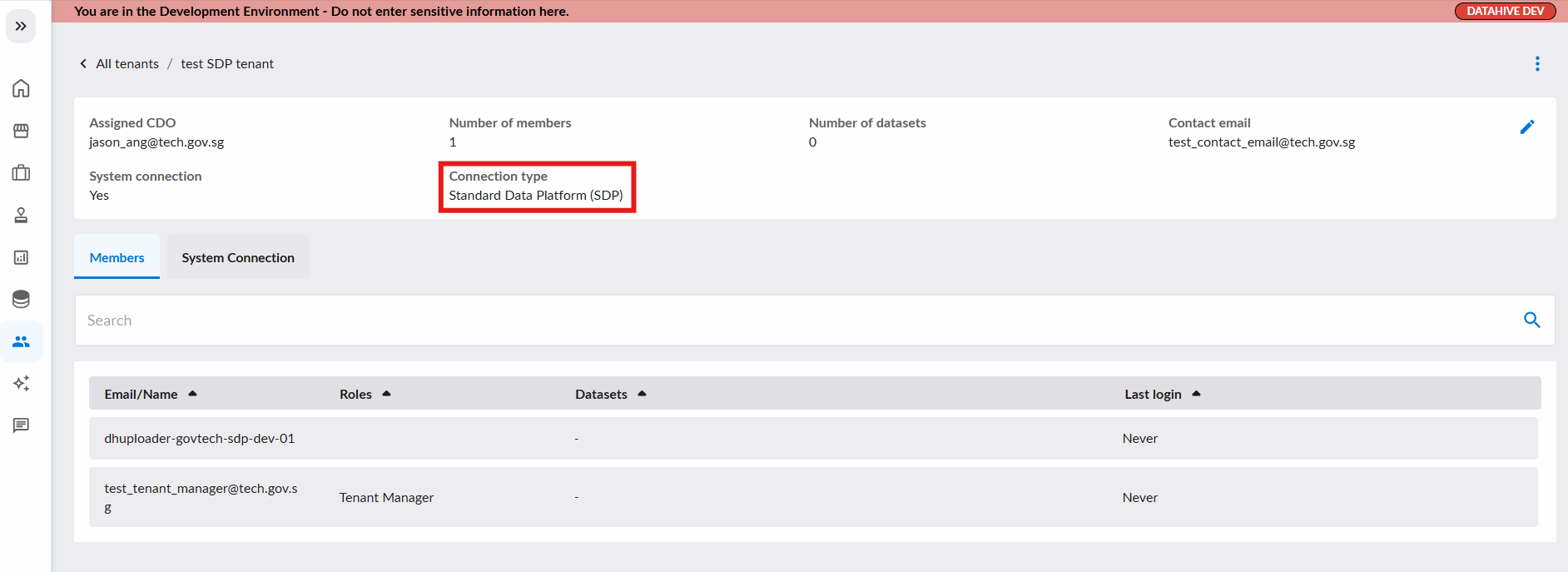
Once the tenant has been successfully created, the tenant detail page displays the connection type as Standard Data Platform (SDP) in the tenant info card.
Dataset Management Restrictions
Since dataset management for SDP-connected tenants is handled by SDP, the following actions are disabled within DataHive:
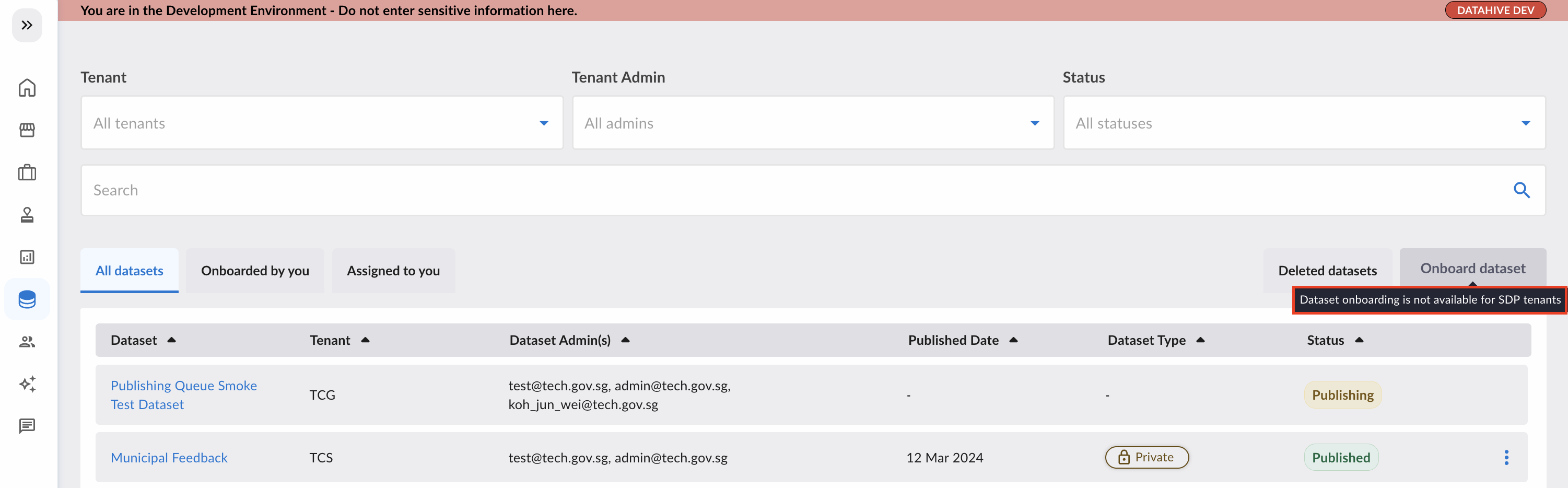
- Onboarding new datasets to an SDP-connected tenant
- Editing / publishing / unpublishing / deleting existing datasets in an SDP-connected tenant
If you attempt to perform these actions, you will see a disabled button or menu item with a tooltip indicating that dataset management is not available for SDP-connected tenants.