Deleting Tenant Users
Only Platform Admins, CDO, CDO Team Managers and CDO Team Members can delete tenants. Only Platform Admins can view deleted tenants.
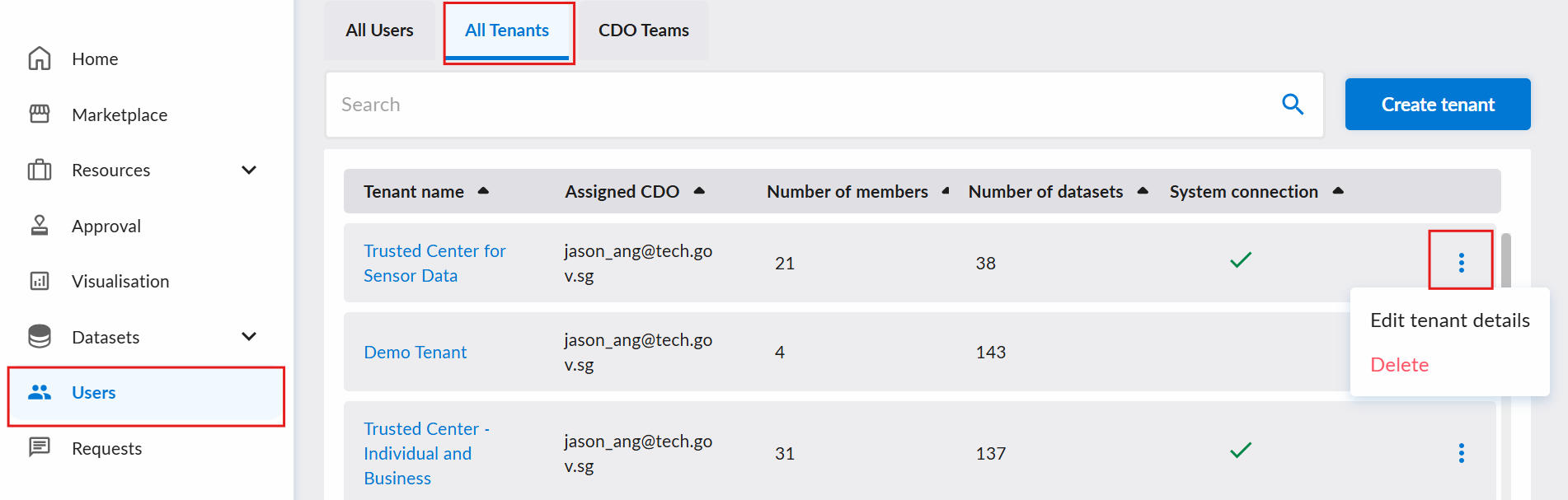
To delete tenant, start by clicking on the "Users" tab. Subsequently click on "All Tenants" and navigate to the specific tenant's row and click the ellipsis on the right.
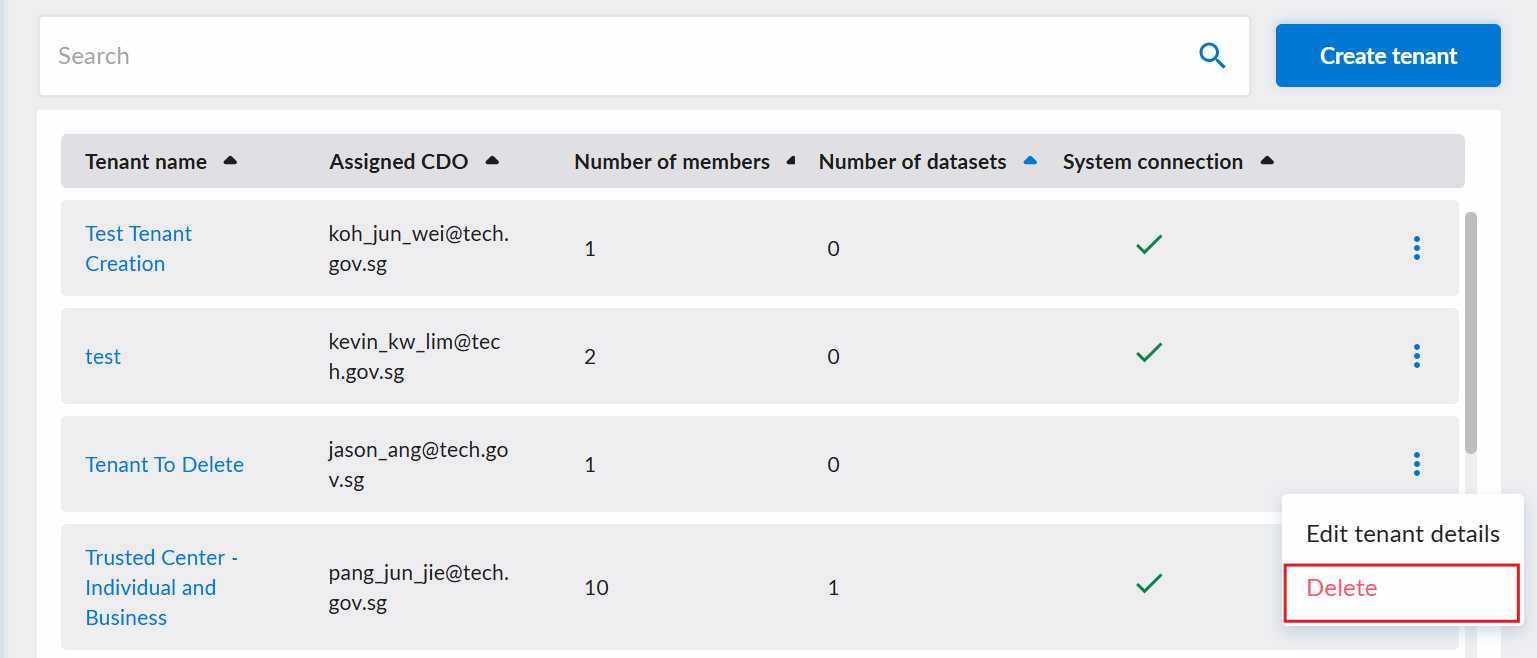
Then, click the "Delete" button.
Deleting a Tenant with a Snowflake Secure Data Sharing connection
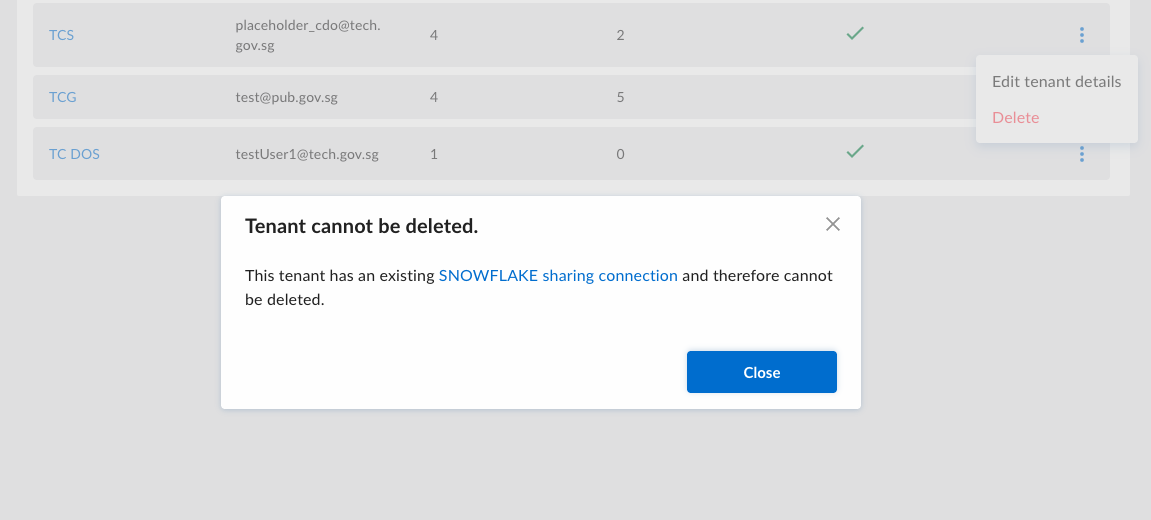
If your tenant has an existing Snowflake Secure Data Sharing system connection, you will not be able to delete the tenant. Contact the platform admin for further steps on how to delete the tenant.
Deleting a Tenant with datasets
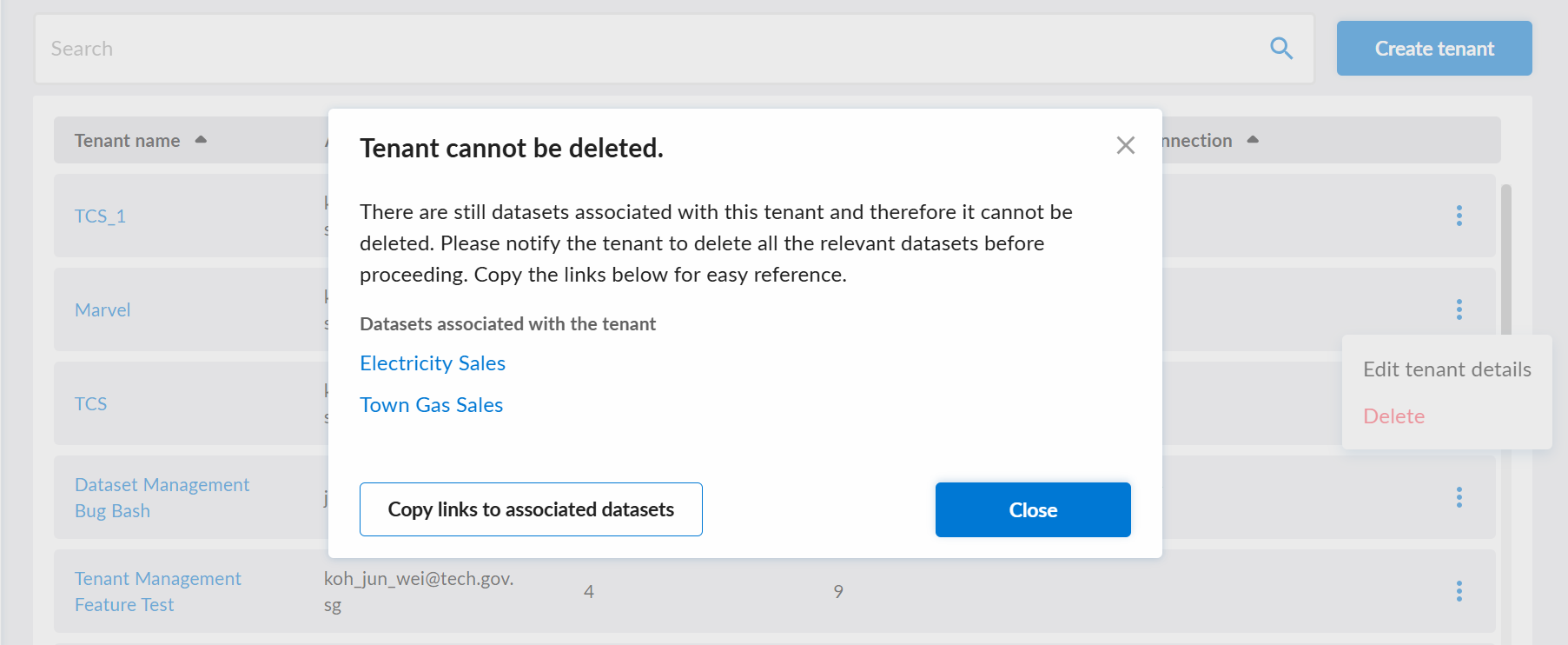
If your tenant has datasets associated with it, you will not be able to delete the tenant. You will need to delete all the datasets associated with the tenant before you can delete the tenant. Copy the links to those datasets, which you can use to contact your tenant admin or managers to delete the datasets.
Deleting a Tenant with no datasets and no Snowflake Secure Data Sharing connection
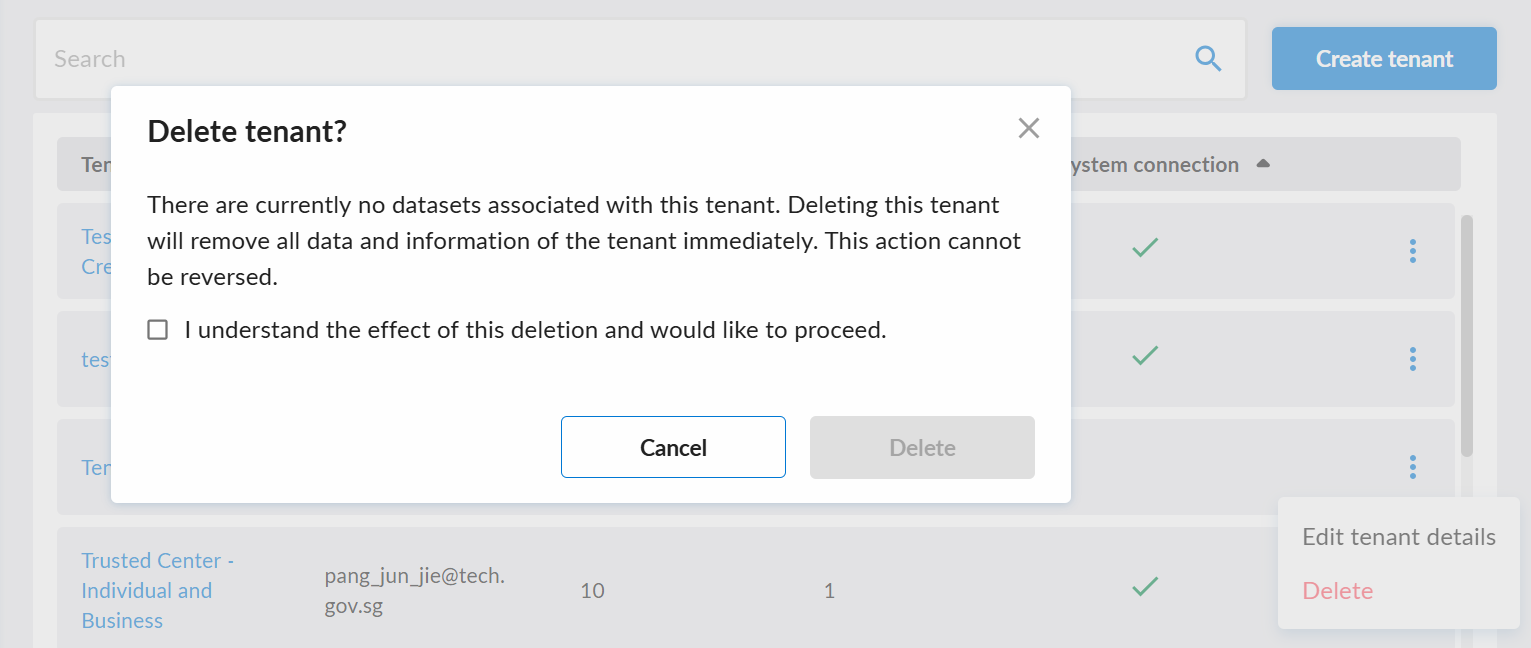
You will then see a dialog box to confirm the deletion of the tenant. To delete the tenant, click on the checkbox and then click on the "Delete" button.