Account Creation
Account Creation Form
To access the account creation form, go to the "Requests" page and access the "Service Principal" tab.
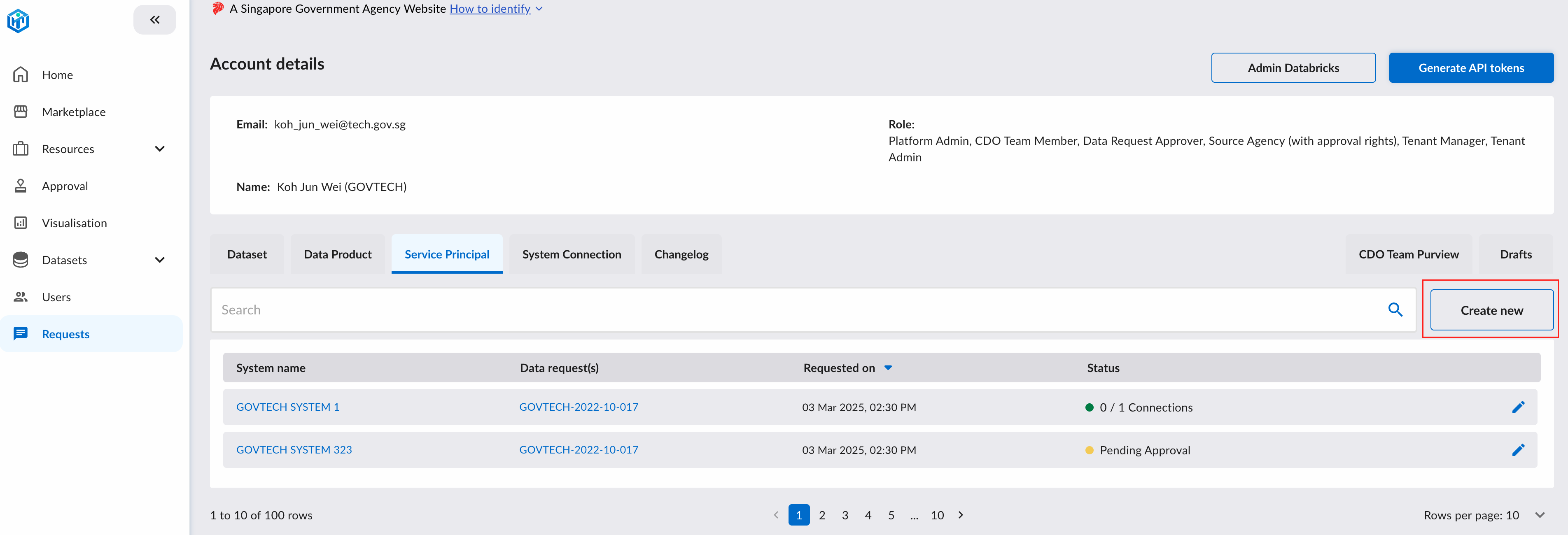
You will be redirected to the account creation form.
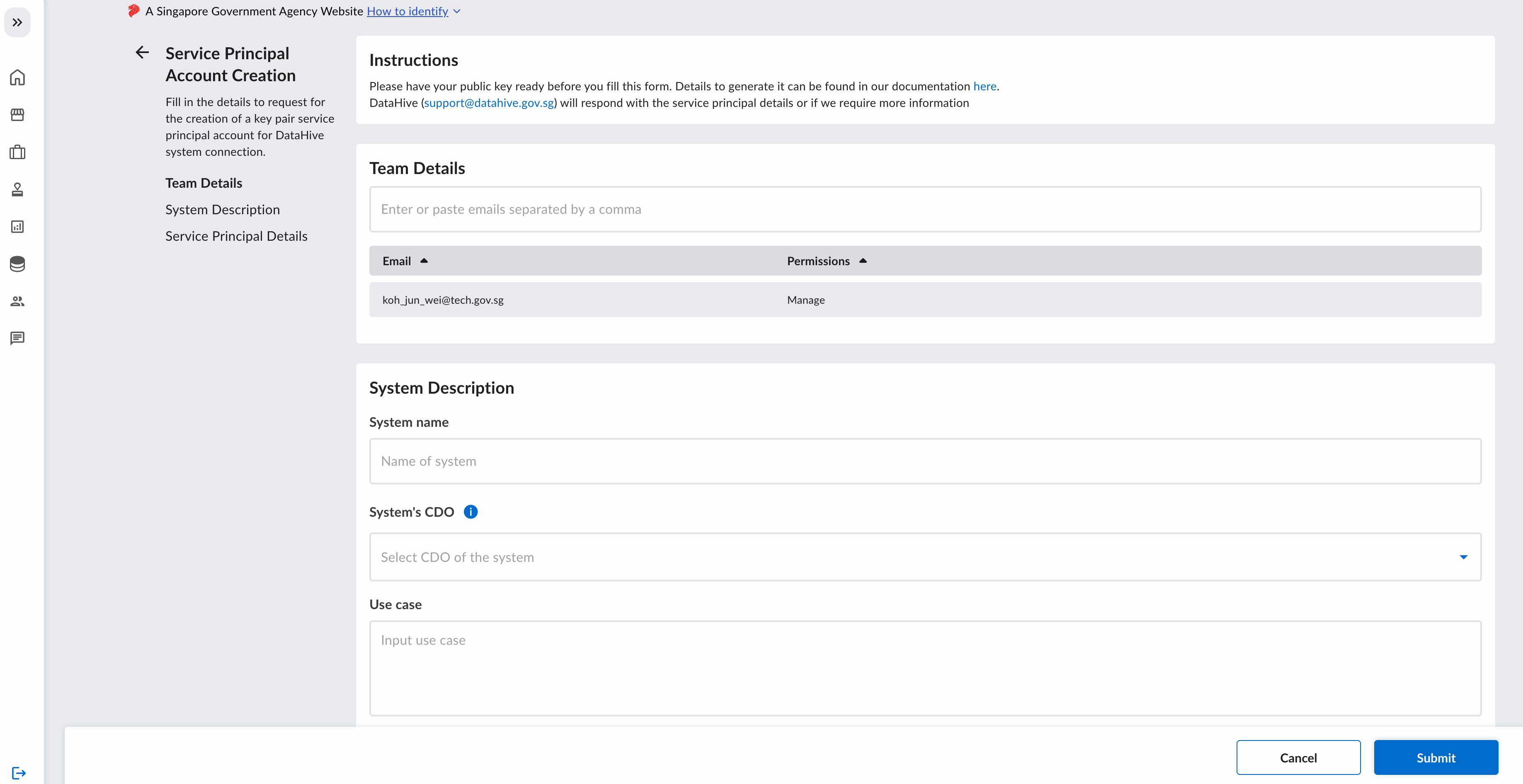
Form Details
Team details
Enter the email of your team that will be required to manage or view this service principal account. There are 2 permissions that they can be assigned to:
| Permissions | Description |
|---|---|
| Read-Only | The user can only read the details of the service principal account. |
| Manage | The user can read and make changes to the service principal account. For example, they can change the system's IP address, public key and request for more connections of the same type. |
Types of System Connections
Currently, there are two types of connections you can set up:
| Type | What it's for |
|---|---|
| Data Request Connection | Lets your system download data from approved Data Requests. |
| Tenant Connection | Lets your system upload files to datasets under a specific Tenant. |
Public Key
A keypair is required to be used as an authentication mechanism for the service principal account.
Only the public key is to be sent to DataHive for the provisioning of the service principal account.
Generate Private Key
To start, open a terminal window. If you are using a Windows machine, open a Git Bash terminal.
To generate an encrypted private key, use the following command and replace <YourPassphraseHere> with a passphrase of your choice. This command will generate a private key rsa_key.p8 in PEM format.
openssl genrsa -aes256 -passout pass:<YourPassphraseHere> -out rsa_key.p8 2048
Generate Public Key
From the command line, generate the public key by referencing the private key. The following command assumes the private key is encrypted and contained in the file named rsa_key.p8. Replace <YourPassphraseHere> with the passphrase you just used for generating your private key. The command generates the public key rsa_key.pub in PEM format.
openssl rsa -in rsa_key.p8 -pubout -out rsa_key.pub -passin pass:<YourPassphraseHere>
Input/Upload this public key into the "Public Key 1" field.