Manage Account
Only users with "Manage" permission can use the features defined below.
Manage access to the service principal account
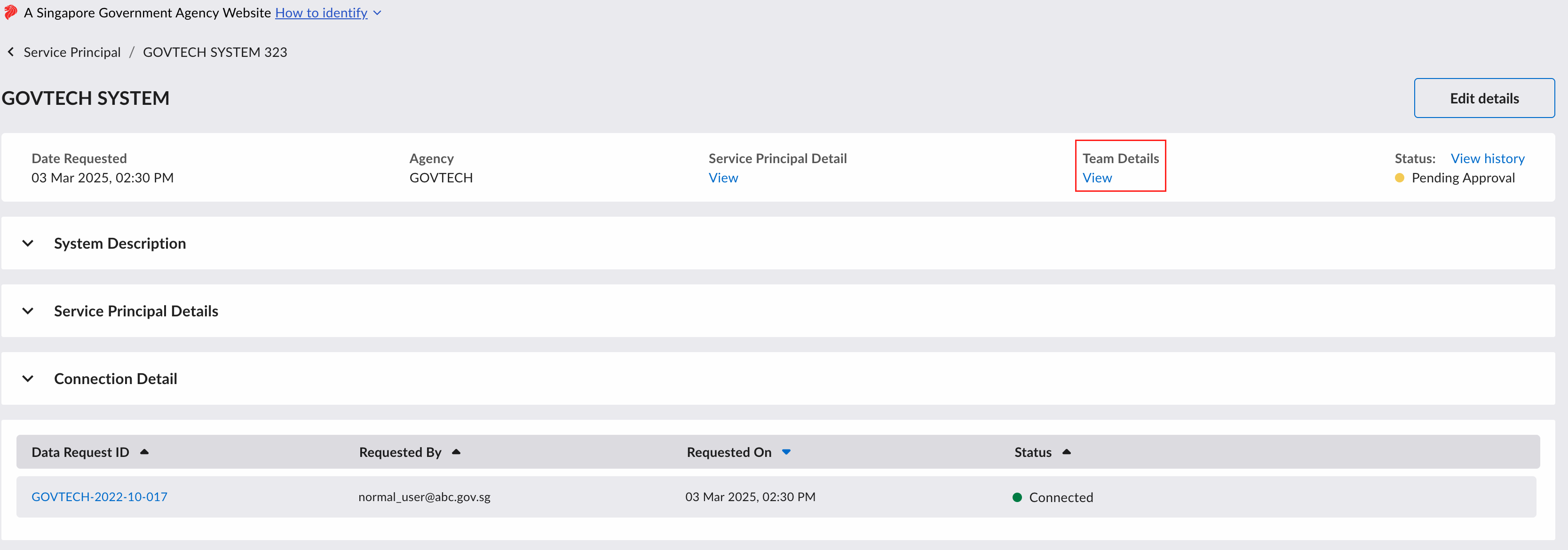
You can manage the access to this service principal account by clicking on the "View" button here:
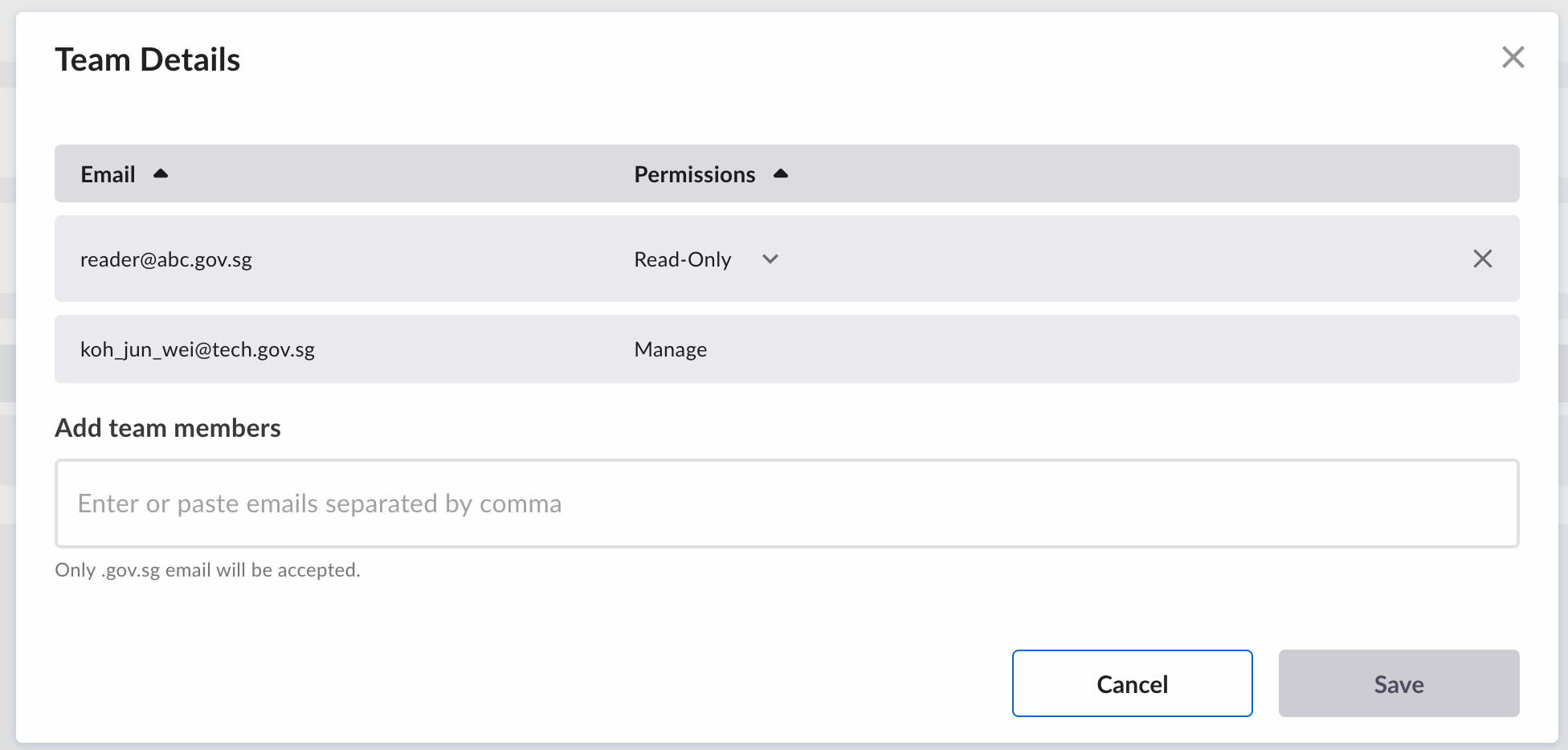
A popup will appear and in the popup, you can add, remove and change the permission of the users here:
Edit account details while pending approval
After the submission of the service principal request, the platform admin will evaluate the request.
If there are missing details, the platform admin will contact you to further furnish the details in the request.
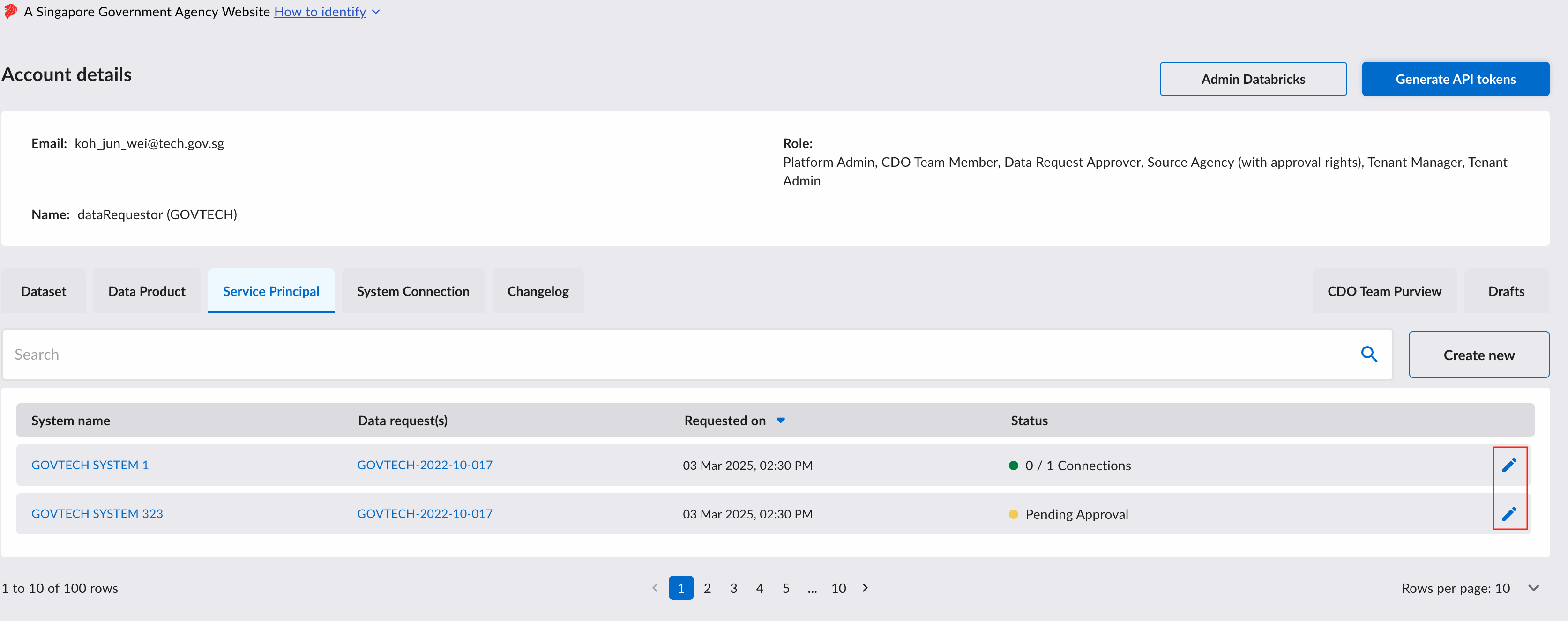
To furnish it, click on the "Edit" icon to edit the request.
Adding more system connections
You can only add additional connections of the same type to an existing Service Principal Account. If you require a different connection type, please request for a new Service Principal Account.
Data Request Connections
To add more data request connections to the account, key in the fulfilled data request ID in the textbox.
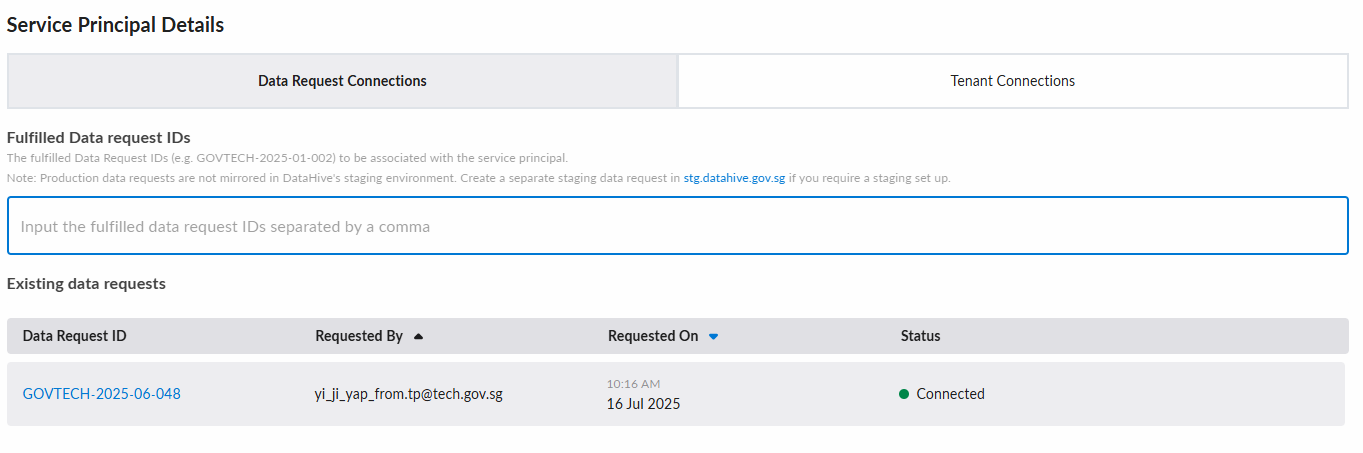
After submission, the data request owners will be notified to review and approve these system connections.
Tenant Connections
To add more tenant connections to the account, select the tenant name from the dropdown.
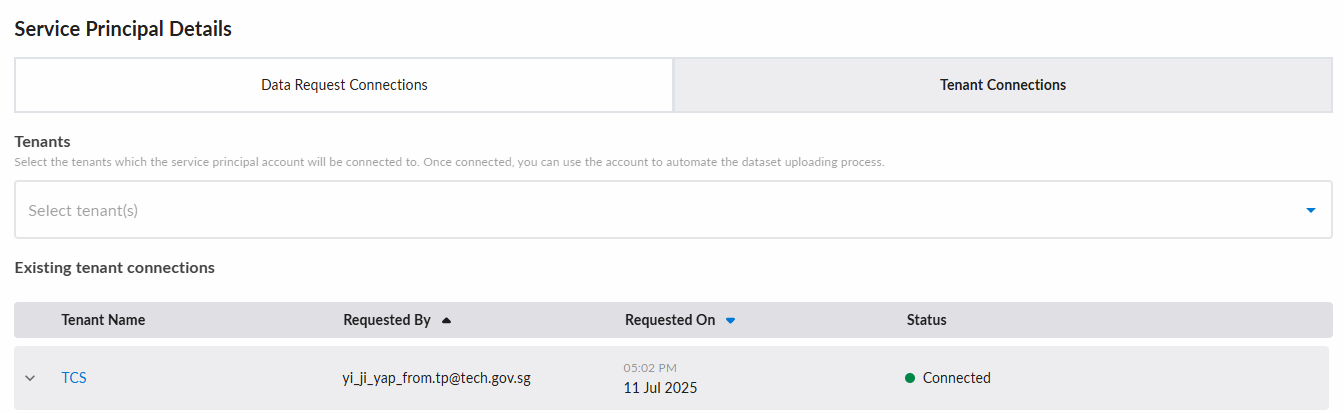
After submission, the Tenant Manager will be notified to review and approve these system connections.
Change IP Address
You can change the IP address that is being whitelisted for your service principal account.
You may enter an individual address (e.g. 10.0.0.1), a range of addresses (e.g. 10.0.0.0-10.0.0.255), or a CIDR block (e.g. 10.0.0.0/24).
Please note the restrictions on the number and origin of the IP addresses:
- Intranet IPs should not exceed 256 IPs and should be in the 10.x.x.x format. Only 10.x.x.x IPs are GEN routable.
- Internet IPs should not exceed 32 IPs and should be of Singapore origin.

Key Rotation
The key will expire after 1 year from the time of creation.
To view the expiry date of the key, go to the service principal detail page and expand the "Service Principal Details" section:
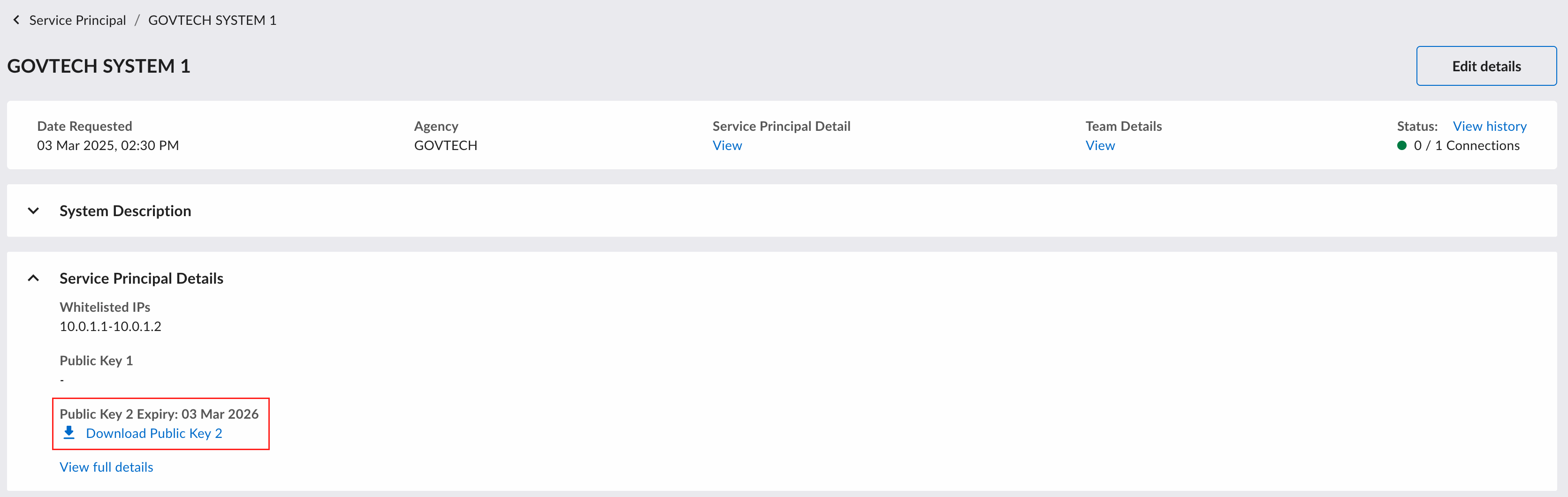
To change public keys used by the service principal, click on the "Edit details" button.
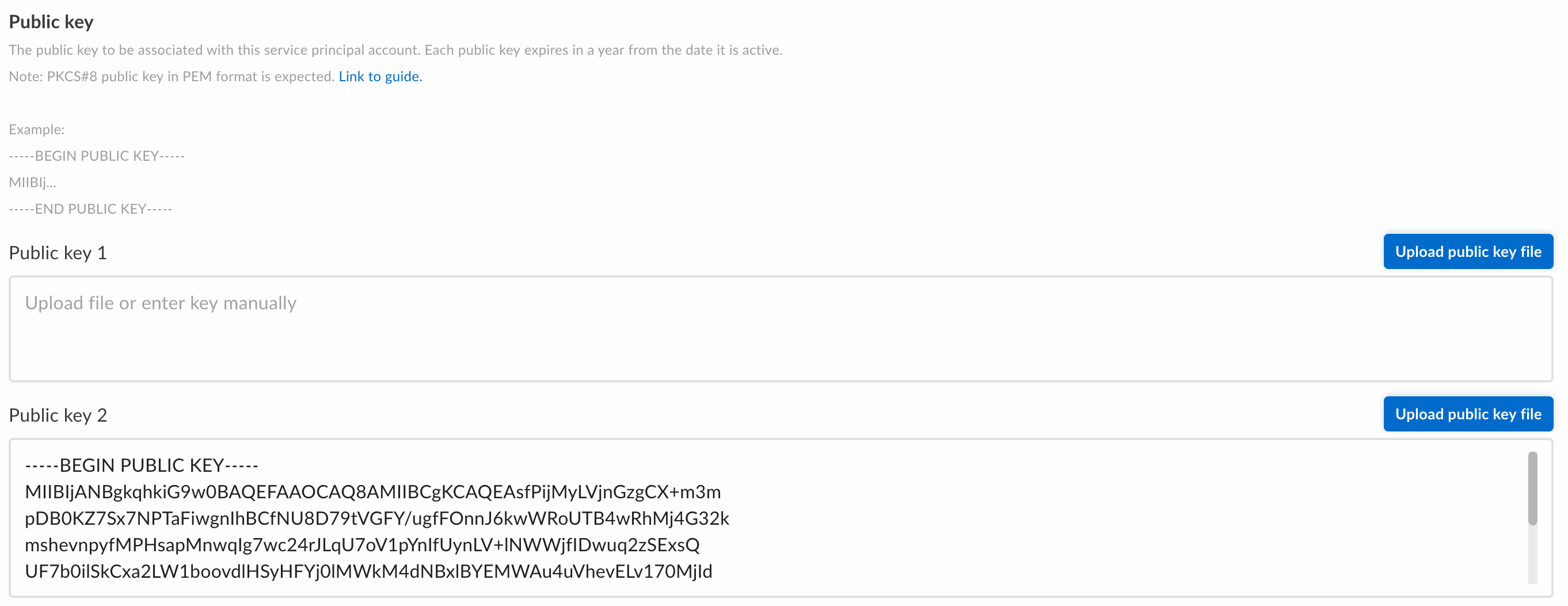
In the "Public key" section, you can provide DataHive with 2 public keys to facilitate key rotation.
Public keys are not allowed to be reused.