DataHive Request Verification for Vault Users
Post-Migration Tasks for Vault users
Background
As of 1 Sep 2024, users with active Vault requests should see that such requests were migrated to DataHive. The requests are moved with the following changes for both Data Providers and Data Consumers (Requestors):
| Old (Vault) | New (DataHive) |
|---|---|
| Request ID (UUID) Example: “req_b51565b6-e394-469b-b85f-9e0118cef98b” | Request ID (Agency-YYYY-MM-XXX) Example: “GOVTECH-2024-04-001” |
| Dataset Name Example: CPF Wage Contribution, 2022 | Dataset Name Example: CPF Wage Contribution (Datasets split by years are now fused) |
| Dataset ID Example: “data_3895f80d-521c-421b-abd1-459687ebca1a” | Dataset ID Example: “D36” |
| Dataset Owner | Tenant Admin |
| Request subscribed to both identified and de-identified fields in the same request | Request is now split into 2 DH requests (i.e. one with identified fields, another with de-identified fields) |
Verification Actions - Users as Data Consumers
Users can use the following parameters to verify or check that their request(s) are present on their Requests page (link, or see Annex A for step-by-step instructions):
| Old (Vault) | New (DataHive) |
|---|---|
| Request Owner | Request Owner |
| Request Admin / Endorser | Internal Approver (IA)1 If the IA (Vault request admin/designated endorser) was not set at Director-level and above, please fix this by following instructions in Para 6(d), or else raise the Data Request again to an appropriate IA for re-approval, and indicate that data requirements have not changed and request is re-submitted only to seek approval from the relevant approver/CDO-delegate. |
| Team Members | Team Members (You may also add/remove new ones, see link) |
| Subset Filter | Scope |
| Data Requests containing both identified & de-identified for same identifier field (e.g. UEN, UEN_identified) | Data Request is split into 2 requests (identified & de-identified). Request Owner can let team members in each Data Request access either the identified or de-identified version of the same table. |
Users can refer to the following parameters to verify the Data Request Details for all visible requests (or see Annex B instructions on how to view these):
| Field in DataHive form | Verification Details |
|---|---|
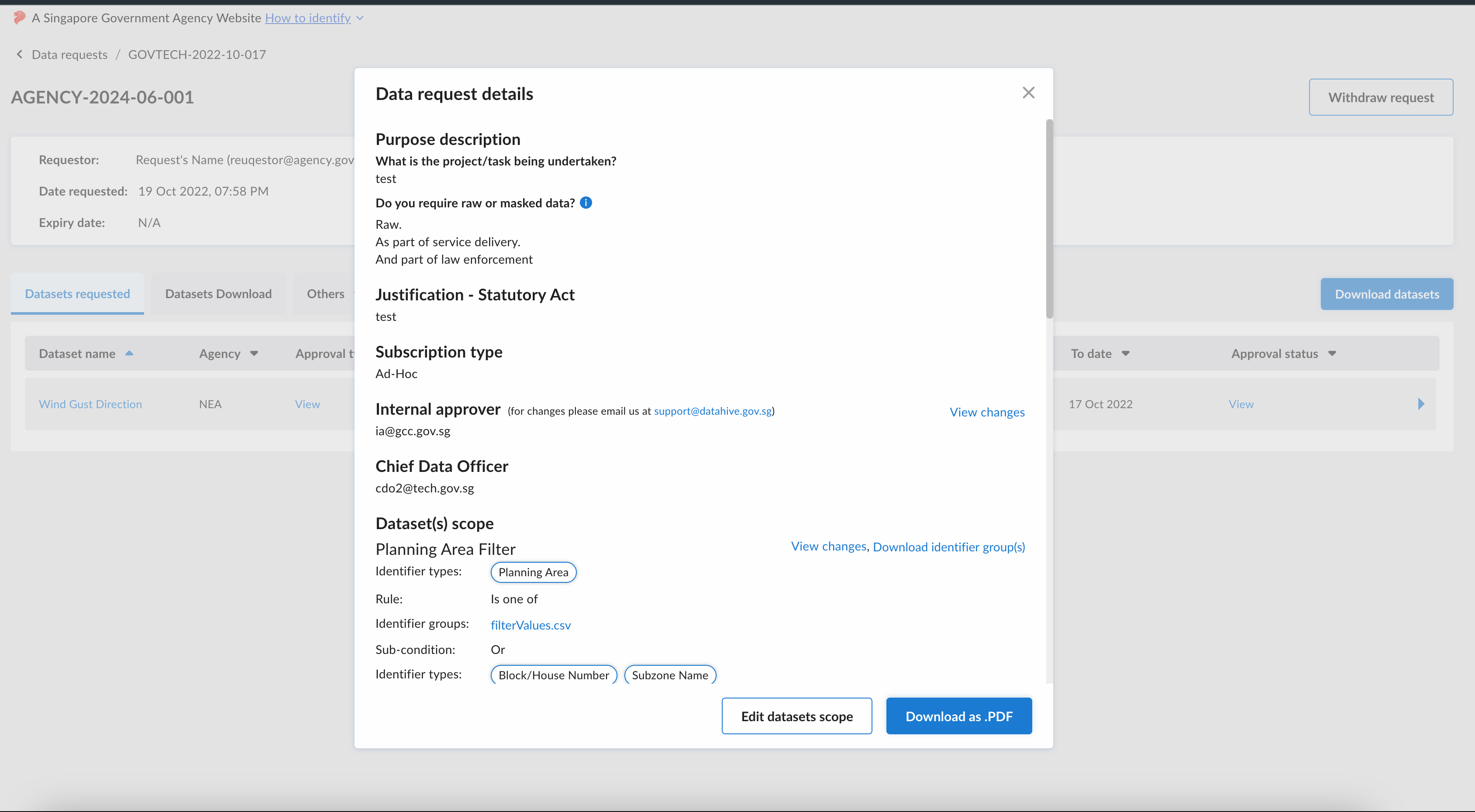
| Purpose Description | The original Vault request details should be listed here, including:
|
| Request Expiry Date | Same as original Vault Request Expiry Date |
| Team Details | Same as team members in original Vault request |
| Subscription Type | Set as either:
|
| Scope (if any) | Only applicable if original Vault request had specified a “subset” filter (see link) against the requested datasets containing either UIN or UEN field across the request |
Verification Actions - Data Providers
Data Providers can use the following parameters to check or verify that the subscriptions to their datasets are tagged correctly:
| Old (Vault) | New (DataHive) |
|---|---|
| Vault Request ID | DataHive Request ID |
| Datafields subscribed are based on old schema in Vault | Datafields subscribed are based on new schema in DataHive |
| No Date Range set for data, or datasets were split by dates (i.e. CPF Wage Contribution 2022) | Date Range (from/to date): (i.e. 2022-01 to 2022-12) |
| Dataset Scope (if any) | Check whether scope filters are re-applied correctly: (i.e. UIN/UEN) Data request with this dataset “Unified Mapping Table for Fusion of De-Identified/Masked Data” with Off-Platform Data will all have scope: RequestMappingKey = “PENDING” |
| Data Requests containing both identified & de-identified for same field (e.g. UEN, UEN_identified) | There should be 2 DH requests (identified & de-identified version) for every Vault request that falls under such condition. |
Follow-up Actions
Users who have verified their request was ported successfully can prepare their data for download by referring to Access Data upon Approval | DataHive Docs.
Missing, Incomplete or Invalid Requests
Please contact support@datahive.gov.sg if you encounter these scenarios:
| S/N | Scenario | Info to provide for follow-ups |
|---|---|---|
| (a) | Your data request is missing or not migrated correctly (Note: You must be an authorized user to gain access to the Data Request) |
|
| (b) | You cannot access your requests’ data (per para 5) |
|
| (c) | Your original requestor (request owner) have left your agency | Refer to guide, Internal Approver can reassign new request owner and add new team members. |
| (d) | Your Internal Approver (Vault: Endorser) has left your agency OR Your Internal Approver (Vault: Endorser) was not set at Director-level or above |
|
| (e) | You encounter any other technical difficulties |
|
Annex A - Check for your Data Request on the “Request” page
-
Sign in to DataHive at https://datahive.gov.sg
-
Look for “Requests” icon on side bar.
-
Click on available Data Request ID(s) (e.g. GOVTECH-2022-10-017).
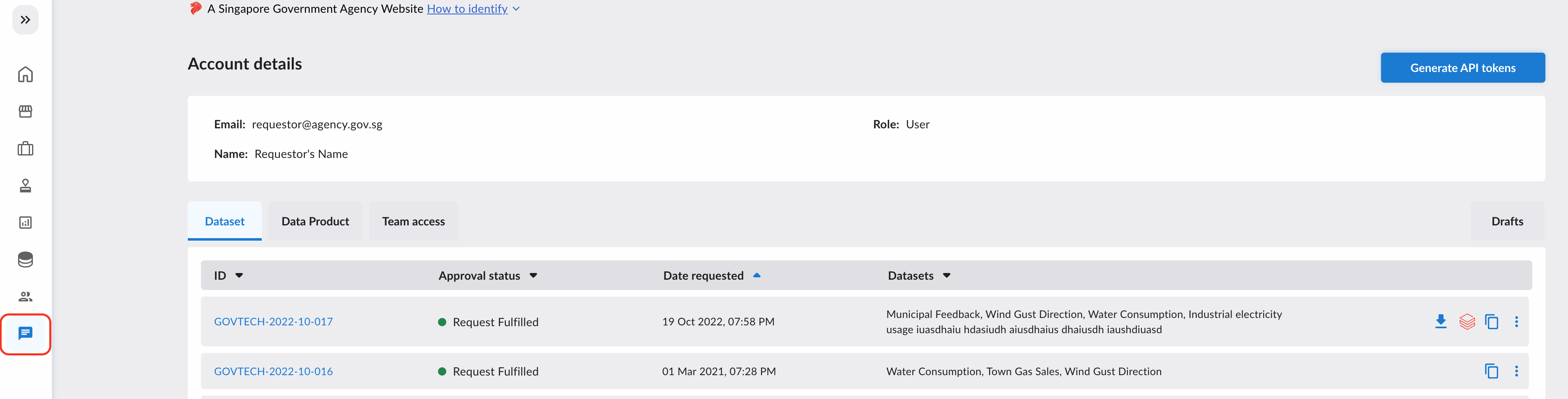
-
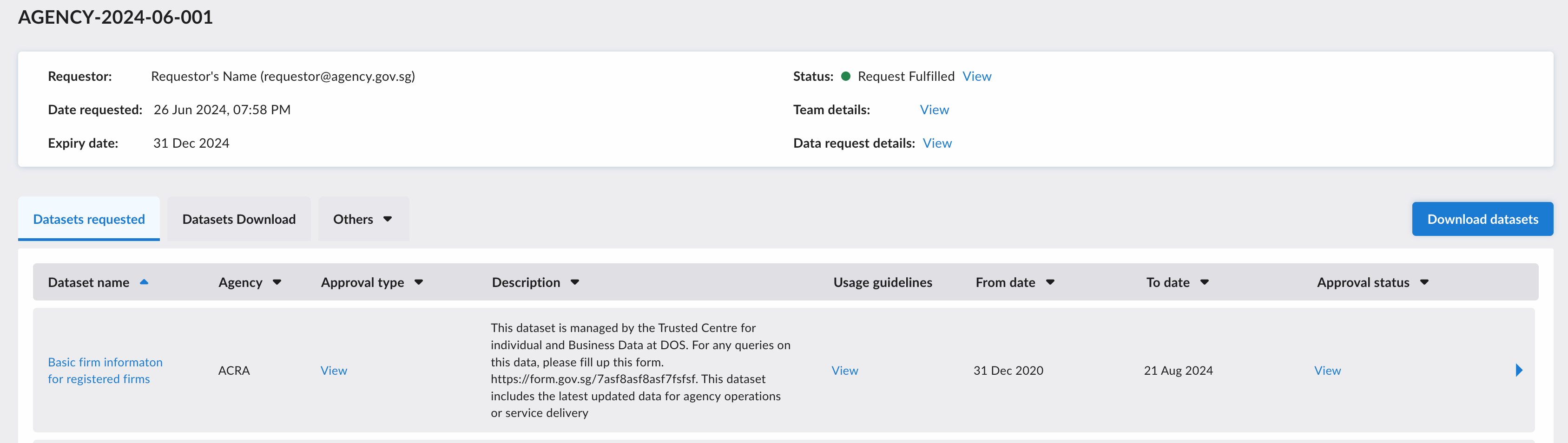
Arrive at individual Request Details page.
Annex B - Request page Information
-
Sign in to DataHive at https://datahive.gov.sg and follow steps in Annex A to reach the individual Request Details page.
-
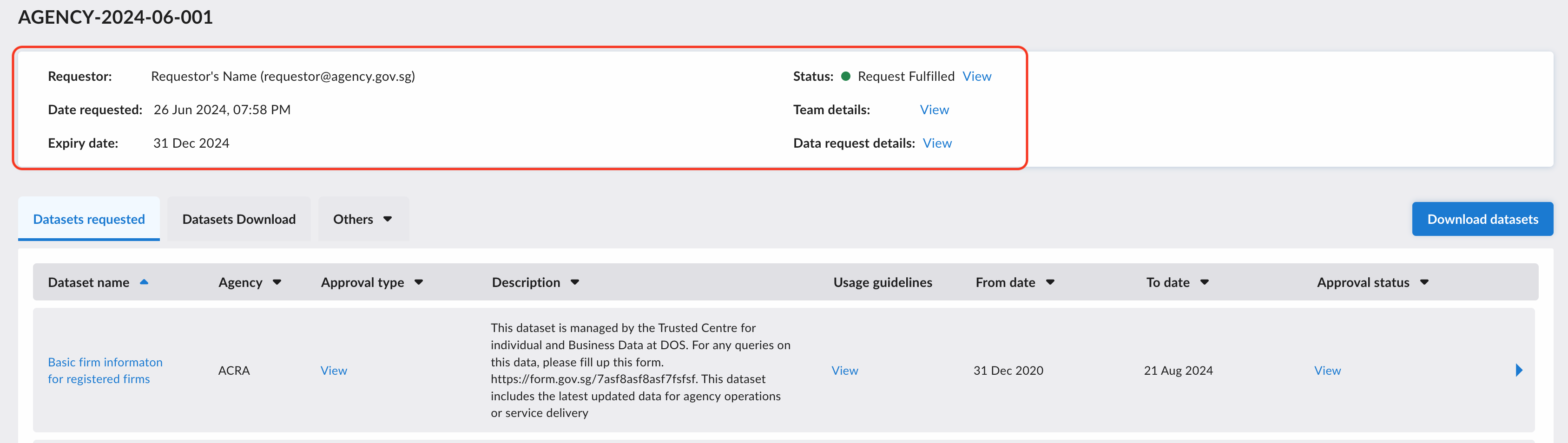
Check requestor information, expiry, status.
-
Click on View Team detail to see authorised team members.
-
Click on View Status to see Approvals.
-
Click on View Data request details to see request related information, along with vault request id.
Annex C - Retrieving your Vault Request ID
- Sign in to Vault at https://vault.gov.sg
- Look for the “Requests” tab.
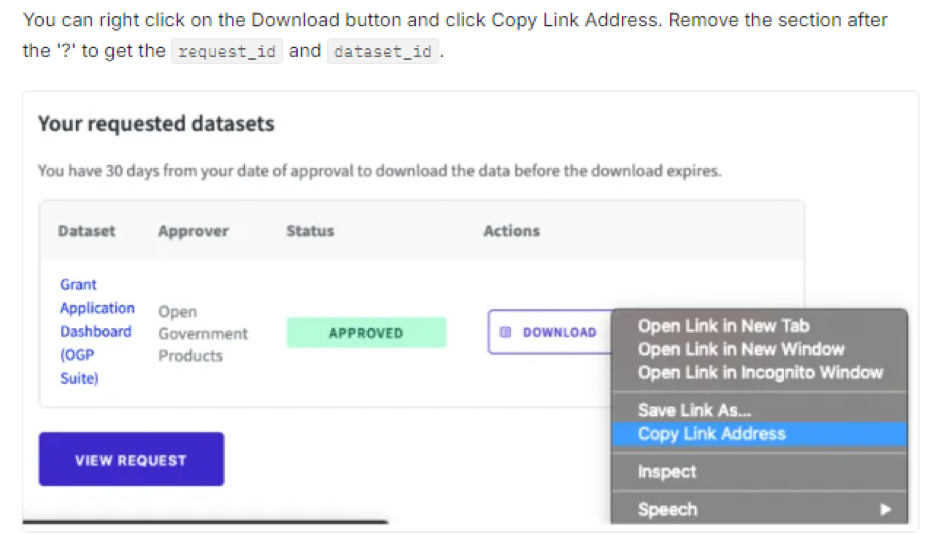
- Follow the steps here to get the Vault Request ID for your Data Request
Footnotes
-
Roles in DataHive are described here: User Roles | DataHive Docs. DH’s “Internal Approver” (IA) role approves outgoing Data Requests being submitted by their Agency’s requestor. This IA must be a Dir-level (or equivalent) (i.e. CIO / CDO / CDSO / Dir-level) according to the IM8/Data/Data-Access-and-Distribution Cl 2.2: Standardised Terms of Sharing (STS) and Standardised Data Sharing Form (SDSF) ↩