Sign In
How does DataHive authenticate users?
DataHive uses WOG Entra ID to authenticate users.
It is my first time signing into WOG Entra ID. What are the steps I need to take?
If you are not in an existing WOG Entra ID group that requires MFA, then you will proceed with the sign in automatically using your SOE ID.
However, if you are in an existing WOG Entra ID group that requires MFA, then you may need to take the following steps.
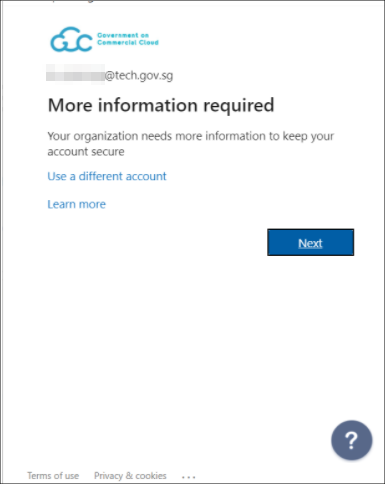
When the sign in button is clicked, you will be redirected to a page as shown below. Click "Next" to continue with the setup.
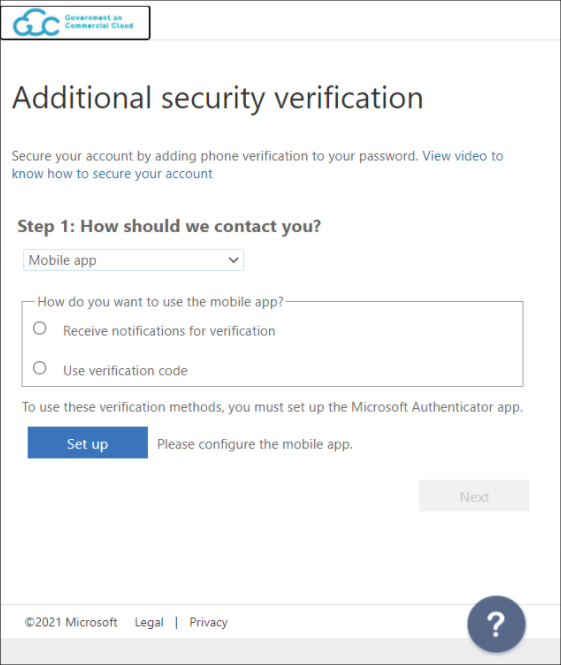
Select the first method of verification and click 'Set up' to begin setting up the Microsoft Authenticator app.
Then follow the steps here to set up Microsoft Authenticator on your mobile phone.
How do I transfer the Microsoft Authenticator account from my old device to my new device?
Visit https://aka.ms/mfasetup via SOE Device (internet-usable, phone/ipad/laptop) through a Web Browser.
If prompted to sign in, proceed to sign in with 2FA using your old device.
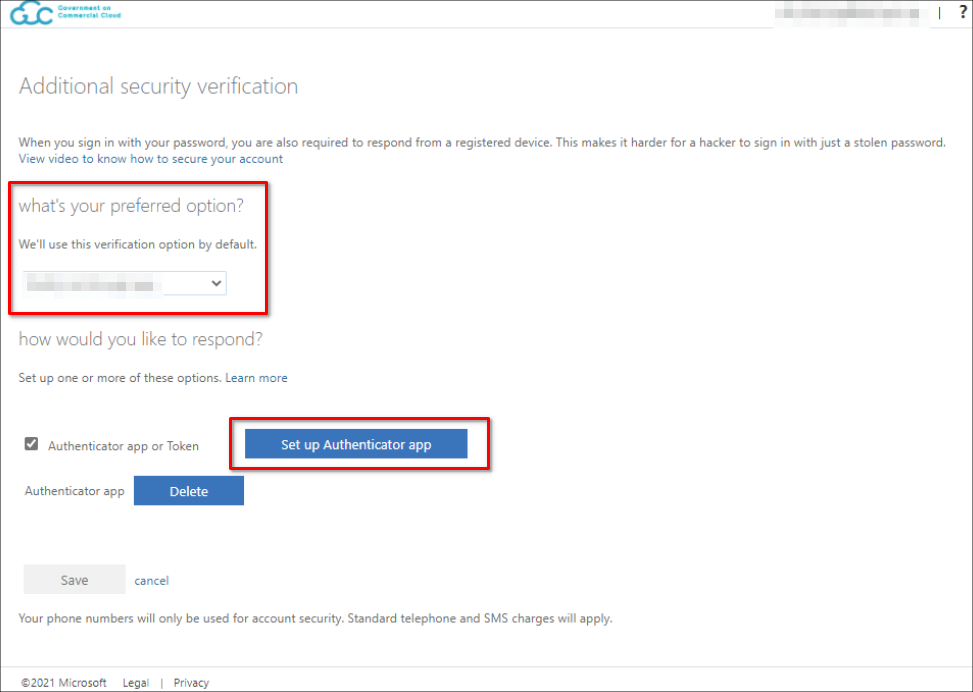
Once signed in, you will be redirected to the page shown below. Under "Preferred option", select "Use verification code from app or token" and click on "Set up Authenticator app".
Then follow the steps here to set up Microsoft Authenticator on your mobile phone.
How do I set up Microsoft Authenticator on my mobile device?
Download the app from Apple Store or Google Play Store.
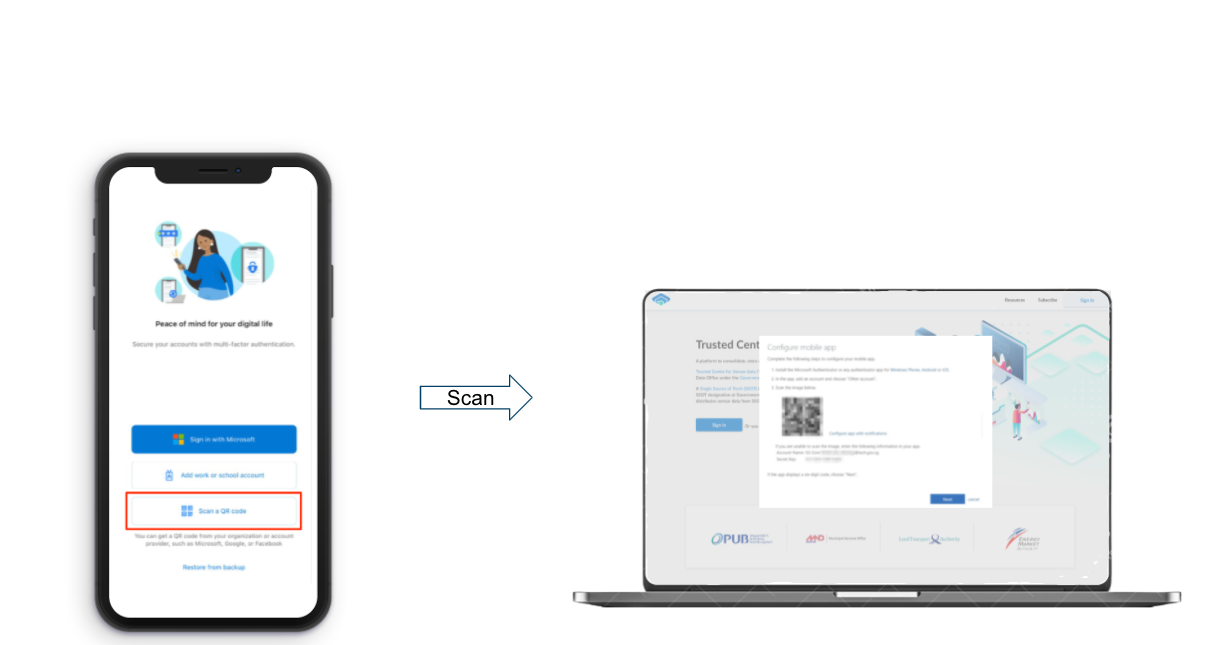
After downloading, open the app and select the "Scan a QR code" option.
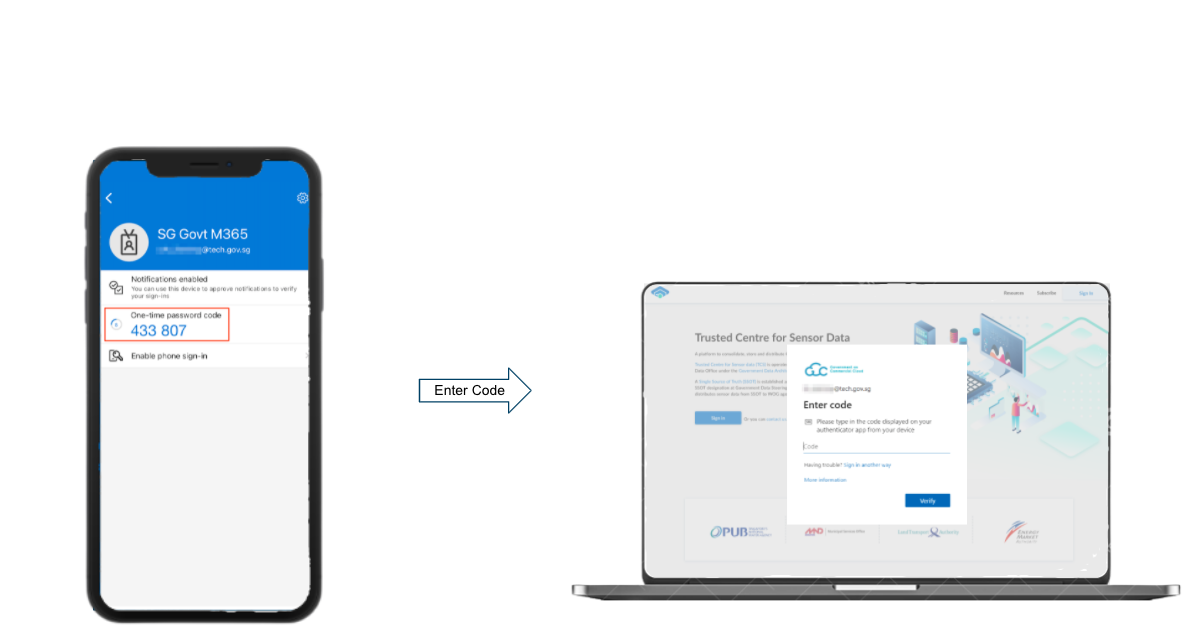
After the Microsoft Authenticator has been set up, and for subsequent logins, users will be prompted for a passcode for 2FA verification. Simply key in the code when signing in.
I have lost access to my device's Microsoft Authenticator. How can I recover my account?
You can email your agency's AFM to request for a Microsoft Authenticator account reset. If you are not able to contact your agency's AFM, you can contact afm_ncs_servicedesk@support.gov.sg instead.
Lastly, if the above does not work for you, you can email us at support@datahive.gov.sg.