Tutorial: Geospatial Usage
Geospatial libraries such as geopandas, shapely and fiona are available for working with spatial data and operations in Python. One way to work with spatial data in Databricks is to wrap functions from those libraries in an user-defined function in Spark.
However, to make full use of Spark's distributed computing capabilities, we can also use Apache Sedona, which is an extension providing PostGIS functionality to Apache Spark.
Tutorial notebook
This notebook demonstrates the use of OneMap, Apache Sedona, geopandas and folium on DataHive Databricks with a sample geospatial problem statement on lta_taxi data.
The tutorial goes over the following:
- Querying OneMap for location data
- Creating a 200m buffer with coordinate transformations and dissolving the points
- Load dataset, filter spatially and temporally
- Visualise with heatmap in
folium - Plot pickup and drop-off counts within buffered region over time
Registering Apache Sedona
To register Apache Sedona functions in Databricks, use the following 2 lines:
from datahive.geospatial import register_sedona
register_sedona()
Registration is only required when using the Apache Sedona Python API (e.g. GeoDataFrame.pipe(spark.createDataFrame)).
All the Apache Sedona ST_* SQL functions have already been pre-registered via cluster init-scripts.
Create custom GeoJSON and import into Databricks
In addition to querying points and creating buffers as shown in the tutorial, you can use geojson.io to manually define an area of interest on the map. The JSON in the text box can be copied into the Databricks UI for import as a Spark DataFrame using the DataHive SDK.
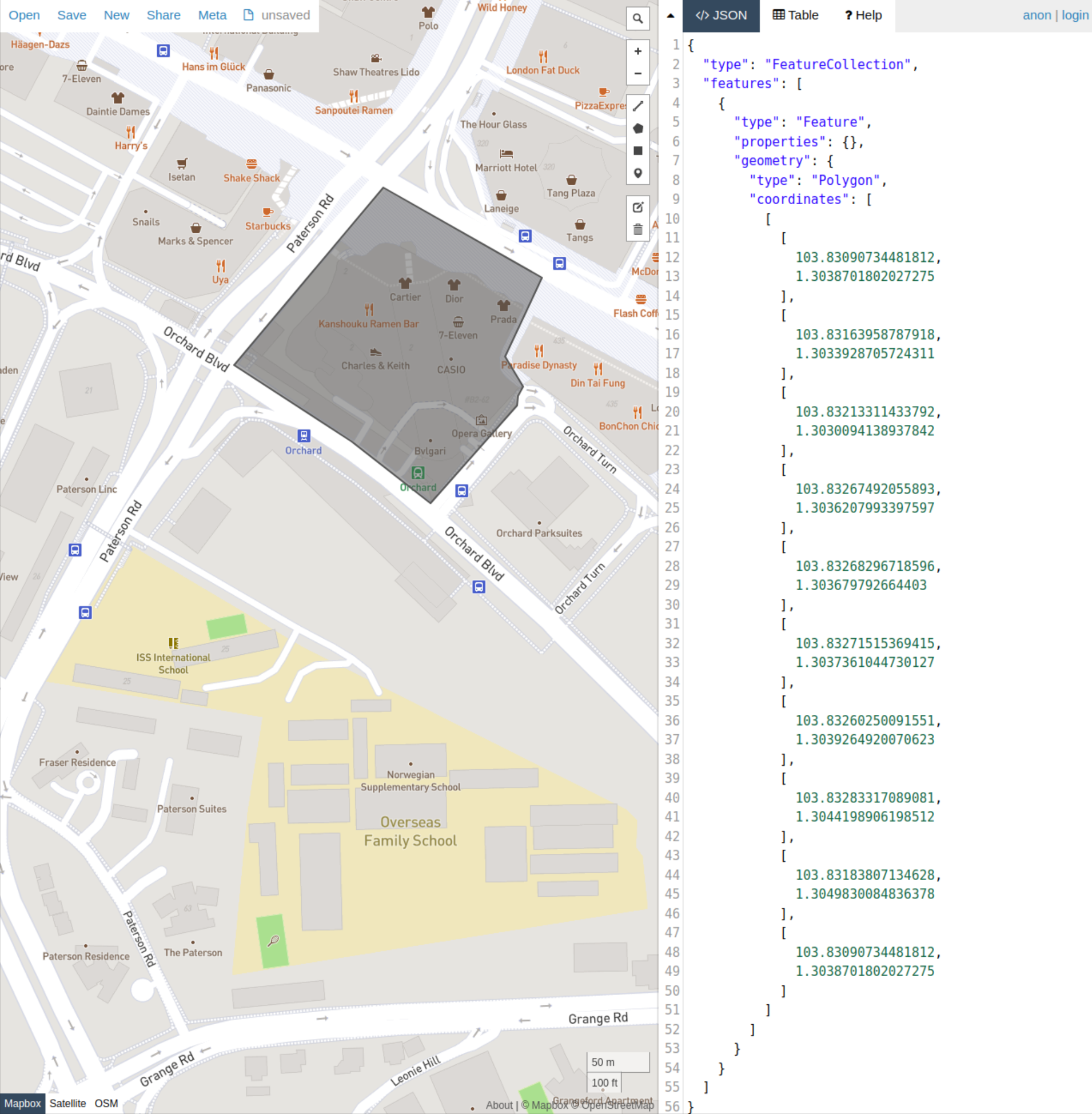
To import the GeoJSON:
from datahive.geospatial import read_geojson_raw

ion_geojson = """
{
  "type": "FeatureCollection",
  "features": [
    {
      "type": "Feature",
      "properties": {},
      "geometry": {
        "type": "Polygon",
        "coordinates": [
          [
            [
              103.83090734481812,
              1.3038701802027275
            ],
            [
              103.83163958787918,
              1.3033928705724311
            ],
            [
              103.83213311433792,
              1.3030094138937842
            ],
            [
              103.83267492055893,
              1.3036207993397597
            ],
            [
              103.83268296718596,
              1.303679792664403
            ],
            [
              103.83271515369415,
              1.3037361044730127
            ],
            [
              103.83260250091551,
              1.3039264920070623
            ],
            [
              103.83283317089081,
              1.3044198906198512
            ],
            [
              103.83183807134628,
              1.3049830084836378
            ],
            [
              103.83090734481812,
              1.3038701802027275
            ]
          ]
        ]
      }
    }
  ]
}
"""

ion_sparkdf = read_geojson_raw(geojson_str=ion_geojson)
To plot the data in folium:
import folium

# convert to GeoDataFrame
ion_gdf = ion_sparkdf.toPandas()
# get centroid to center map
ion_x, ion_y = ion_gdf.geometry[0].centroid.xy

sgmap = folium.Map(location=[ion_y[0], ion_x[0]], zoom_start=18)

ion_polygon = folium.features.GeoJson(ion_geojson)
sgmap.add_child(ion_polygon)

sgmap
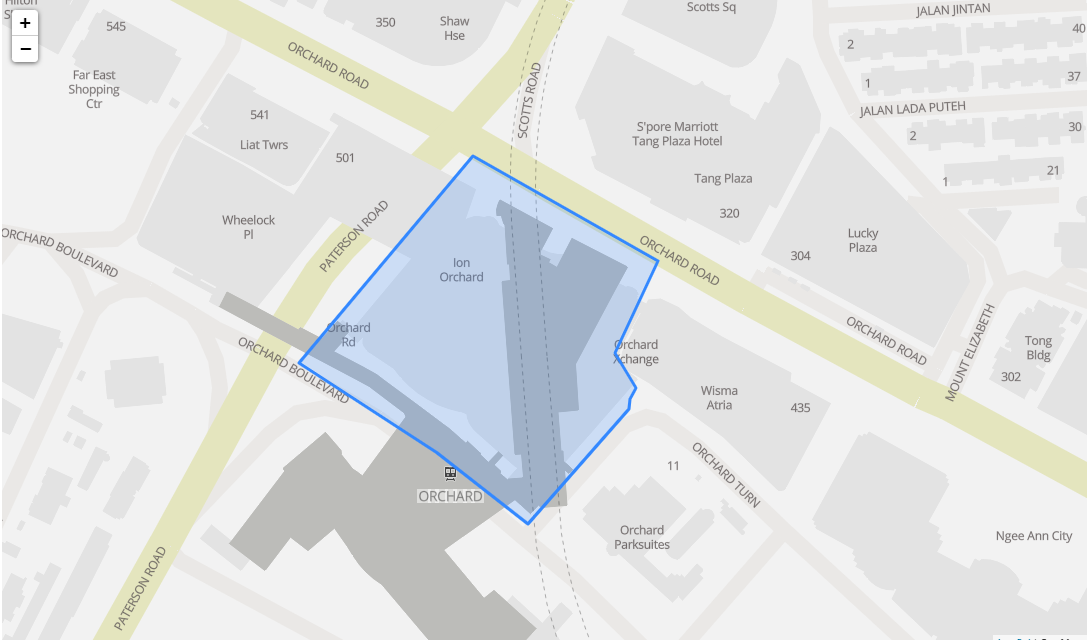
If the geojson file you are importing is too large, the Databricks UI might crash. We plan to add functionality for uploading GeoJSON files soon.
Resources
- Apache Sedona SQL: spatial queries in Spark
- folium: visualizing spatial data on an interactive map