Tutorial: Starter Guide
By the end of this tutorial, you should be able to do the following in the DataHive Databricks workspace:
- Access data from a data request;
- Upload data in
csvor excel (xls,xlsx); - Do basic data wrangling in Spark; and
- Save results and download from DataHive portal
The finished notebook for this tutorial is also provided here for your reference.
1. Create a notebook
- Open the left panel, click on
Workspace. - Right click on the folder explorer > Click "Create" and select "Notebook".
- Provide an appropriate name and select
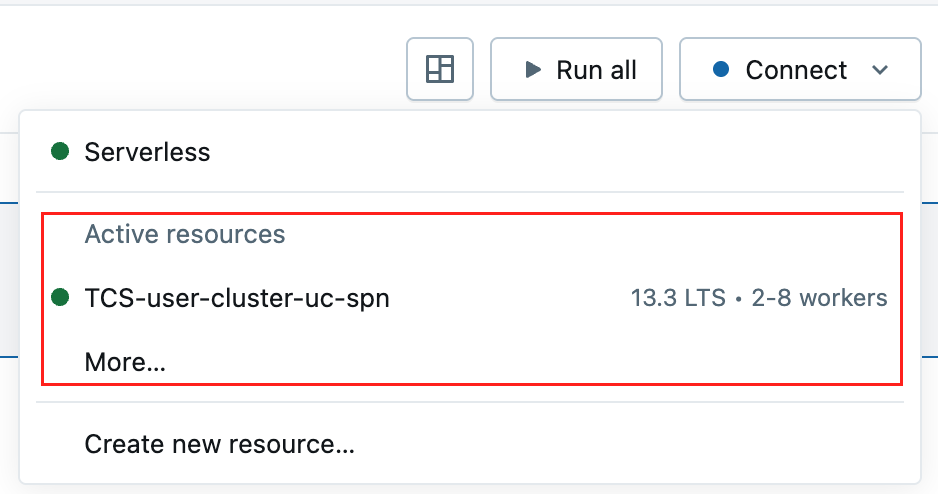
PythonorSQLas the default language. ForClusterselectTCS-user-cluster-uc-spn.
Note that Serverless cluster is not supported. Please ensure you select TCS-user-cluster-uc-spn cluster. If this cluster is not listed, then click on the "More" option as shown below.
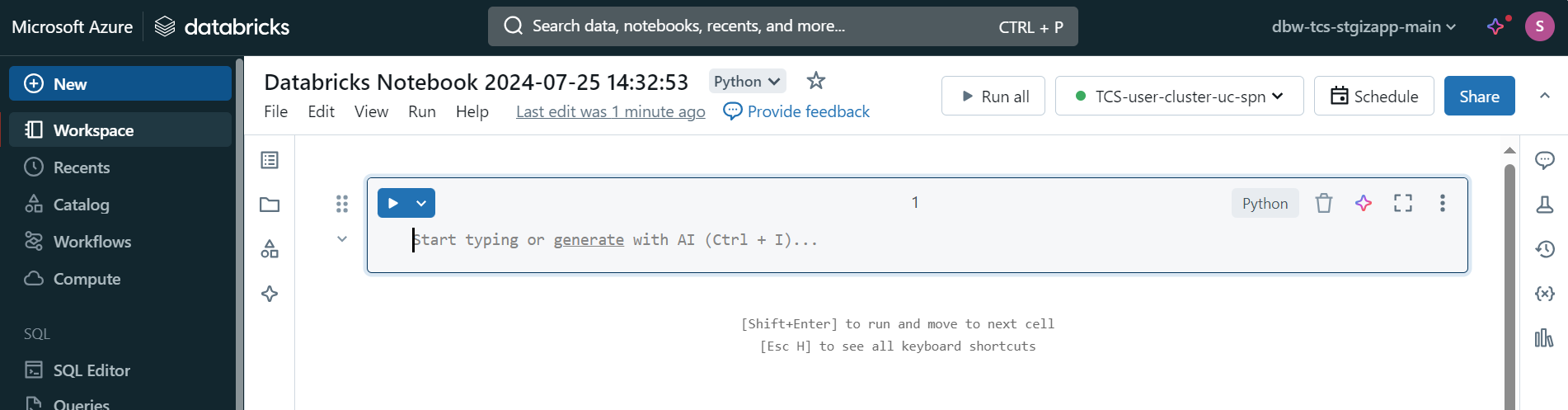
You should see an empty notebook.
2. Access data from Data Request (DR)
When a request with databricks access is fulfilled, all users in the request will be granted access to table(s) containing the requested data. The tables follow this format: <request ID>.<table name>.
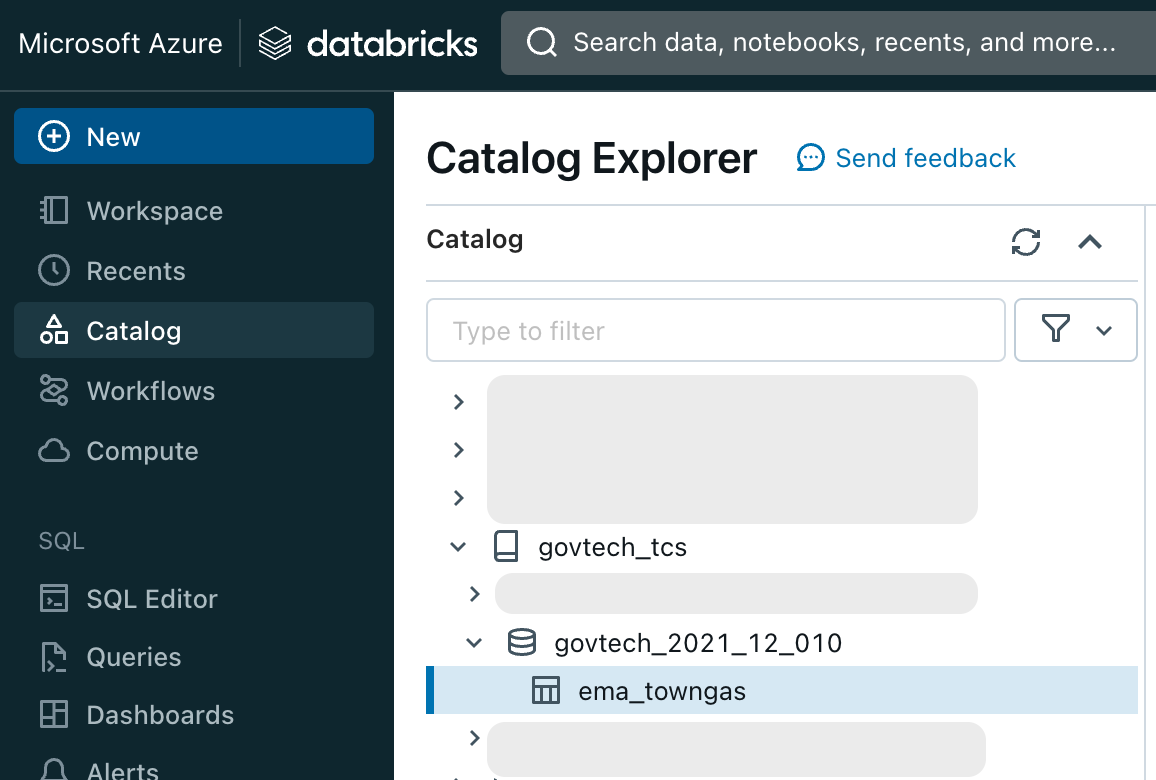
To find your request ID or table name, open the left panel and click Data. In the screenshot below, the requested table can be retrieved at govtech_2021_12_010.ema_towngas.
Follow the syntax below to load your table as a Spark DataFrame.
import pyspark.sql.functions as F

database_name = "govtech_2021_12_010"
table_name = "ema_towngas"

df = spark.sql(f"select * from {database_name}.{table_name}")
df.display()
3. Uploading data onto Databricks
Data can be uploaded to Databricks via the DataHive Platform. Go to the specific DR page to access the upload interface.
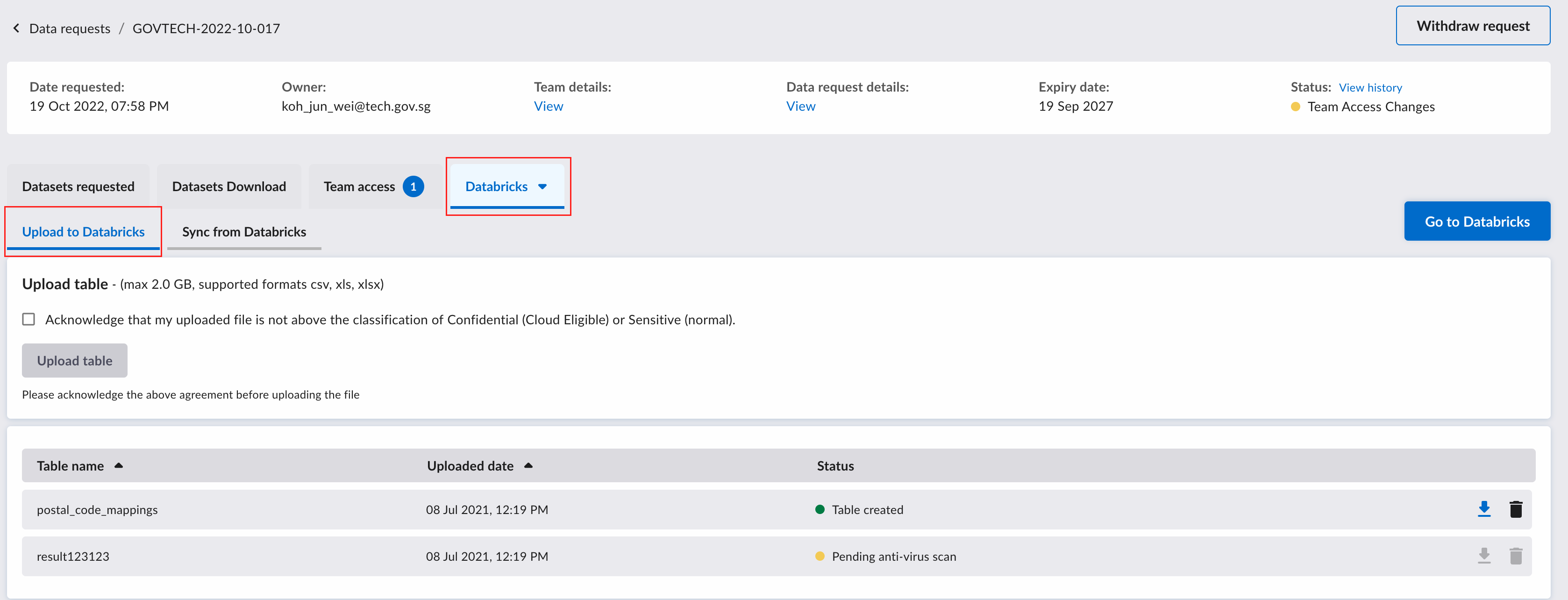
Files uploaded cannot be above the classification of Confidential (Cloud Eligible) and Sensitive (Normal). There is a file size limit of
2 GB.
Check the acknowledgement and click on the upload box to upload the file. The file formats currently supported are CSV and Excel (xls & xlsx). The first row will be read as a header row. For Excel files, the table will be created only based on your first worksheet.
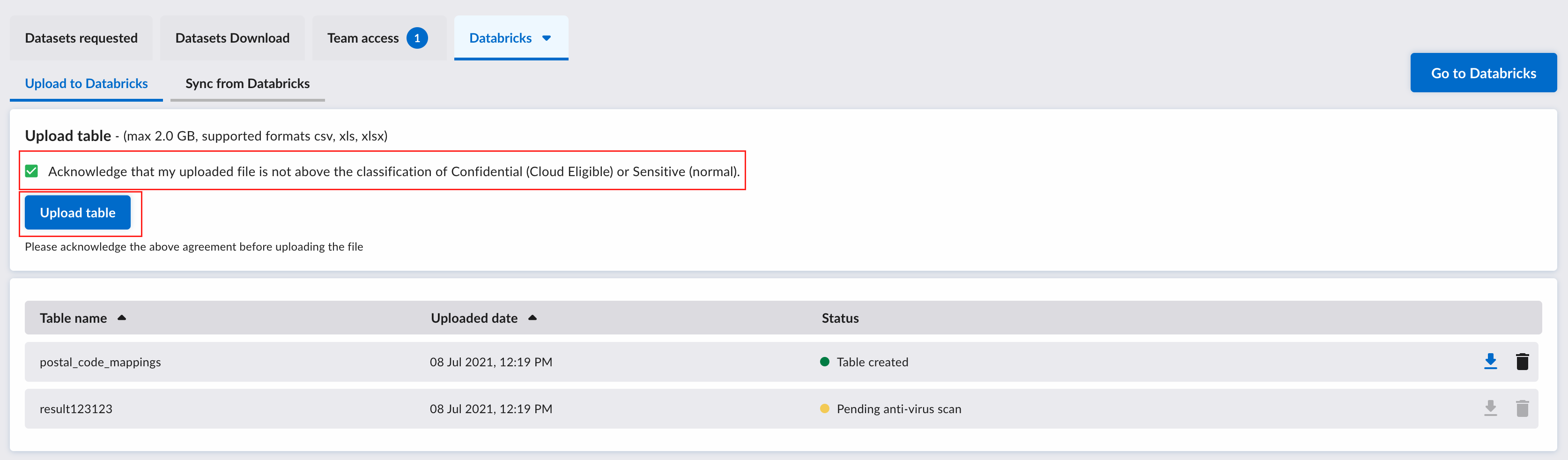
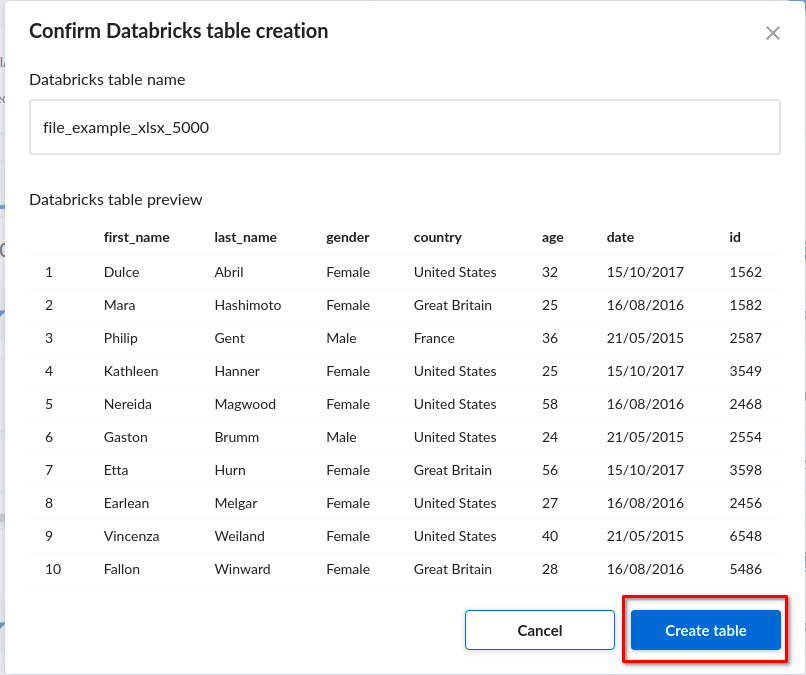
Before uploading, a preview of the Databricks table to be created will be shown. If this is as expected, you can click on the “Create table” button. You can also choose to specify a name for the Databricks table here.
After uploading, the corresponding table can be found on Databricks.
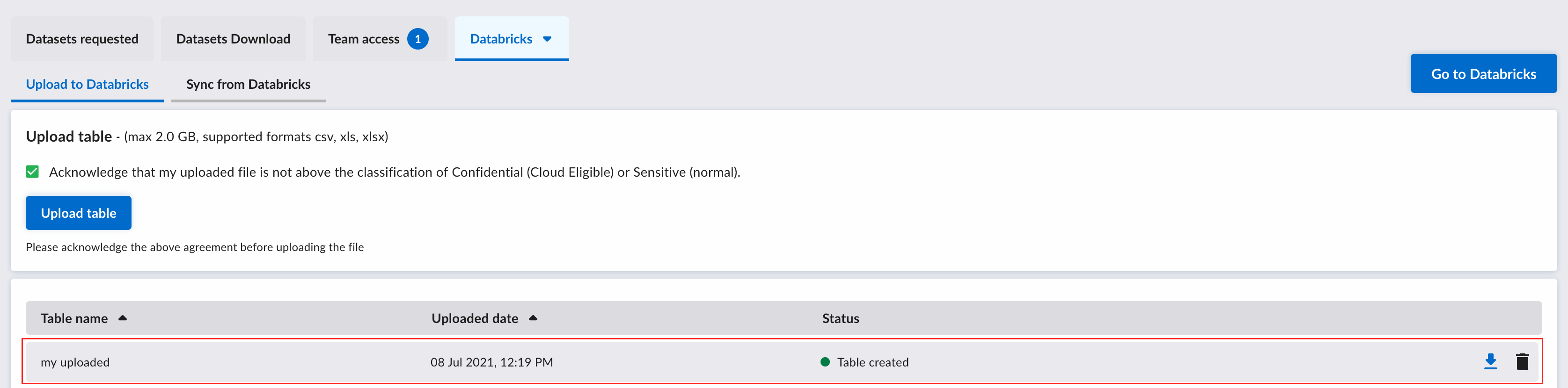
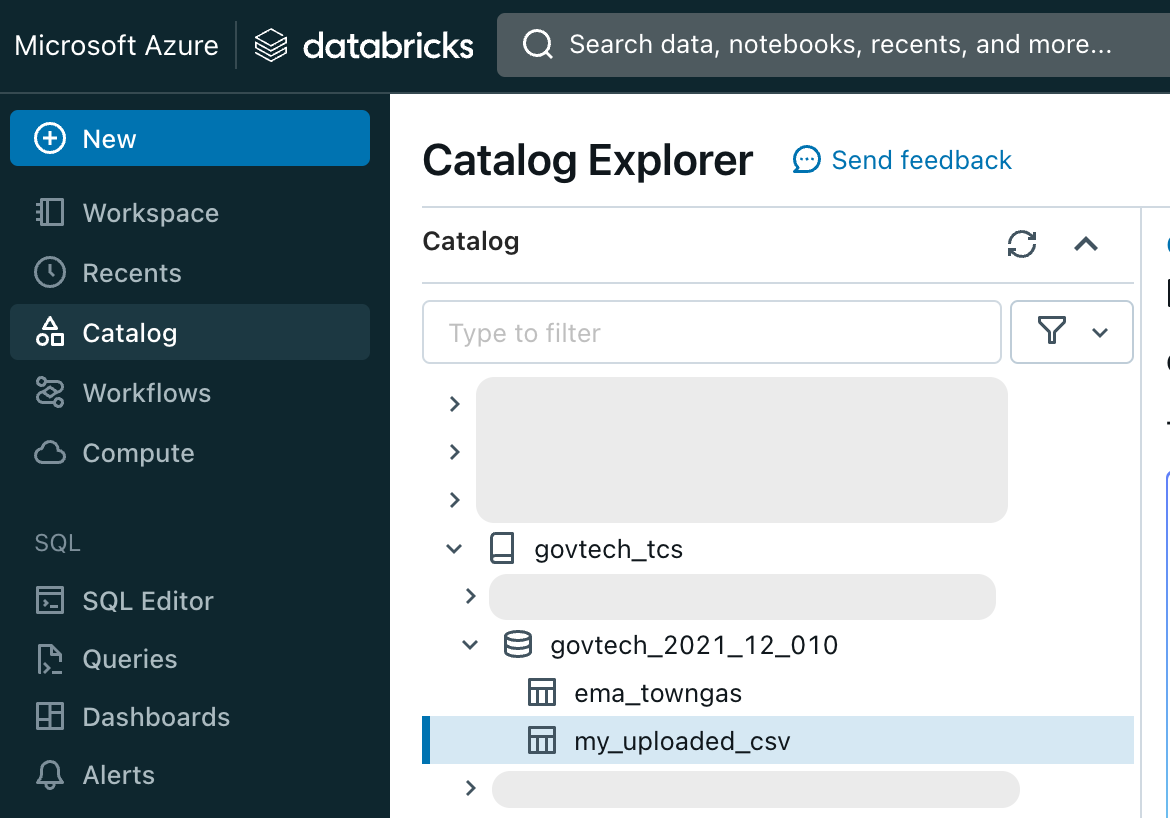
By default, the table name will inherit the file name. The table name will be preprocessed such that it conforms to the snake case format. To avoid this behavior, specify the table name by typing it into the text box beside the upload button.
4. Basic data wrangling with Spark
After creating Spark DataFrames, you can filter and transform the data according to your requirements. Here are some examples:
# Rename an existing column
df = df.withColumnRenamed("demo", "number")

# Create new column
df = df.withColumn("double_number", 2 * F.col("number"))

# Filter out rows with given condition
df = df.filter(F.col("double_number") > 5)

# Create new column with given condition
df = df.withColumn(
    "remarks",
    F.when(
        F.col("double_number") > 15,
        F.lit("more than 15")
    ).otherwise(
        F.col("double_number")
    ),
)

# Sort/order by certain columns
df.orderBy("number", "double_number").display()
Refer to the API reference for Spark 3.1.2 for more information (Python, SQL).
5. Writing Data using Databricks Notebook
Finally, to extract the processed data out of the platform, run the following command:
df.write.saveAsTable("<database_name>.<result_table_name>")
Do not save the new table to the same name as an existing table if you do not want to overwrite the existing table.
6. Download Databricks Table from DataHive Platform
To download the result table created in Step 5, go to the "Sync from Databricks" tab:
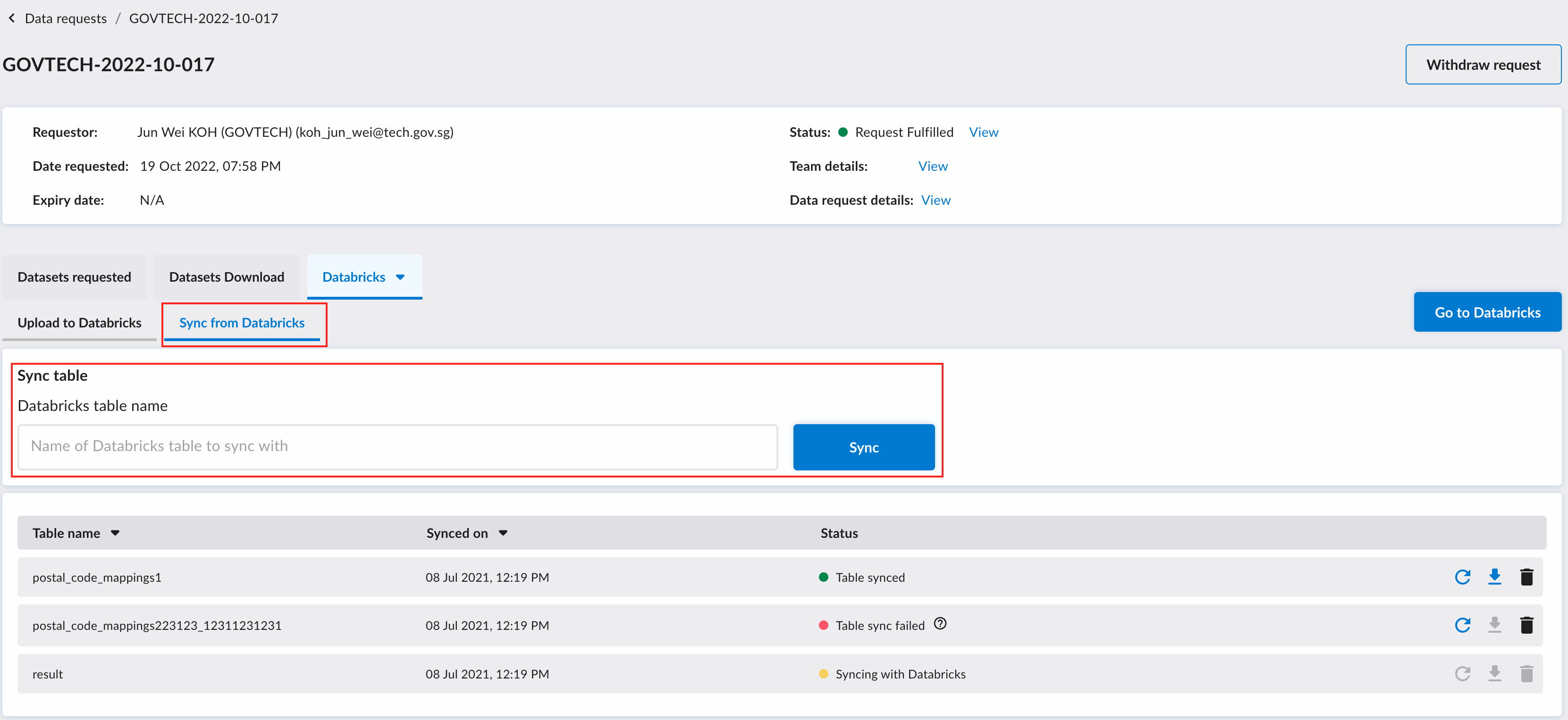
Key in the table name you want to sync with in the text field.
After entering the table name, click on the Sync button. After the table has been synced with the DataHive platform, click on the download icon to retrieve your file.
Click on the re-sync icon to re-sync the table to fetch any updates made on Databricks before downloading to get the latest version.

7. Sharing notebook
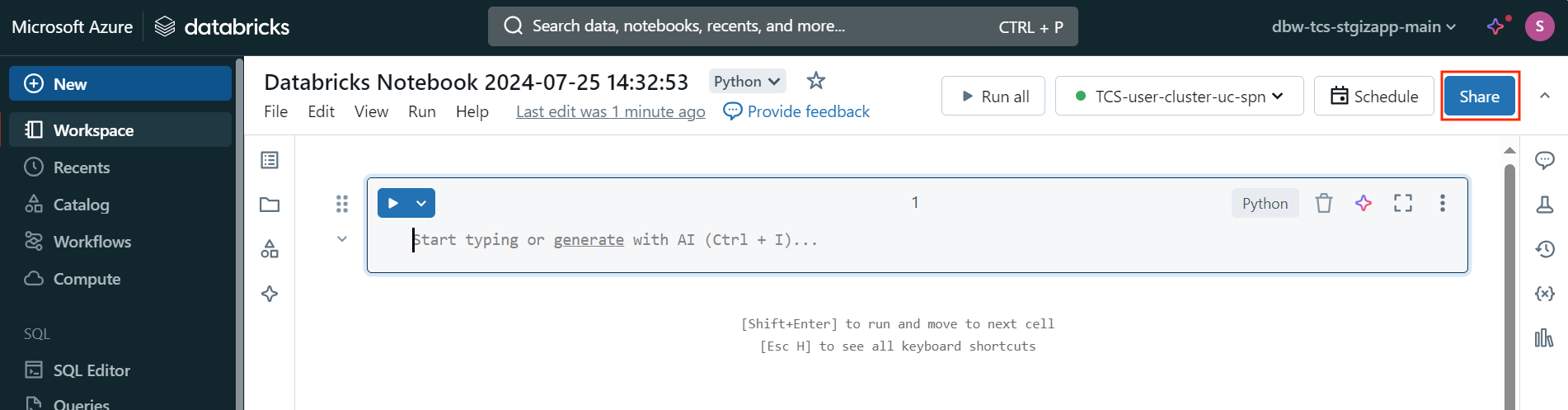
To share your notebook with your team members, click the Share button at the top right. Key in the email address in the pop-up (users must be part of your request) and select the desired permissions to grant.