Tenant Admin Guide
Tenant Admins are responsible for creating and updating data issues.
This should be done in a manner that is factually consistent with the details of the data issue and the correspondence with SSOTs.
Create New Data Issue
By clicking on New Data Issue button on the top right of the screen, you will open up a side pane to input the details for the Main Status.
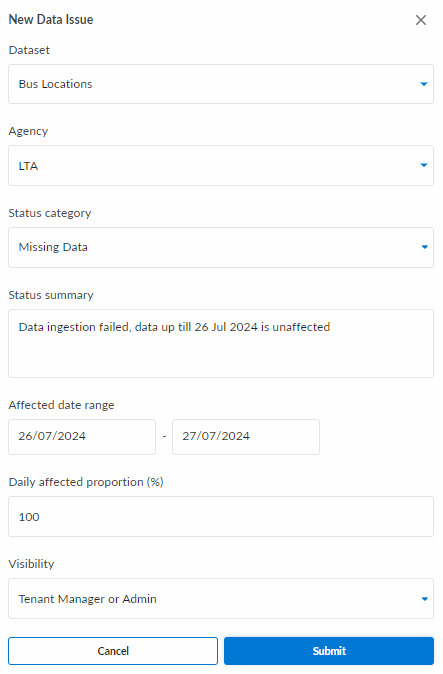
You can fill in the necessary details in the side pane accordingly, and click on 'Submit' when the details are filled in. Fields that might be unfamiliar to new users are elaborated below.
Affected Data
To populate the Affected Date Range and Daily Affected Proportion fields, use the following guidelines:
| Field | Guideline |
|---|---|
| Affected Date Range | What are the dates for which the dataset is affected? Note that the start and end date can be the same. |
| Daily Affected Proportion | Across all date(s) of the Affected Date Range, what is the average proportion of data for each day that is affected by the stated data issue? |
In the situations where the proportion of data affected varies across days, simply report the average on the Main Status, as this is for data quality metric tracking. Separately, feel free to include the detailed breakdown as a Tenant Internal Update.
Visibility
You can select the visibility within the form, which affects which users will be able to view the data status you are creating.
| Value | Who can view? |
|---|---|
| Tenant Manager or Admin | Only TA/TMs assigned to the dataset |
| SSOT only | Only SSOTs/TA/TMs assigned to the dataset |
| All Users | All Users |
Edit / Delete Main Data Status
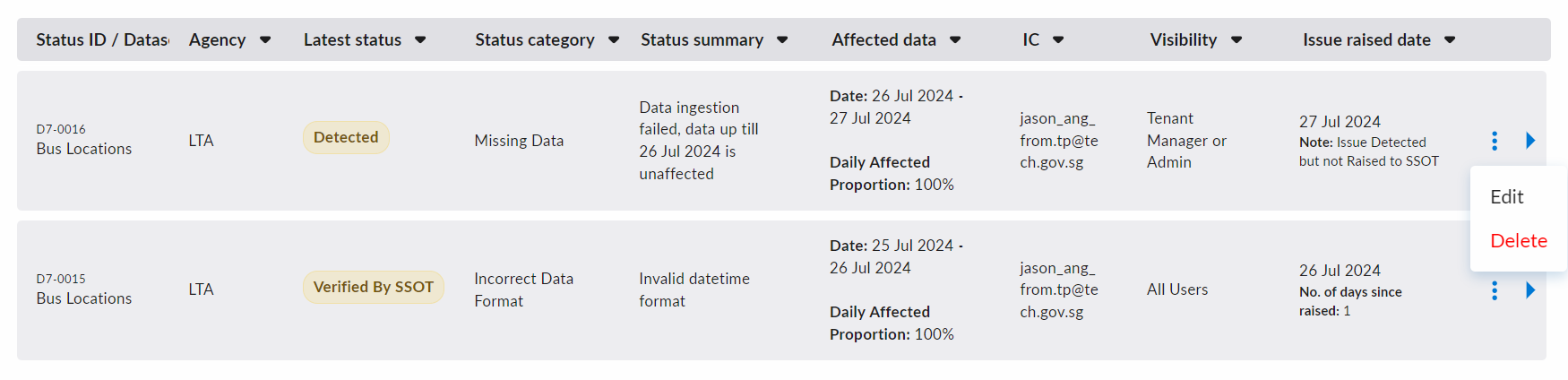
To edit or delete an existing Main Status, you can use the triple dots to reveal the Edit and Delete buttons.
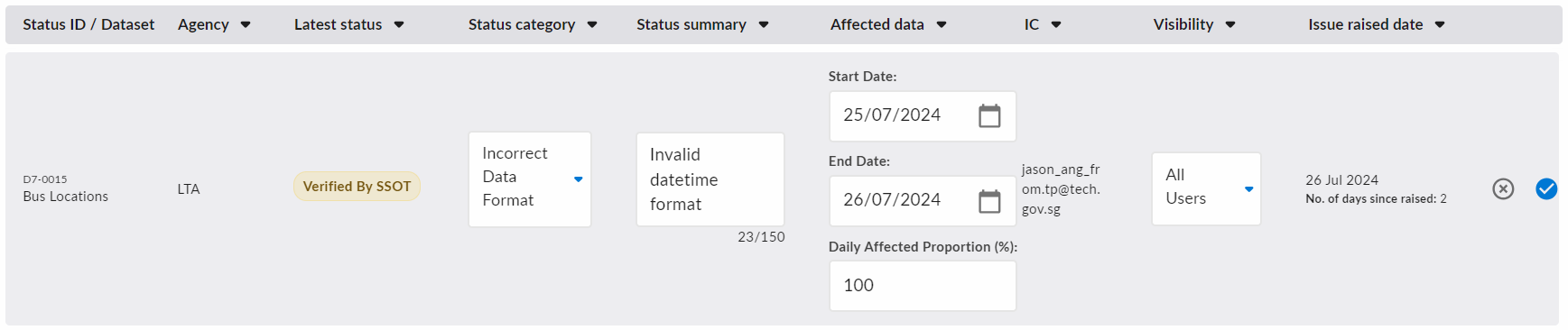
An example of the editing process is shown below.
An example of the deletion confirmation screen is shown below.
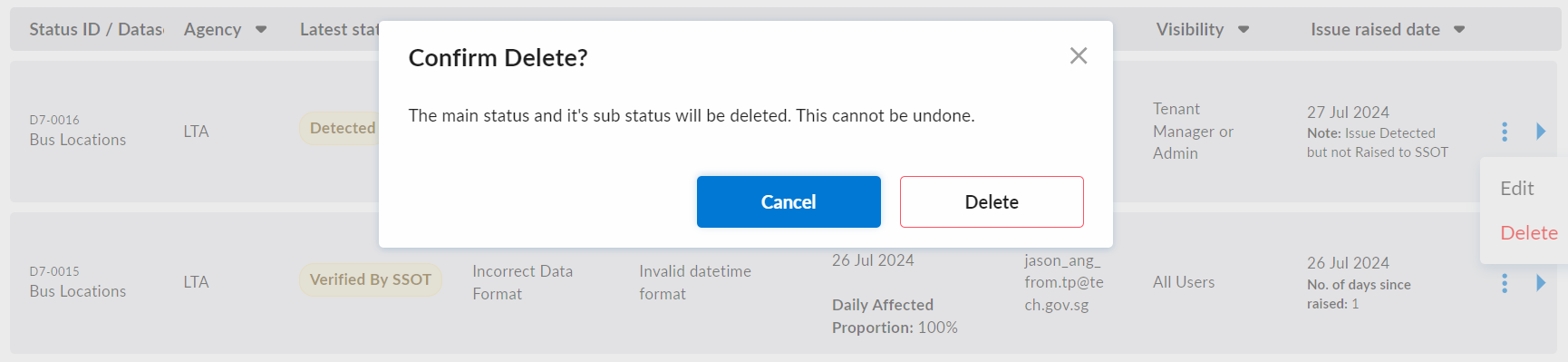
When you delete a Main Status, you will also delete ALL Sub Status(es) that belong to it.
Add Sub Data Status
You can add new sub data status by clicking on the 'Update status' button on at the bottom of the expanded data status.
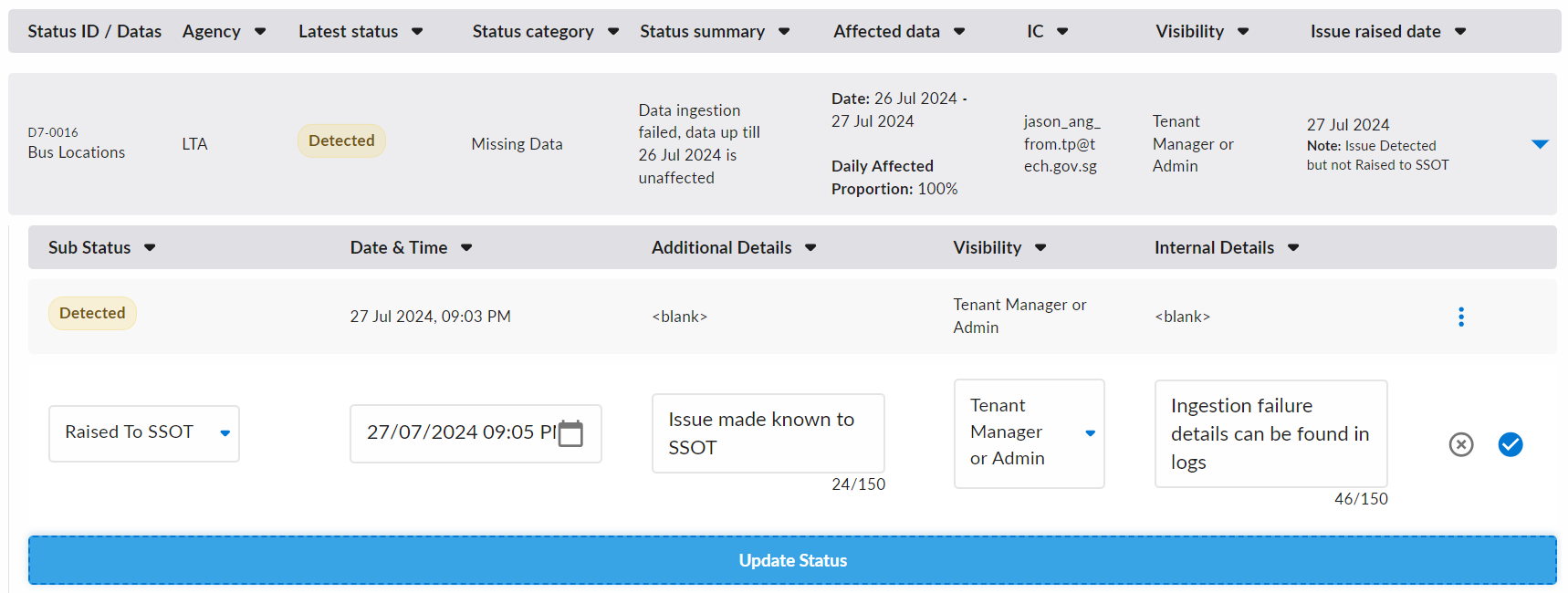
The sub-status can be created by clicking on the blue 'tick' icon on the right.
Do note that 'Internal Details' can only be viewed by TA/TMs assigned to the dataset, whilst 'Additional Details' can be viewed by anybody with permissions to view the data status.
Edit / Delete Sub Data Status
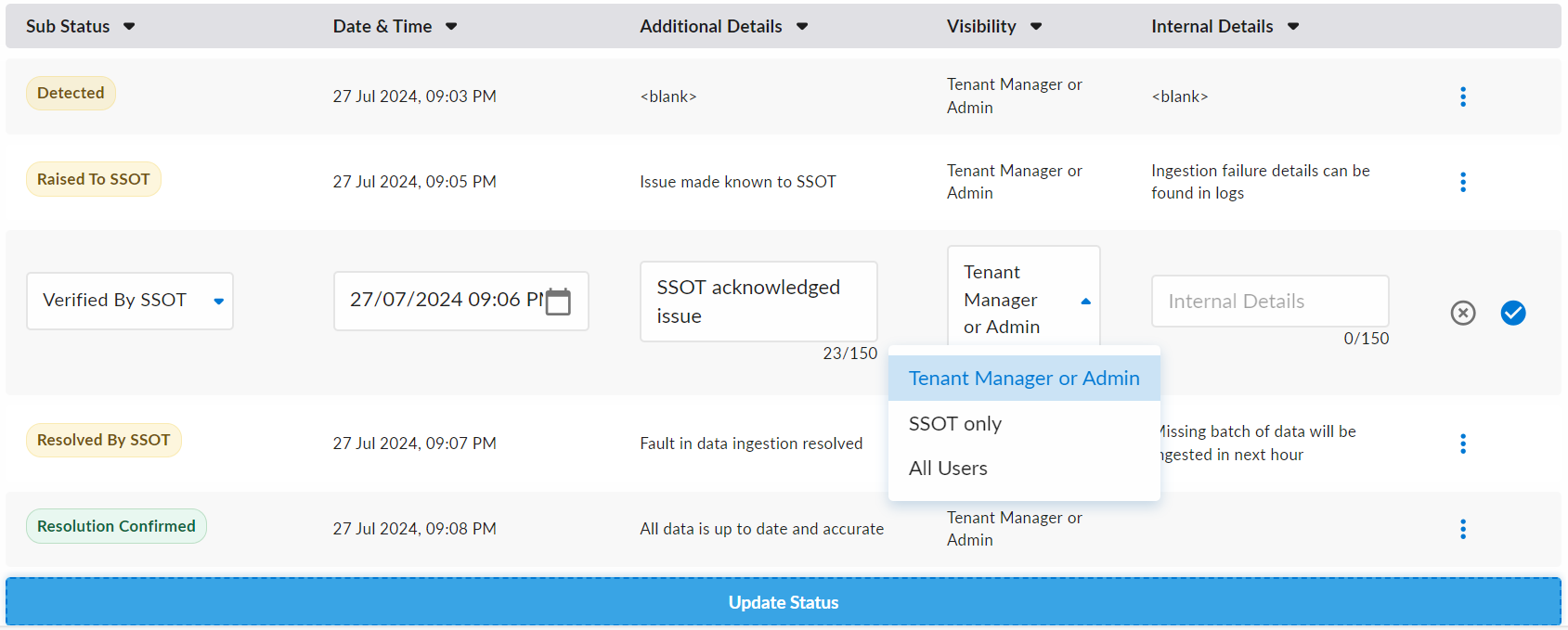
Editing or deleting a sub-status works just like a main status, and the various actions can similarly be triggered with the triple dots on the right of each sub status.
An example of editing a sub status is shown below.
Tenant Internal Update
To update with a data issue with details that are only meant to be viewed internally by TA/TMs assigned to the dataset, you can Update Status with a Tenant Internal Update type:

Note that the visibility will be enforced to be Tenant Manager or Admin by default.