Data Visualisation Layer
A data visualisation layer can only be associated with one dataset. For each layer, you can define the following:
- date range filter; and
- postal code filter and/or shape filter
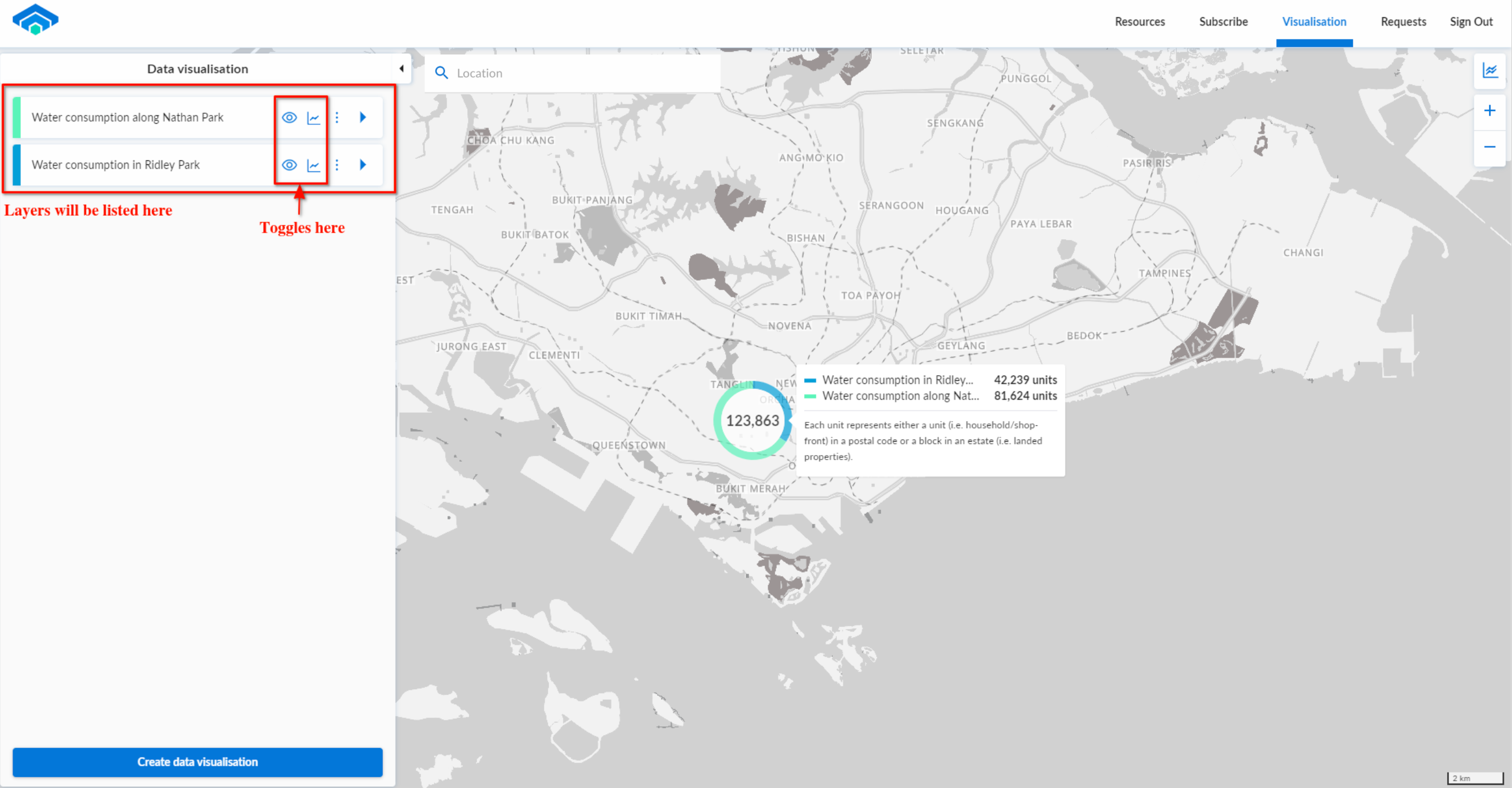
As shown below, each card in the left panel represents a layer. You can toggle each layer to view/hide them on a map or graph.
Each data visualisation layer comes with a set of parameters, which can be adjusted in the given form fields. The parameters can affect the labelling and filters on the dataset in a layer.
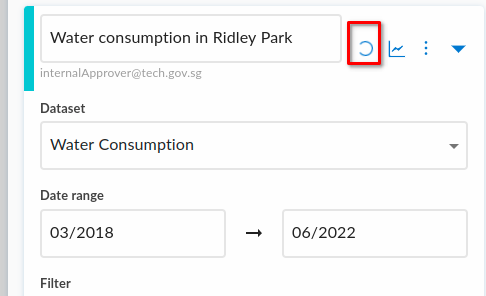
Each time a change is made, a loading animation will be shown beside the layer's name. This means a search is underway.
Here are more details on some of the parameters you can change:
Colour
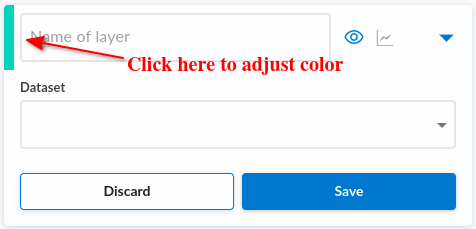
Each layer is associated with a colour which will aid users in identifying the layers on the visualisation (i.e. map or graph). When a layer is created, a new colour will be used (subject to availability). You can click on the colour to adjust the colour to your liking.
Date range
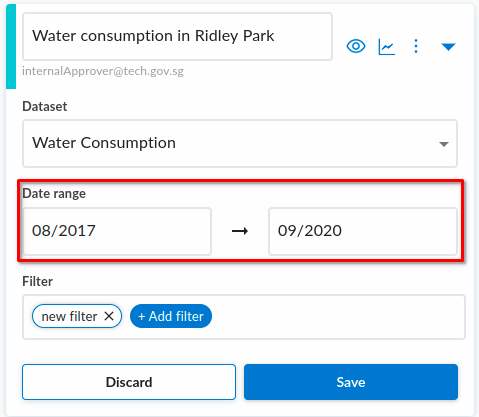
Each layer has a date range that is used to filter the dataset. The map and graph will only show the data within this date range.
Filters
It is compulsory for users to key in at least 1 filter as they do not need visibility over the entire dataset in most cases. The available filters are postal codes and a manually-drawn shape. Users can define multiple filters which will be evaluated according to the following rules:
- AND logical operator will be applied to all non-geographical filters
- OR logical operator will be applied to geographical filters
Due to performance reasons, there is a limit of 15,000 postal codes for each layer. This limit will also apply to the shape filter where each shape represents a set of postal code in the selected region.
If there are no filters, no data points will also be made available for preview in map/graph visualisations.
There are currently 2 fields in which the user can filter by and they are as follows:
Postal code
With the postal code filter, data will be filtered according to the consumption accounts in the postal code. There are 2 ways to key in the values.
The first method is to type the postal code in the field, and select the desired value from the dropdown menu.
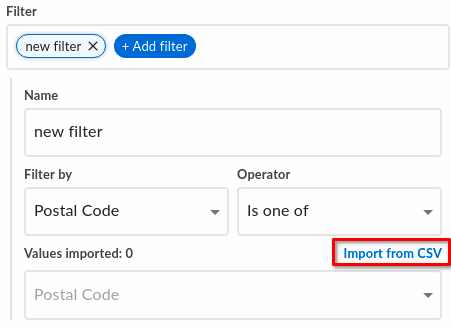
The second method is applicable if you have a list of postal codes available. Click on the link highlighted below to upload a comma separated list of postal codes stored in a CSV file. The valid postal codes in the file will be shown in a pop-up, and you can click "Confirm" to add them to the filter.
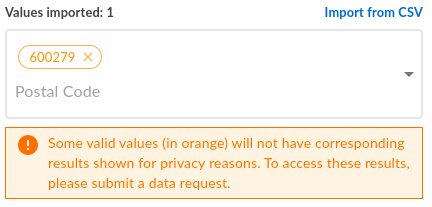
In some cases, you may have input some postal codes that have been “suppressed”. This means that DataHive have decided to drop these consumption figures due to our data privacy methodology. In such a case, a warning will appear, as shown below, to inform you about it.
Shape
With the shape filter, the user can draw a shape on the map to represent an area of interest for analysis.
Drawing of shape
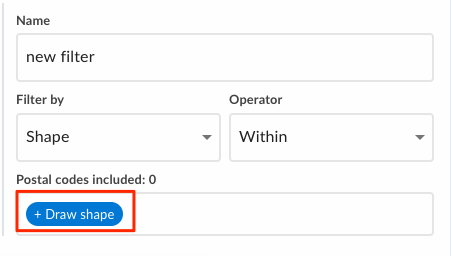
To add a new shape to your layer filter, click on “draw shape” button.
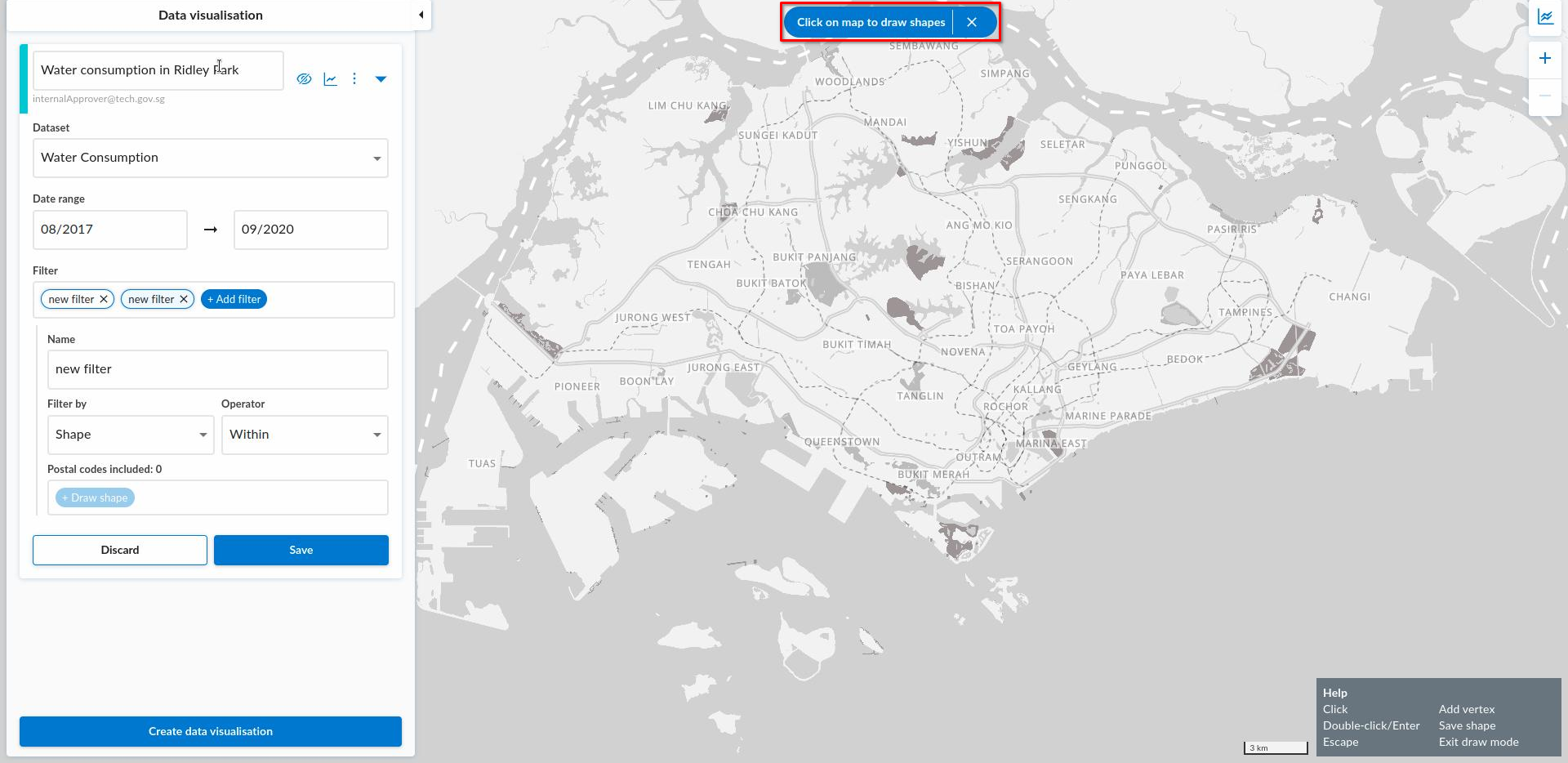
You will enter draw mode. Click on the map to plot each vertex of the shape.
To finish drawing the shape, hit ‘Enter’. Alternatively, you can also click on the first or last vertex plotted.
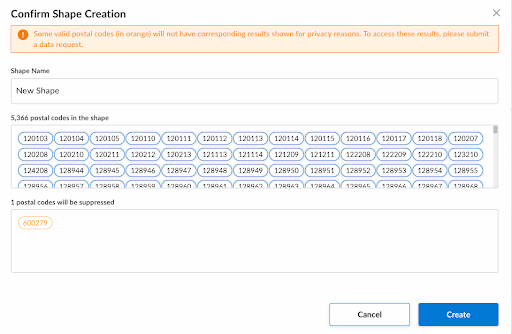
You will see a shape confirmation dialog that shows suppressed postal codes (if any) in the shape drawn. Either confirm or discard the shape drawn by clicking ‘Confirm’ or ‘Cancel’ respectively.
Edit existing shape
To edit an existing shape, click on the shape on the map or the corresponding shape chip in the layer form.
If you cannot see the shape or the corresponding shape chip, make sure that the layer form the shape belongs to is expanded and that the filter it belongs to is selected.
Upon selecting a shape, you will enter edit mode and see a popup as follows:
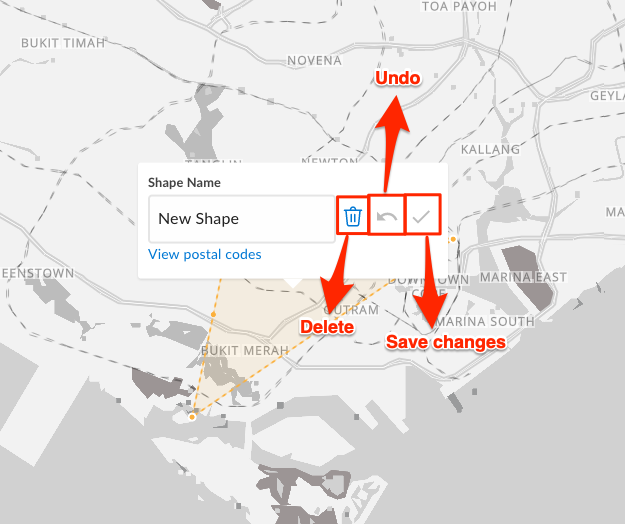
- To edit the shape name, enter the desired shape name in the “Shape Name” field.
- To edit the shape, click and drag the shape or its vertices.
- To save the changes made, click on the “Save changes” icon button.
- To undo the changes, click outside the shape in the map to deselect it or click the “Undo” icon button.
- To delete the shape, click on the trash icon.