Graphs
This section covers creating and editing graphs in the data visualisation feature. Currently, only time series visualisations are supported.
Generating time series visualisation
You can generate a consumption time series for:
- Layer
- Multiple layers
- Specific cluster
There are 2 possible aggregations for consumption values: average and sum.
There needs to be at least 1 filter for consumption time series values to be made available for previewing.
Aggregation by layer
To create a time series visualisation for a layer:
- Click on the show graph button of the layer.
- Modify the time series visualisation settings to fit your requirements.
Aggregation by multiple layers
To create a time series visualisation from multiple layers:
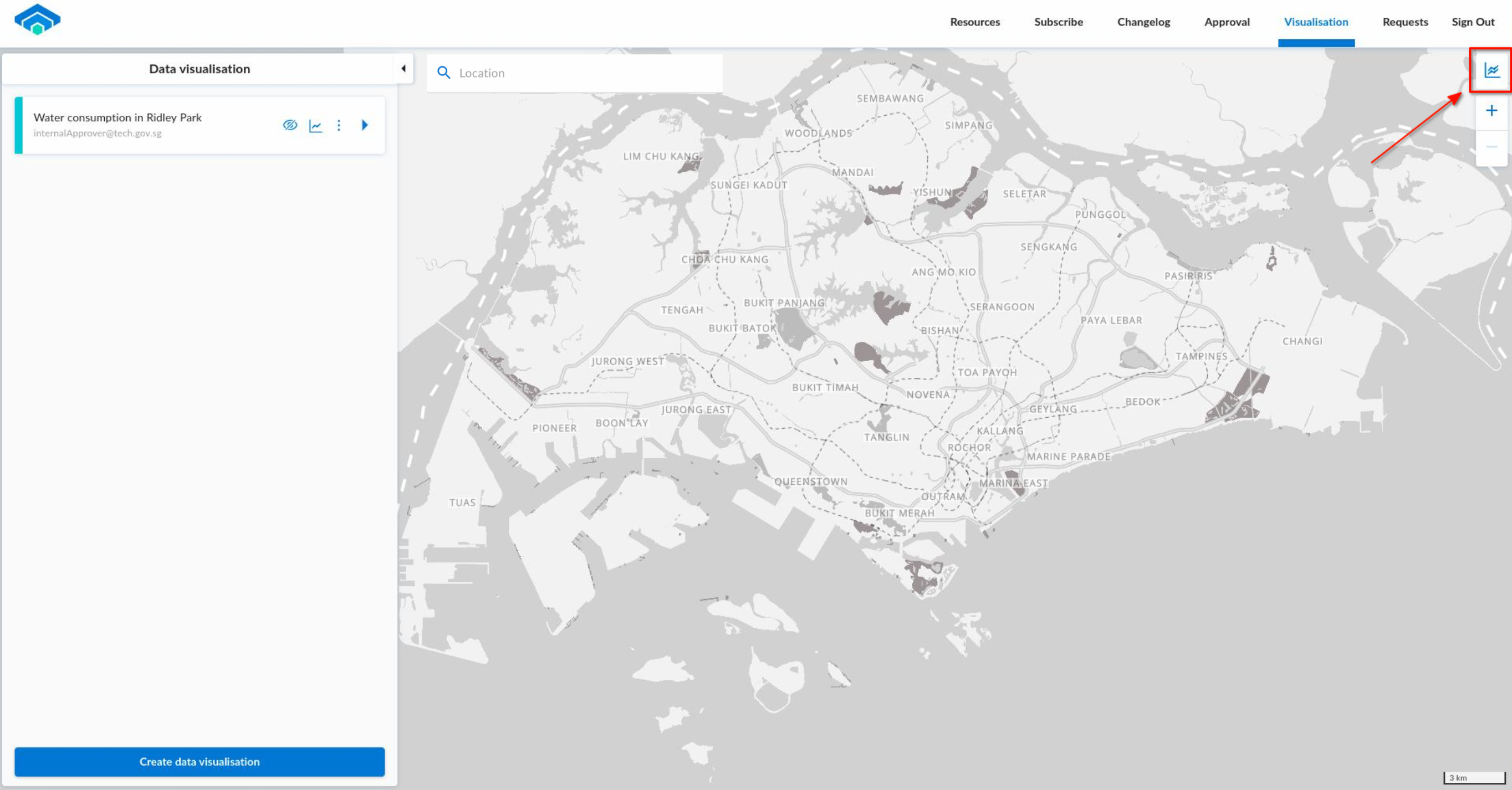
- Click on the graph widget on the top right corner of the map.
- Complete the layer selection form to indicate the dataset and layer that you want to visualise.
Aggregation by specific cluster
To create a time series visualisation for a specific cluster:
- Click on the cluster that you want to generate a visualisation for.
- If the cluster selected contains data points from more than one layer, you have to complete the layer selection form to indicate the dataset and layer that you want to visualise.
Time series visualisation settings
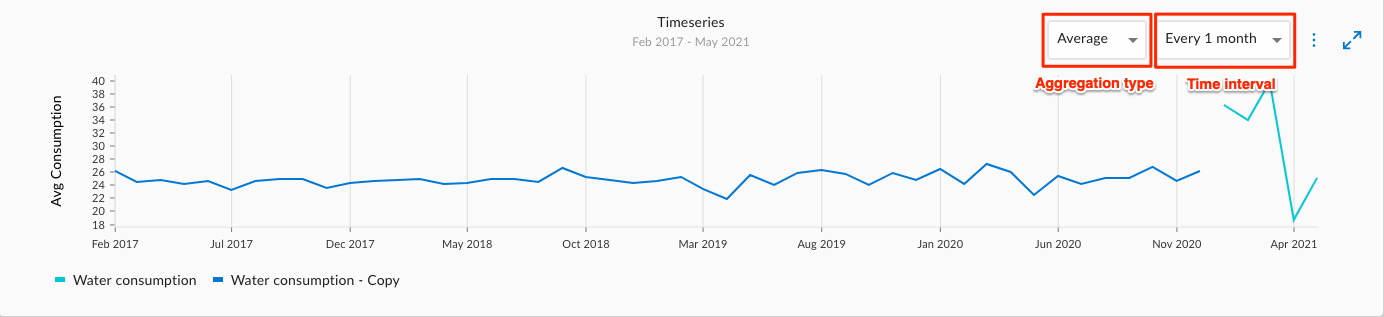
After a time series visualisation is generated, you can modify the following settings:
- Aggregation Type: The type of aggregation to perform on the consumption values.
- Time Interval: The length of time to group the data points by (e.g. Every 1 month).
Layer selection form
There are 2 scenarios where you must specify which dataset and layers to display:
- When a cluster you want to visualise contains data points from more than 1 layer; or
- When you want to visualise globally across multiple layers.
The layer selection form will be shown in the bottom pane:
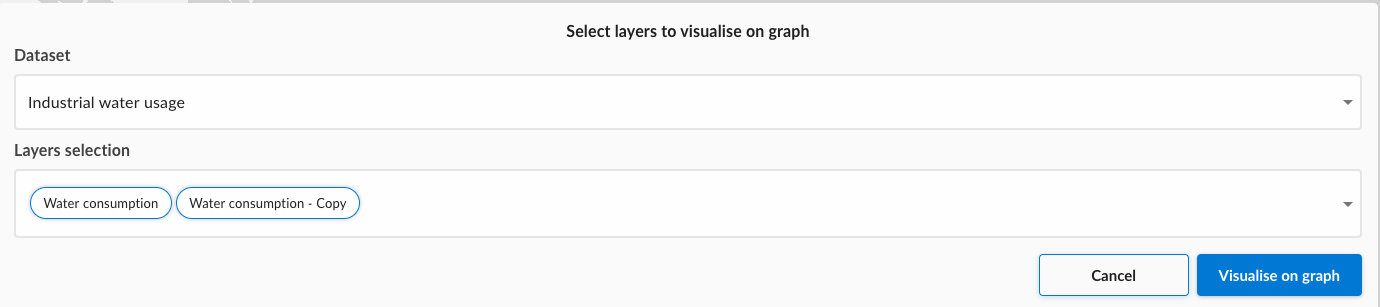
To complete the layer selection form, fill in the following:
Creating time series visualisation for layers from different datasets is not supported.
- Dataset: The dataset to visualise.
- Layers Selection: The layers with the selected dataset.
After filling the form, click on "Visualise on graph" to generate a time series visualisation.
Export time series visualisation
Before you can export a time series visualisation, you need to generate one first. You can then export by clicking on the icon button as follows:
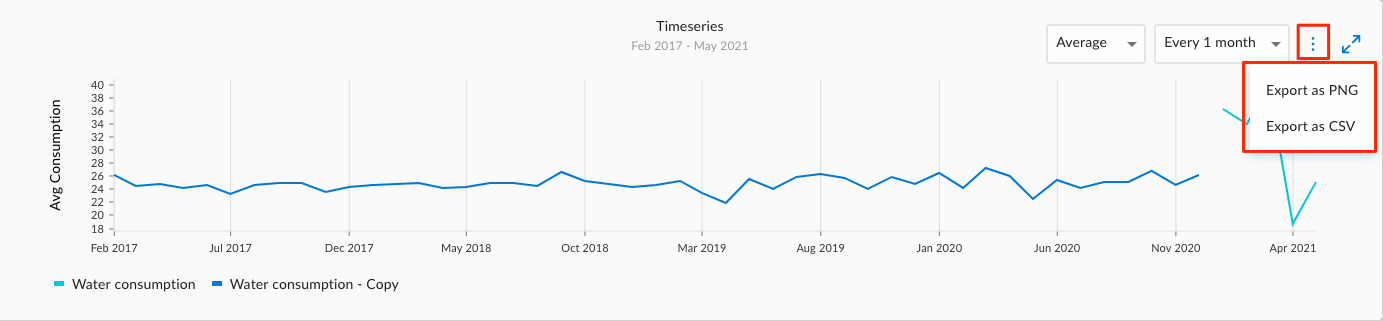
Select the export option that you want. Currently, you can export it as csv or png.
Zooming in time series visualisation
If you like to zoom into a particular section of the time series visualisation, you can do so by dragging onto a particular segment of the line chart.
