Map
This section covers the map controls, spatial information and shape filter in the data visualisation feature.
Our map layers are retrieved and updated monthly from SLA Geospace.
Map controls
- Pan: To pan, click and drag the map to your desired location
- Zoom: To zoom, either:
- Scroll while placing your cursor on the map or
- Use the zoom controls at the top right corner of the screen
- Clusters: Hover over or click on the clusters to view more information on the cluster
- Location Search: Input a location in the location searchbar and zoom into the specified location
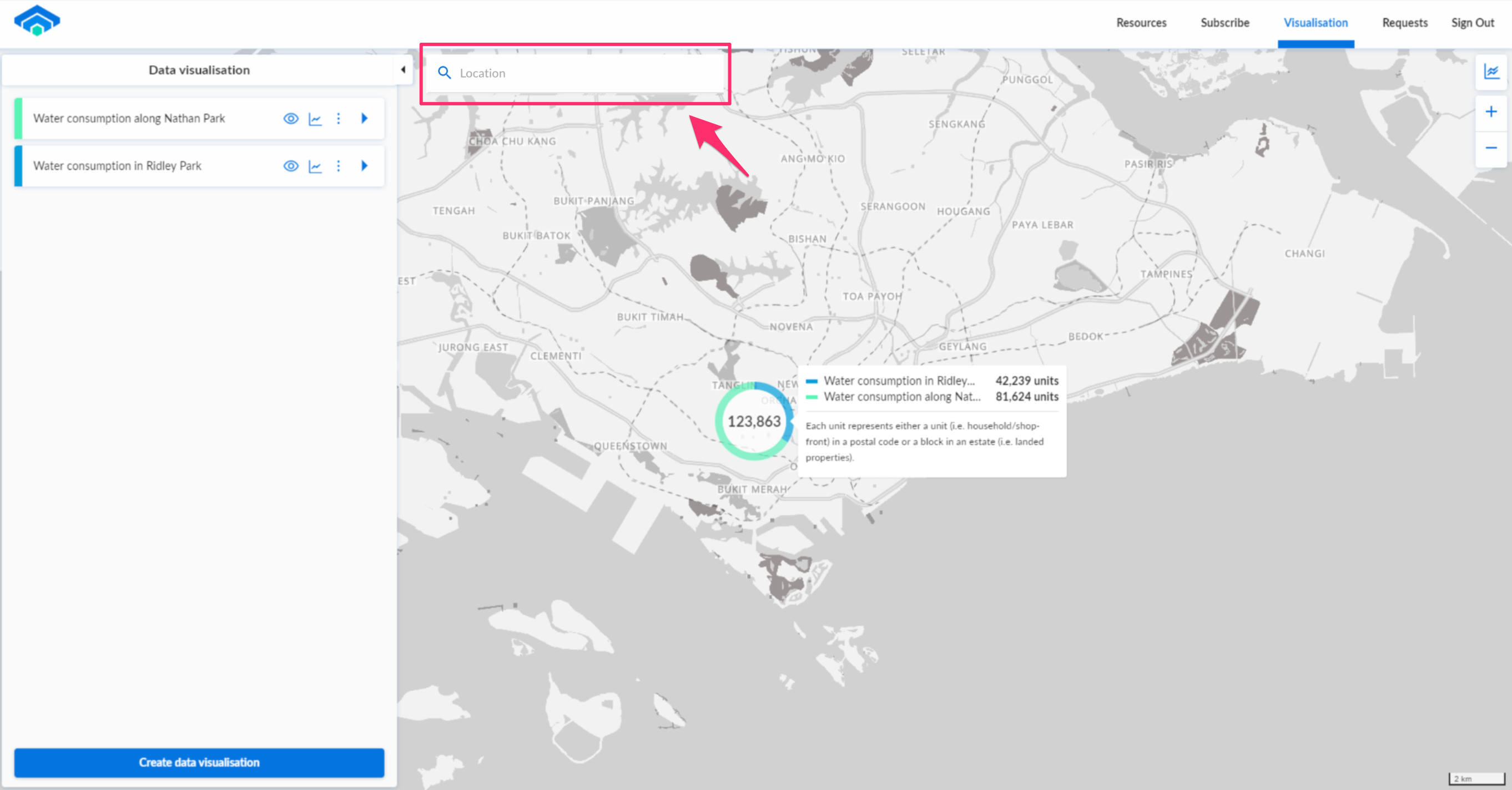
Clusters
The data points from the layers created will be represented on the map as clusters.
There needs to be at least 1 filter for clusters to be made available for previewing.
Cluster layout
The cluster layout consists of 2 parts:
- The outer coloured ring provides information on which layers' data points are contained within a particular cluster. The colours here correspond to the layers.
- The inner circle indicates number of accounts contained within this cluster.
If the same postal code is in 2 different data visualisation layers in a cluster, the number of accounts will be counted twice
Cluster composition info
The cluster composition info popup will be displayed when hovering over a cluster:
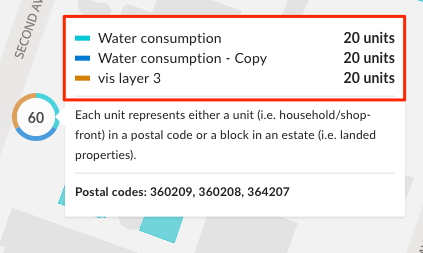
In the popup, users can view a breakdown of how many accounts are contained within a cluster and from which data visualisation layer they came from.
Geospatial information on cluster
There are 2 ways to obtain more geospatial information on the data points in a cluster
Buildings and estates origin
Hover over a cluster to view which buildings and/or estates its data points are from. The relevant buildings and/or estates will be highlighted as follows:
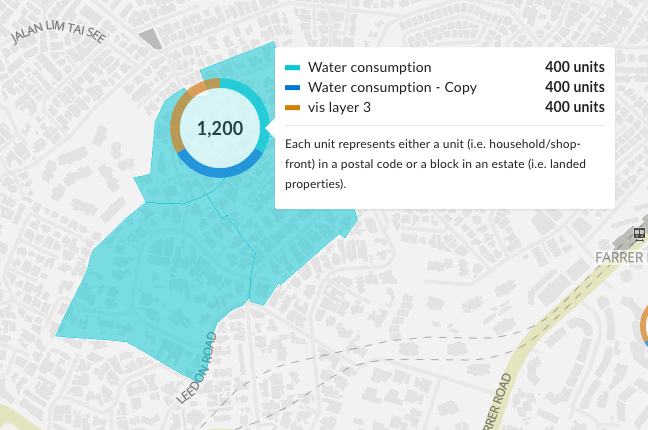
If the building and estates highlighting is not visible, zoom in until the buildings are rendered on the map.
Postal codes
To view which postal codes a cluster's data points are from:
- Zoom into the map until max level (At max level, '+' icon button on top right corner of the map is greyed out)
- Hover over the cluster of interest, the postal code(s) will be displayed as follows
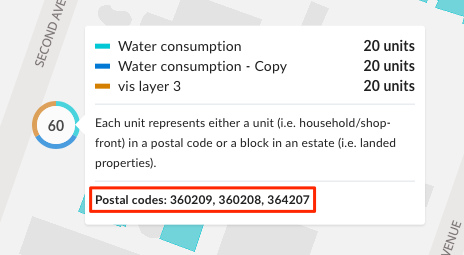
Shapes
The shape filter is a geospatial layer filter that retrieves data points within a user-defined region.
To understand the mechanics of shape drawing and editing, you can refer to this guide.