Edit and Publish Dataset
Only Tenant Admins can edit and publish datasets.
Editing Dataset
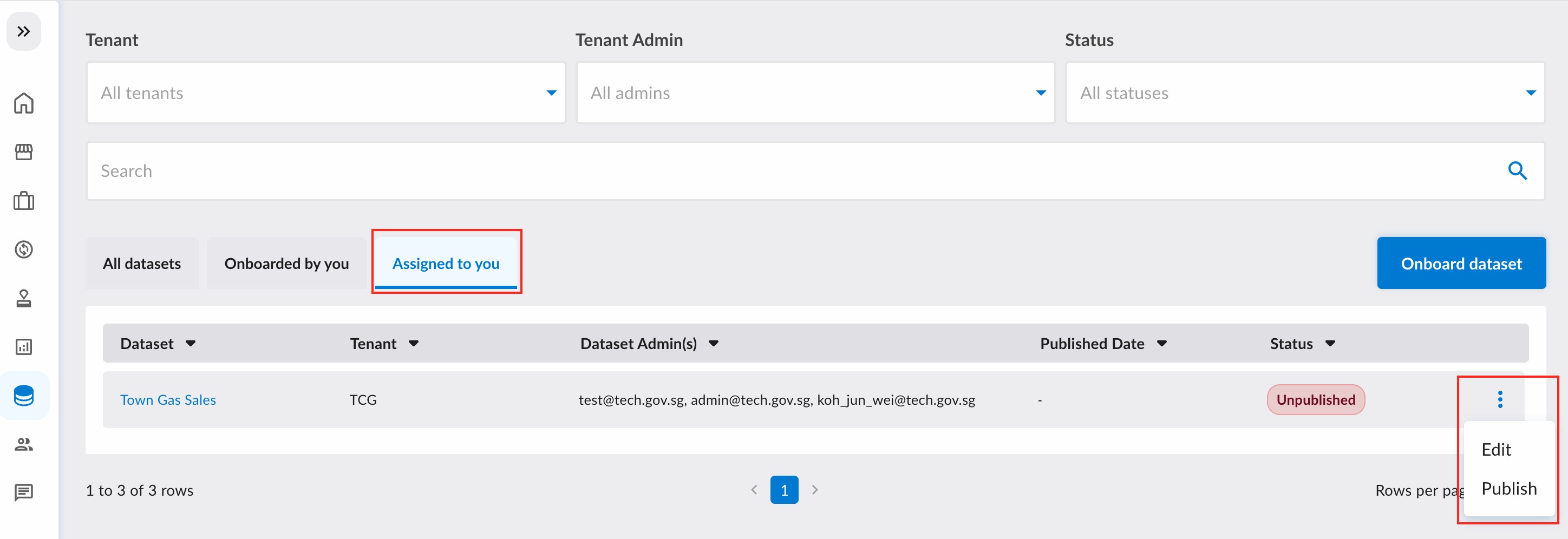
To view all the datasets assigned to you, click on the "Assigned to you" tab.
To start editing a dataset, click on the edit menu button that appears after you click on the ellipsis associated with the dataset.
After clicking on the edit button, you will be redirected to the dataset form. The sub-sections below will explain the various fields in the form.
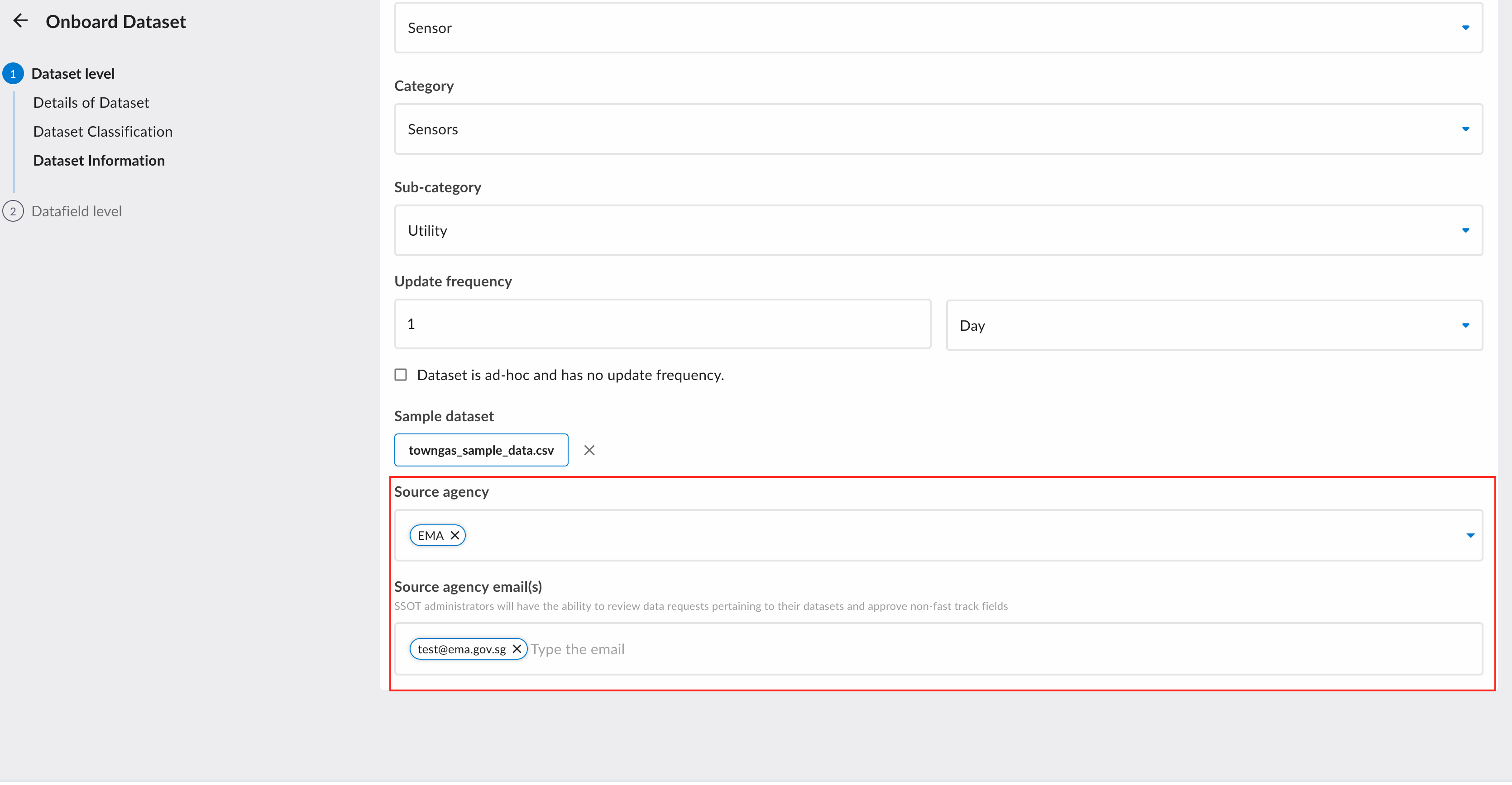
Source Agency Input
For each dataset, the source agency needs to be defined. The Source Agency is also known as the Single Source of Truth (SSOT).
Note that "Source Agency Emails" must be users from the specified "Source Agency."
These users are responsible for:
- Approving access to Non Fast-Tracked datafields.
- Oversight of data requests containing datasets under their purview.
Datafields with Date Type
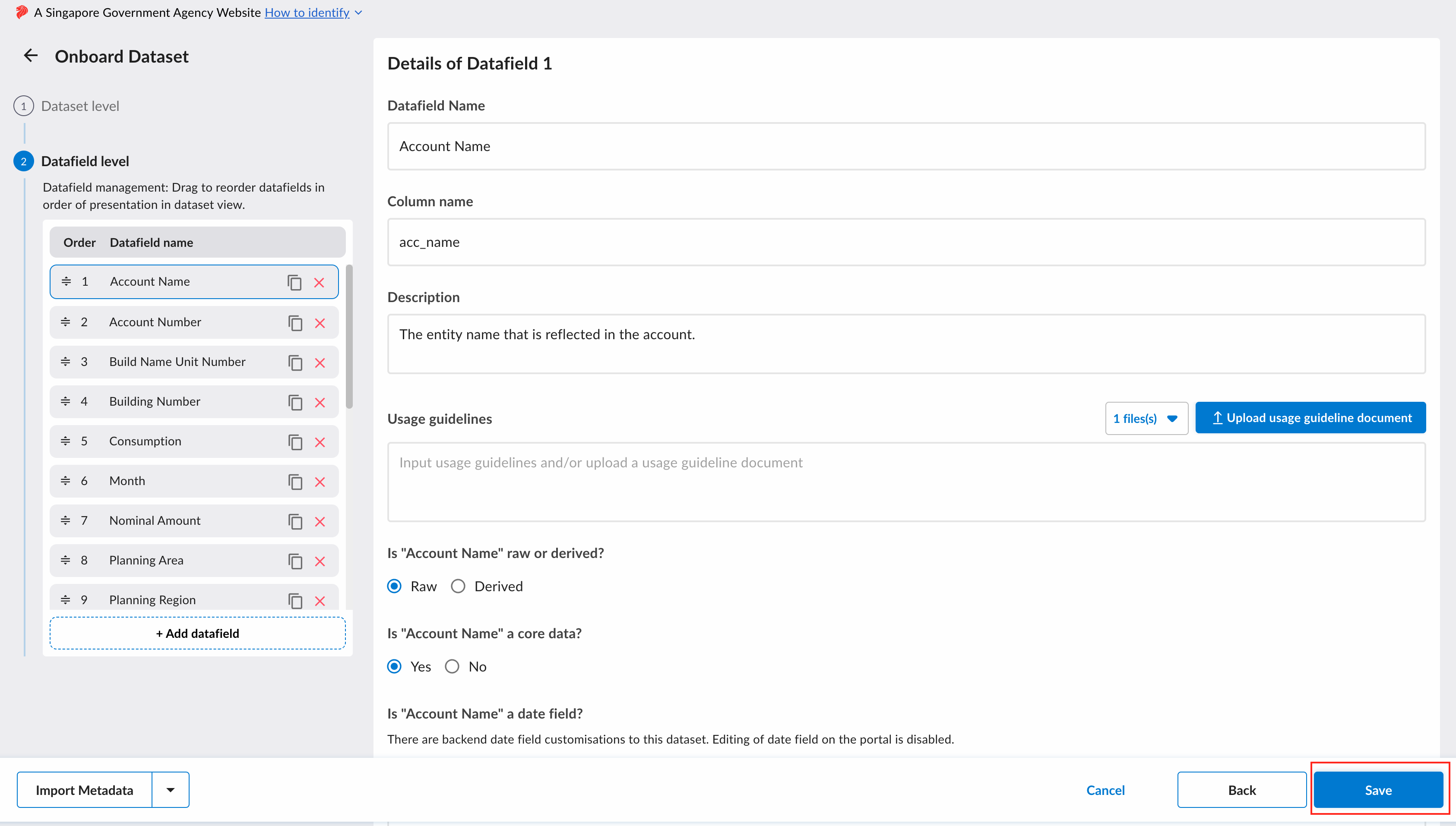
Each datafield in the dataset can be marked as a date field.
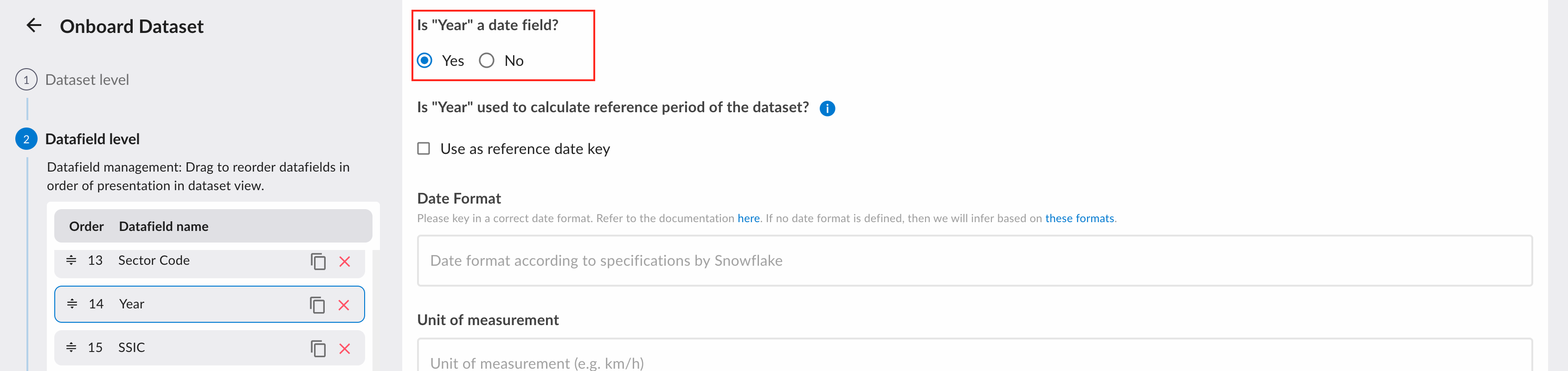
Once a datafield is marked as a date field, users will have the option to filter their approved dataset by the specified date.
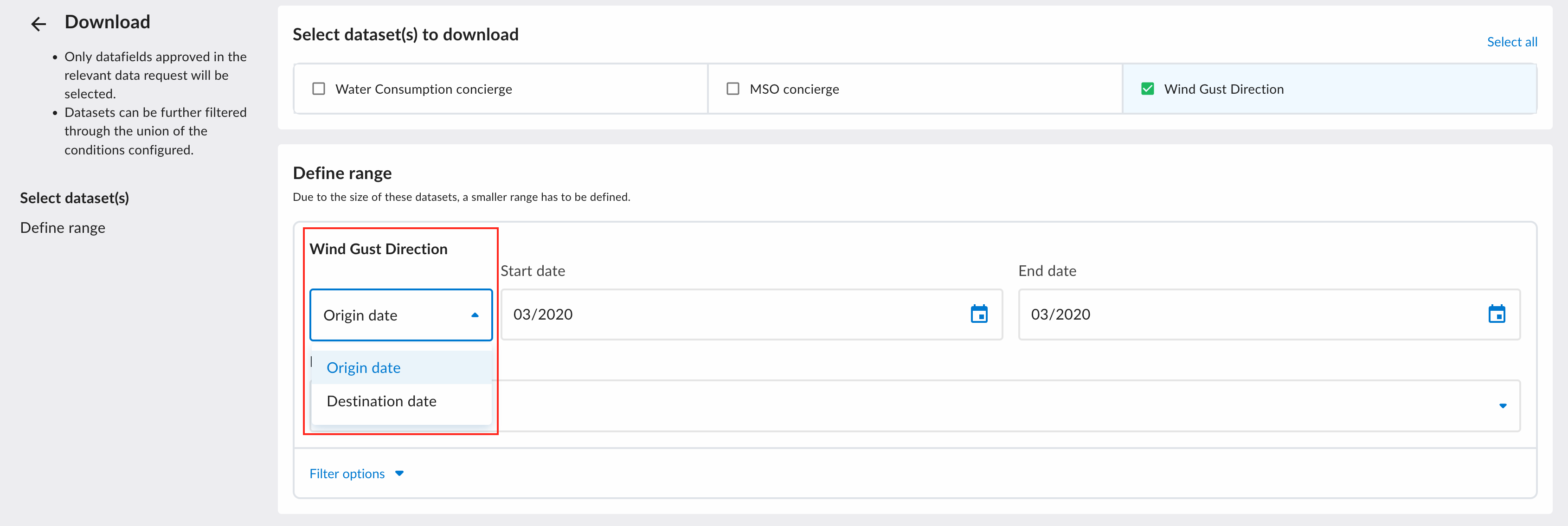
For each dataset, there must be exactly one date field that serves as the reference period.
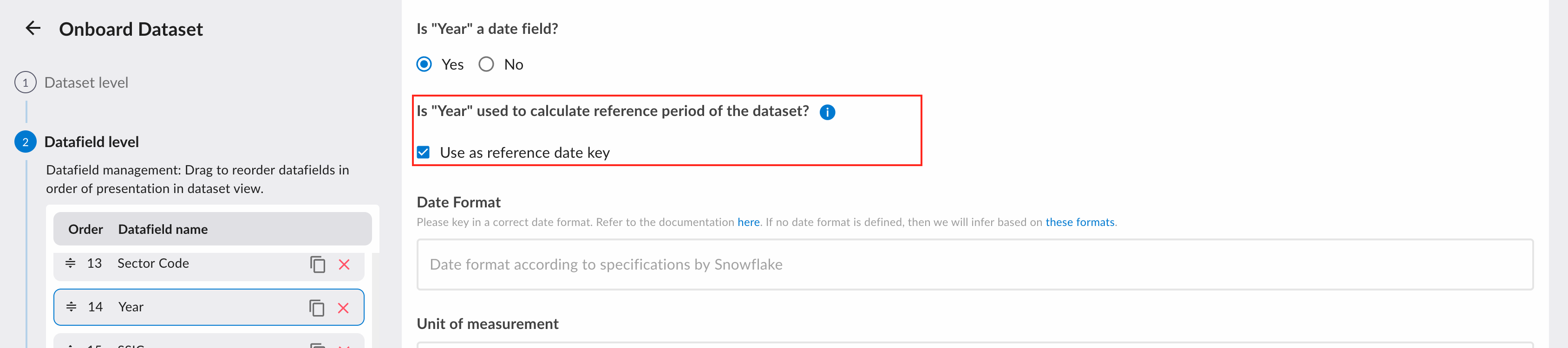
The reference period datafield will be used in the catalog to represent the date range of the dataset. Additionally, users can define the date range of the dataset they require in the data sharing form.

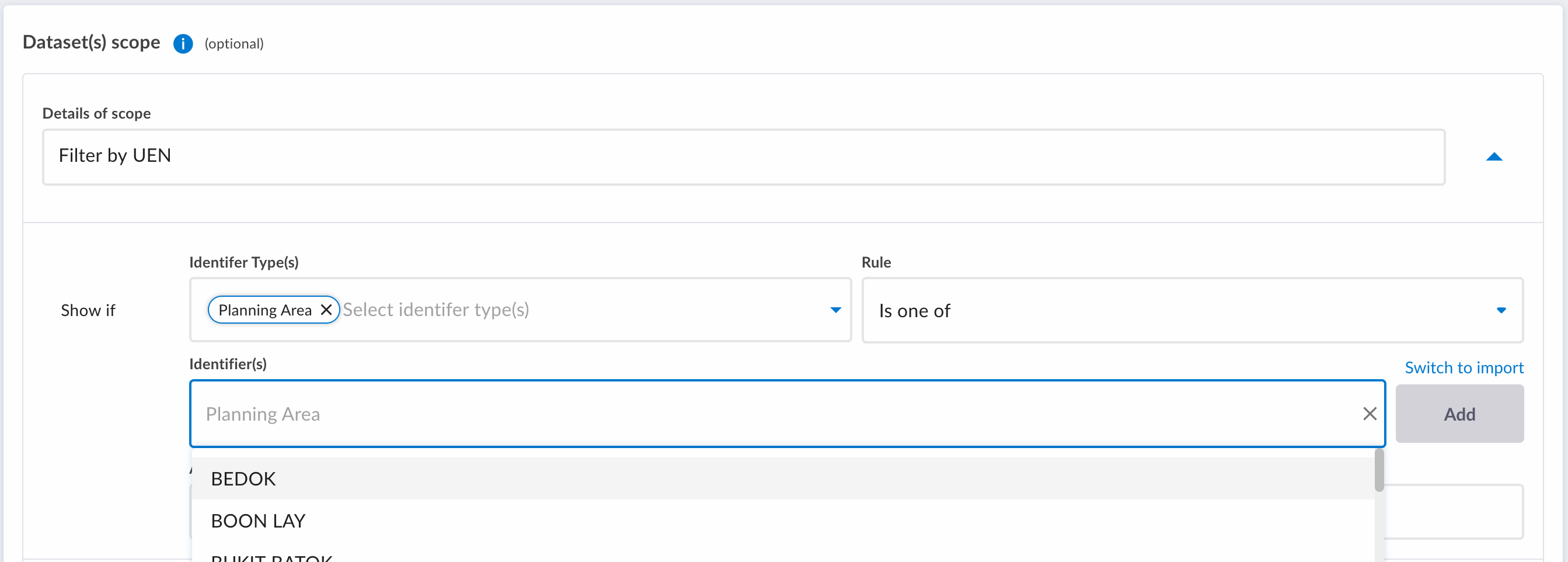
Datafields Scope Filter
Each datafield can be used as a scope filter.
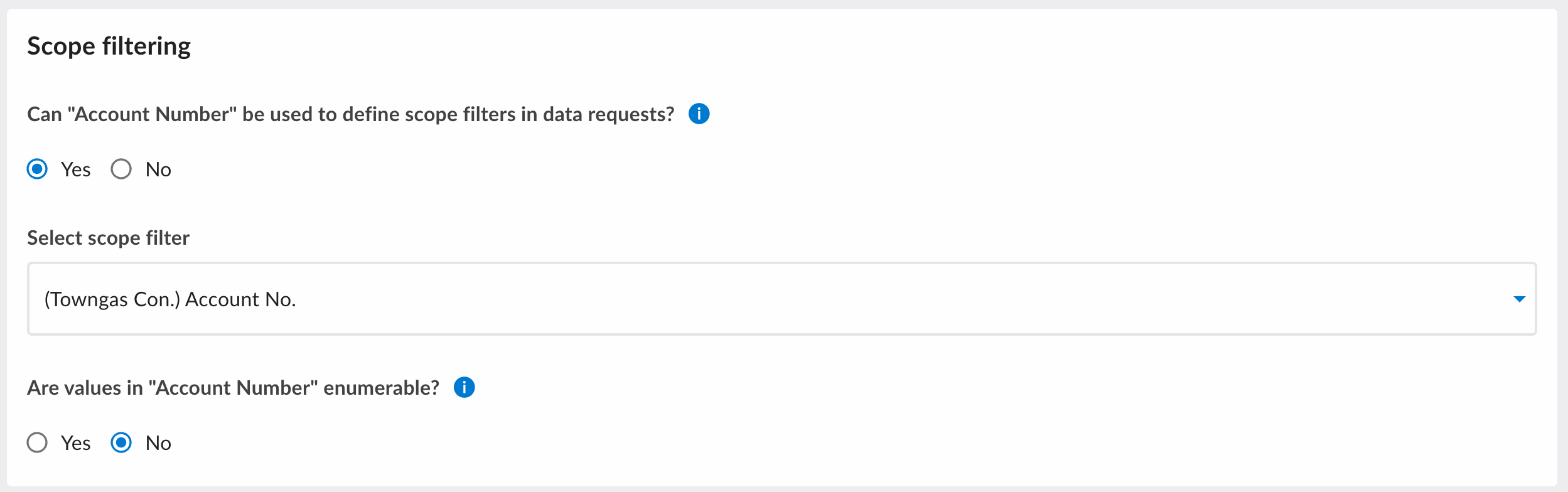
A scope filter can be used to filter datasets in two places:
-
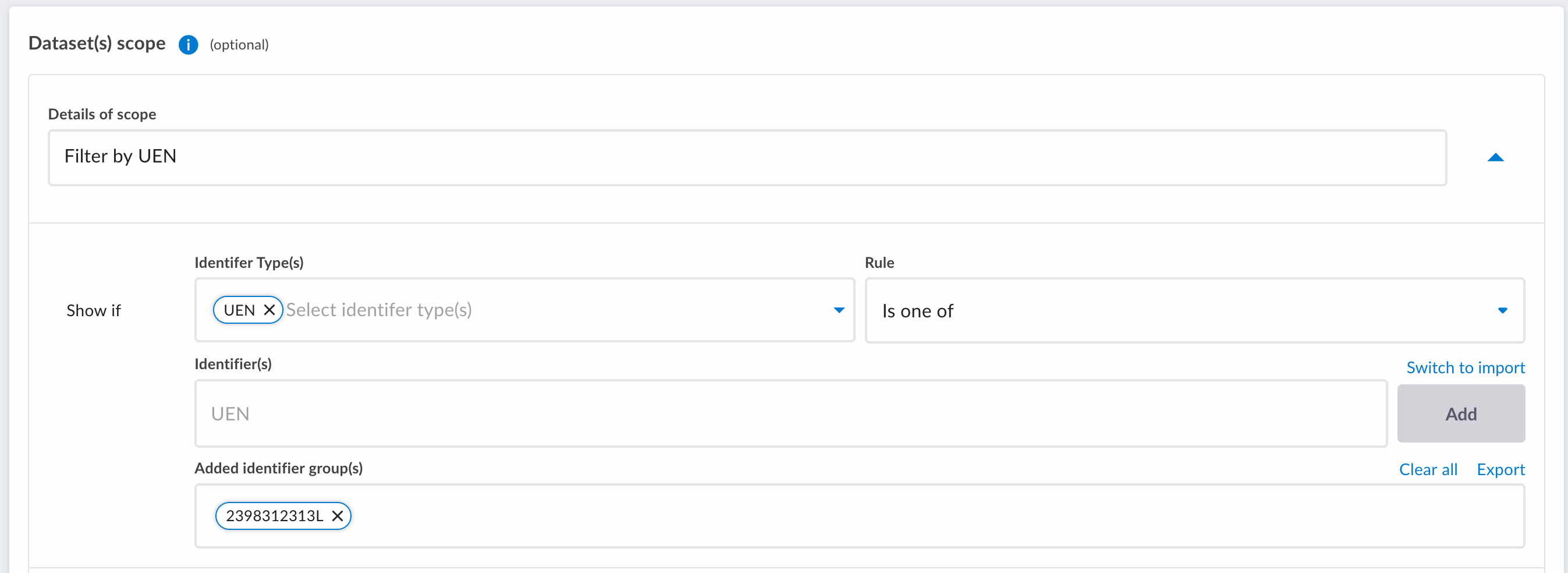
In the data request form - used to define the row-level filtering condition accessed by the data request.
 caution
Only mark a datafield as enumerable when the values in the datafield are not sensitive. When a datafield is marked as enumerable, data requestors will be able to access its values before the data request is approved.
-
After fulfillment of the data request - data requestors can query based on the filters within the scope of their data request.
Datafields Fast-Tracked selection
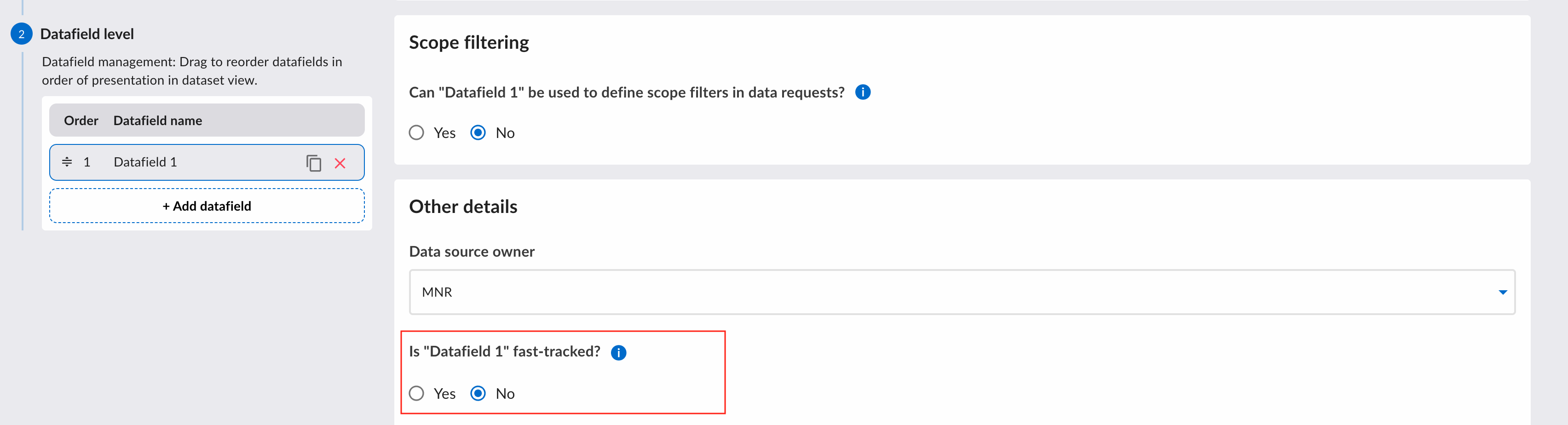
This selection will affect who can approve the usage of the datafield.
Fast-tracked datafields will be approved by Tenant Managers.
Non fast-tracked datafields will be approved by users that are defined to be the 'Source Agency' of this dataset.
For more information on the approval workflow, please click here.
Metadata Import
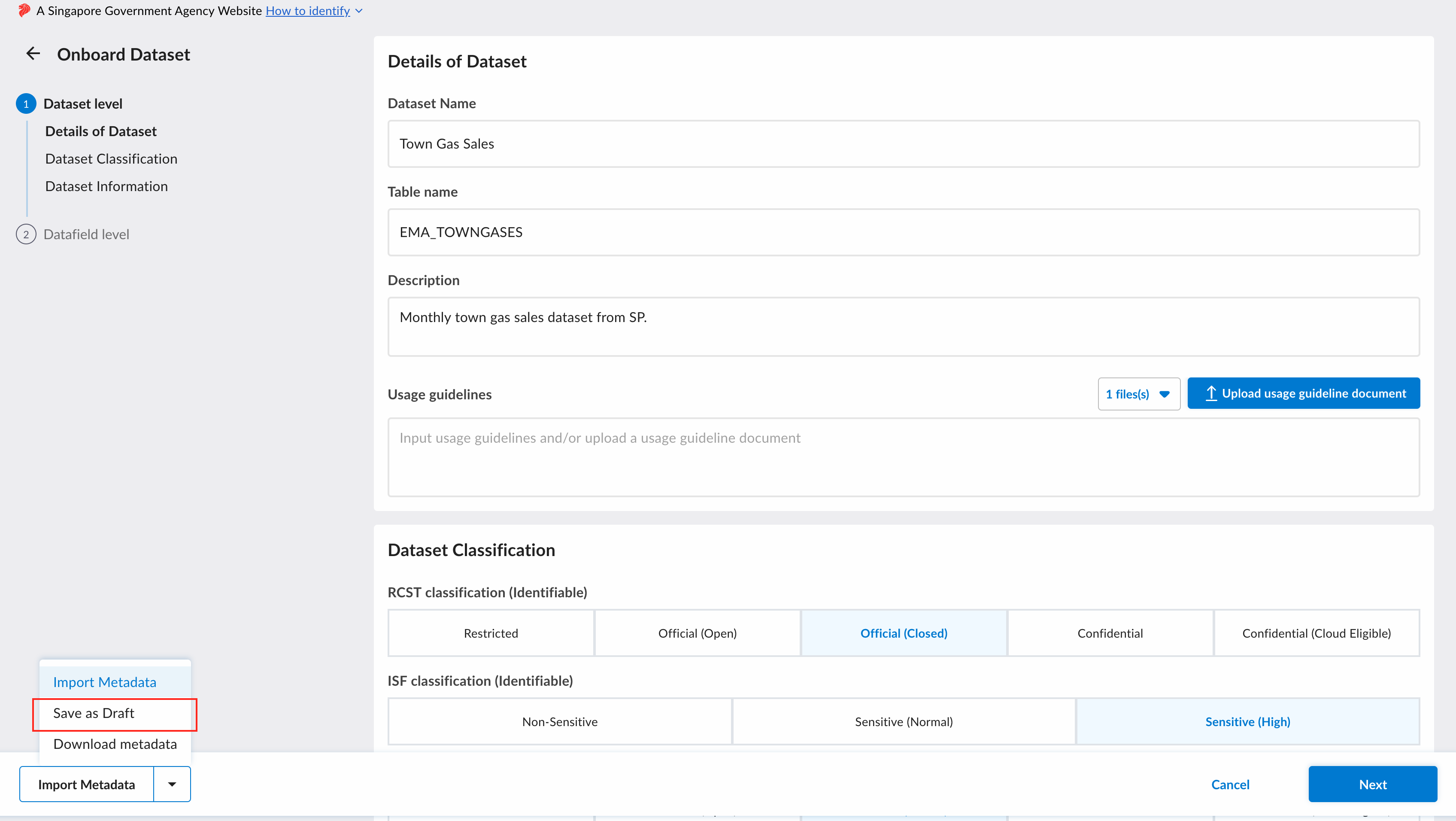
To ease the process of filling in the input, click on the "Import Metadata" button.
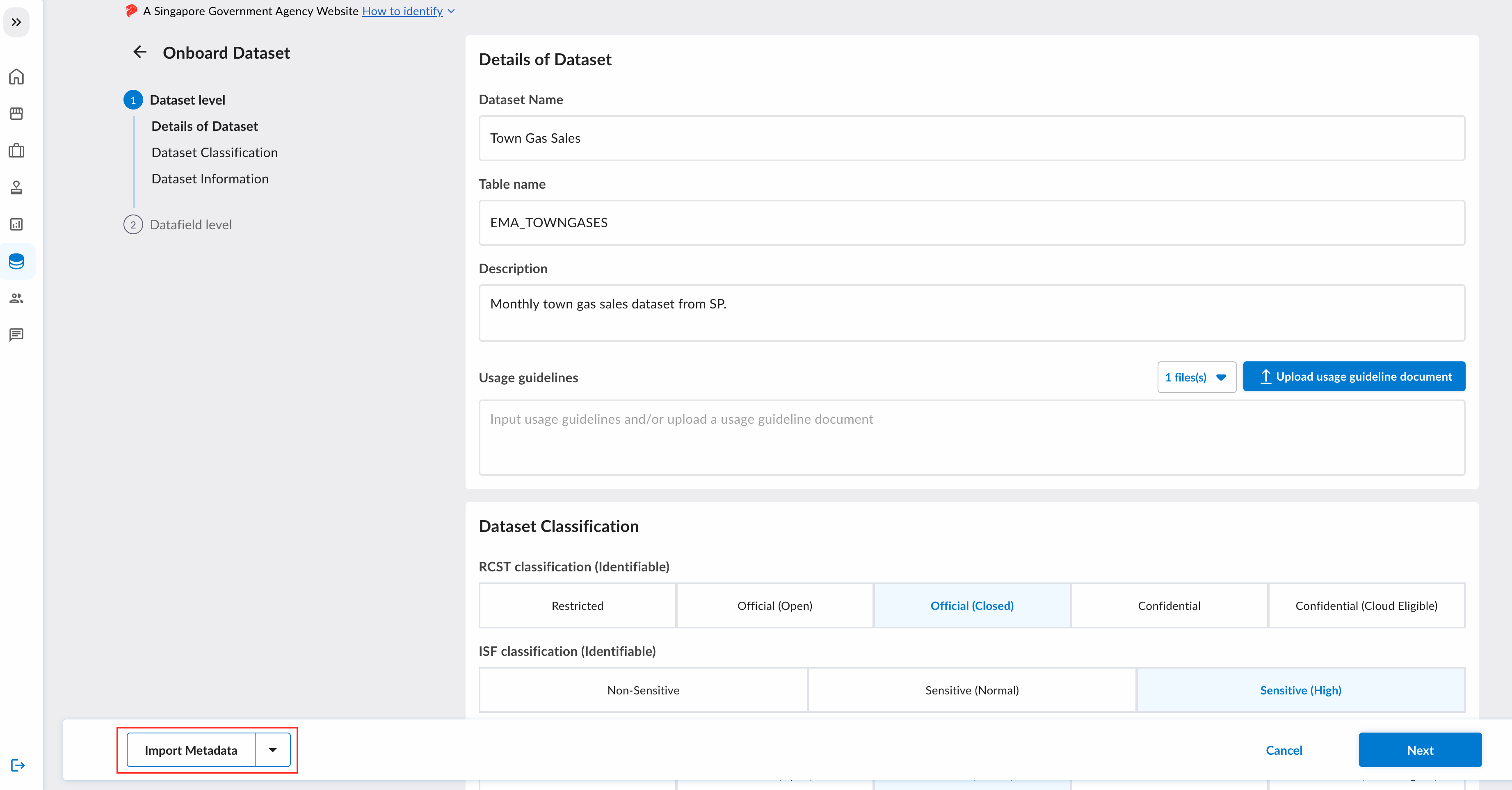
A popup will appear where you can upload the Excel file containing the metadata. After uploading, click on the "Import" button, and the form will be populated with the values from the Excel file.
The uploaded Excel file needs to conform to a certain format for the platform to load the data. Download the "Metadata Template" to view the required format.
The metadata template can be downloaded from
here too.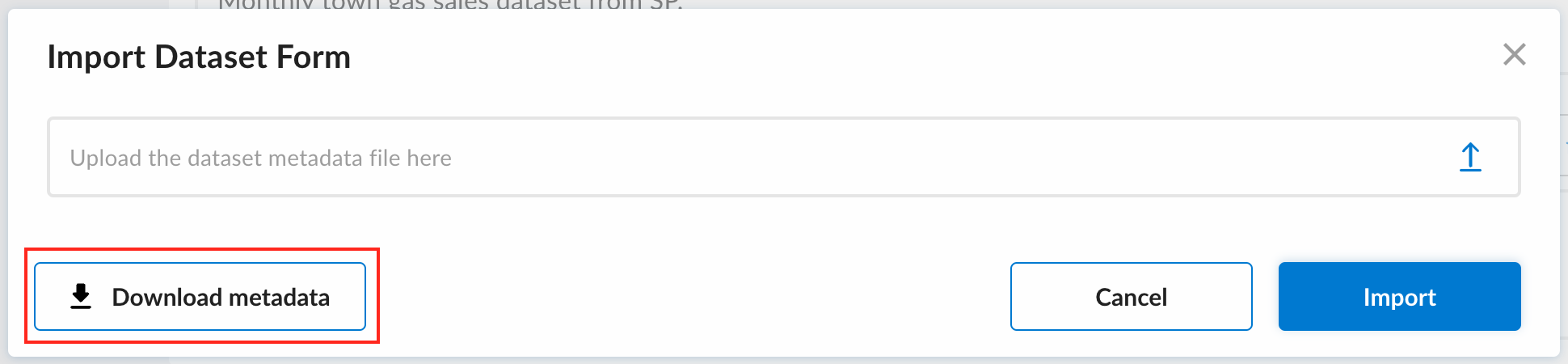
Saving as Draft
Once you are done editing the dataset, click on the "Save" or "Save as draft" button at the bottom navigation bar.
Publishing Dataset
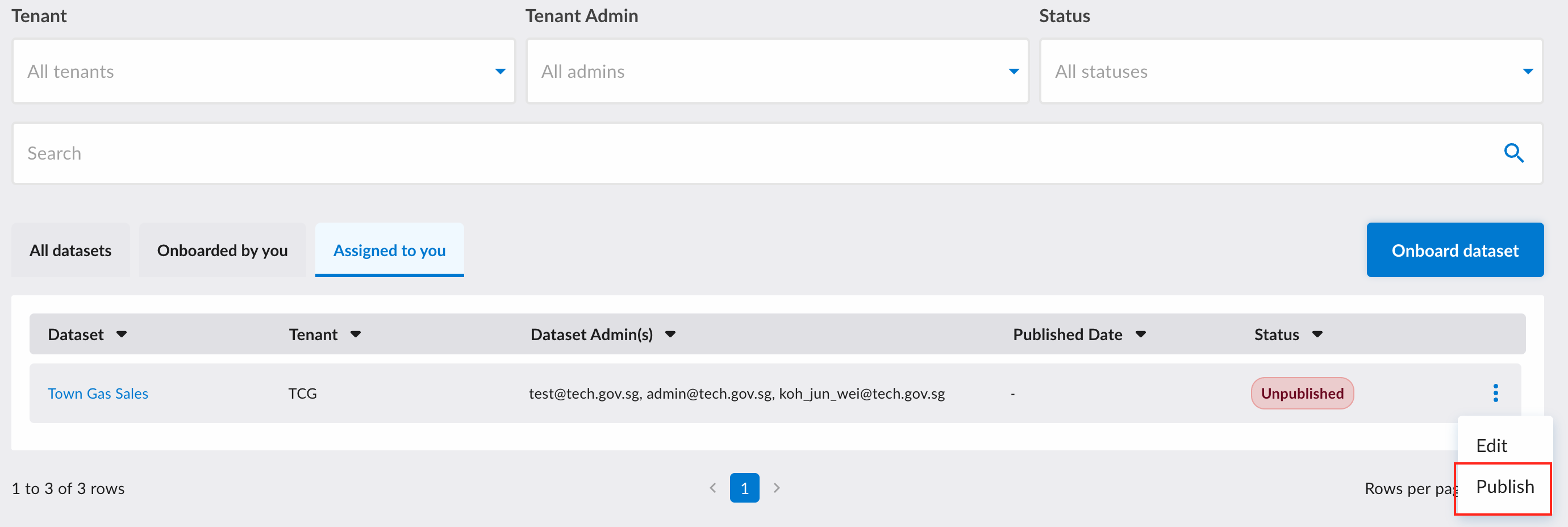
Once the dataset's metadata has been furnished without any errors, you can trigger the process to publish the dataset on DataHive. After publication, users can start subscribing to your dataset on the portal.
Please vet the metadata thoroughly before publishing. After publication, there will be some restrictions on the metadata that can be updated.