Upload Files to Dataset
DataHive supports datasets up to the following classifications:
- RCST: Confidential (Cloud Eligible)
- ISF: Sensitive (Normal)
Datasets on DataHive can be populated via two methods:
Method 1: Uploading via the User Interface (UI)
You need to be assigned as Tenant Admin in order to upload files to an onboarded dataset. Please note that file upload is not available for tenants configured to have data shared via Snowflake Private Listing with DataHive. If your tenant is configured to have data shared via Snowflake Private Listing, refer to Share Dataset via Snowflake Private Listing for sharing of dataset.
Accessing the file upload form
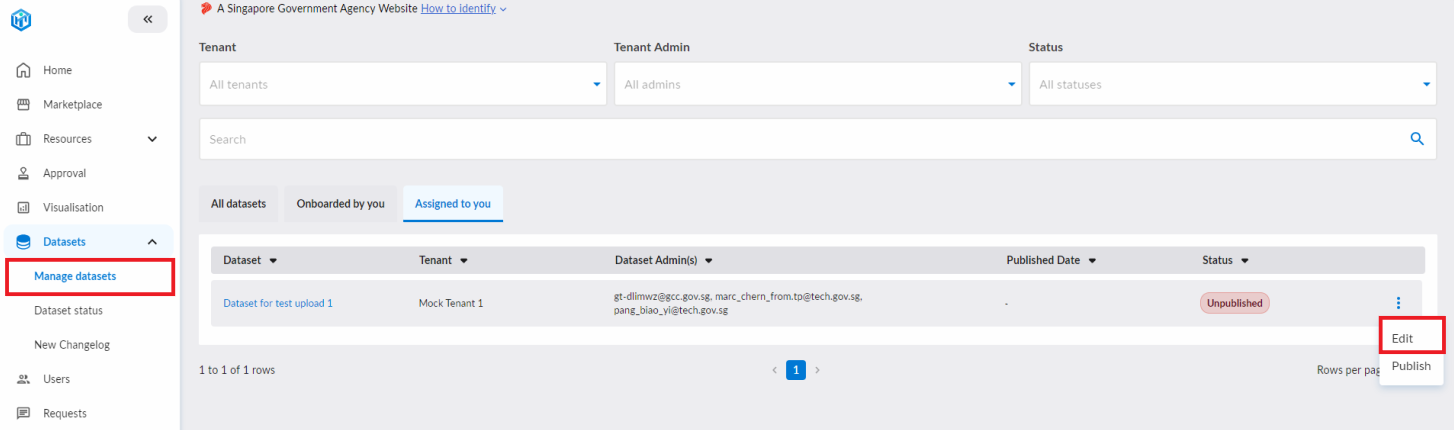
To upload files to an onboarded dataset, navigate to "Datasets" > "Manage datasets" and click on the ellipsis associated with the dataset. Select "Edit" from the dropdown menu.
After clicking on the edit button, you will be redirected to the dataset form. You should see the file upload interface as shown below.
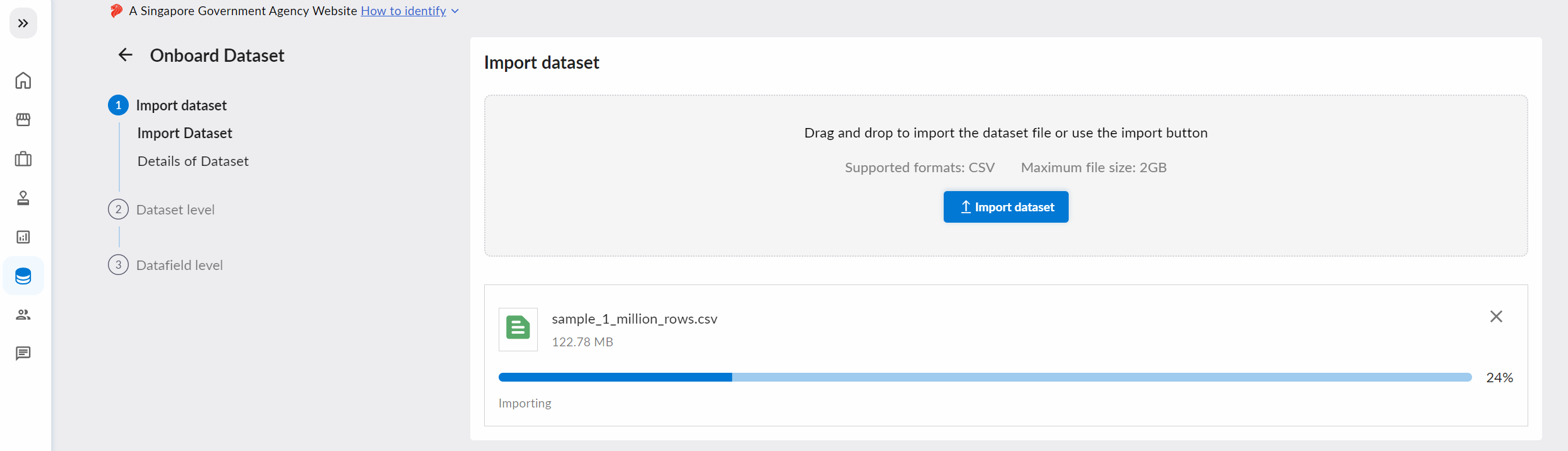
Drag and drop your file and a loading bar will appear to notify you of the progress of your upload.
You may upload multiple files but you have to drag and drop them individually (dragging multiple files at once is not supported).
Method 2: Uploading programmatically via API
You need to:
- Get a Tenant Connection to the Tenant that owns the dataset (see Creating a Service Principal Account)
- Get the Tenant Admin to assign the dataset to your Service Principal Account (see Dataset Assignments)
Implementation Steps
Step 1: Generate a JWT
Follow the steps here to generate the JWT token. JWT token will be required for authentication.
Step 2: Retrieve the Upload Link
Make a GET request to obtain a time-limited upload URL:
GET /datasets/{dataset_id}/get_upload_link_spn?file=<name_of_your_file.csv>
Headers
Authorization: Bearer {JWT Token}
Response
200 OK
https://api-stg.datahive.gov.sg//...
Generate a new upload link for each file upload. Upload links are time-limited and valid for single use only. Reusing a link may result in failed uploads or data corruption.
Step 3: Upload your file using the Upload Link
Use the SAS URL to upload your CSV file via any tool that supports HTTP PUT with headers. Common options include:
Alternatively, you can use the sample API script included in your approval email, which automates Steps 1 to 3.
Using Sample API Script (Optional)
Instead of implementing the three steps above, you can use the pre-built sample script included in your tenant connection approval email. This script automates the entire authentication and upload process.
- Please read and understand the usage of the files as described in this section, especially on handling of
config.jsonfile. - Usage of this script in either development or production systems is at the user's discretion.
By extracting the zip file downloaded from the email attachment, you will find 3 files in it.
| File name | Description |
|---|---|
| api_script.py | This is the main script that you run to call the DataHive API and upload your dataset file. |
| requirements.txt | This file contains the list of python dependencies needed to run the script. |
| config.json | This file contains the configurations and credentials (user and account IDs) required to run the script to make authenticated calls to DataHive APIs. ⚠️ As this file contains your credentials, please adhere to the following rules when handling this file:
|
To run the script, ensure you have python installed and then run the following command to install dependencies:
python -m pip install -r requirements.txt
Move your private key rsa_key.p8 to the same folder as the sample script.
Configure the private key passphrase in your environment if your private key is encrypted. If your private key is unencrypted, you can skip this step.
export PRIVATE_KEY_PASSPHRASE='<passphrase>'
Then run the script with the following arguments:
python api_script.py \
  --private_key_path /path/to/rsa_key.p8 \
  --dataset_id <your-dataset-id> \
  --filename /path/to/your_file.csv
Upload Notifications
For each programmatic file upload, DataHive will notify Service Principal Account members and Tenant Admins of the upload outcome via email.
File format
Files uploaded must adhere to the following format:
- Only
CSVfiles are supported for upload. - Each file can be up to
2GBin size. - No line breaks,
\t(tab) or\n(newline) within cells - Every file should have a header row with the same column names.
- Every row should have the same number of columns as the header row.
The uploaded file(s) will be validated for the above conditions before the upload begins. While the validation is taking place, the progress bar will show a Validating status, with the progress set at 0%. This validation may take up to 2 minutes depending on the size of the file. Once completed, the file upload will begin and the progress bar will show the progress of the upload.
The following are examples of valid and invalid CSV files:
Valid CSV file
column1,column2,column3
value1,value2,value3
value4,value5,value6
Invalid CSV file - Missing header
value1,value2,value3
value4,value5,value6
Invalid CSV file - Row 2 has less columns than header
column1,column2,column3
value1,value2
value4,value5,value6
Invalid CSV file - Line break/tabs within cell
column1,column2,column3
value1,value\t2,value
3
value4,value5,value6
Filling up the Dataset Metadata
After the file upload completes, the Tenant Admin must fill in the necessary information as detailed in editing and publishing dataset and publish the dataset. Service Principal Accounts can only upload files - they cannot publish datasets.
The headers of the uploaded file will be used to automatically populate the datafields metadata provided that:
- It is the first file uploaded for the dataset.
- The datafields metadata has not been filled up before manually or through the Import Metadata function.
Tenant Admins should ensure that the ordering, naming and metadata of the datafields entered on the DataHive portal matches the schema in their uploaded file(s).
DataHive does not perform any additional mapping behind the scenes.
Upon publish, the DataHive system would read all the uploaded file(s) and write them to a table in our data warehouse. Users would be able to filter the data based on the publishing date.
The published dataset should be available for subscription on the DataHive portal within half an hour after clicking "Publish", if the publishing job is successful.
Tenant admins publishing datasets will be notified via email when the publish job task has completed (succeeded/failed).
Adding Data to Published Dataset
After a dataset has been published, you can upload new files using either method described above:
-
Method 1: Tenant Admins can upload via the interface
- Clicking on "Save" with newly uploaded file(s) would trigger a publish job to append the data from these new files to the existing table previously created at publish time.
- Tenant Admins do not need to click "Publish" again once they have published a dataset. A publish job is automatically ran if there are new files uploaded to the DataHive platform.
-
Method 2: Service Principal Accounts can upload programmatically
- Processing starts automatically after successful upload.
The following conditions currently apply after a dataset has been published:
- Uploaded files cannot be deleted.
- Datafields cannot be removed or reordered.
If you need to apply any of the above mentioned changes to a dataset after it has been published, please refer to the guide on Un-publishing Dataset.
Additional Information
For a comprehensive overview of the entire dataset onboarding process via file uploads, please refer to the steps and frequently asked questions available here.