Share Dataset via Snowflake Private Listing
You must be assigned the Tenant Admin role to share datasets via Snowflake Private Listing. Please note that Snowflake Private Listing is only available to tenants configured to have data shared via Snowflake Private Listing with DataHive. If your tenant is not configured to have data shared via Snowflake Private Listing, refer to Uploading Dataset Files for manual file upload instructions.
For more information on setting up a Snowflake Private Listing connection with DataHive, contact us at support@datahive.gov.sg.
Accessing the Dataset Details Form
To access the dataset details form, click on "Manage Datasets" > "Edit" after you click on the ellipsis associated with the dataset.
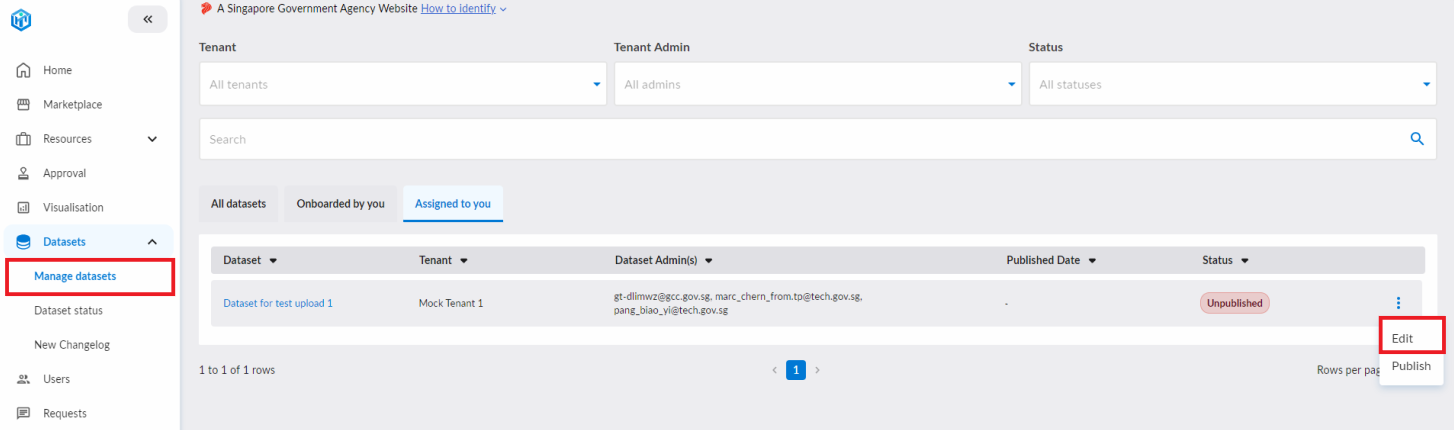
After clicking on the edit button, you will be redirected to the dataset details form.
DataHive supports datasets up to the following classifications:
- RCST: Confidential (Cloud Eligible)
- ISF: Sensitive (Normal)
Filling in the Table Details
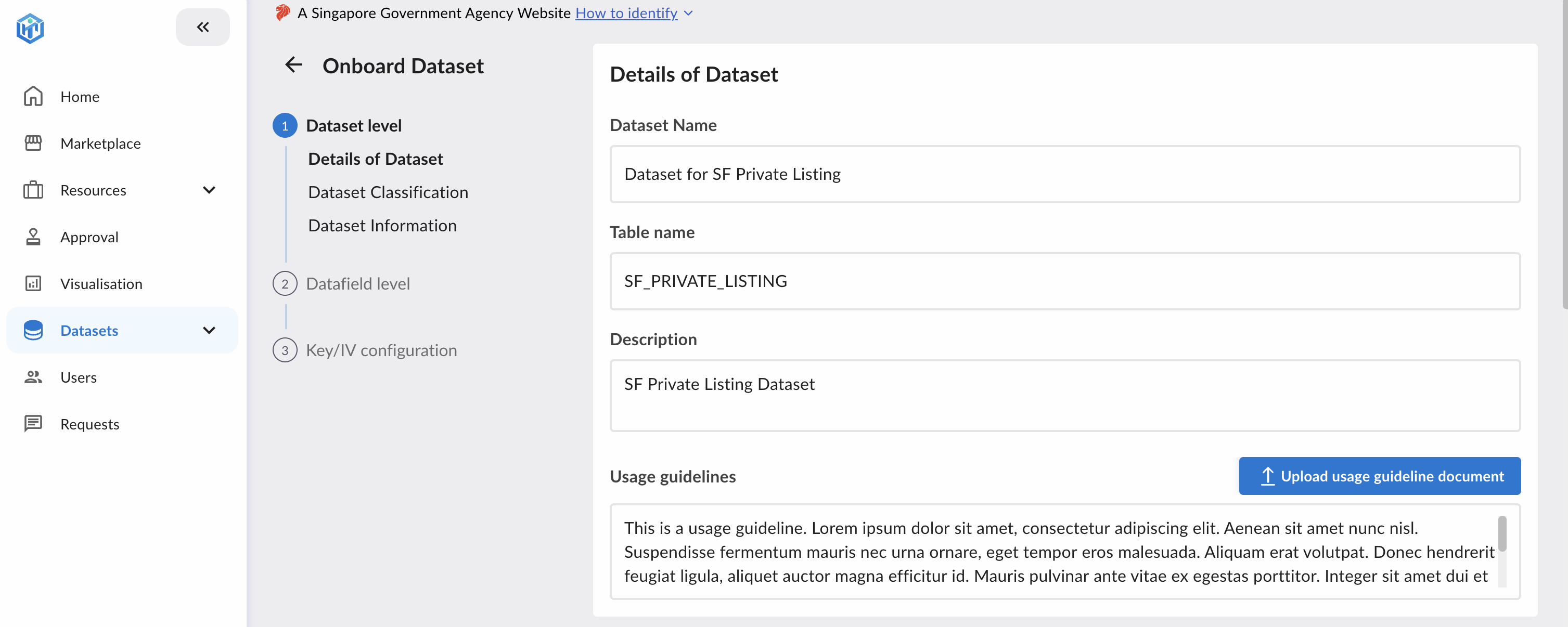
Fill in the table details in the section depicted by the image above. These details will appear in the DataHive portal and help consumers understand how to access and interpret the data.
Ensure that the table name matches the actual table name you’ve shared via Snowflake. This is used by DataHive to expose the dataset to users.
Filling in the Dataset Metadata
After filling in the table details, fill in the necessary information as detailed in editing and publishing dataset and publish your dataset.
Do note that the datafields will have to be filled in manually for sharing via Snowflake Private Listing.
Tenant Admins should ensure that the ordering, naming and metadata of the datafields entered on the DataHive portal matches the schema in their Snowflake tables.
DataHive does not perform any additional mapping behind the scenes.
Upon publishing, the DataHive system will reference the shared tables made available through your Snowflake Private Listing. These tables will be exposed to users for subscription directly from the DataHive portal.
Once the publishing task has completed, Tenant Admins will receive an email notification stating whether the task succeeded or failed.
Providing Key & IV for Identifiable Fields
These fields are required only if one or more datafields are marked as identifiable. Once the dataset is published, the Key and IV cannot be modified.
If your dataset contains any identifiable fields (e.g. personal identifiers), you are required to supply a Key and Initialisation Vector (IV) to support secure de-tokenisation for authorised users.
These values are used by DataHive to de-tokenise values that were previously tokenised in your shared Snowflake tables. Re-identification will only be performed for users who have a fulfilled data request to access the original (de-tokenised) data.
Fields Explained
- Key: The key used to reverse the tokenisation of field values.
- Must be a 64-character hexadecimal string (representing a 256-bit SHA-256 key).
- IV (Initialisation Vector): Used alongside the key to support secure de-tokenisation.
- Must be a 32-character hexadecimal string (representing 16 bytes).
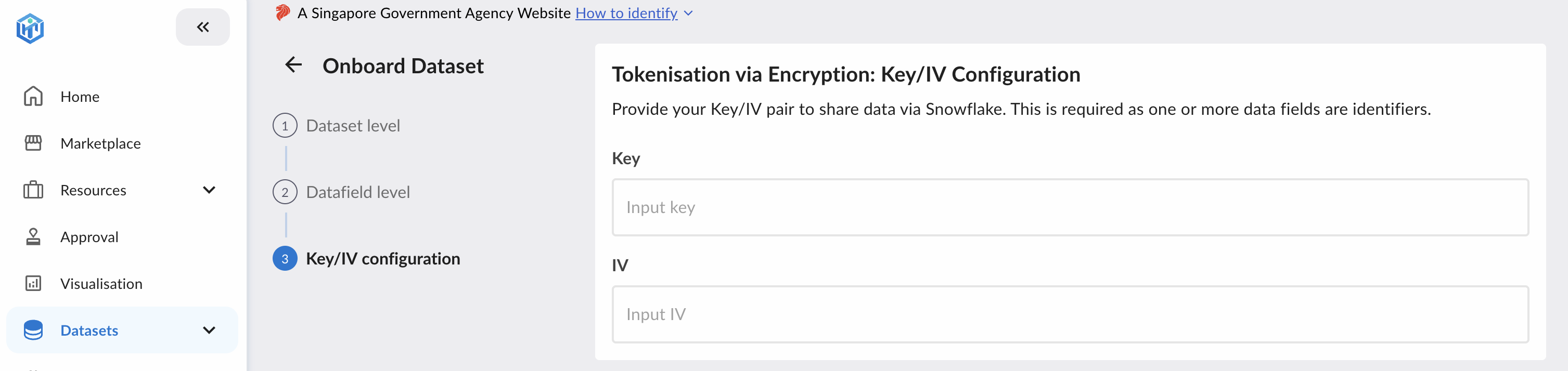
These values are securely stored and are not exposed to dataset consumers. De-tokenisation is handled internally by DataHive and is only available to authorised users under strict access controls.
Updating Published Dataset
The following conditions currently apply after a dataset has been published:
- Datafields cannot be removed or reordered.
- The Key and Initialisation Vector (IV) cannot be modified.
If you need to apply any of the above mentioned changes to a dataset after it has been published, please refer to the guide on Un-publishing Dataset.