Submit a Data Request
Filling Out the Data Request Form
Before proceeding, make sure you have added all the datasets and data products you need to your cart. See Find & Discover Data for instructions on how to browse and add items to your cart.
After finalizing your cart, the next step is to complete the Data Request (DR) Form with the required details
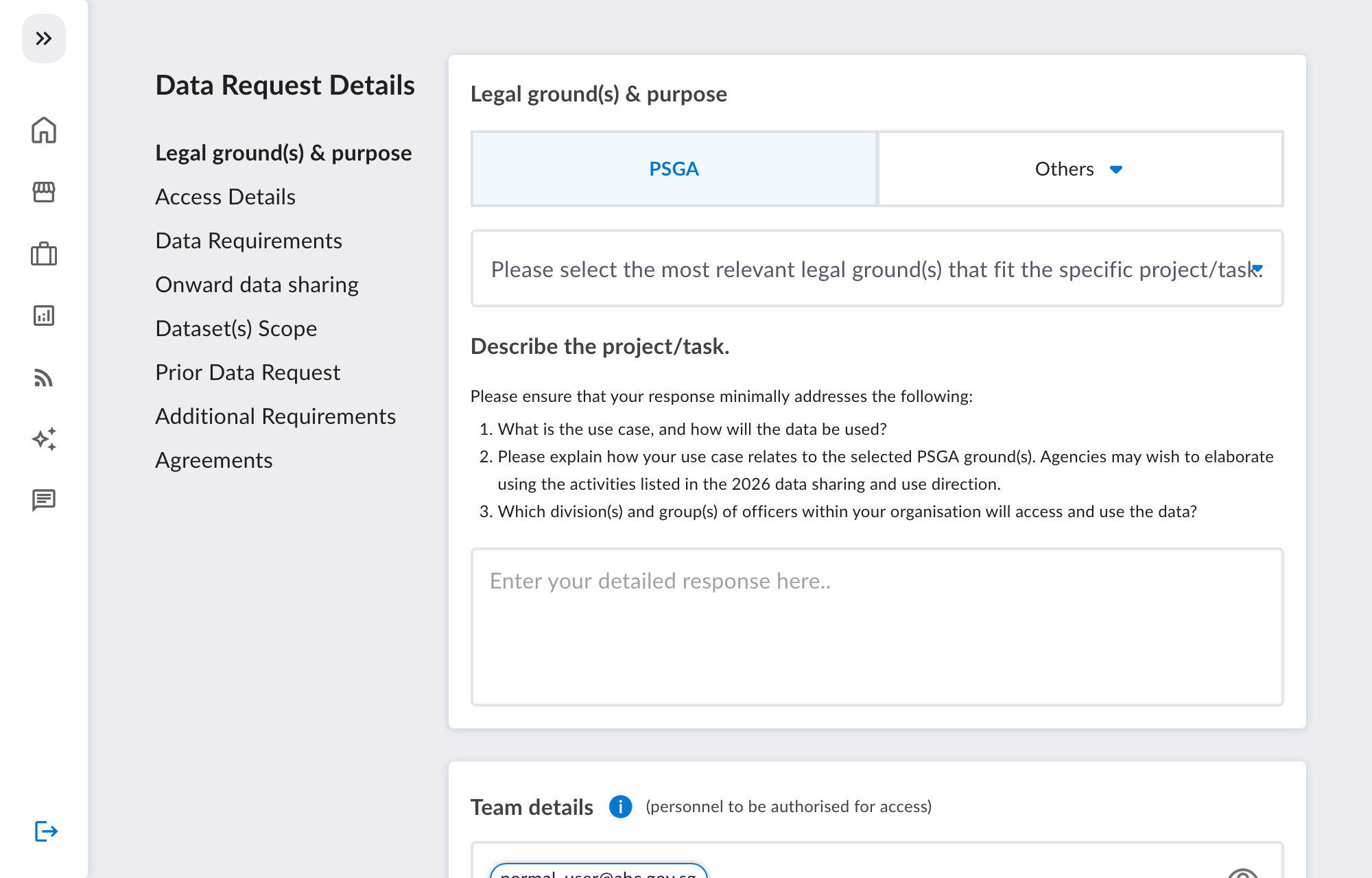
Key Sections of the DR Form
1. Legal ground & purpose
State the legal ground for the data sharing and how you intend to use the data.
Select a legal ground
PSGA is the first option; the rest are under Others. Each ground asks for different details:
| Legal ground | What else you need to provide |
|---|---|
PSGA | Select one or more grounds (see below). |
Statutory Act | The Act and the corresponding provision. |
Consent | Upload documentation of the consent obtained from the data subjects, and describe it in the text box. Both are required under Data Access and Distribution clause 1.2d. |
Consent Exclusion | The relevant exclusion from Annex A or Part I of Annex B. |
Public Interest | Explain how the request serves the public interest, in the project description. |
PSGA grounds (select as many as apply):
- Policy planning, development, or review
- Policy or programme implementation
- Regulation
- Research or analysis
- Effective operations of (i) an Agency; (ii) more than one Agency; (iii) the Singapore public sector as a whole; or (iv) any part of the Singapore public sector
Only PSGA requires selection of one or more PSGA grounds. The other legal grounds do not require further selection.
Consent means the data subject agreeing that the info they gave to agency A (data provider) may be shared with agency B (data requestor). It is not bilateral consent between agencies. A data subject is the individual or entity the data relates to.
For Consent Exclusion, you must still ensure the use and disclosure of personal data complies with all applicable legal obligations and Data Protection (Additional Requirements for the Protection of Personal Data) clause 2.1/S1.
Describe the project/task
Whatever ground you select, describe the project or task in the Describe the project/task box. Cover:
- The use case, and how the data will be used.
- How the use case meets your selected legal ground. For
PSGA, explain how it fits the selected ground(s) — the activities in the Ministerial Direction may help. - Which division(s) and group(s) of officers will access and use the data.
2. Team Details
List the email addresses (@agency.gov.sg) of your team members who require access to the dataset per the DR. After the DR has been approved, these team members can access the platform using the services related to the DR.
Please note that the email domain suffix should be (.gov.sg). All other email suffixes will be will be rejected, with the exception of A*STAR HQ and DSTA.
3. Subscription Type
There are 2 subscription types to choose from.
- Ad-Hoc: Request for a fixed date range of a dataset. You will only receive data within the specified time range in the data request.
- Example: Request electricity consumption data from January 2024 to December 2024. You will receive only data within that period.
- Recurring: Request for ongoing and recurring updates of a dataset. You will continue to receive new data as it becomes available until the data request expires.
- Example: Request monthly water consumption data on an ongoing basis. You will receive updates each month until the data request expires.
Please note that you will not be able to change the subscription type once the DR is approved. Any changes to the subscription type will require a new DR to be submitted.
Users can also opt for Databricks access in this section.
4. Request Expiry Date
Specify the expiry date for your data request. It should be a mininum period of 1 month to buffer to approval process and provisioning.
You will not be able to access the data request once it expires.
| Subscription type | Expiry date |
|---|---|
Ad-Hoc | Mandatory |
Recurring | Optional |
Recurring, and you want DataHive to share the data on your behalf with a NGE/3P | Mandatory — DataHive needs a date on which to withdraw the NGE/3P's access |
5. CDO Team
Select the CDO Team that should have oversight of your data request. The CDO Team will be able to view the data request, but the data request will not be routed to the CDO Team for approval.
6. Internal Approver
Select your internal approver (IA) from the dropdown list. The IA will be able to make the necessary changes to DR ownership, approve or reject the DR, and manage team access changes.
The options in this IA field are dynamically populated based on the CDO Team selected in Step 5. Please ensure that the proper CDO Team is selected before selecting your IA. If you do not see your IA in the list, please contact your CDO Team to add them.
7. Datasets Requirement Summary Table
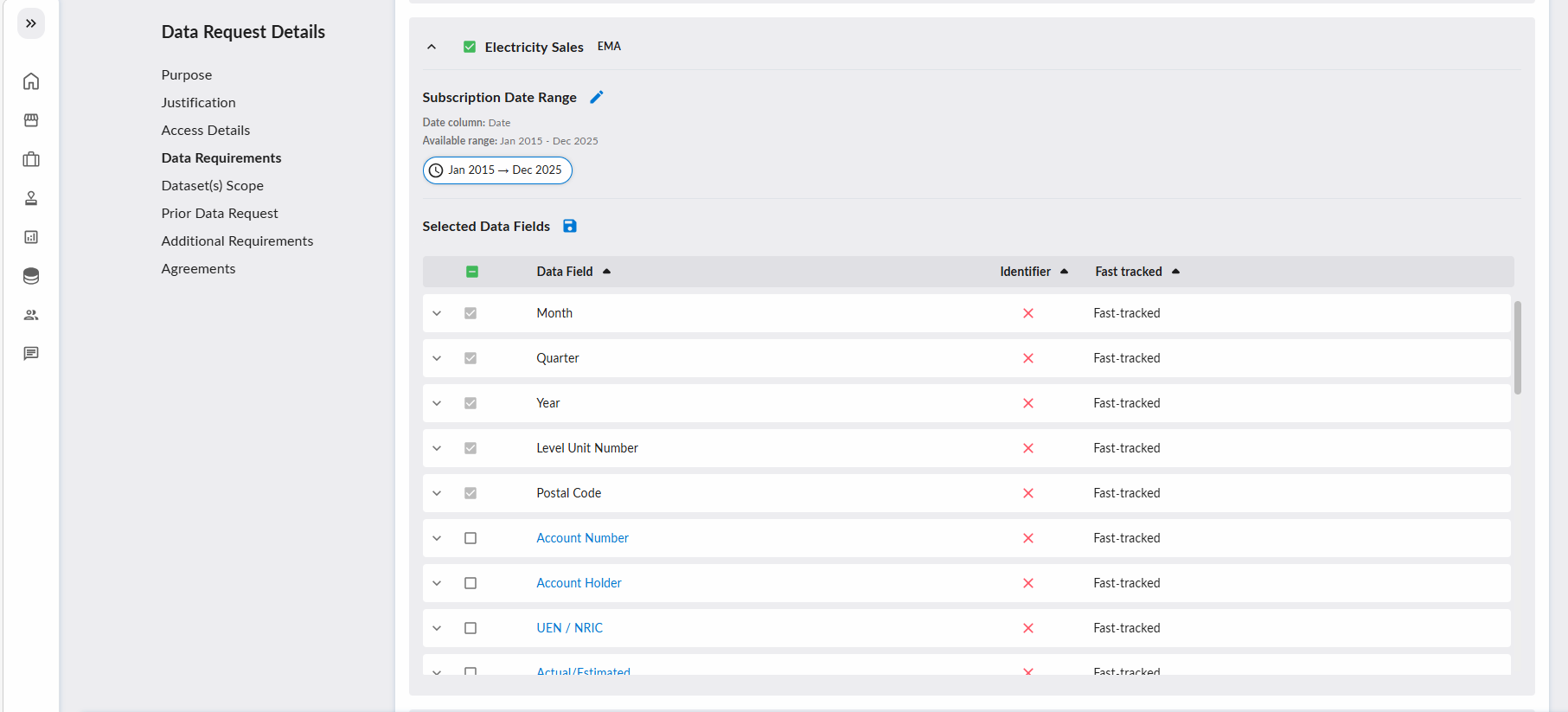
In this table, you have the choice to edit your dataset and data product selections.
Click on the 'arrow' icon to expand and view the selection details.
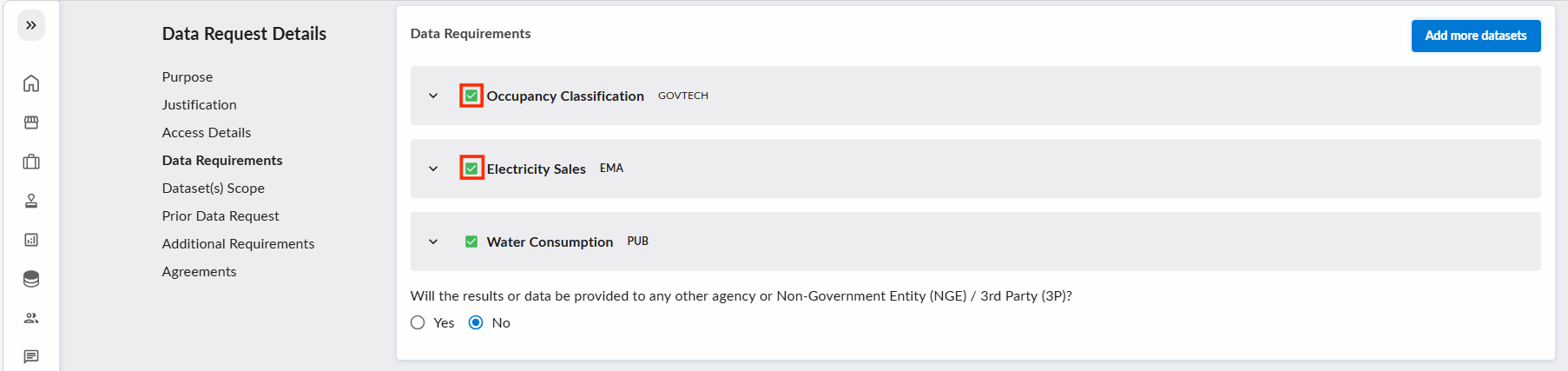
You can toggle the selections of datasets / data products via the green checkbox beside the selection accordingly.
You can click on the 'edit' icons of each dataset to edit the date ranges or datafields selection for that dataset.
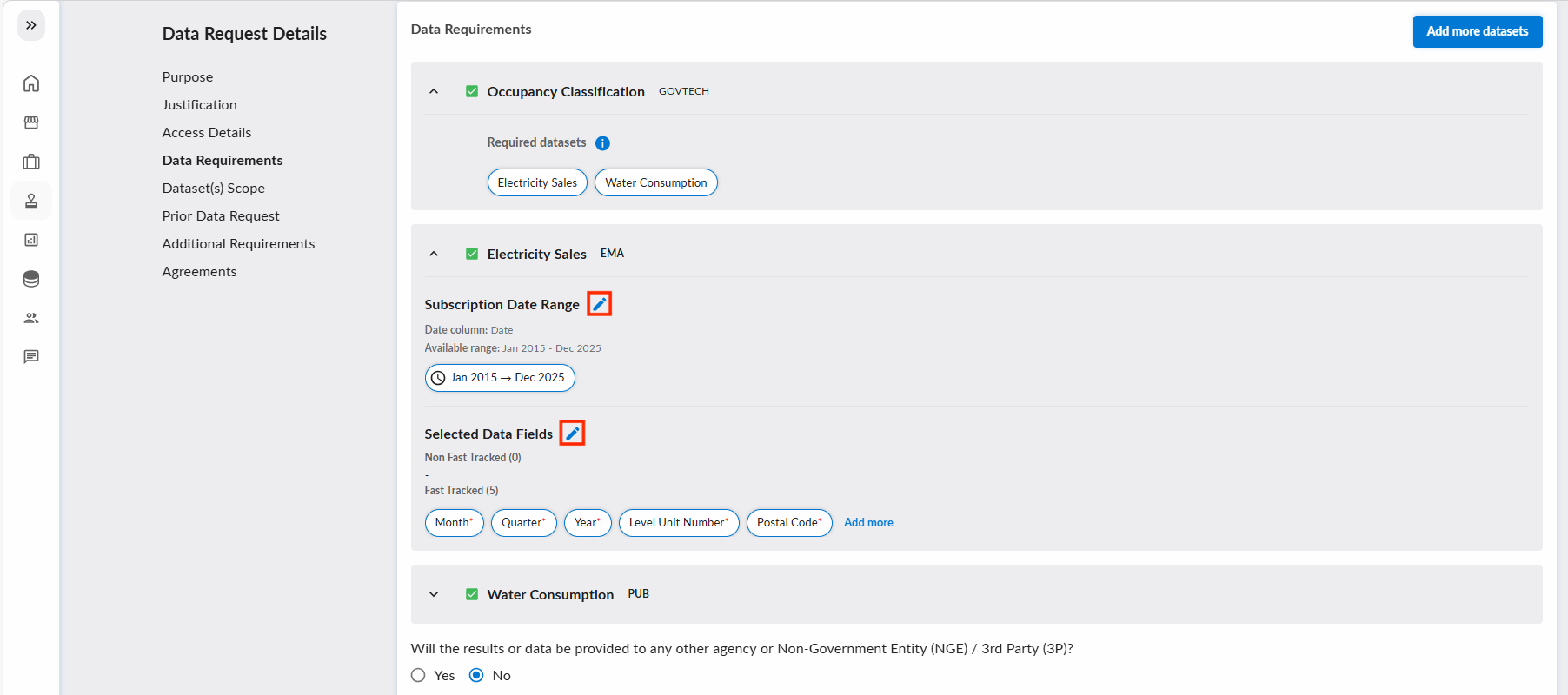
You can define the date ranges for each dataset by clicking on the 'edit' icon besides "Subscription Date Range".
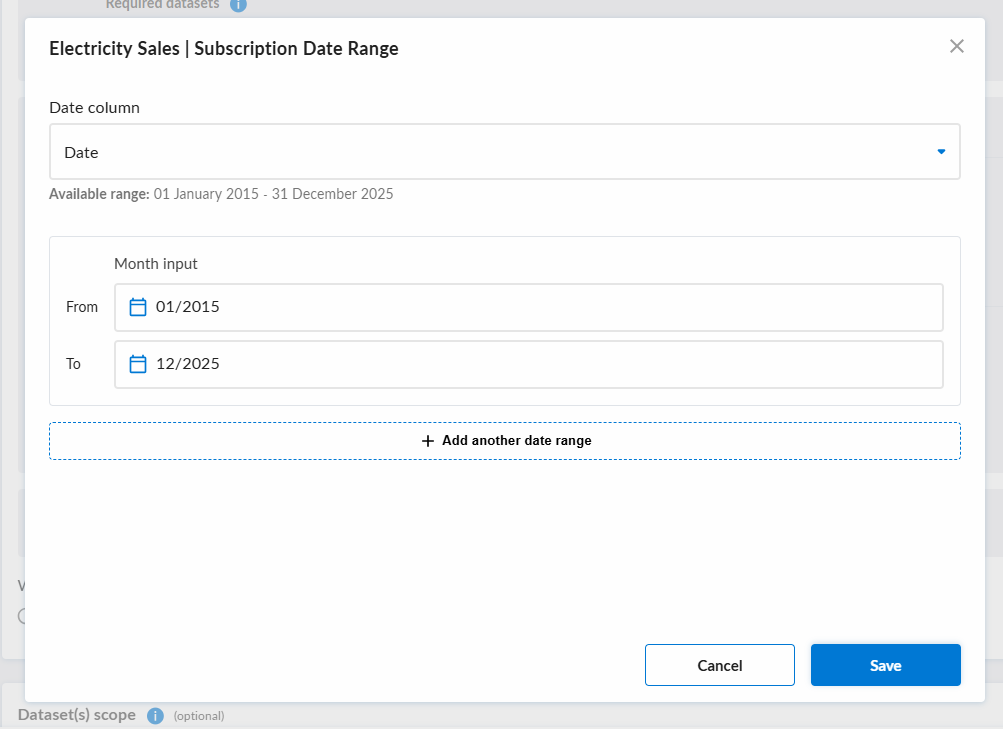
How to define date ranges
Date Range Guidance (click to expand)
For Ad-hoc requests, you may define multiple non-contiguous date ranges by clicking the "+ Add another date range" button.
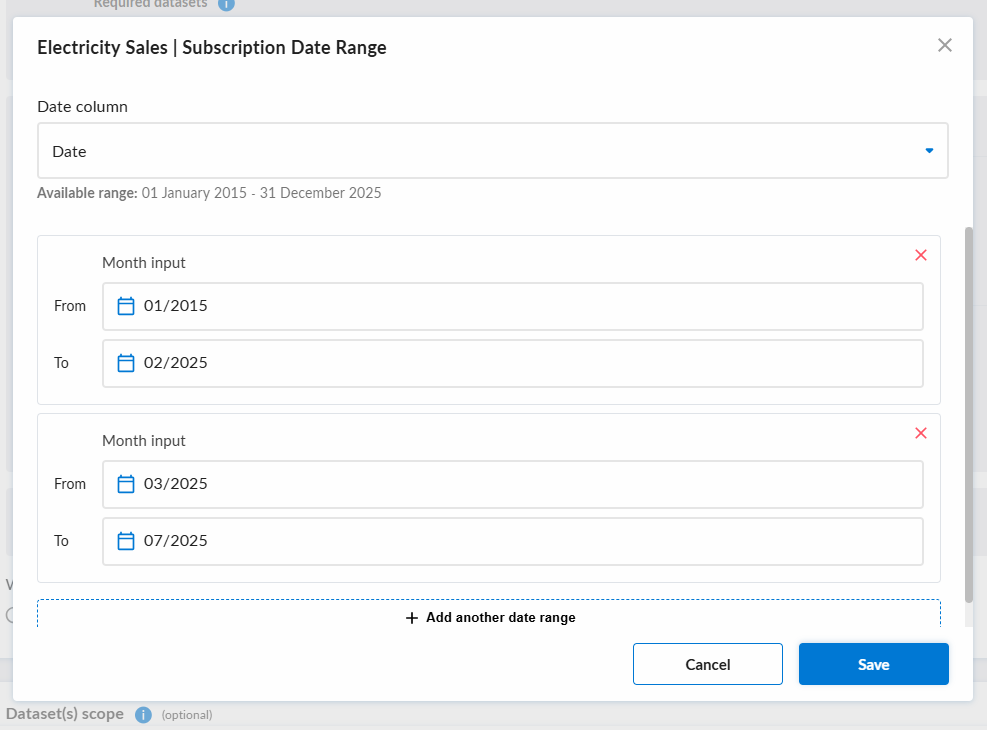
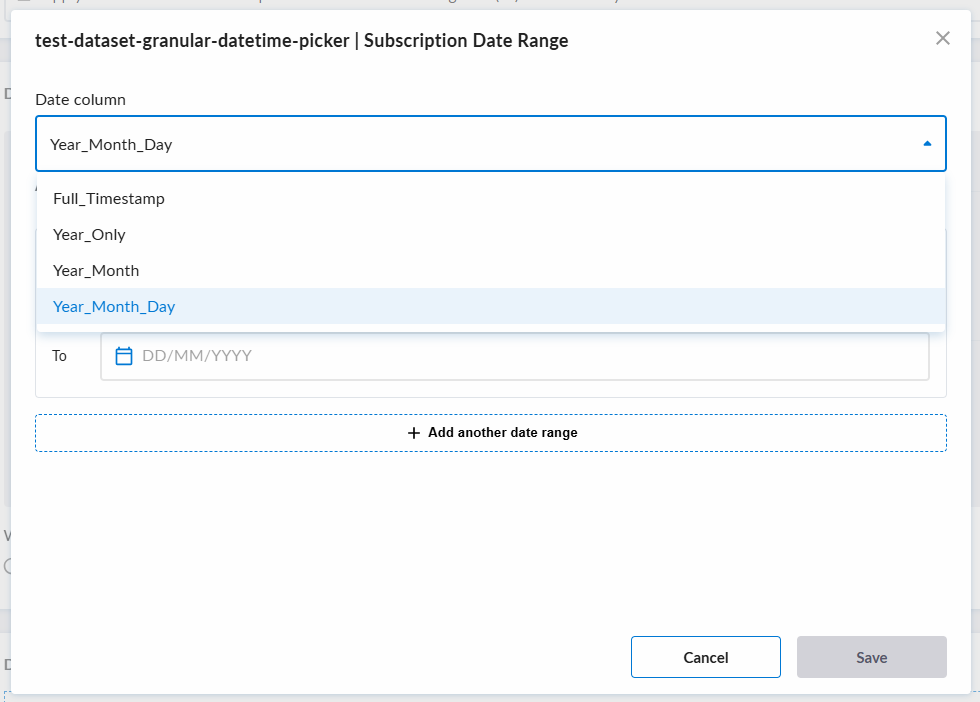
You may also change the datafield used for defining the date ranges by selecting from the dropdown list. The dropdown list will be populated with all date columns of the dataset. Once a date column is selected, it will be automatically added to the selected datafields if it is not already selected.
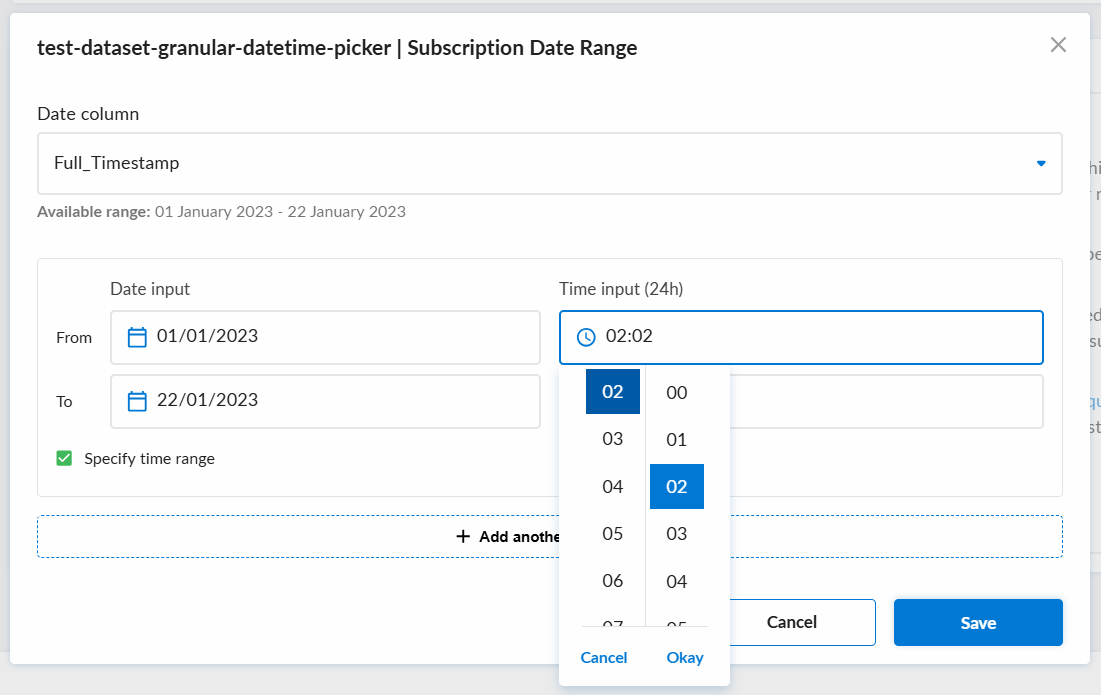
For date columns that support timestamp-level granularity, you can also specify the time in 24-hour format for both 'From' and 'To' once "Specify time range" is clicked.
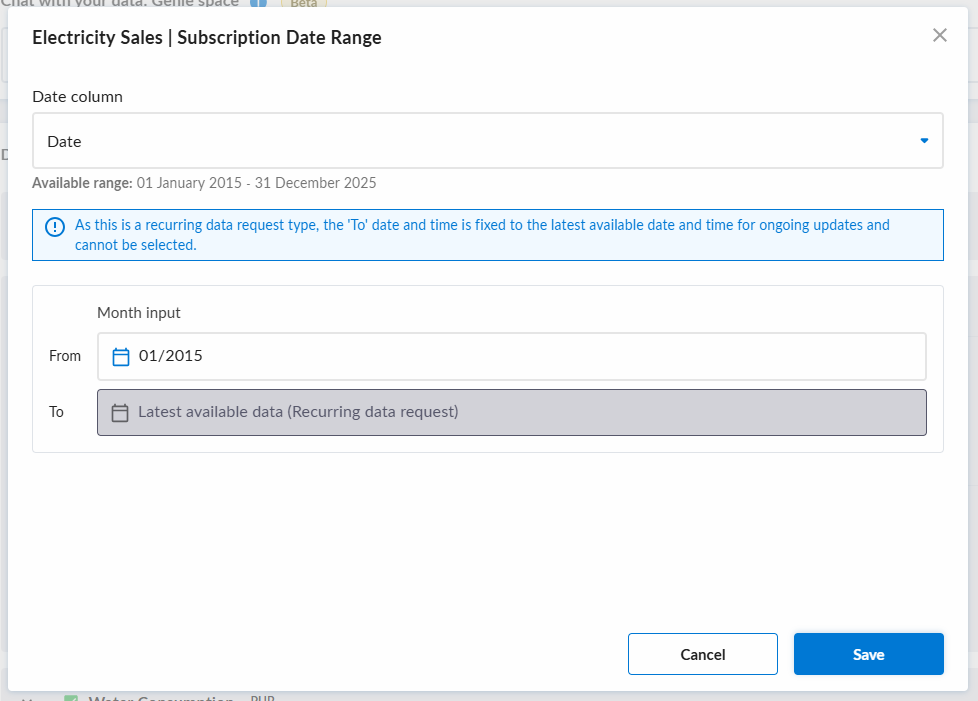
For Recurring requests, the end date will be fixed to the latest available data, and you will only be able to adjust the 'From' date.
You can define the datafields selected once the "Selected Data Fields" 'edit' icon is clicked.
Data Product Selection
If you unselect a required dataset, the respective data product will be automatically unselected and disabled as its dataset requirements are no longer met, and a warning banner will be shown.
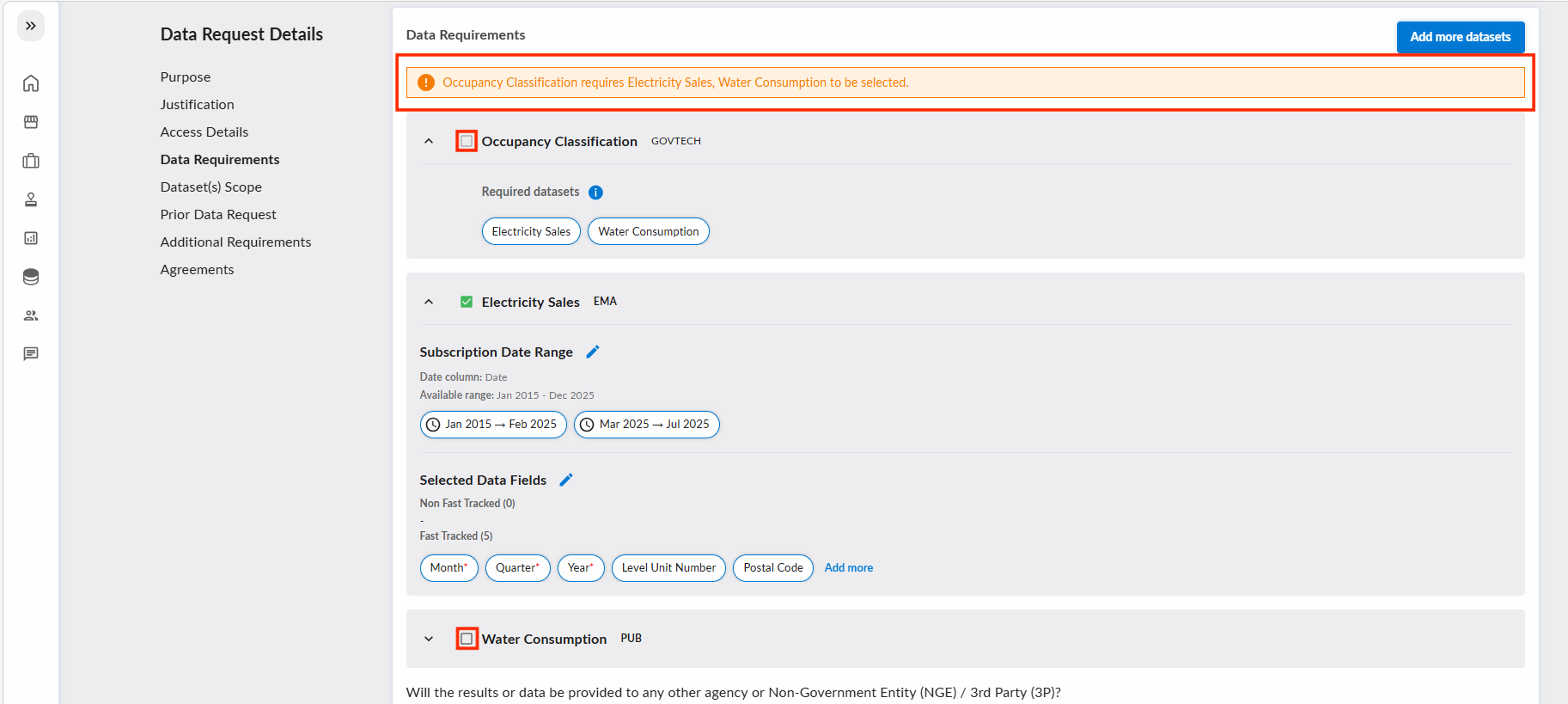
You have to select all required datasets in order to select the data product again.
8. Onward Data Sharing
Declare whether the results or data will be provided to anyone outside your agency.
Will the results or data be provided to any other agency or Non-Government Entity (NGE) / 3rd Party (3P)?
| Answer | What you need to provide |
|---|---|
No | Nothing further. |
Other agency | Recipient agency name(s), plus the legal ground(s) for the onward sharing. |
NGE/3P | The legal ground(s), whether DataHive should share the data on your behalf, and the details of the NGE/3P. |
Legal ground & purpose for onward data sharing
For Other agency or NGE/3P, select the legal ground(s) and explain how the selected ground(s) apply to your use case for onward sharing of data. PSGA is the first option; the other grounds are under Others. As before, only PSGA requires further selection of one or more PSGA grounds, and Consent requires uploaded documentation plus supporting details.
Any DR involving onward sharing to an NGE/3P on PSGA legal ground(s) will be held at Pending Minister Authorisation after the "Pending Datafields Review" stage. No data is released to the NGE/3P until you submit the Authorising Agency Declaration.
Do you require DataHive to share the data with the NGE/3P on your behalf?
For onward data sharing to NGE/3P only:
Yes, I want DataHive to share the data for me— appoints DataHive as your implementing agent for onward data sharing. You must also provide the NGE/3P's email, public key, and public IPv4 address / address range (for firewall whitelisting), plus a request expiry date. Submit a separate DR per NGE/3P receiving the same dataset(s).No, I want to share the data myself— your agency distributes the data to the NGE/3P by itself.
Learn more in NGE Data Sharing.
Details of NGE/3P
| Field | Notes |
|---|---|
| Data controller | Prefilled with your agency. Undertakes the responsibilities in IM8 Data Access and Distribution clause 2.2, and appoints DataHive as Implementing Agent where DataHive shares the data on your behalf. |
| UEN | Optional. |
| Name | Full name of NGE/3P. If the PSGA authorisation covers multiple NGEs, list them all. Note if volunteers will have access. |
| Required only if you require DataHive to share the data with the NGE/3P on your behalf. | |
| Public key | Required only if you require DataHive to share the data with the NGE/3P on your behalf. |
| Public IPv4 address / address range | Required only if you require DataHive to share the data with the NGE/3P on your behalf. Give the full range and/or subnet if the IP is dynamic. |
You must also acknowledge the NGE/3P terms and conditions: that the NGE/3P has read and agreed to the terms of use imposed by your agency (cl. 3.5/S1), and that there is a legal basis to disclose the data to them.
9. Datasets Scope
Use filters to refine the datasets. While this is optional, we strongly recommend defining filters. This helps protect your project by preventing unnecessary exposure to more data than required.
If the scopes are not defined properly, tenant admins may prompt you to redefine or correct it.
You can define the following scopes in your data request:
- String filter
- Geospatial filter
An example of a string filter is to filter by postal code. You can add them like so: 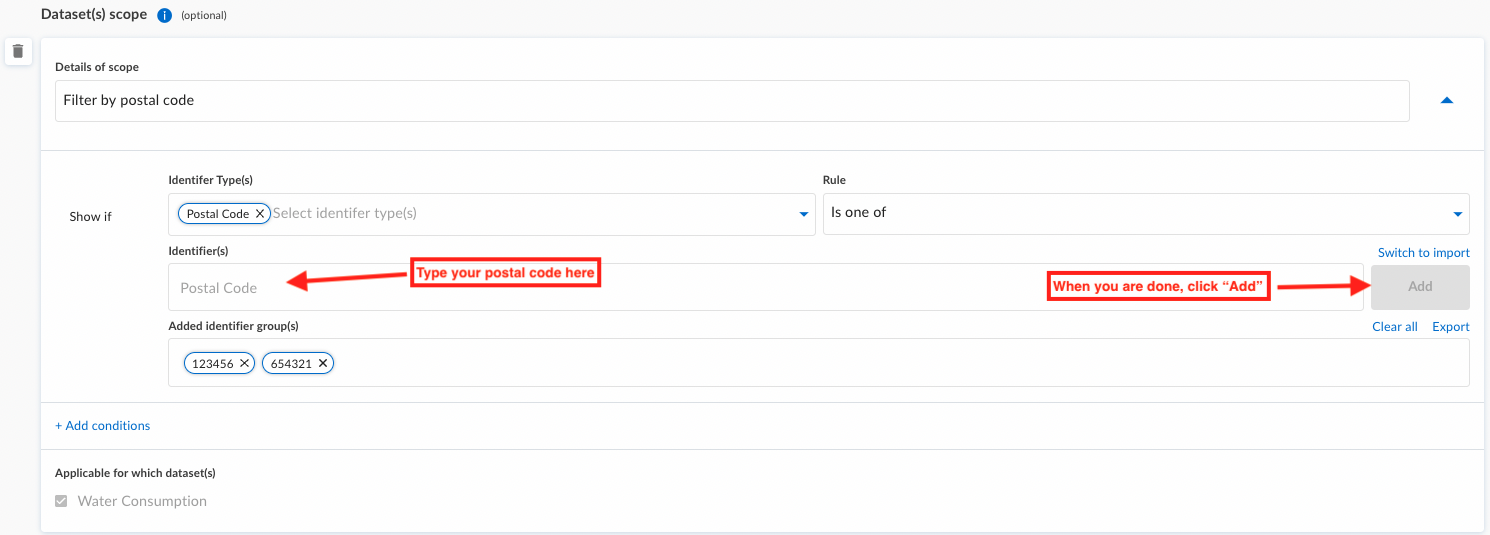
If you have many postal codes, you can switch to import mode by clicking "Switch to import": 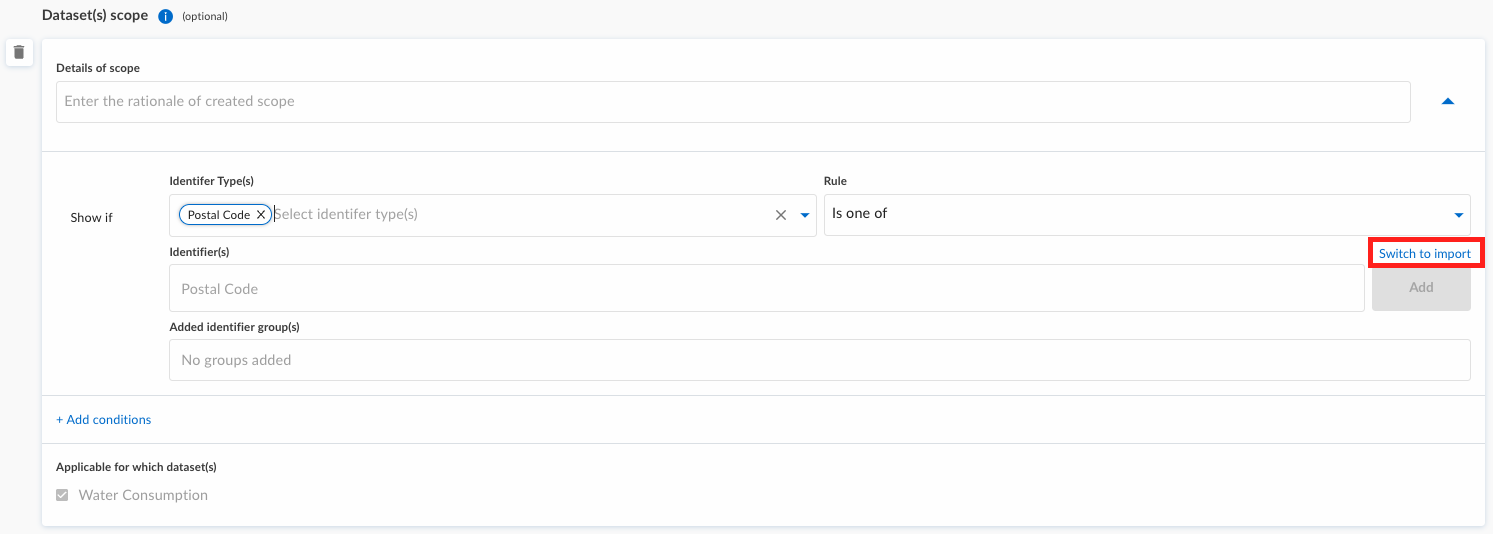
In import mode, you have to upload a CSV file containing the headers defined in the sample. To download the sample, click on the "Download sample": 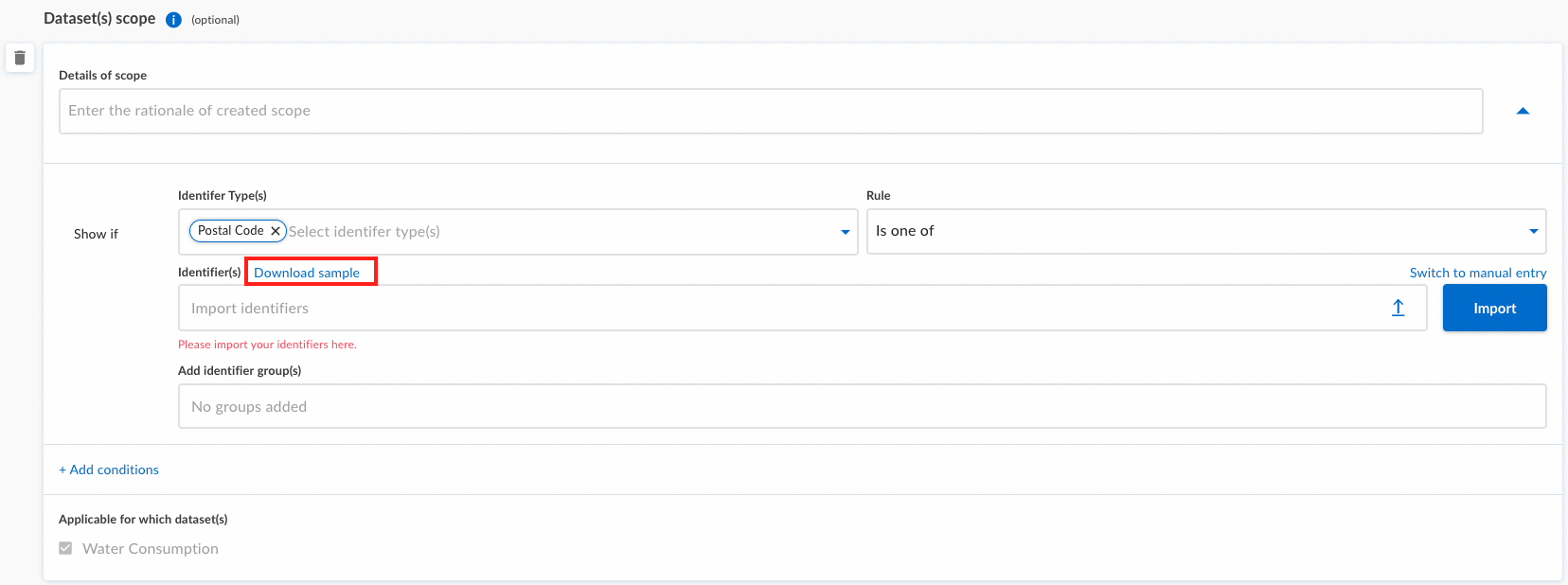
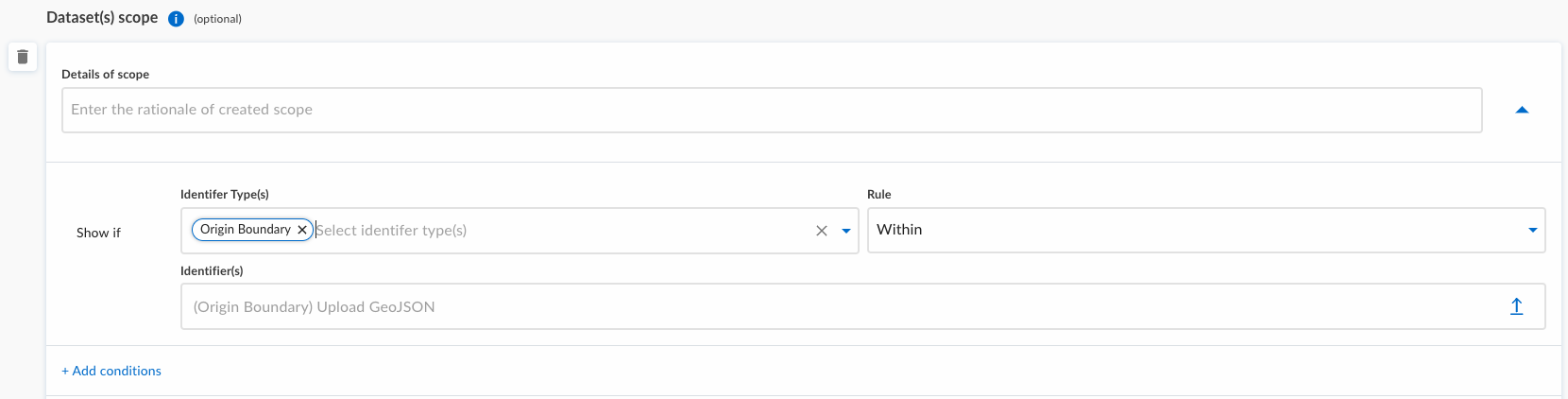
An example of a geospatial filter is to filter by a boundary. In a geospatial filter, you will need to upload a GeoJSON file that will specify the boundary of the filter.
You may make use of websites such as https://geojson.io to create or validate your GeoJSON. After finalizing the GeoJSON, save it in a .geojson file and upload it into the field as shown below.
10. Prior Request (Optional)
You can specify prior related requests made which may help expedite the request. Some examples of prior requests include bilateral agreements with SSOTs or previous Ad-Hoc requests with a Trusted Center. You can also choose to upload any supporting documents.
11. Additional Requirements (Optional)
You can specify specific use cases here. Tenant Admins may follow up with you for further discussion to fulfill the data requirements. Similar to the prior request field, supporting documents can also be uploaded to the button associated with the additional requirement field.
12. Datafields Hashing (Optional)
📖 Learn more about how DataHive tokenizes identifiable data here.
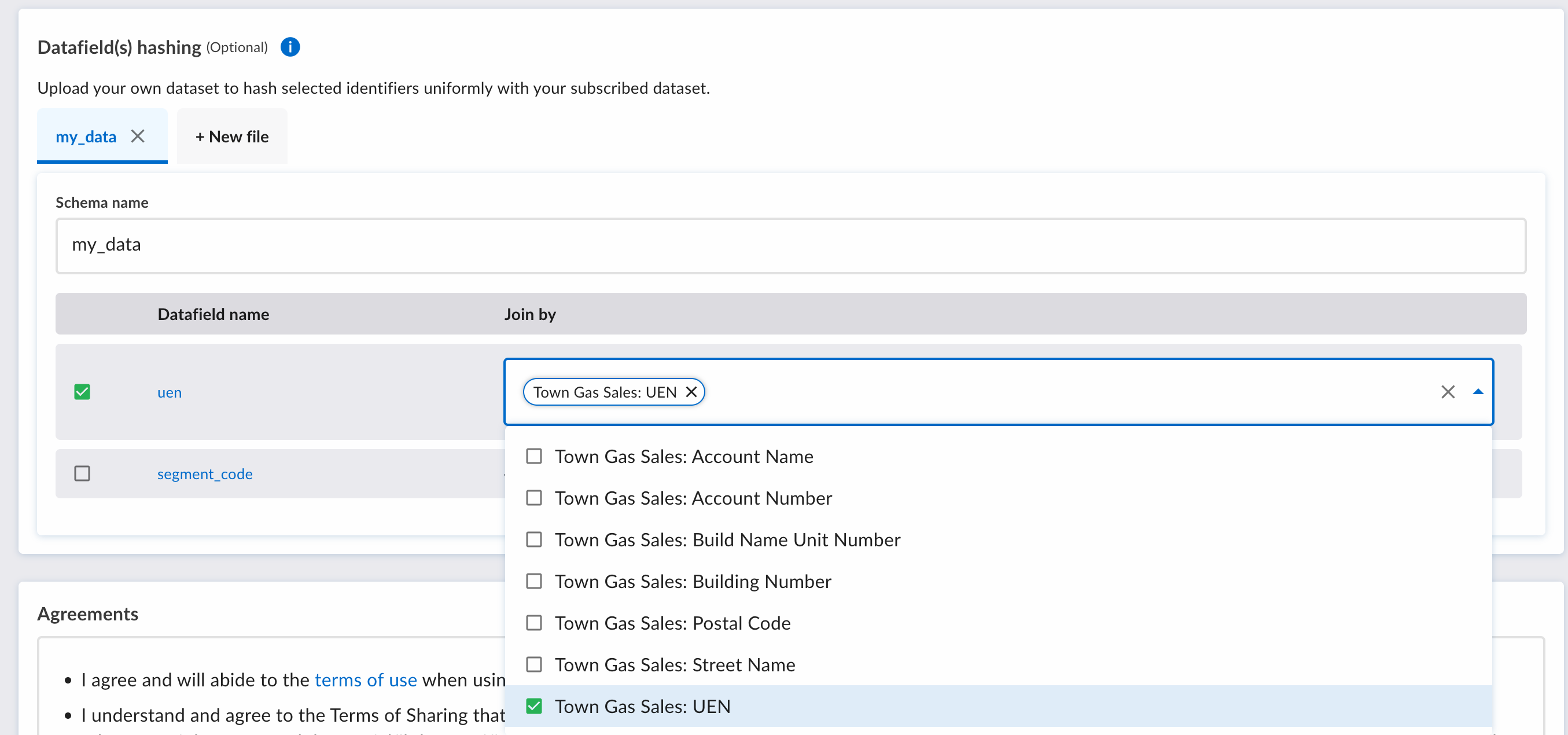
The datafields hashing feature in DataHive enables you to upload your own datasets as part of a data request. DataHive will hash your datasets in the same way as the de-identified datasets provisioned from DataHive.
This feature is only applicable when your data request includes de-identified data.
Ensure that you have your dataset schema ready in CSV format. Once your schema is defined and your data request is fulfilled, it cannot be changed - additional files uploaded later must conform to this defined schema.
Unauthorized re-identification of anonymised information is an offense under Section 8 of the Public Sector (Governance) Act 2018. (Learn more)
How to Use This Feature:
-
Upload your CSV file (file size limit of 50MB when submitting; once approved, you can upload more data up to 2GB per file with the same schema).
-
The platform will automatically validate and populate the table with the schema of your uploaded file. This ensures that future uploads align with the pre-defined schema.
-
Select the datasets and columns you wish to fuse with your uploaded data.
-
Once your DR is fulfilled, you will able use to access the hashing feature.
Once the form is complete, click on the Submit button.
You have just submitted your first DR!