Access Data upon Approval
After Data Request (DR) approval, you can access the datasets via the following methods:
| Method | Description |
|---|---|
| 1. Direct Download | Build filter conditions and download datasets in CSV or Parquet format from the DataHive portal. |
| 2. Databricks | Access the datasets on a Databricks environment for data processing and analysis. |
| 3. APIs | Access your data programmatically via DataHive's Asynchronous APIs or Synchronous API. |
| 4. System Connection | Connect your systems to DataHive's API and Data Warehouse using a service principal account for secure and seamless data integration. |
| 5. Accessing Hashing Feature in Data Request | Upload files to be hashed based on the schema defined in the Data Request. |
| 6. Accessing Chat with your data: Genie space | Use Genie space to query approved datasets in an Artificial Intelligence (AI) chat interface. |
| 7. Accessing Data via PowerBI in M365 | Create dashboards, interactive reports and visualizations within the web browser using PowerBI in M365. |
| 8. Accessing Data via VISTA Qlik Sense | Create, share and explore interactive dashboards and visualisations securely across WOG using VISTA Qlik Sense. |
1. Direct Download
Use this method when you need quick access to the dataset in CSV or Parquet format. You can define precise filter conditions to scope your download to only the data you need.
The max. file size for download is 5GB. You should use the filter conditions to scope down the download job.
Alternatively, you may choose to use Databricks if you require datasets exceeding the file download limit.
1.1. Viewing Download Jobs
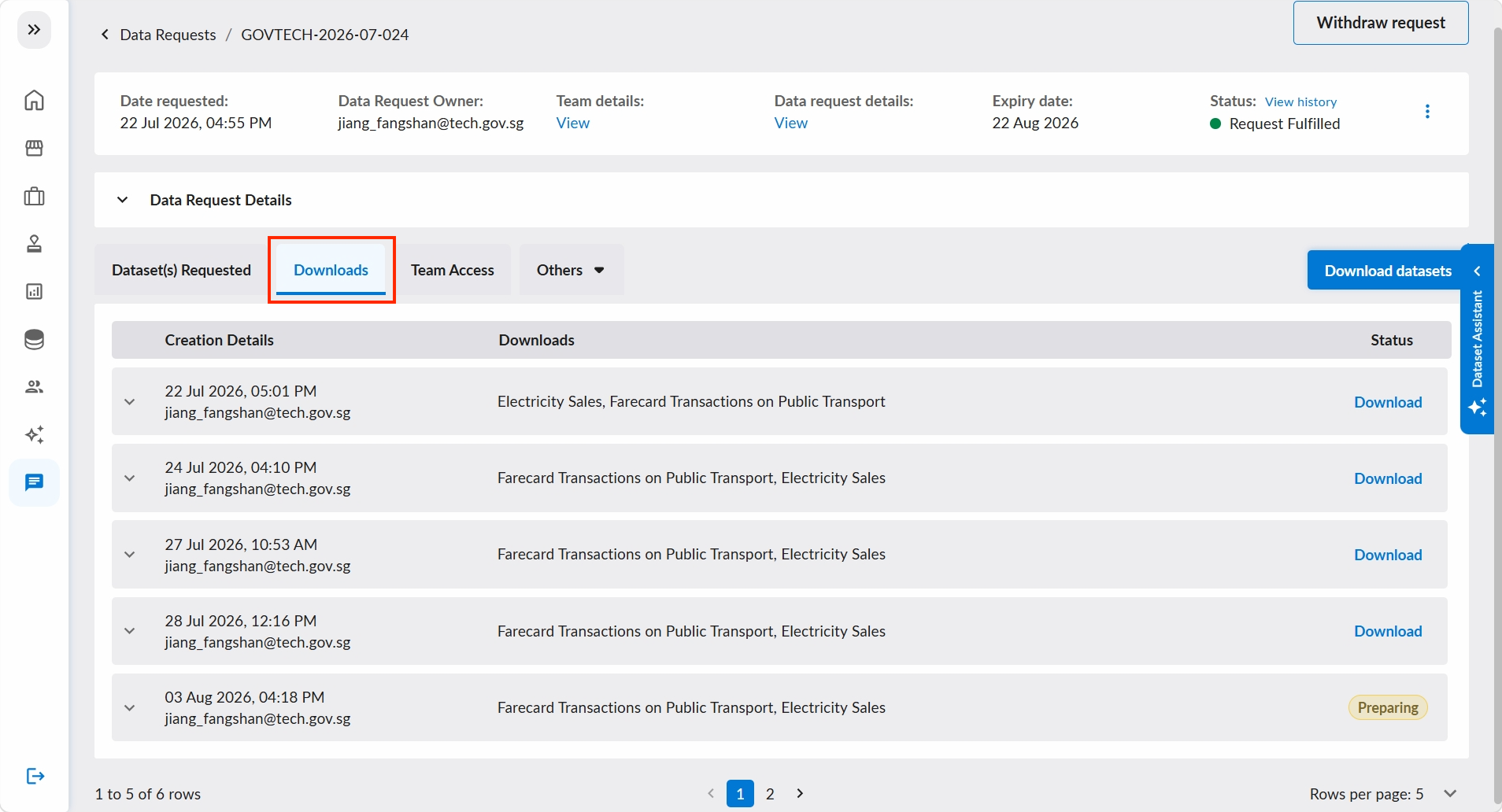
Navigate to the Downloads tab on your Data Request page. This tab shows all your download jobs, including their status (Preparing, Ready for Download, Failed).
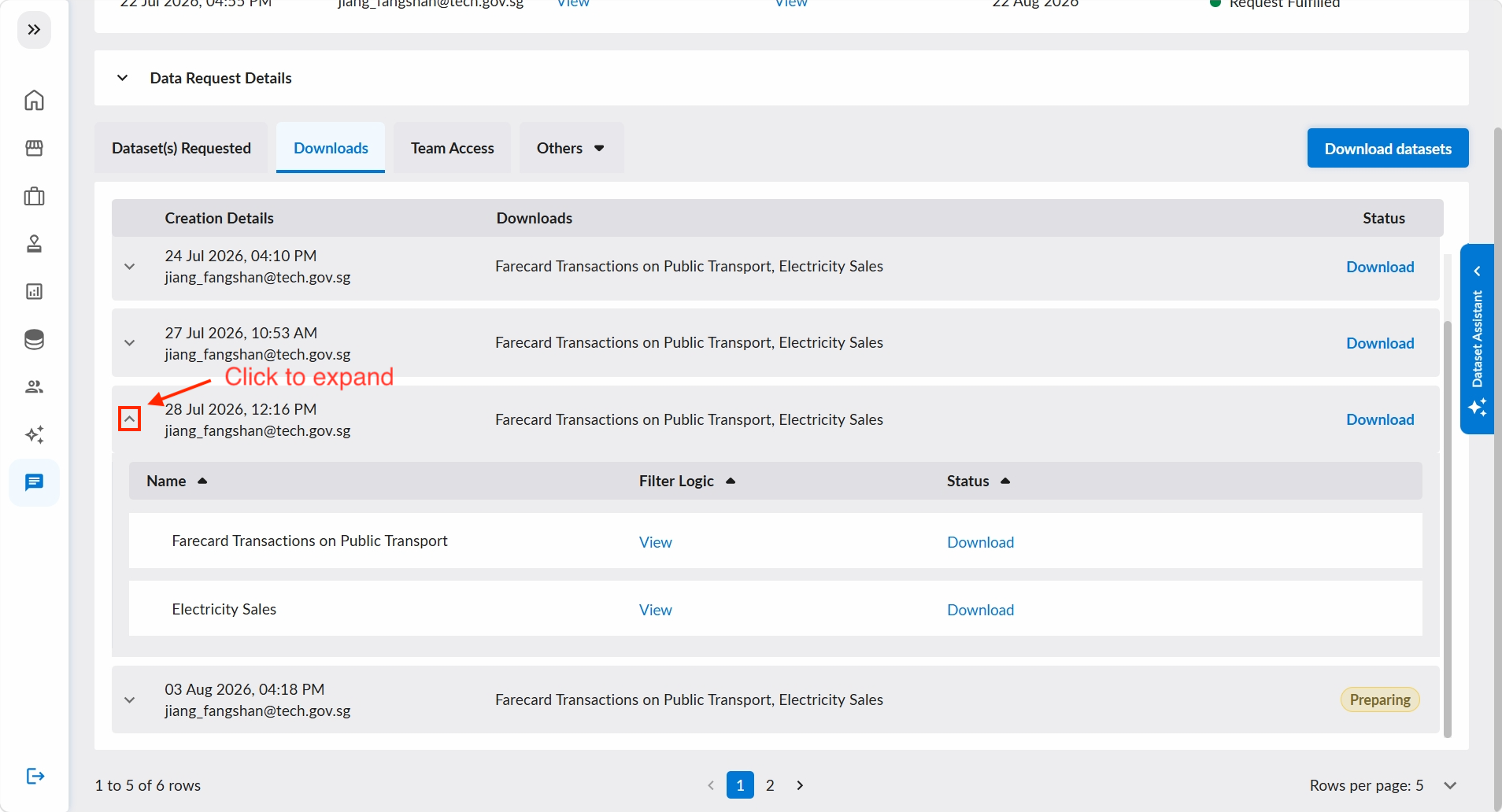
You can expand any row to see the individual dataset jobs within a download, along with their filter logic and per-dataset status.
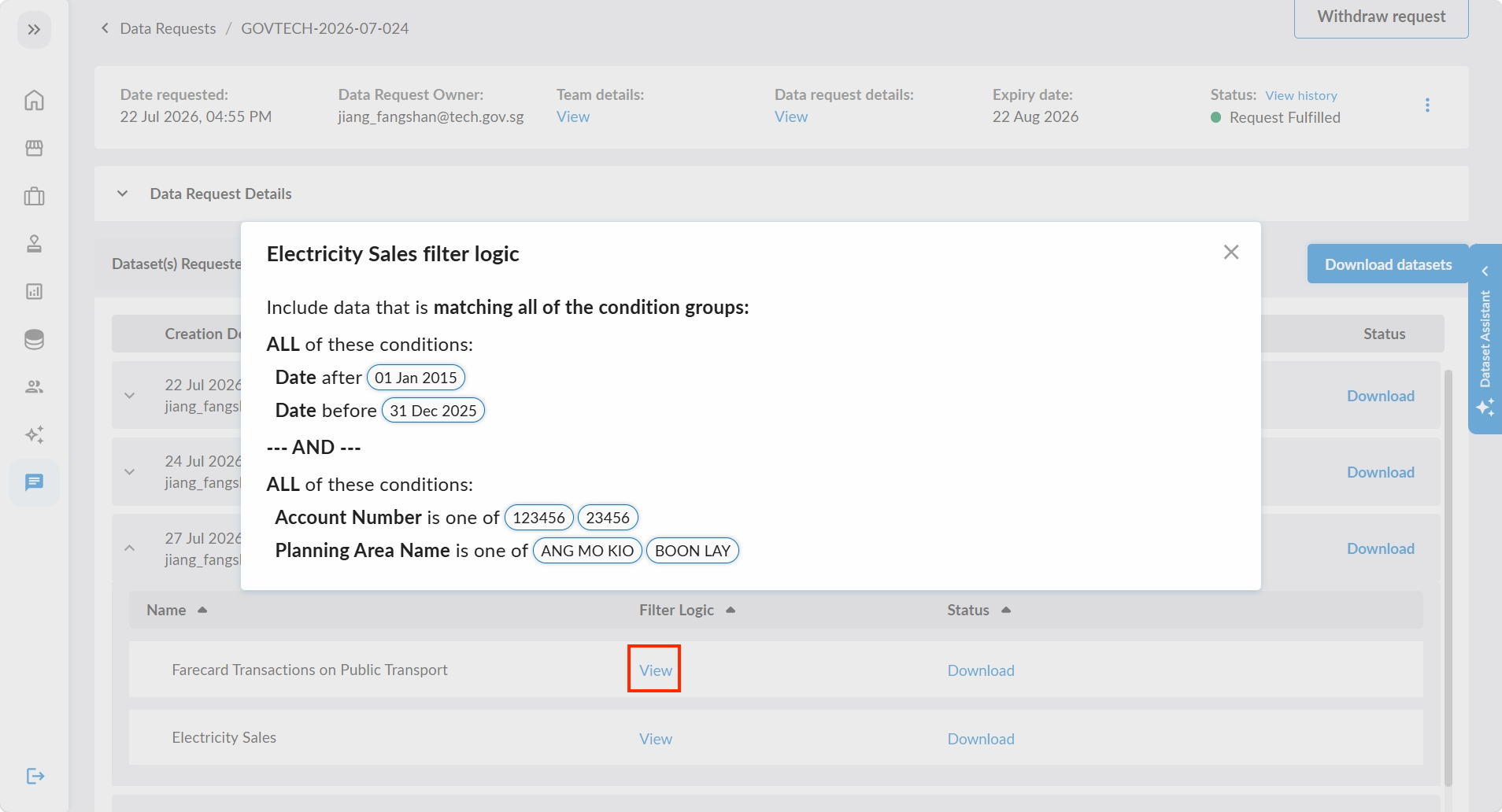
To view the filter conditions used for a completed job, click the View link under the Filter logic column. A dialog will display the human-readable filter conditions.
1.2. Creating a New Download Job
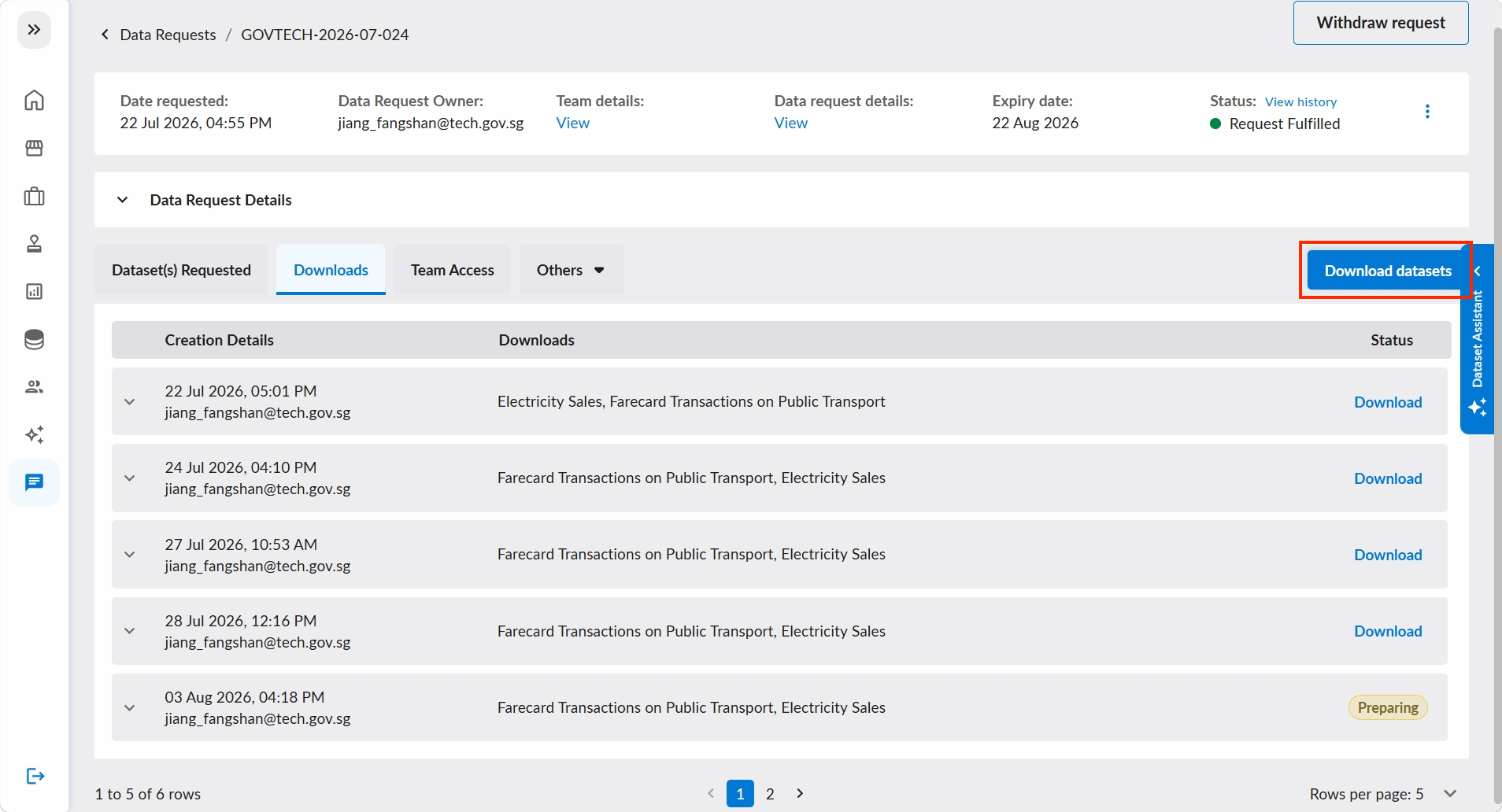
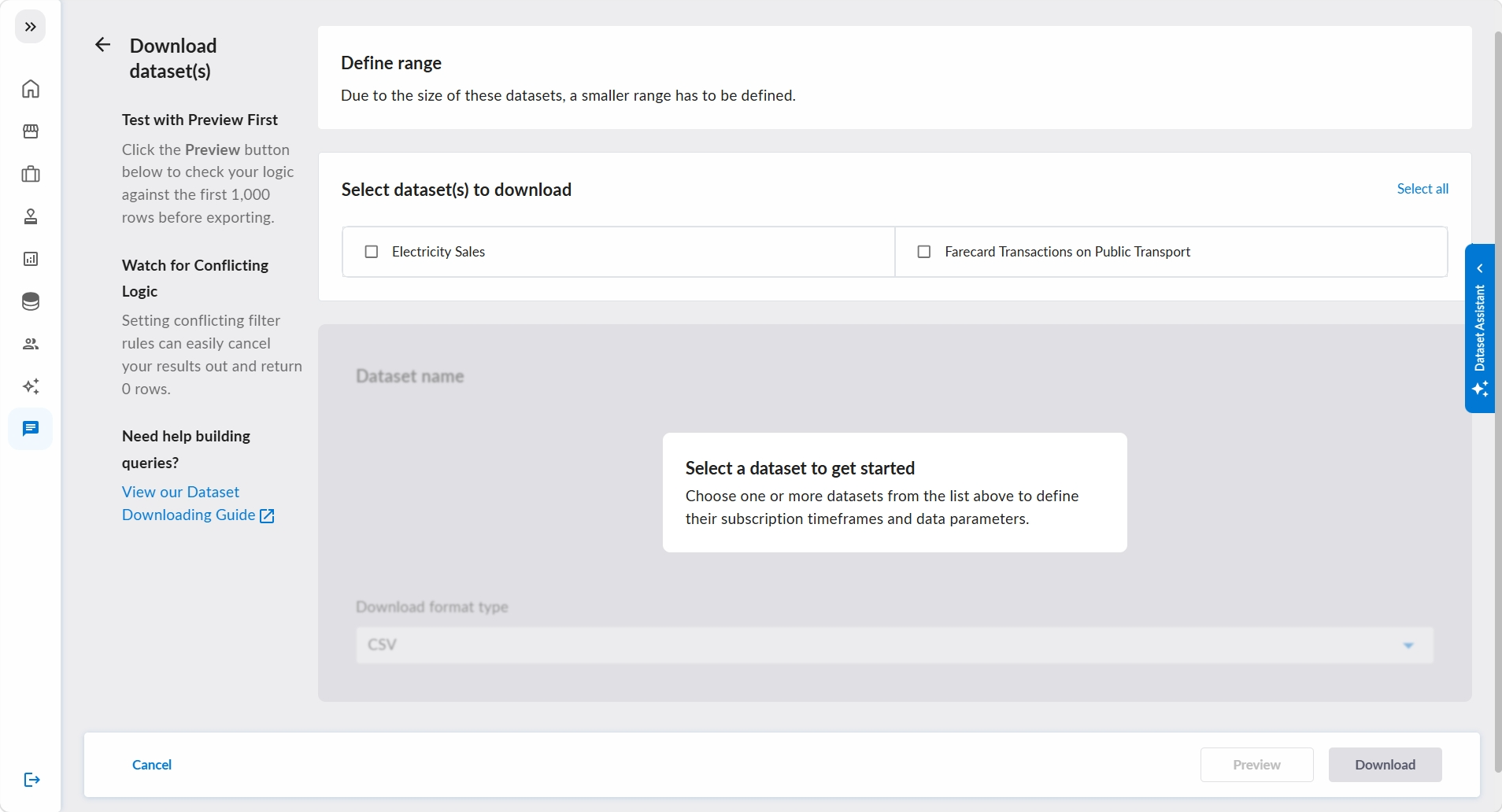
Click the button to create a new download job. The Download dataset(s) form will open.
1.3. Selecting Datasets
Select one or more datasets to download from the dropdown.
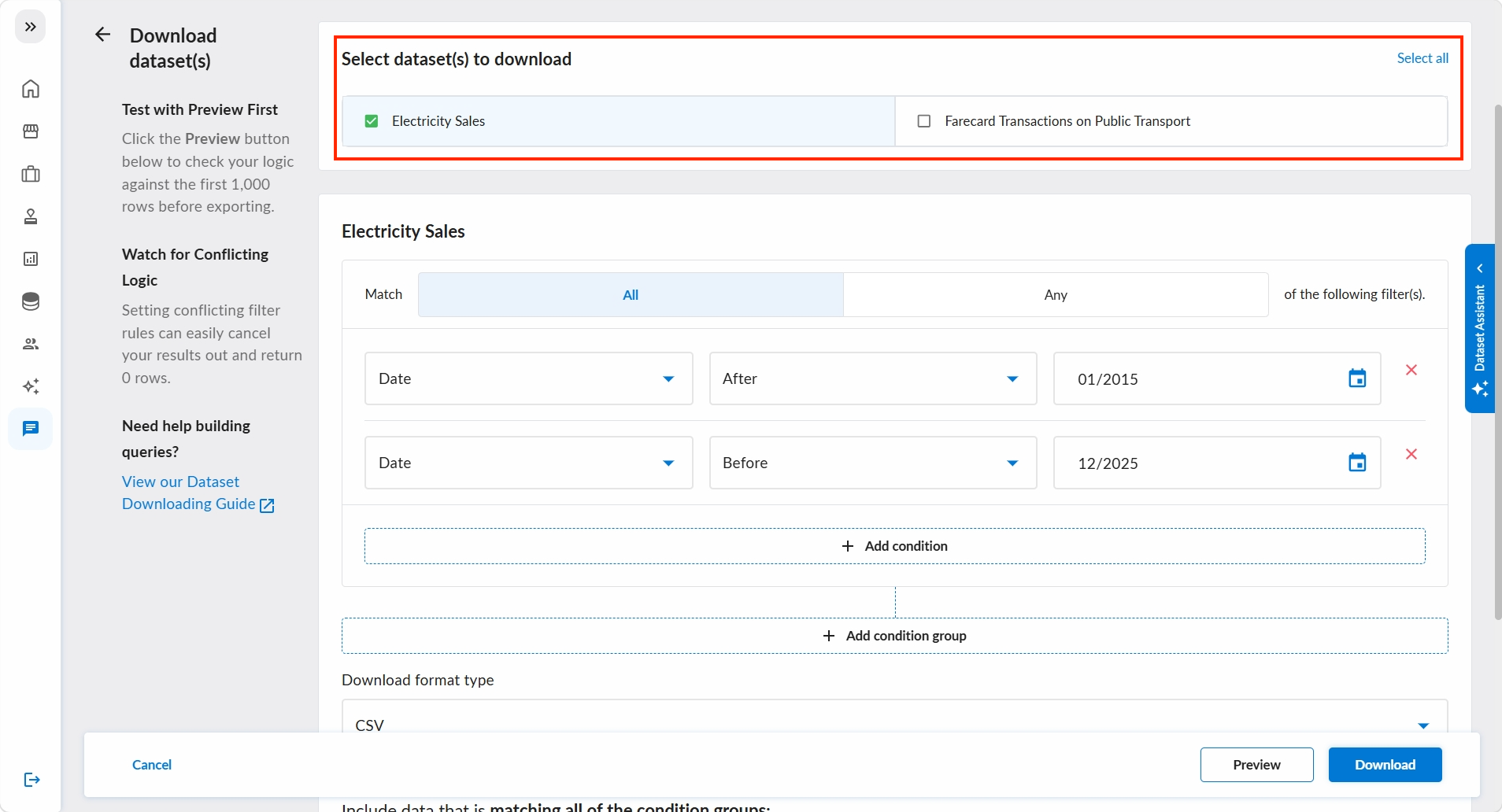
Once you select a dataset, a condition card appears for each dataset where you can configure filter conditions and file type.
1.4. Building Filter Conditions
For each selected dataset, you can define filter conditions to scope the data you want to download. Each condition consists of:
- Field — the data field to filter on (e.g., date, category)
- Operator — the comparison operator (IS, AFTER, BEFORE)
- Value(s) — the value(s) to compare against
Click Add condition at the bottom of a condition group to add more filter conditions within the same group.
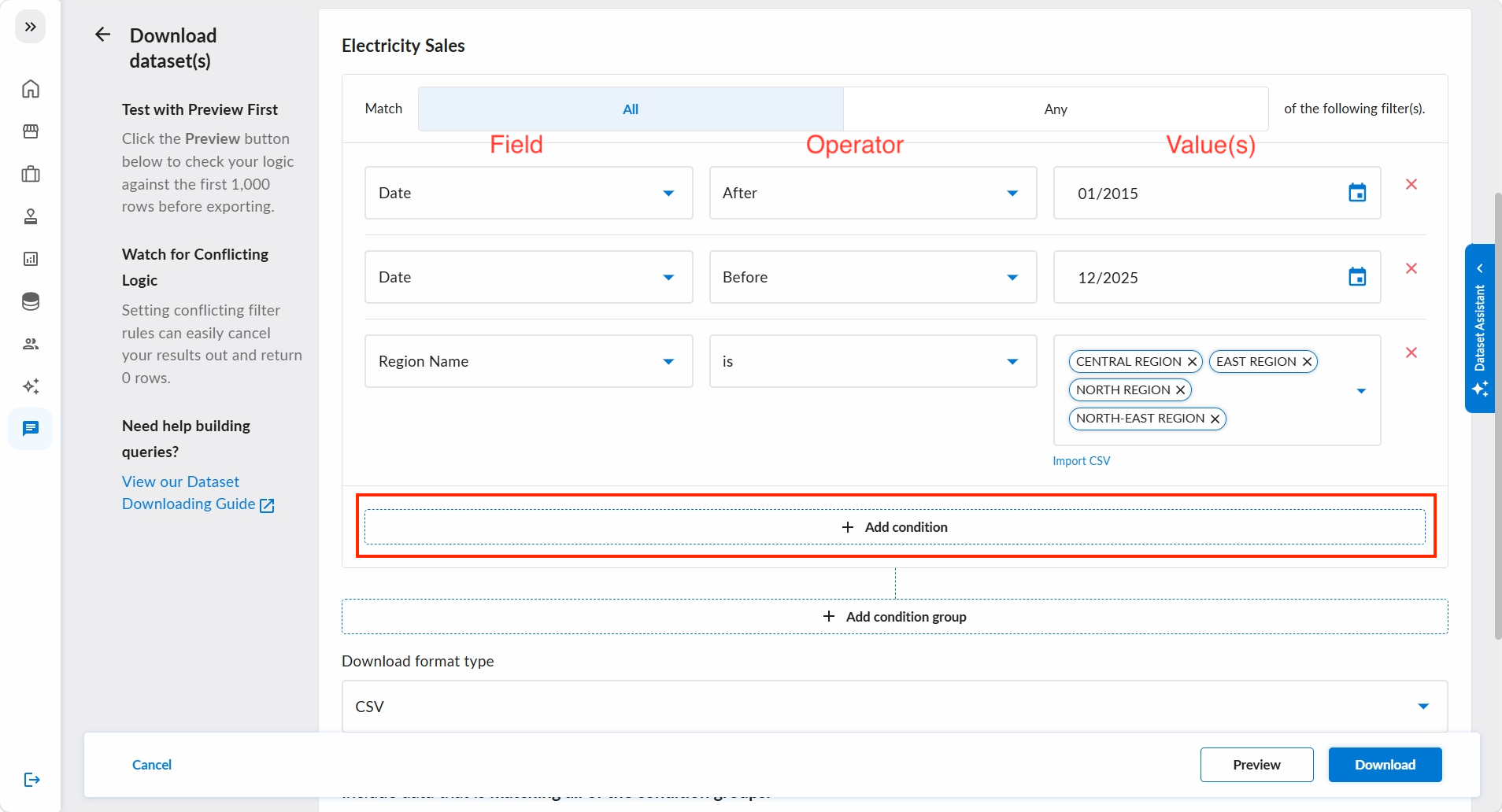
A default date range condition is automatically added for datasets that have a date field. You can adjust the dates or add additional conditions.
Match All vs Match Any
Within each condition group, you can choose how conditions are combined:
- Match All — a row must satisfy every condition in the group to be included (AND logic).
- Match Any — a row only needs to satisfy at least one condition in the group to be included (OR logic).
For example, if you set Match All with conditions "Category IS Food" and "Date AFTER 2024-01-01", only rows where both are true will be returned. If you switch to Match Any, rows matching either condition will be included.
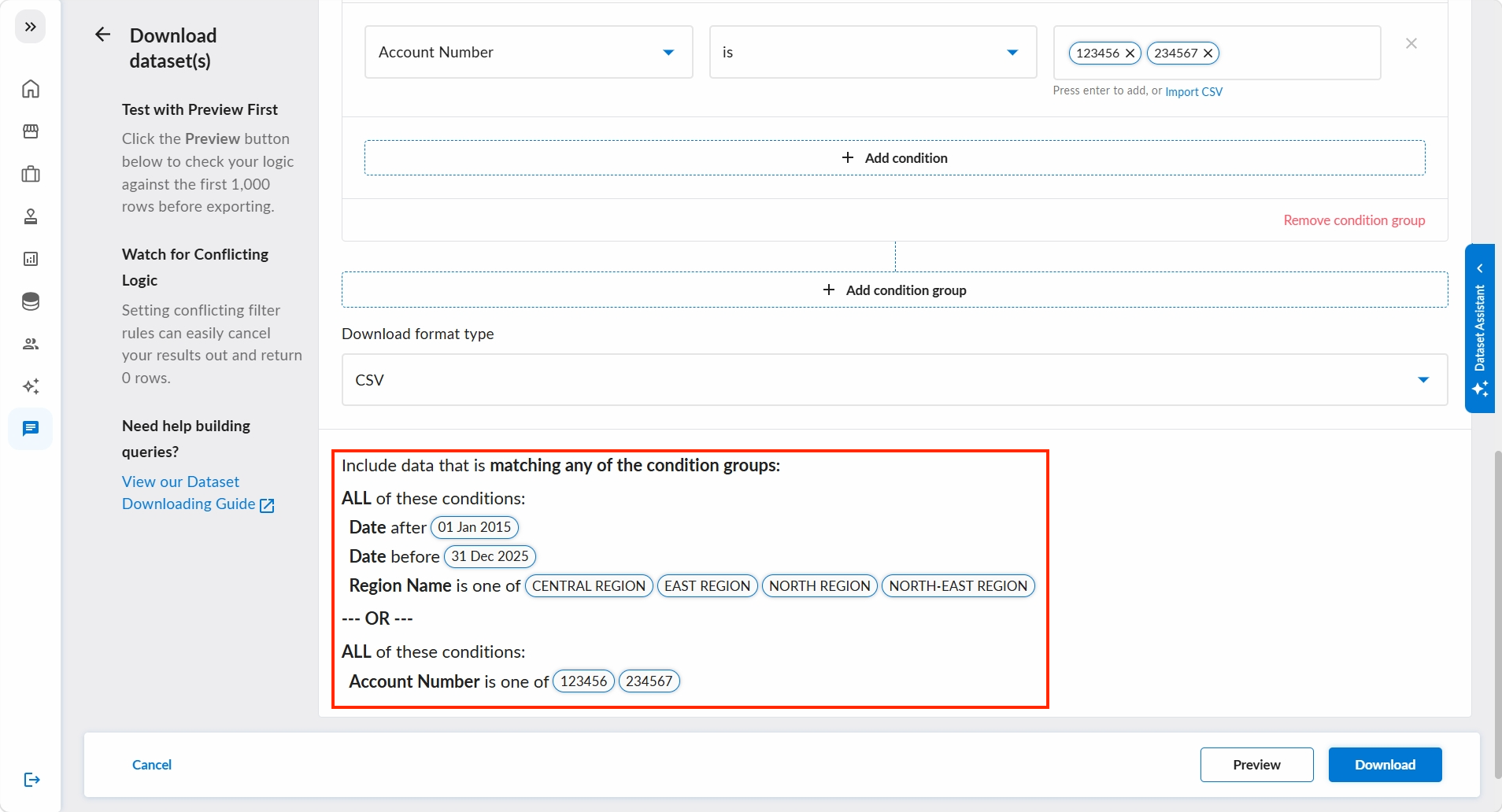
Advanced Filtering
Conditions are organised into condition groups.
Most users only need one condition group. Simply add your conditions within it and choose Match All or Match Any. You only need multiple groups for advanced scenarios.
For more advanced filtering, you can create multiple condition groups and connect them with AND or OR logic. This allows you to express complex filter rules that cannot be represented in a single group. For example, you could say "include rows that match (all of Group A's conditions) OR (all of Group B's conditions)".
Click Add condition group to create additional groups.
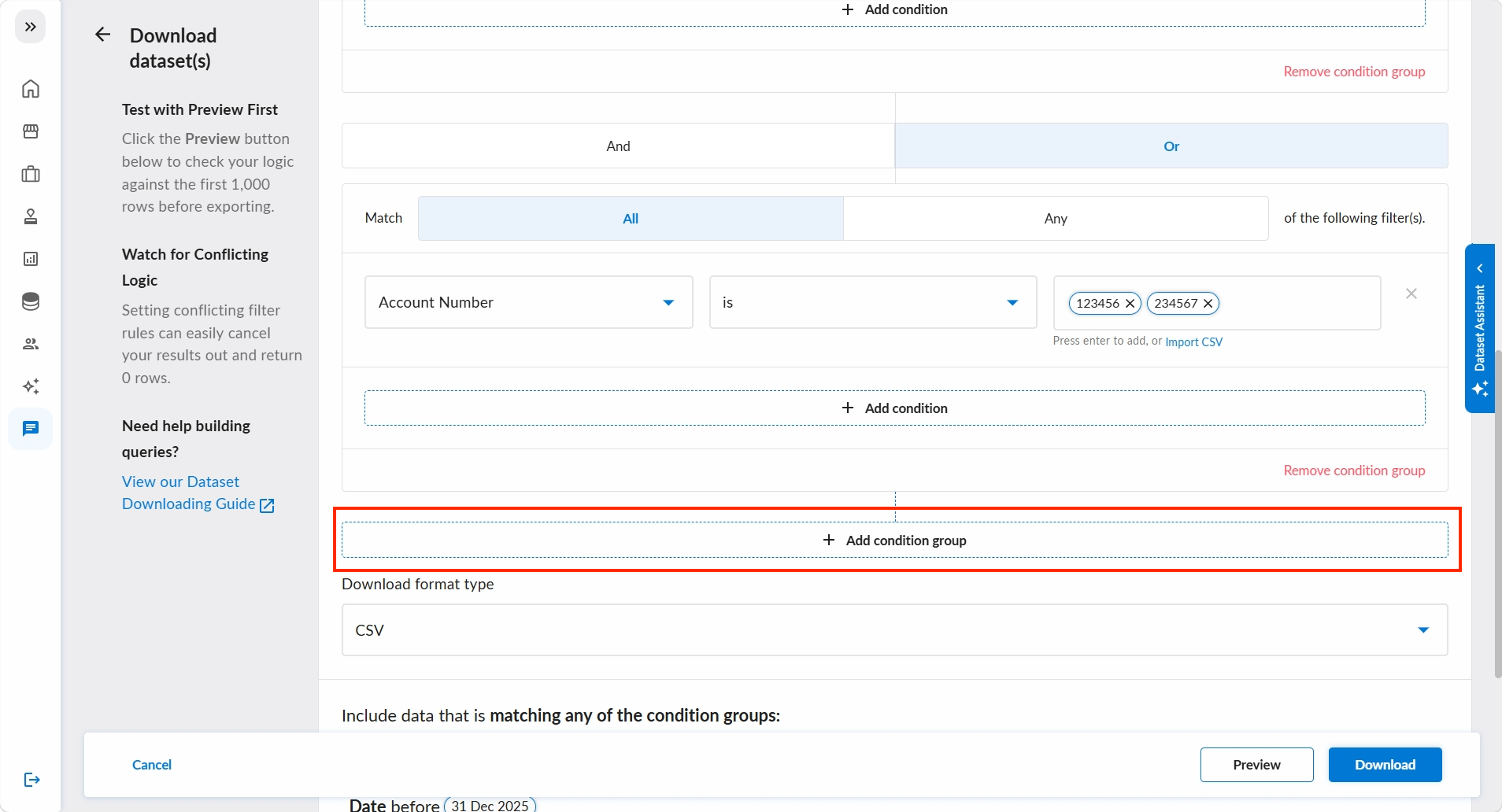
A summary of your filter logic is displayed at the bottom of each dataset card, showing how your groups and conditions are combined.
Concierge
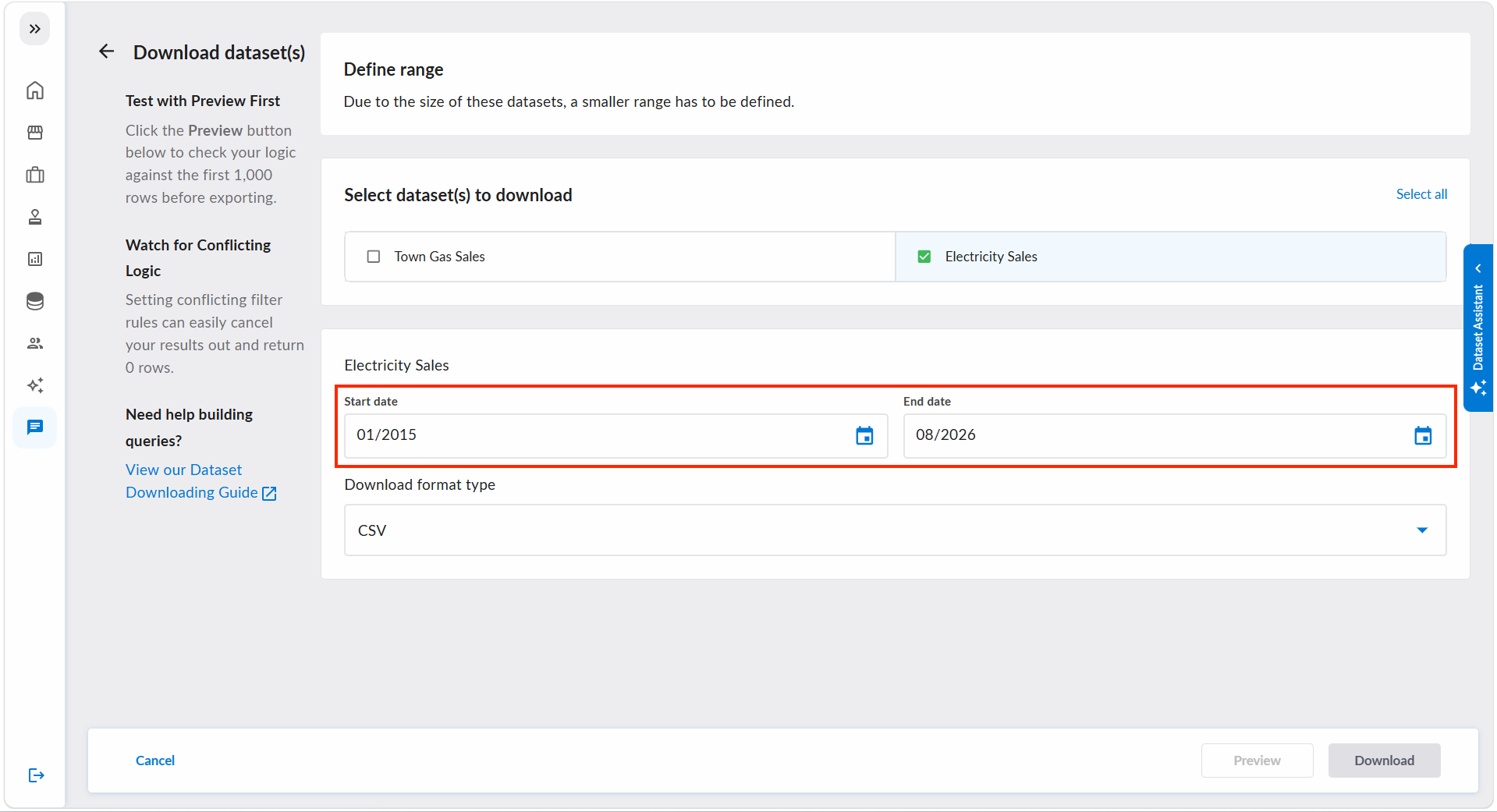
This section only applies to datasets with concierge requirements in a data request.
For concierge, a simplified date range picker is shown instead of the full condition builder.
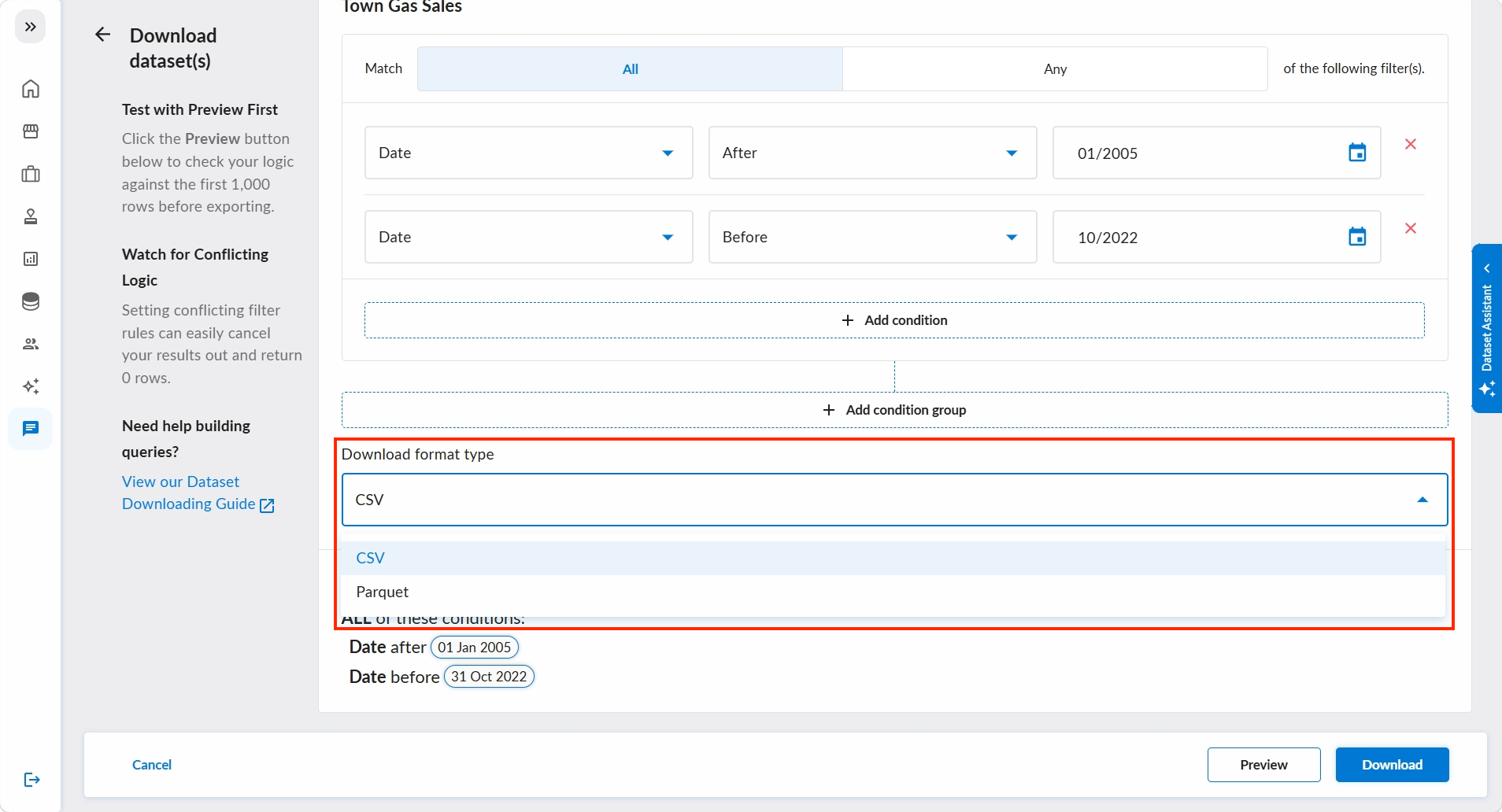
1.5. Selecting File Type
For each dataset, select the download file format (e.g., CSV).
1.6. Previewing Results
Before submitting your download, you can click Preview to view the first 1,000 rows matching your filter conditions. This helps you verify your filters are correct.
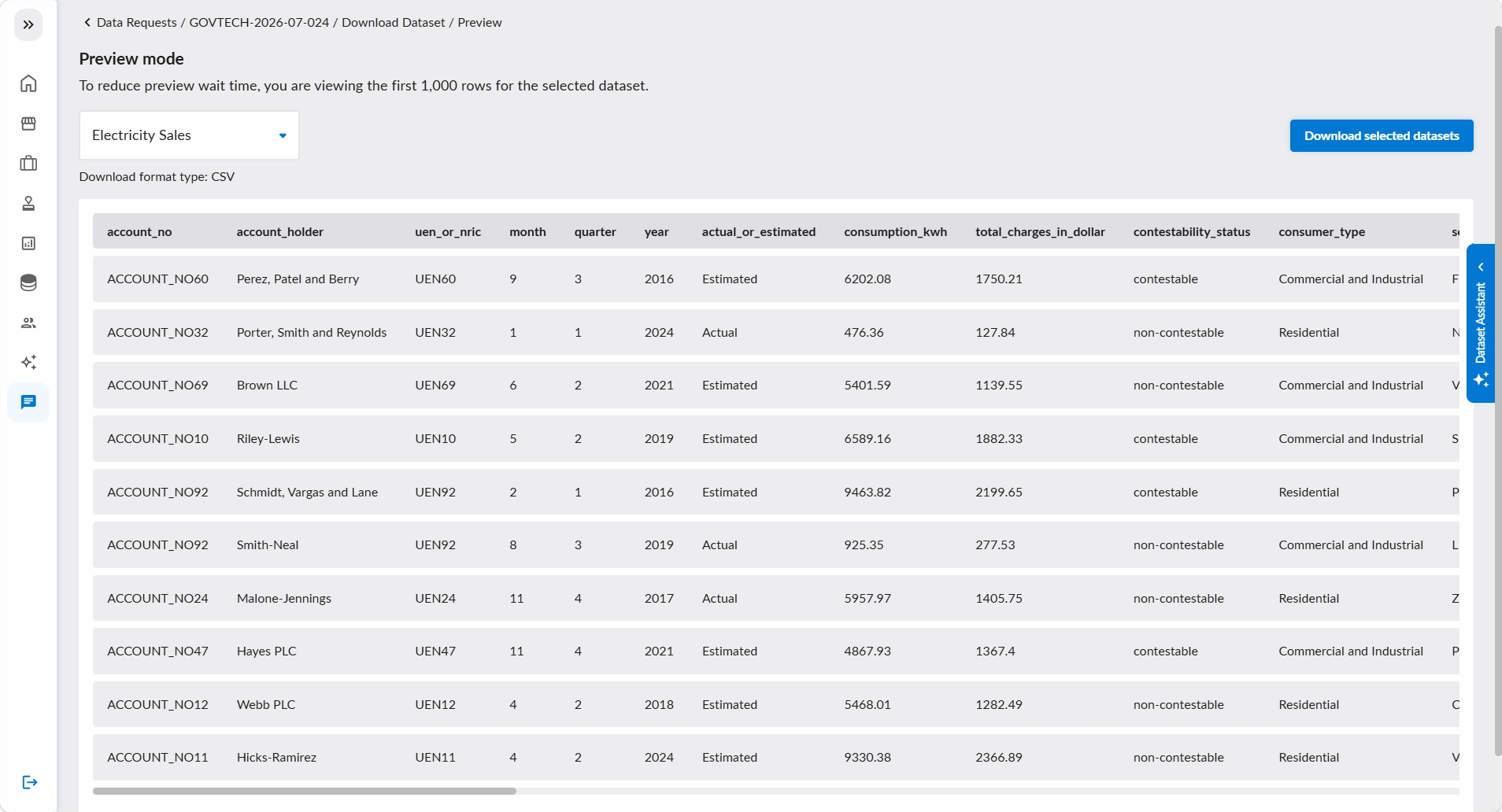
In preview mode, you can:
- Switch between datasets using the dropdown selector
- View the download format type
- Browse the results table
- Click Download selected datasets to submit the download job directly from preview
1.7. Submitting the Download Job
Click the Download button at the bottom of the form to submit your download job.
This process may take approximately 30 minutes to 1 hour depending on the data volume. You will receive an email notification once the dataset is ready for download.
After receiving the notification, return to the Downloads tab to download your file.
2. Databricks
Use this method when you have large datasets or need advanced data processing and analysis capabilities beyond basic tools like Excel. It is ideal for recurring DRs that require continuous access to large datasets.
If the Databricks workspace option is checked, you will be able to access the datasets on a Databricks environment for data processing and analysis.
Databricks is especially helpful for processing large datasets that cannot be analysed using Excel.
Databricks Access
Click on the Databricks icon to access the workspace.
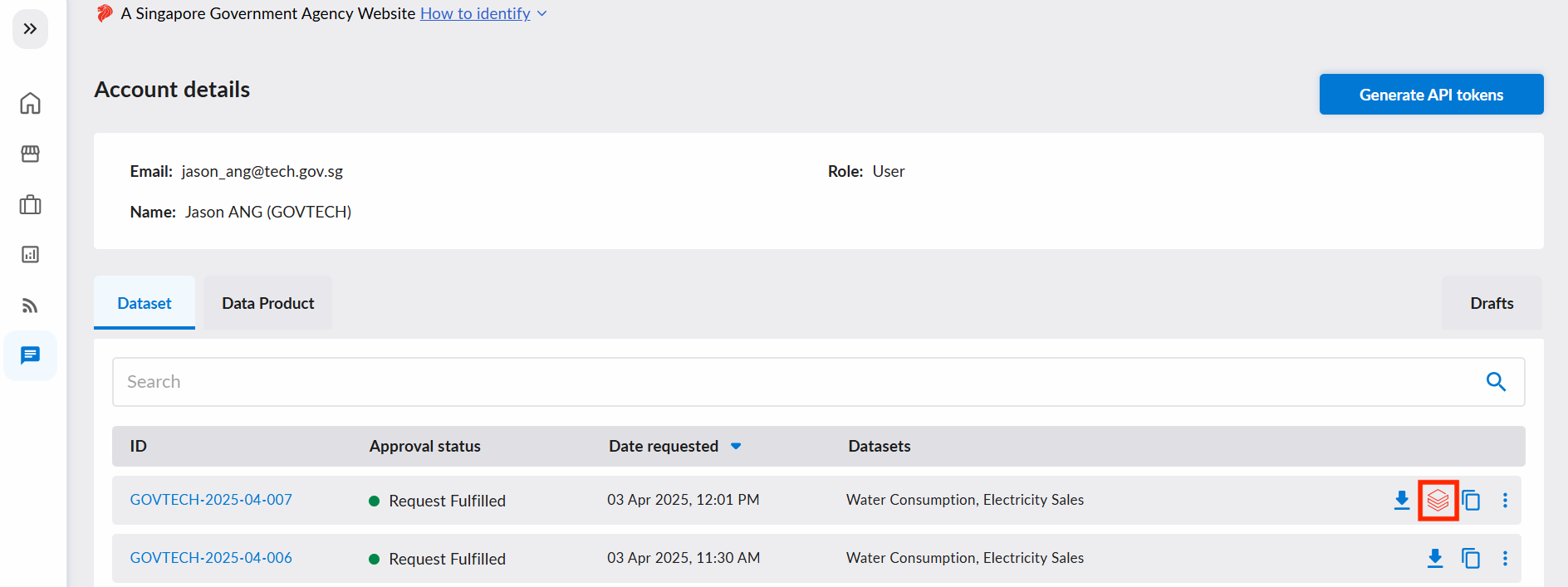
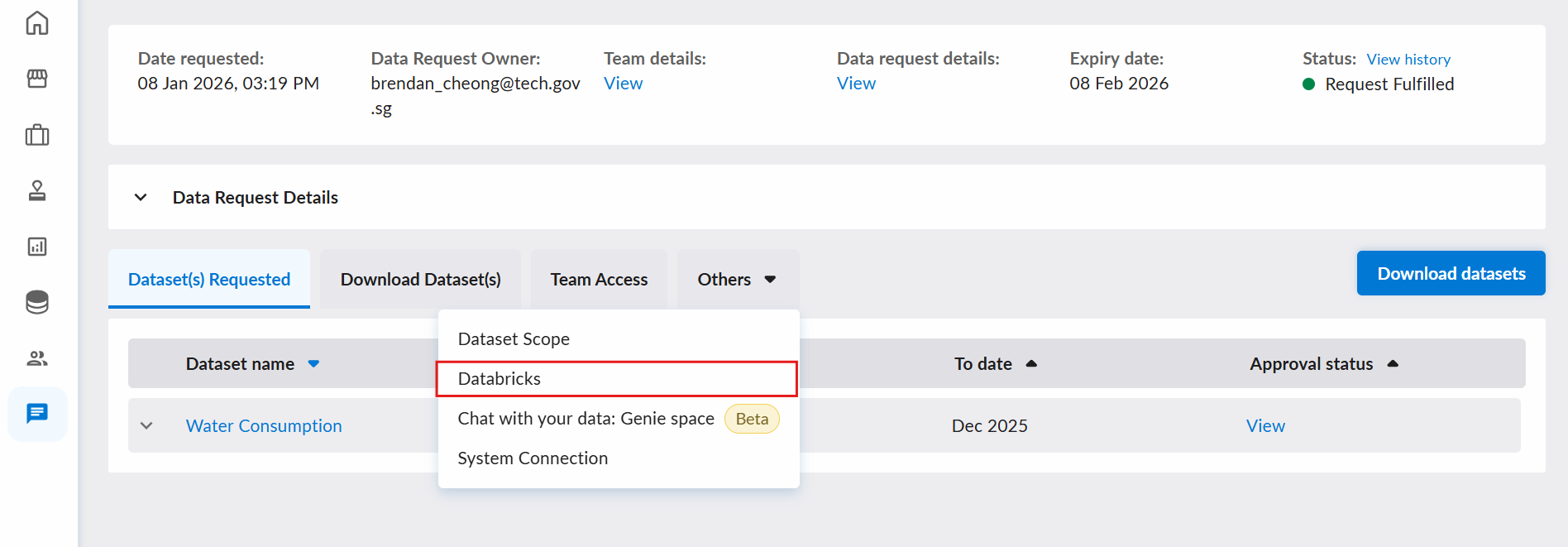
For DRs that have been fulfilled, you can activate a Databricks workspace by clicking on the Databricks tab under the Others dropdown menu.
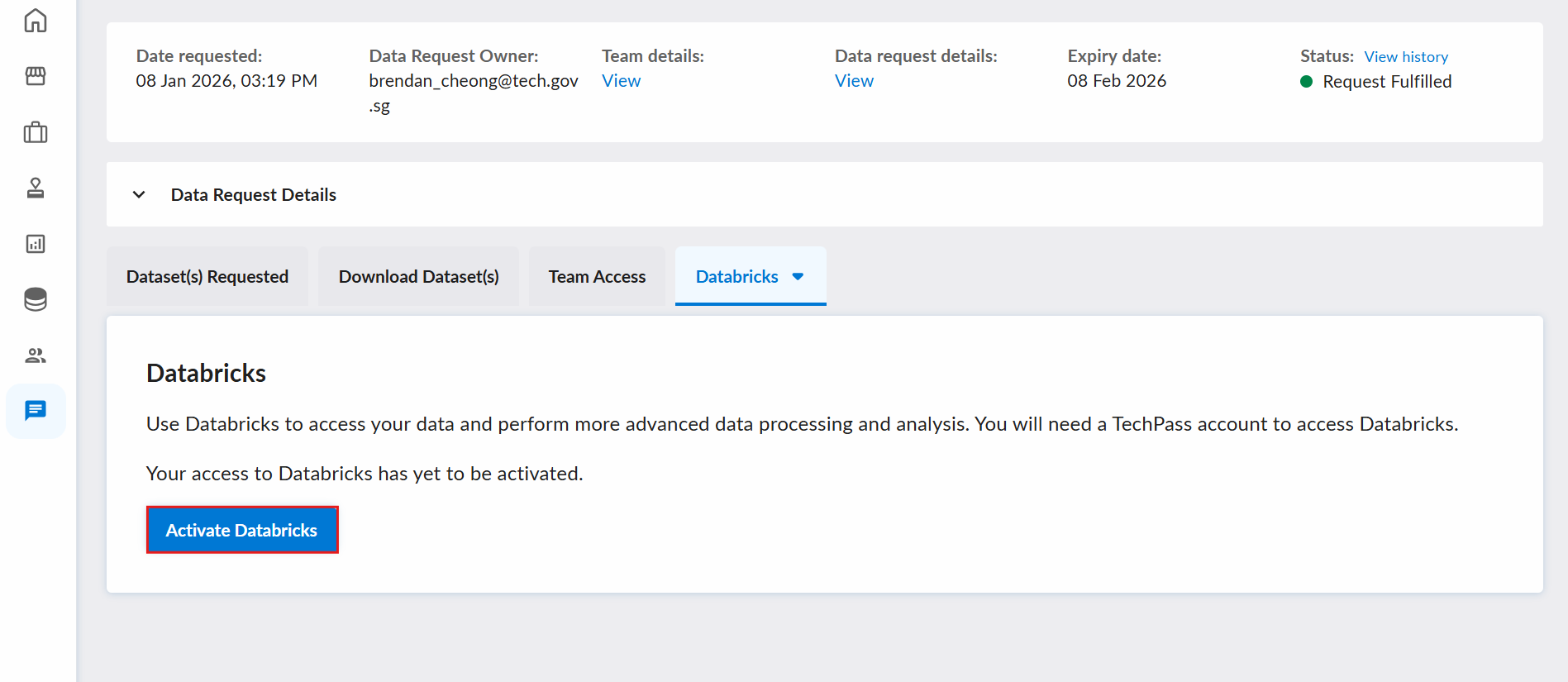
Where you can click on the Activate Databricks button to provision a Databricks workspace for your DR.
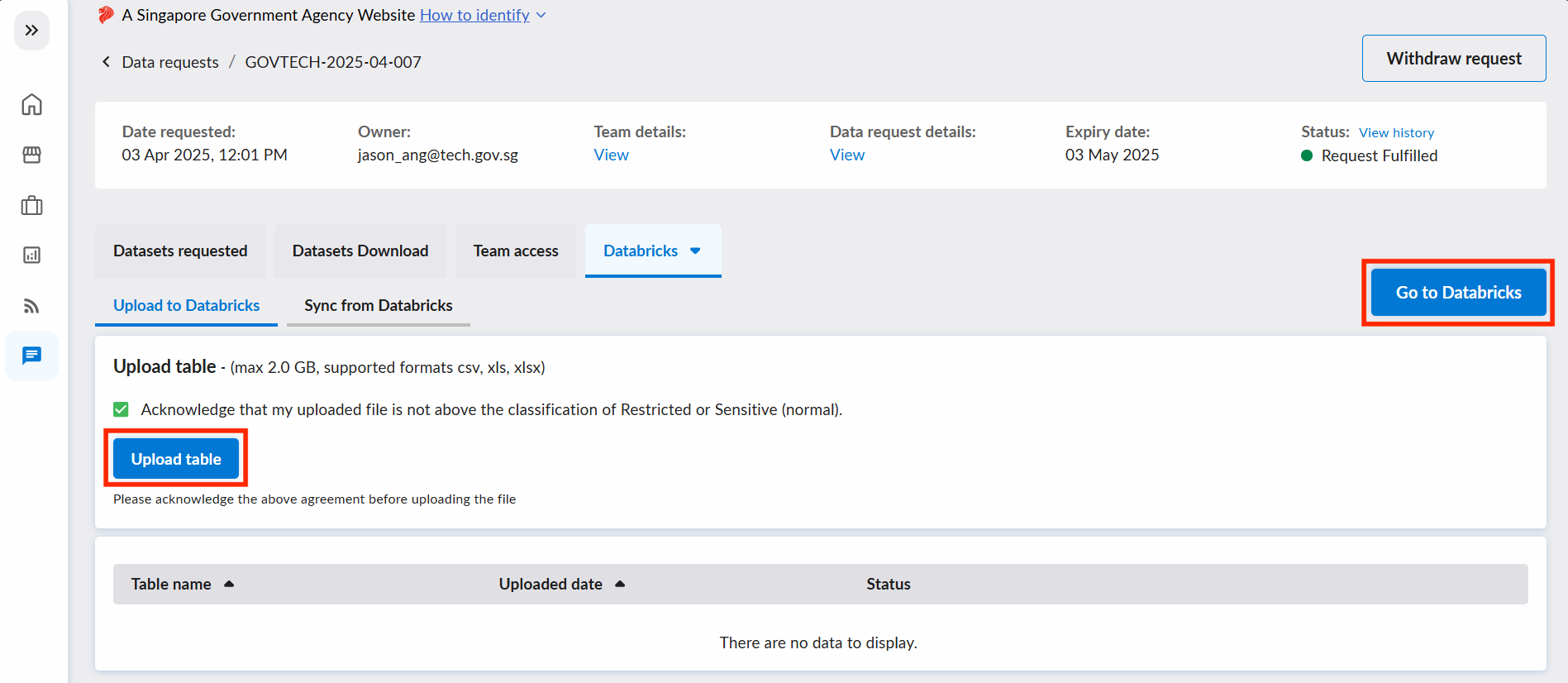
Bring your own datasets onto Databricks
In addition to the datasets approved under the DR, you can also upload your own datasets onto Databricks as well.
Databricks Starter Guide
For more information on how to get started on Databricks, please refer to the starter guide.
3. APIs
DataHive provides 2 methods to access the data requests' data - by Asynchronous APIs and Synchronous API.
| Aspect | Asynchronous API | Synchronous API |
|---|---|---|
| Response Pattern | Client submits a request and receives a job ID; result is delivered later via polling. | Client sends a request and receive the data within the same request. |
| Best Suited For | Bulk data processing. | Real-time or near real-time data retrieval. |
| Typical Use Cases | - Large dataset extraction - Batch processing - Data synchronization | - User-driven singleton queries - Interactive applications |
| Integration Complexity | Requires job tracking and polling. | Simple to integrate. |
| User Experience | Delayed feedback; job status tracking required. | Immediate feedback to the user. |
| When to Use | When processing time is long, data volume is large. | When immediate data is required for decision-making or UI rendering. |
Asynchronous APIs
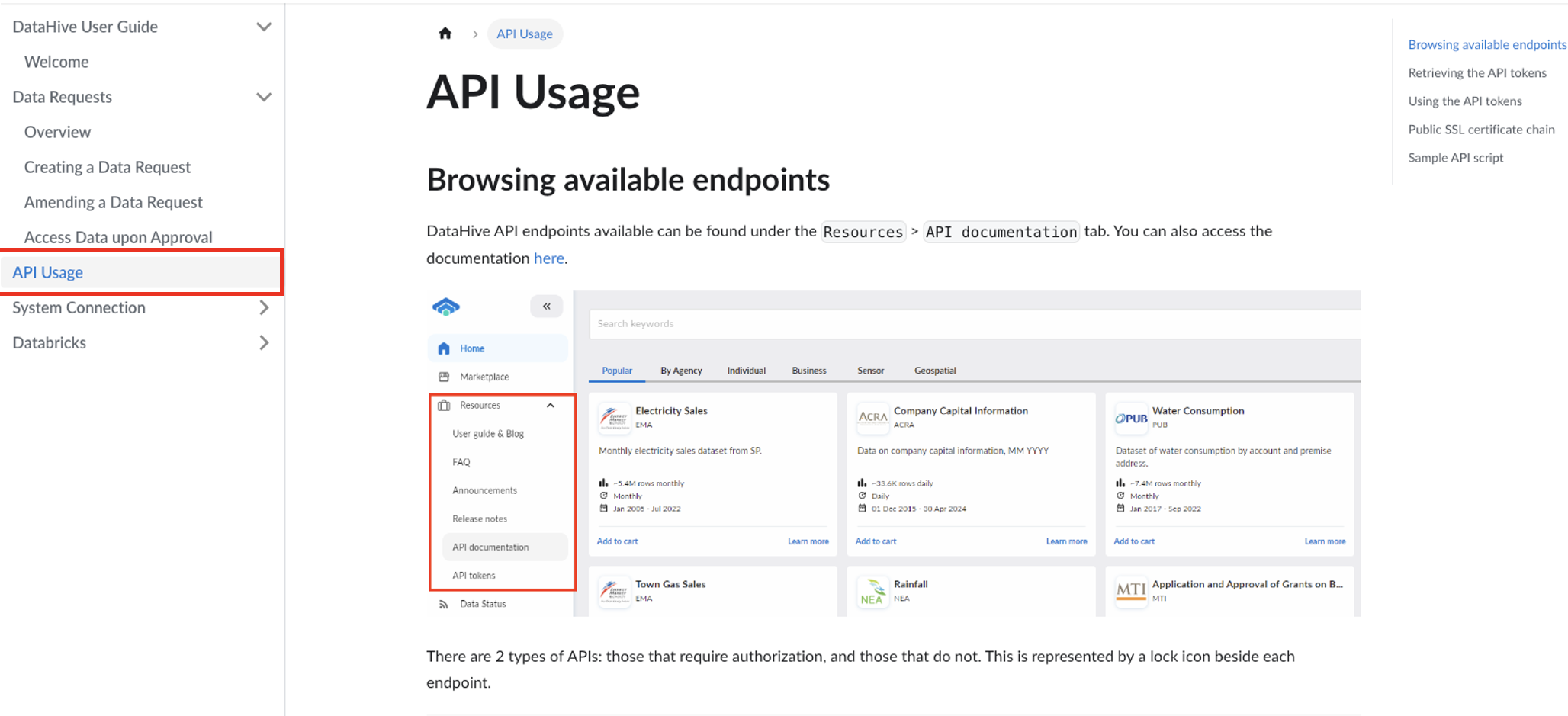
You can access your data programmatically. Refer to the API Usage guide to get started.
Synchronous APIs
Use this method to fetch data synchronously. There are two types of synchronous APIs available, Standard Synchronous API and Synchronous API (Enhanced).
For more details, please refer to the System Connection Guide.
Note that the Synchronous API (Enhanced) is currently in private preview on STG.
4. System Connection
Use this method if you need a secure, long-term, automated integration between your system and DataHive.
You have the option to access data via direct system connection to DataHive. This feature allows your systems to connect to DataHive's API and Data Warehouse using a service principal account, ensuring secure and seamless data integration.
Unlike the interactive API connection, which ties the identity to an interactive user and utilizes short-lived tokens, the system connection uses a non-interactive service principal account with tokens retrieved through client credential flow, featuring a longer lifespan.
For more detailed information, refer to System Connection.
5. Accessing Hashing Feature in Data Request
📖 Learn more about how DataHive tokenizes identifiable data here.
This feature is only available if you have indicated the need for hashing as part of your Data Request.
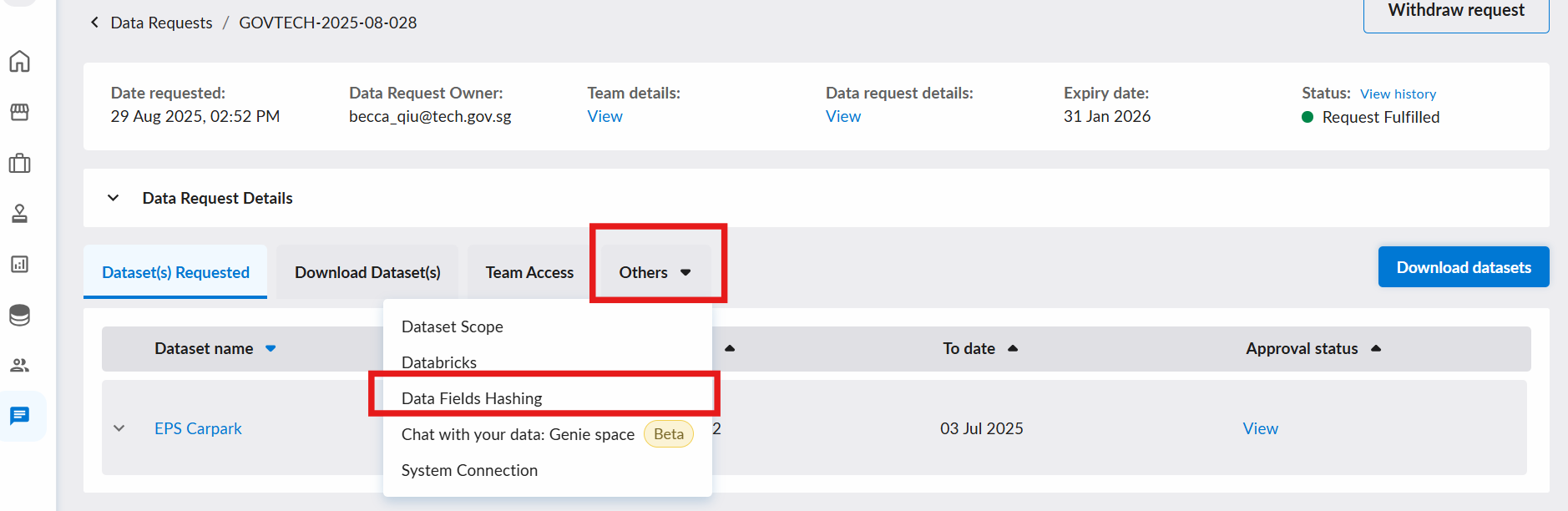
You can access the hashing feature in the designated tab.
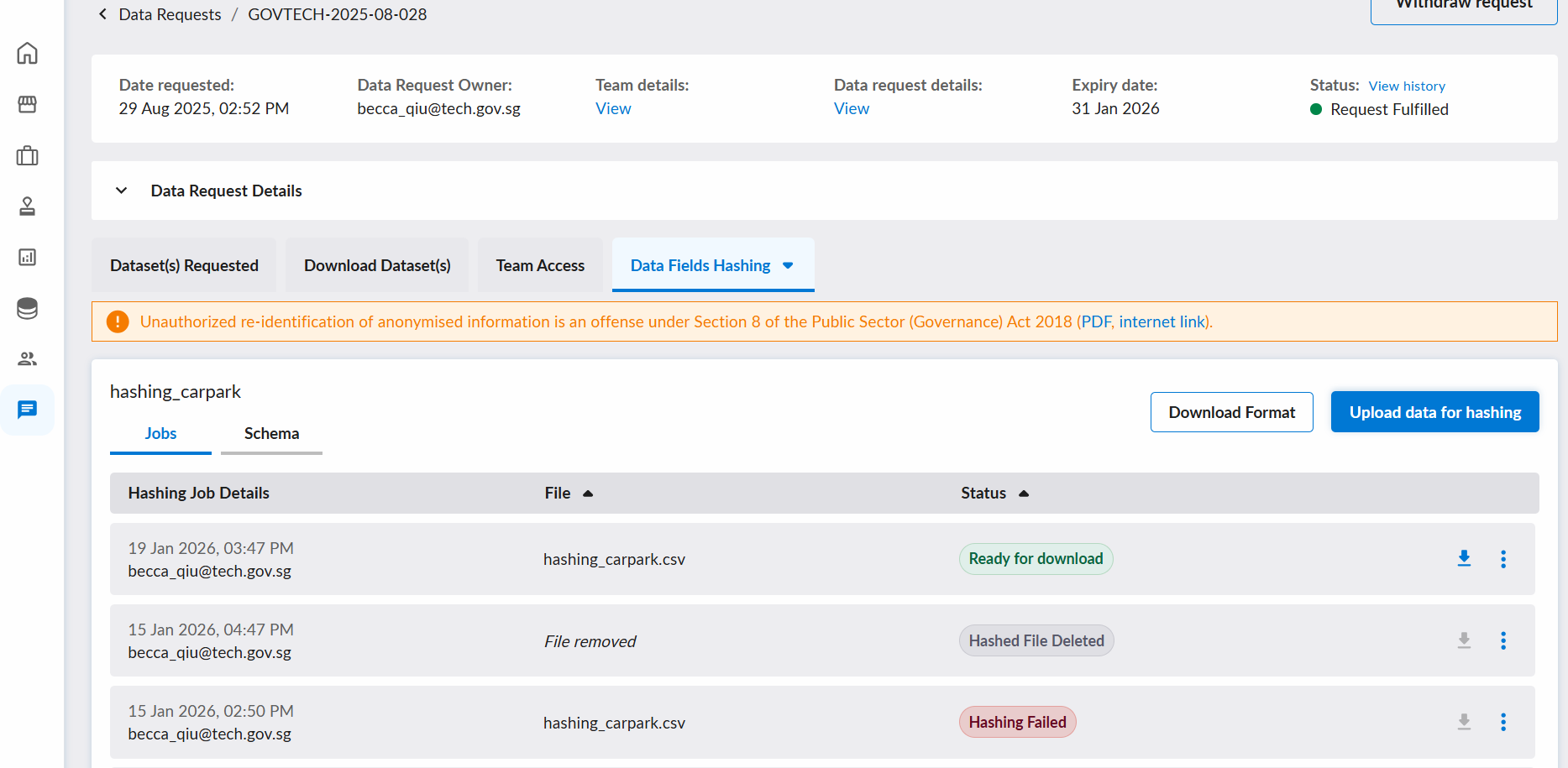
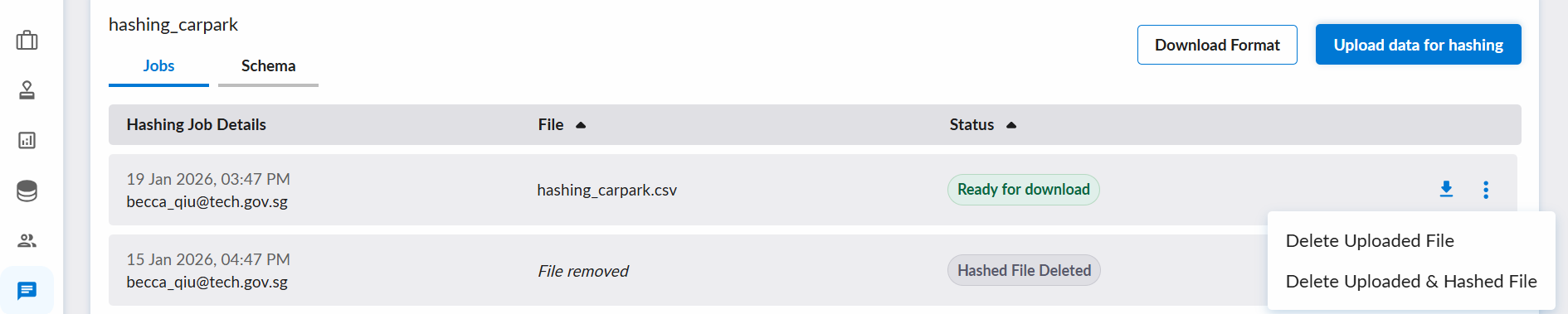
Each schema you defined will have a dedicated section where you can upload additional files that conform to the specified schema. DataHive will hash the uploaded file and you may download the hashed output after it is done. You have the option to delete either the uploaded file for hashing, or both the uploaded file and the hashed output.
Note that identifiers that do not exist within the scope of the data request will not be hashed and empty values will be returned instead.
6. Accessing Chat with your data: Genie space
Genie space can only be used with fulfilled data requests containing datasets which are classified no higher than Confidential (Cloud-Eligible) and Sensitive (Normal).
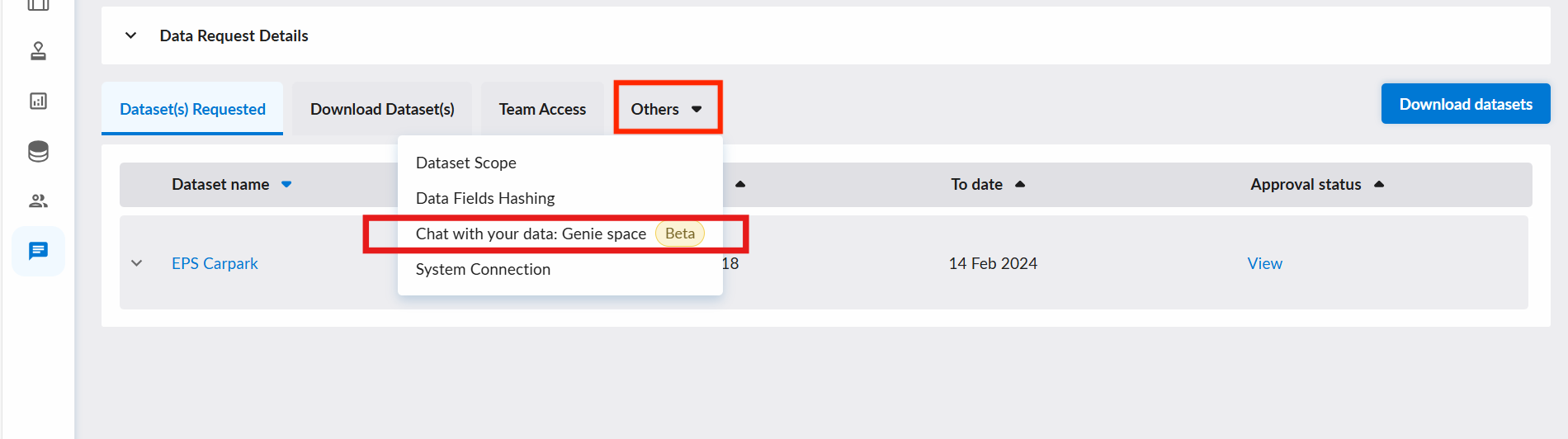
Users with existing fulfilled and active data requests can activate Genie space here (Click Others > Chat with your data: Genie space).
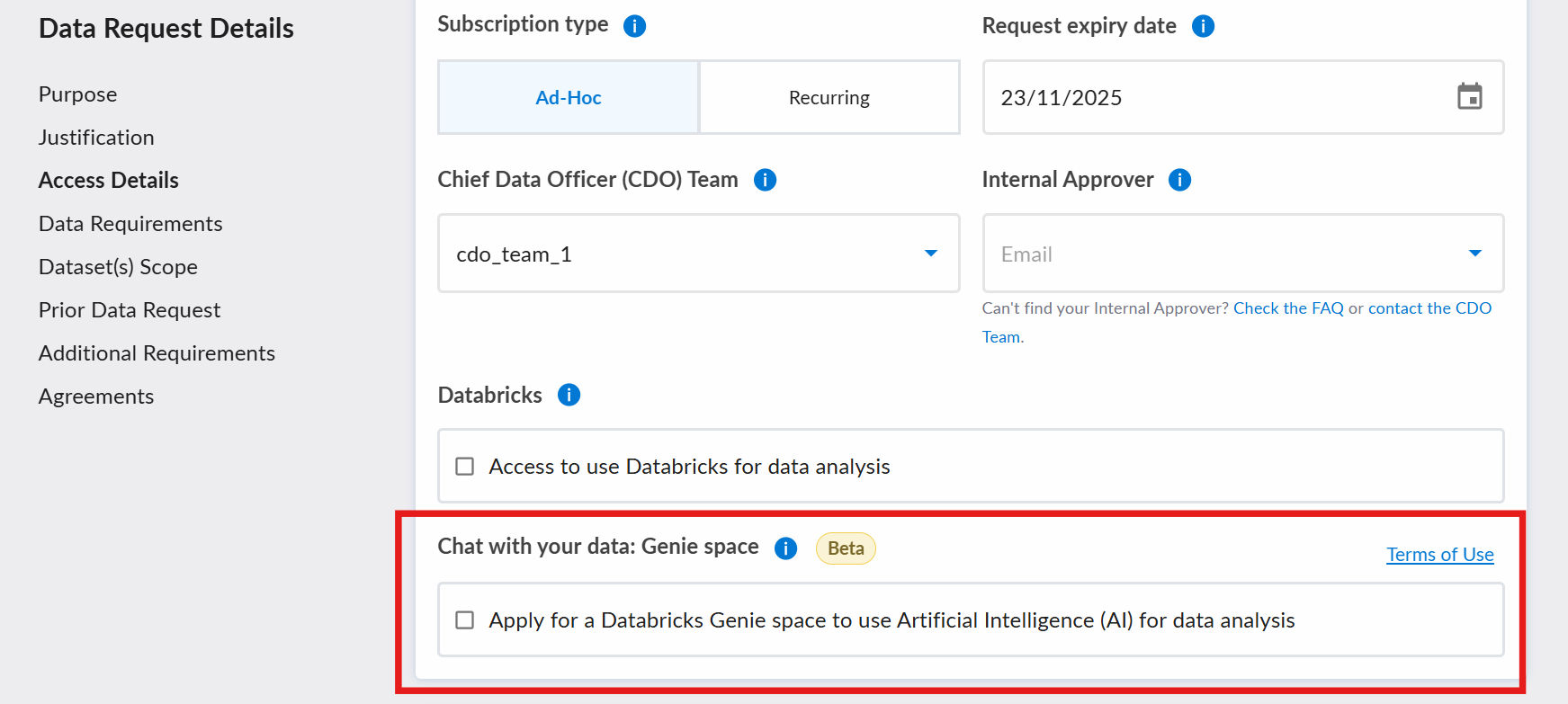
Users with new data requests can opt-in for Genie space through the Data Request form, begin by discovering data sets now.
Chat with your data: Genie space leverages Databricks Genie space, allowing users to use Artificial Intelligence (AI) for data analysis. With Genie space, users can query approved datasets in a chat interface. Questions in natural language are converted by Large Language Models (LLM) to SQL queries on the data.
On DataHive, for each fulfilled data request, users can request access to Genie space. If the data request has multiple datasets, the Genie space will include all datasets in the data request and users can query multiple datasets and analyse them together.
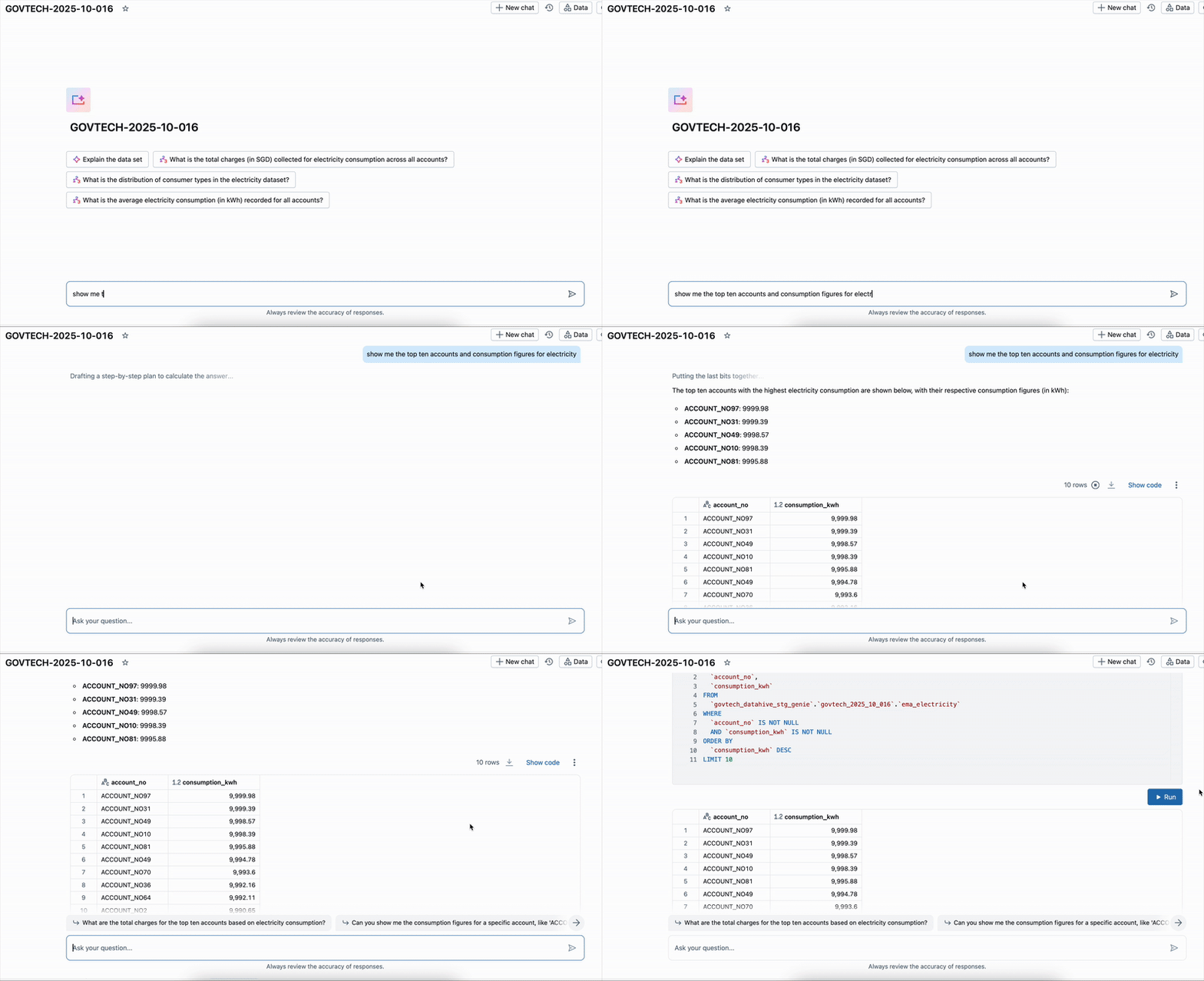
Detailed Instructions
Only the owner of the data request can request for Genie space access.
For a new data request, you can request for Genie space access by selecting the checkbox in your data request form.
For existing fulfilled and active data requests, you can go to the Requests side bar > Select your data request > Select Chat with your data: Genie space tab > Click on Request Access.
Your request to access Genie space must be approved by a Platform Admin from the DataHive team. Upon success, you will be notified by email. A new Genie space will be provisioned for each data request, accessible by the team members of the data request. You can access Genie space by going to the Requests side bar > Select your data request > Select Chat with your data: Genie space tab > Click on Go to Genie space.

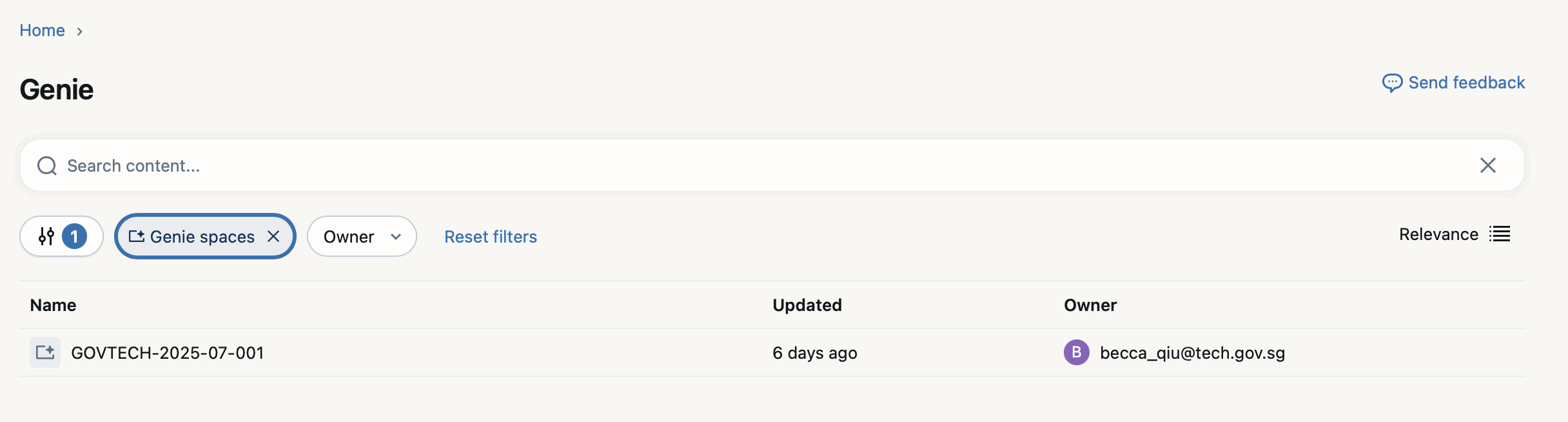
This brings you to a Databricks Workspace where you can find your provisioned Genie space under the option Genie spaces.
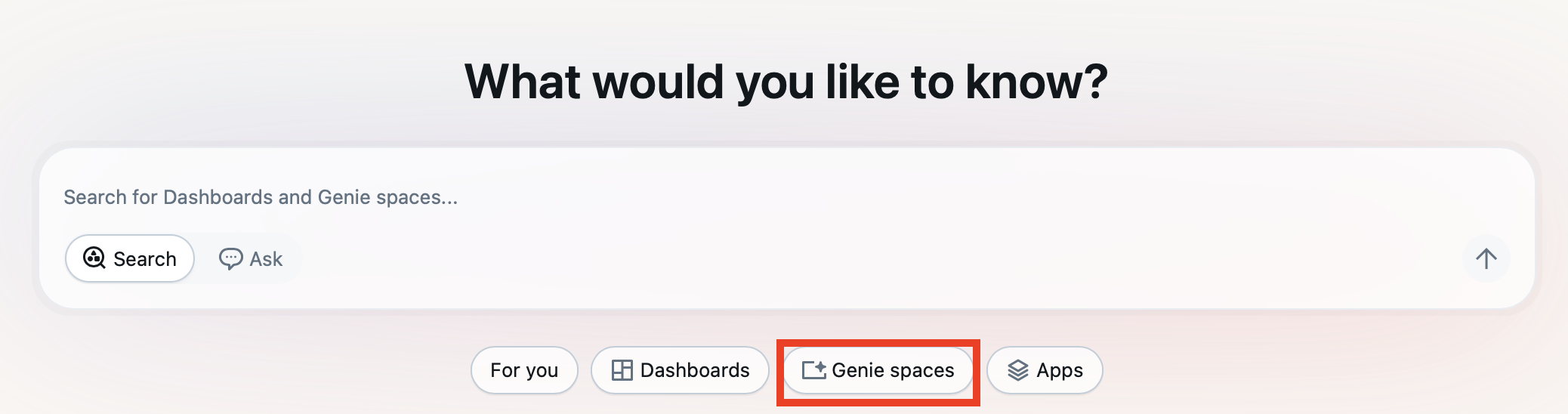
For each data request with Genie space access, a different Genie space is provisioned, named by the data request ID.
LLMs can make mistakes. Users must thoroughly review input data and vet output data, and are responsible for any output used or relied on in their work. Users should also read, understand, and abide by the "Rules for the Use of Generative AI Applications by Public Officers" set out within SNG (PMO) CIRCULAR NO. 2/2025 Use of Generative Artificial Intelligence in the Public Sector.
Please contact support@datahive.gov.sg if you encounter problematic or inappropriate output.
7. Accessing Data via PowerBI in M365
Use this method to create dashboards, interactive reports and compelling visualizations within the web browser. PowerBI Desktop is currently not supported.
For more information on how to access your DR on PowerBI in M365, please refer to the configuration guide.
PowerBI in M365 is supported for data up to Confidential (Cloud-Eligible) / Sensitive (Normal) only, and users are fully responsible for their own usage.
Long running PowerBI in M365 queries will timeout after 5 mins.
8. Accessing Data via VISTA Qlik Sense
Use this method to create, share and explore interactive dashboards and visualisations securely across WOG using VISTA Qlik Sense.
For more information on how to access your DR on VISTA Qlik Sense, please refer to the configuration guide.
VISTA Qlik Sense is supported for data up to Confidential / Sensitive (High) only, and users are fully responsible for their own usage.