Re-assign Internal Approver
As a data request owner, you can request to re-assign the Internal Approver (IA) for your data request.
The table below shows the various Data Request statuses, along with whether the IA can be re-assigned at each stage, and whether the new IA's approval is required for the IA re-assignment.
If the IA re-assignment requires approval from the new IA, an IA re-assignment request will be created.
The new IA will receive an email notification to log into DataHive to accept or reject the IA re-assignment request.
| Data Request Status | Able to re-assign IA? | New IA's approval required? |
|---|---|---|
| Pending Verification | ✅ | |
| Pending Internal Approval | ✅ | |
| Pending Datafields Review | ✅ | ✅ |
| Pending Data Provision | ✅ | ✅ |
| Request Fulfilled | ✅ | ✅ |
| Pending Scopes Change Approval | ✅ | ✅ |
| Request Withdrawn | ||
| Request Expired | ||
| Expired Without Fulfilment | ||
| Rejected | ||
| Revoked |
If the IA re-assignment requires approval from the new IA, the new IA will have to accept the IA re-assignment request before the change takes effect.
Until accepted, the original IA remains responsible for your Data Request.
Re-assign Data Request to Another Internal Approver
You can re-assign your Data Request's IA from either the Data Requests page or the individual Data Request's page.
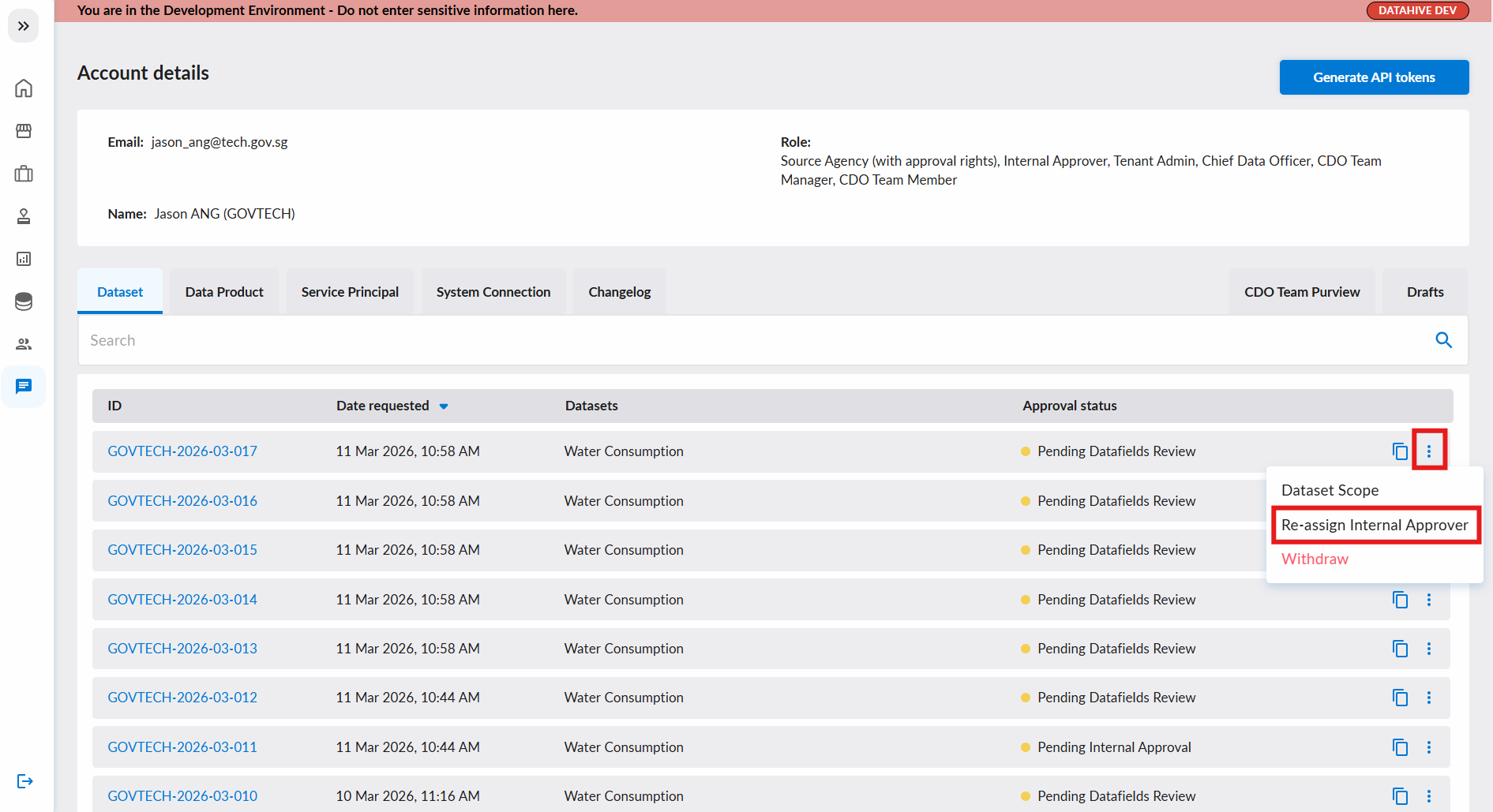
A. From the Data Requests Page
- Navigate to the Data Requests page.
- Click the ellipsis menu (⋮) on the right of your desired data request & select Re-assign Internal Approver.
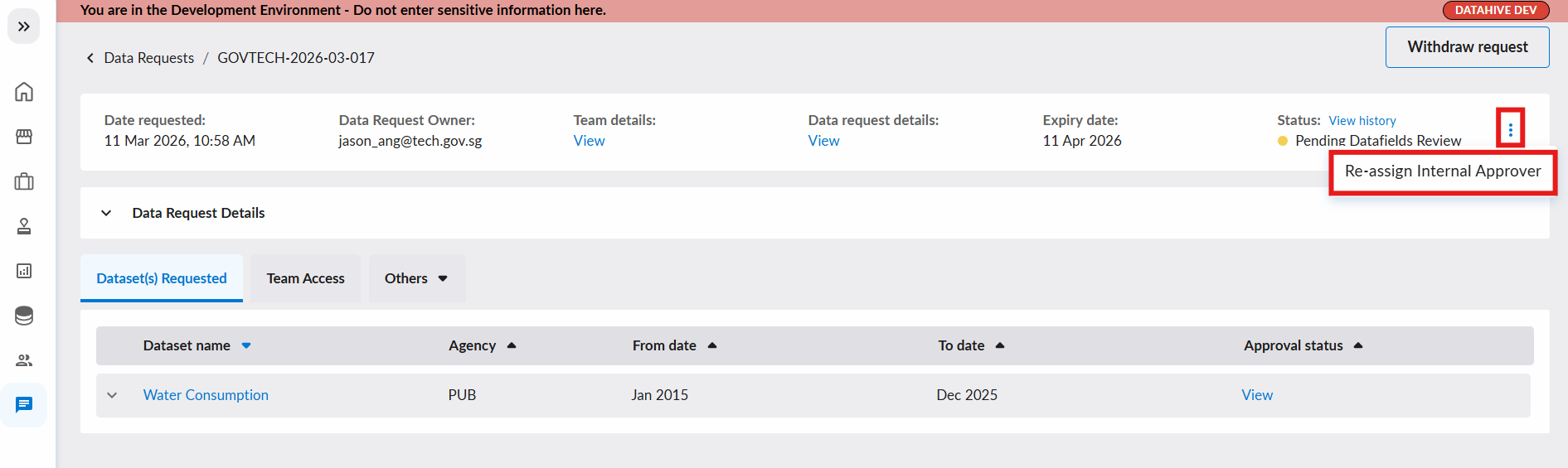
B. From the Individual Data Request Page
- Navigate to your individual data request page by clicking into your desired data request.
- Click the ellipsis menu (⋮) on the top right & select Re-assign Internal Approver.
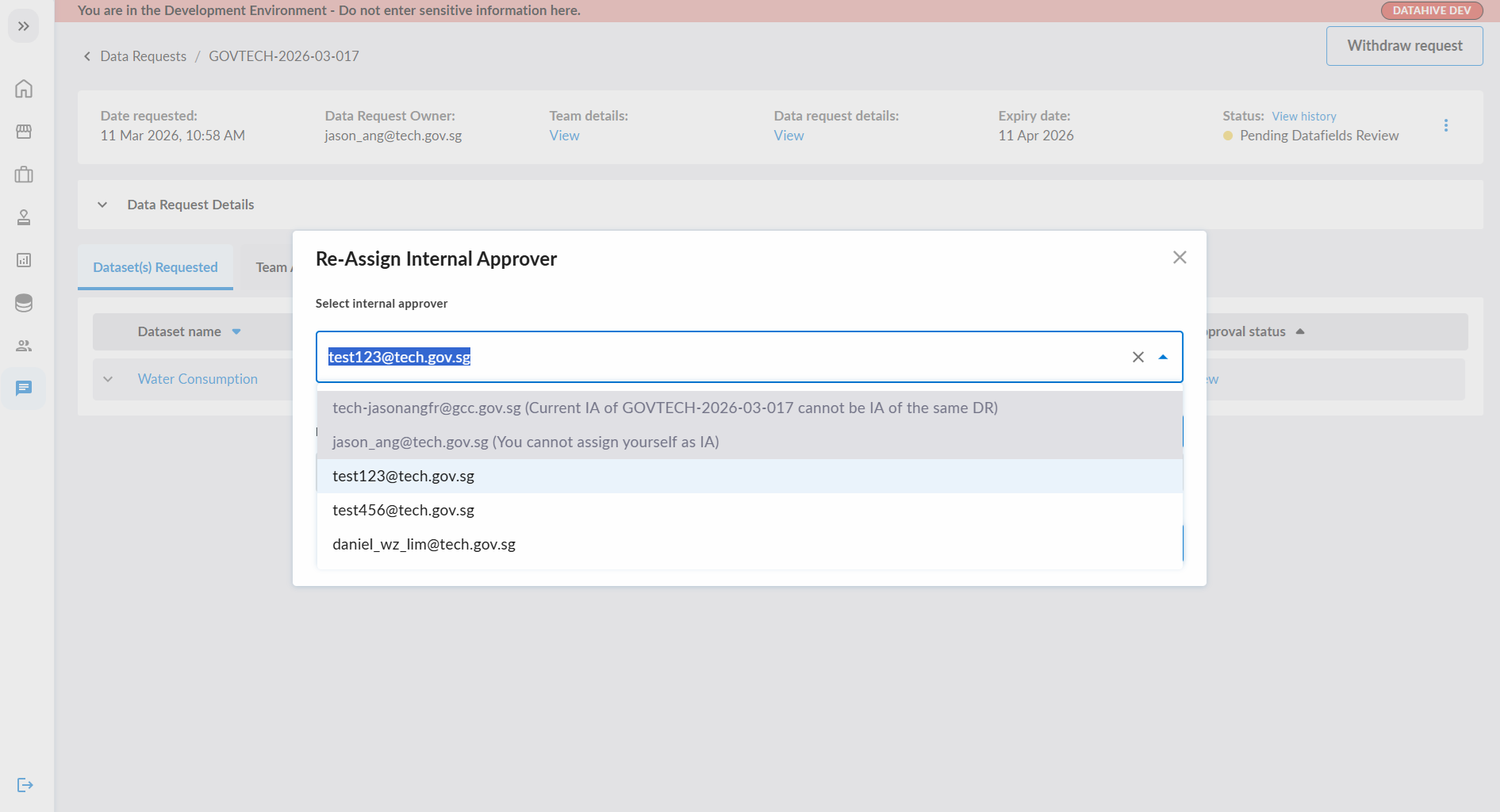
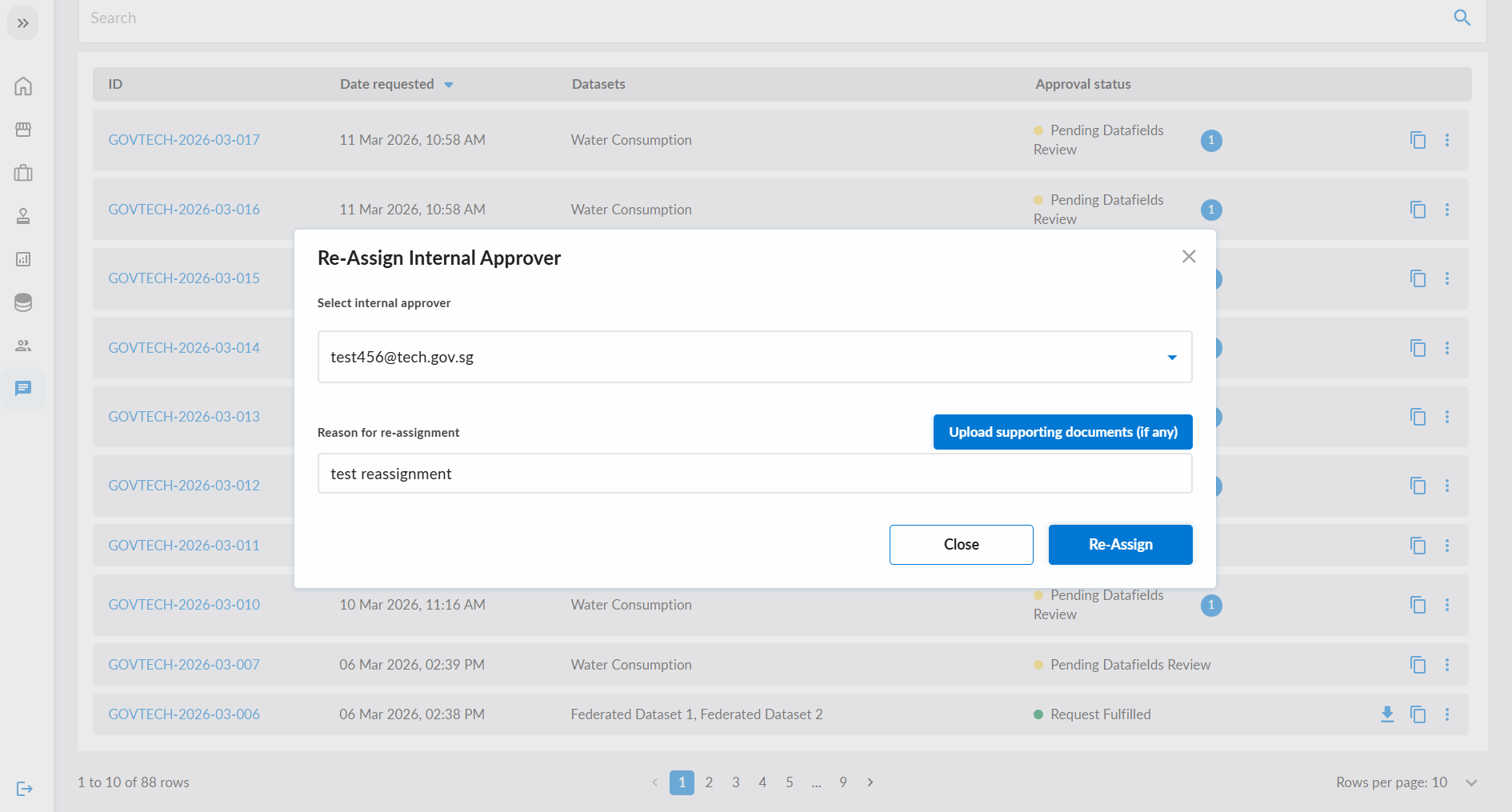
Upon clicking Re-assign Internal Approver, a dialog will appear, you can:
- Select the new Internal Approver from the dropdown.
The list of Internal Approvers is managed by your agency's CDO team. If you do not see your desired IA in the list, please contact your CDO Team to add them.
- Provide a reason for the re-assignment & click Re-Assign to submit the request.
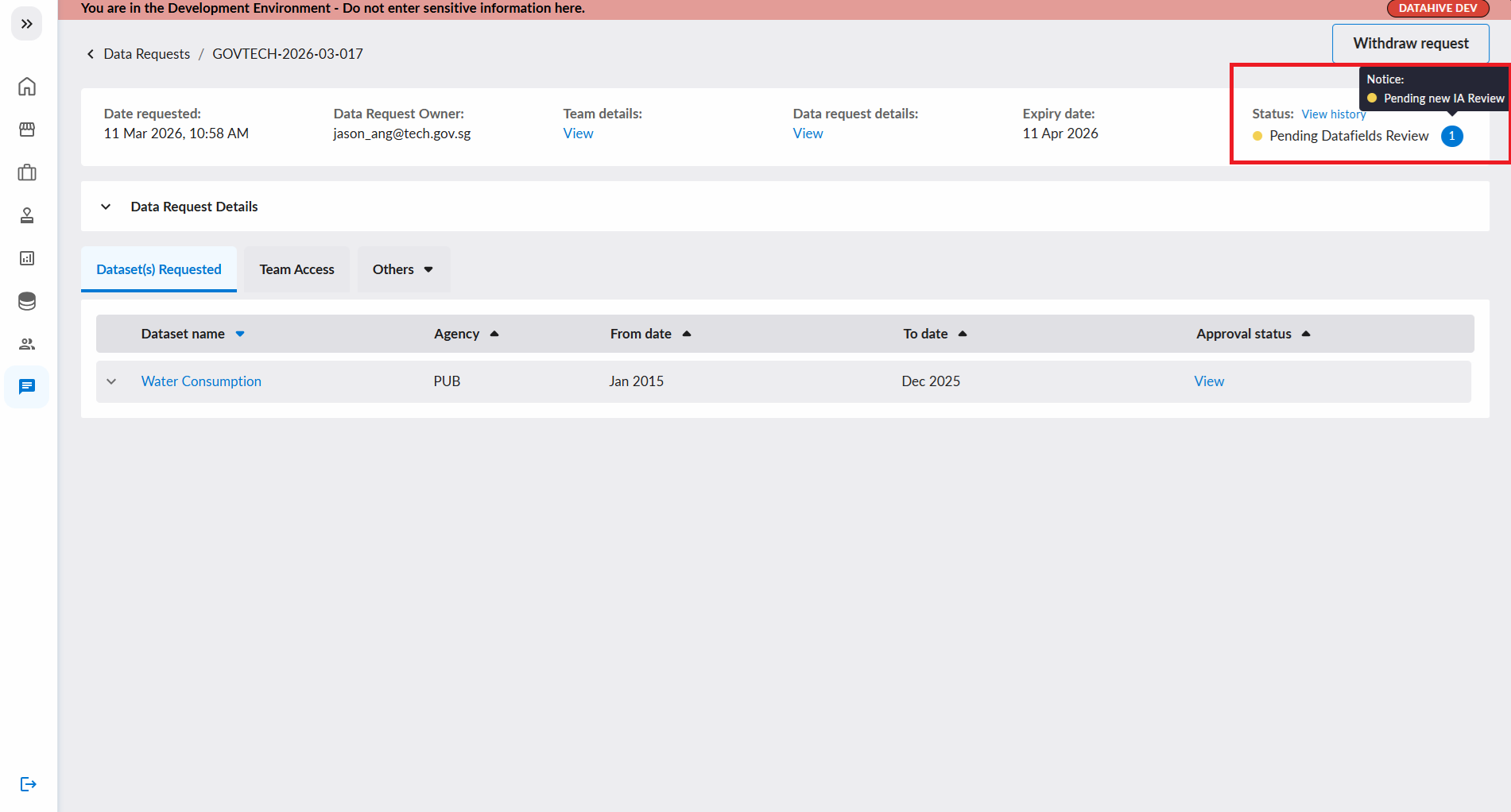
When your data request is pending IA re-assignment, a substatus indicator (number badge) will appear next to the request status. Hover over the indicator to see the substatus details.
Cancel IA Re-assignment Request
As a data request owner, you can cancel a pending IA re-assignment request that was raised by you:
- Navigate to your data request.
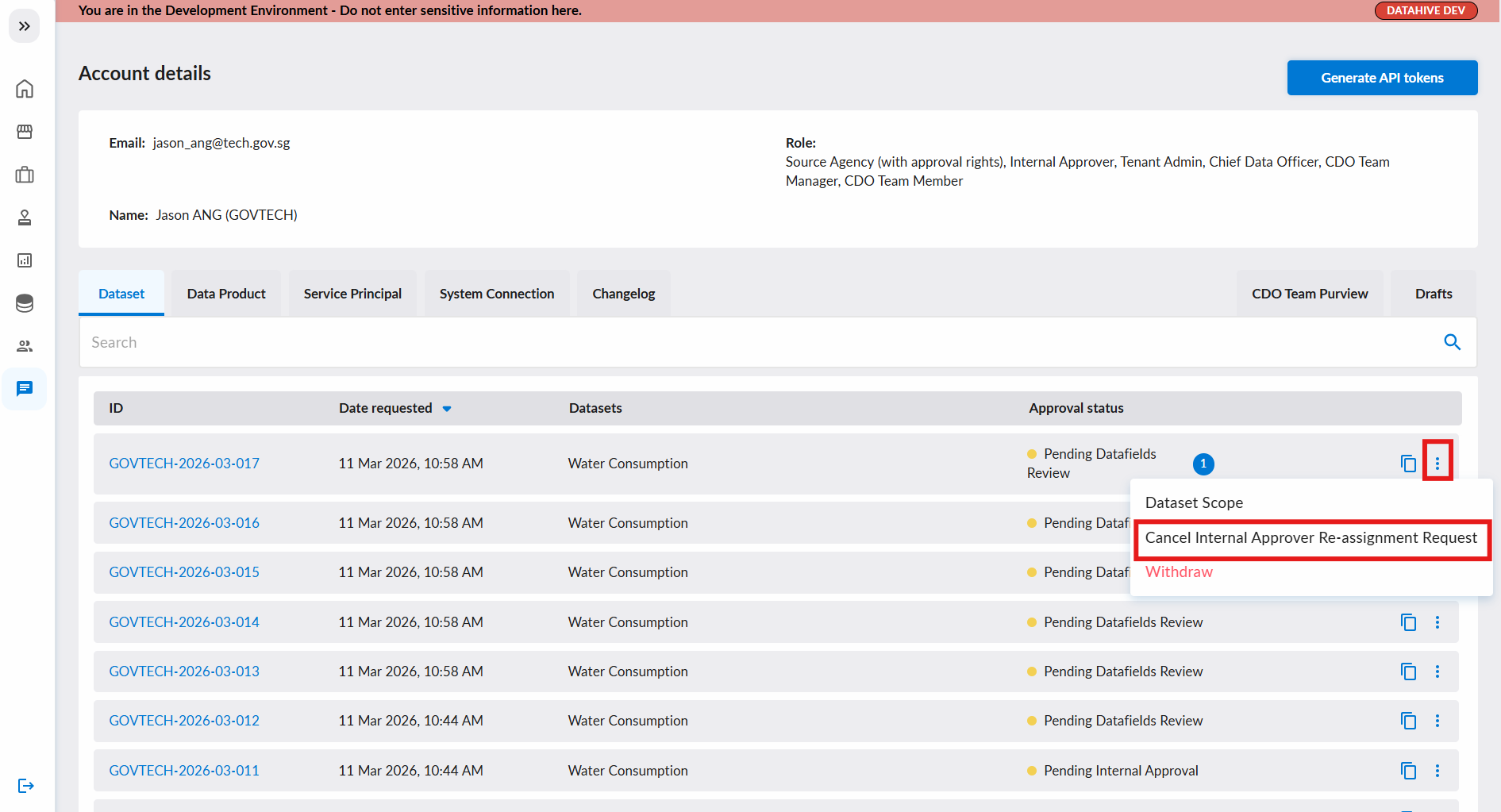
- Click the ellipsis menu (⋮) on the far right & select Cancel Internal Approver Re-assignment Request.
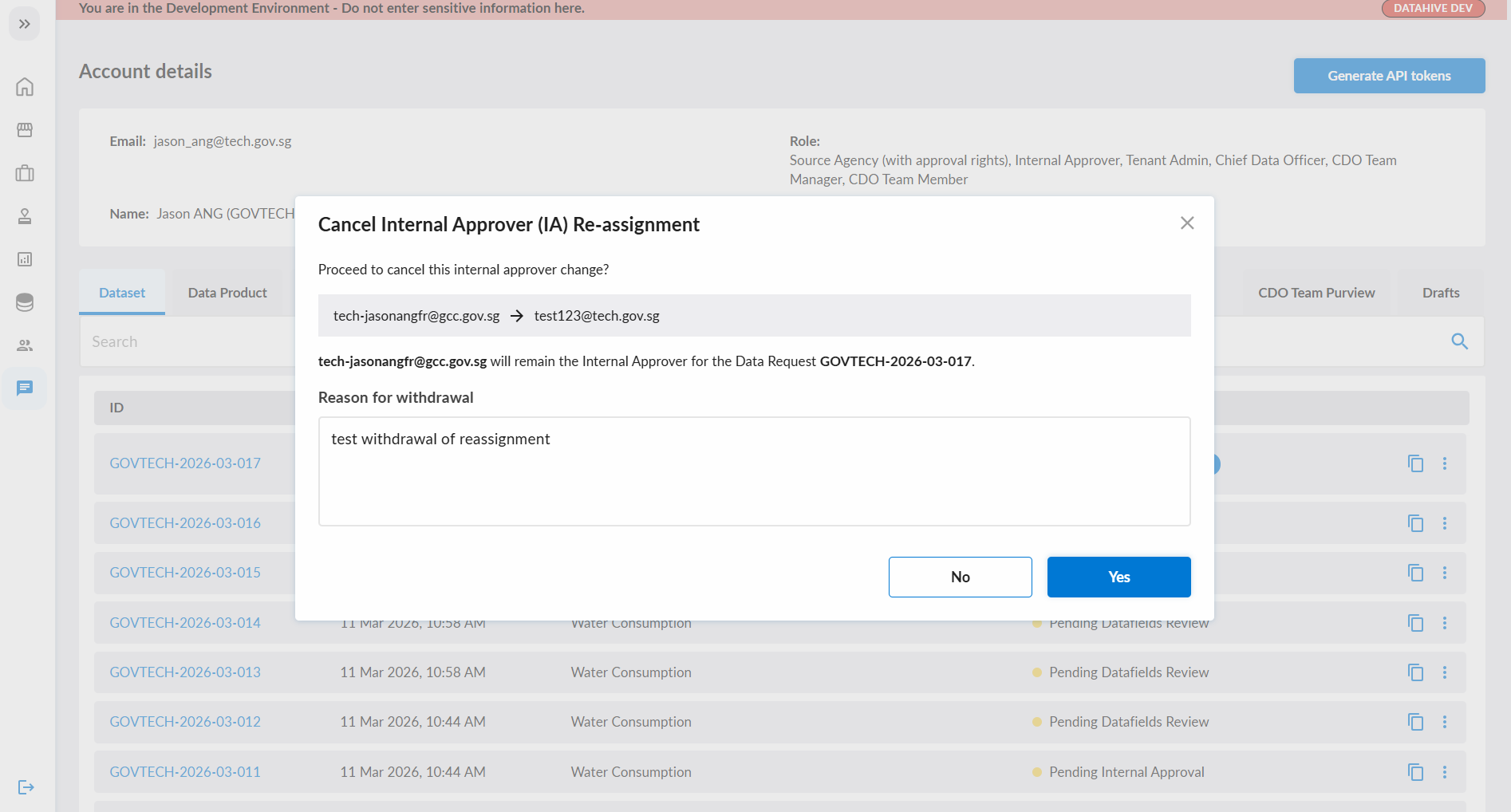
- A confirmation dialog will appear. Provide a reason for the cancellation and click Confirm.
- For Data Requests that are 'Pending IA Re-assignment', a new IA re-assignment cannot be initiated, until the pending IA re-assignment is accepted / rejected / withdrawn.
View IA Re-assignment History
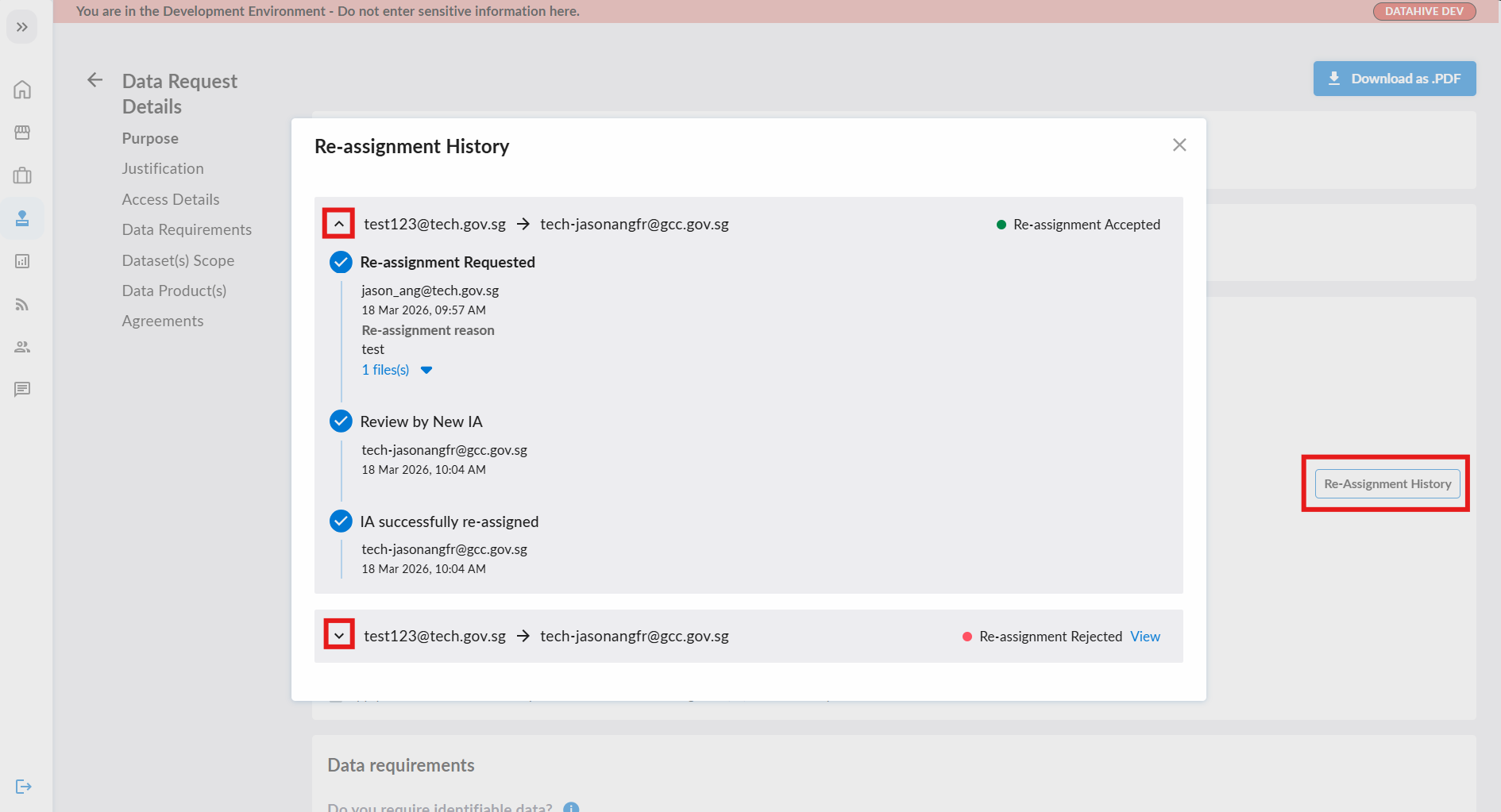
You can view the history of Internal Approver changes for your data request on the data request detail page.
- Navigate to your data request details page.
- Click on the Re-Assignment History button on the right.
- A popup with the history of IA re-assignments will appear. Click on the accordion (˅) to expand the details of each IA re-assignment request.