Search and Discover Datasets
Browse Available Data
How to find data?
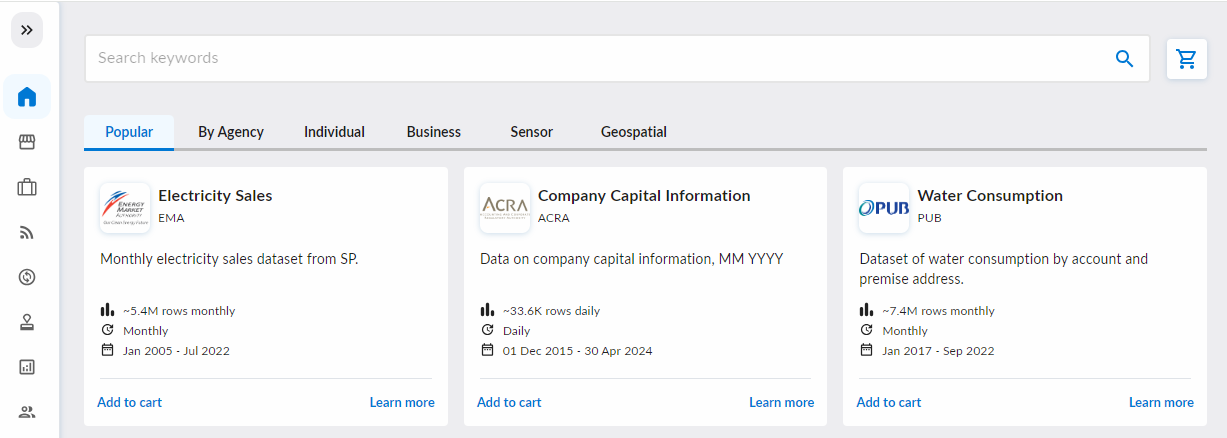
Start by exploring datasets on the Home or Marketplace page. Use the search bar to refine your search based on keywords, categories, or filters to find datasets that suit your needs.
Preview datasets
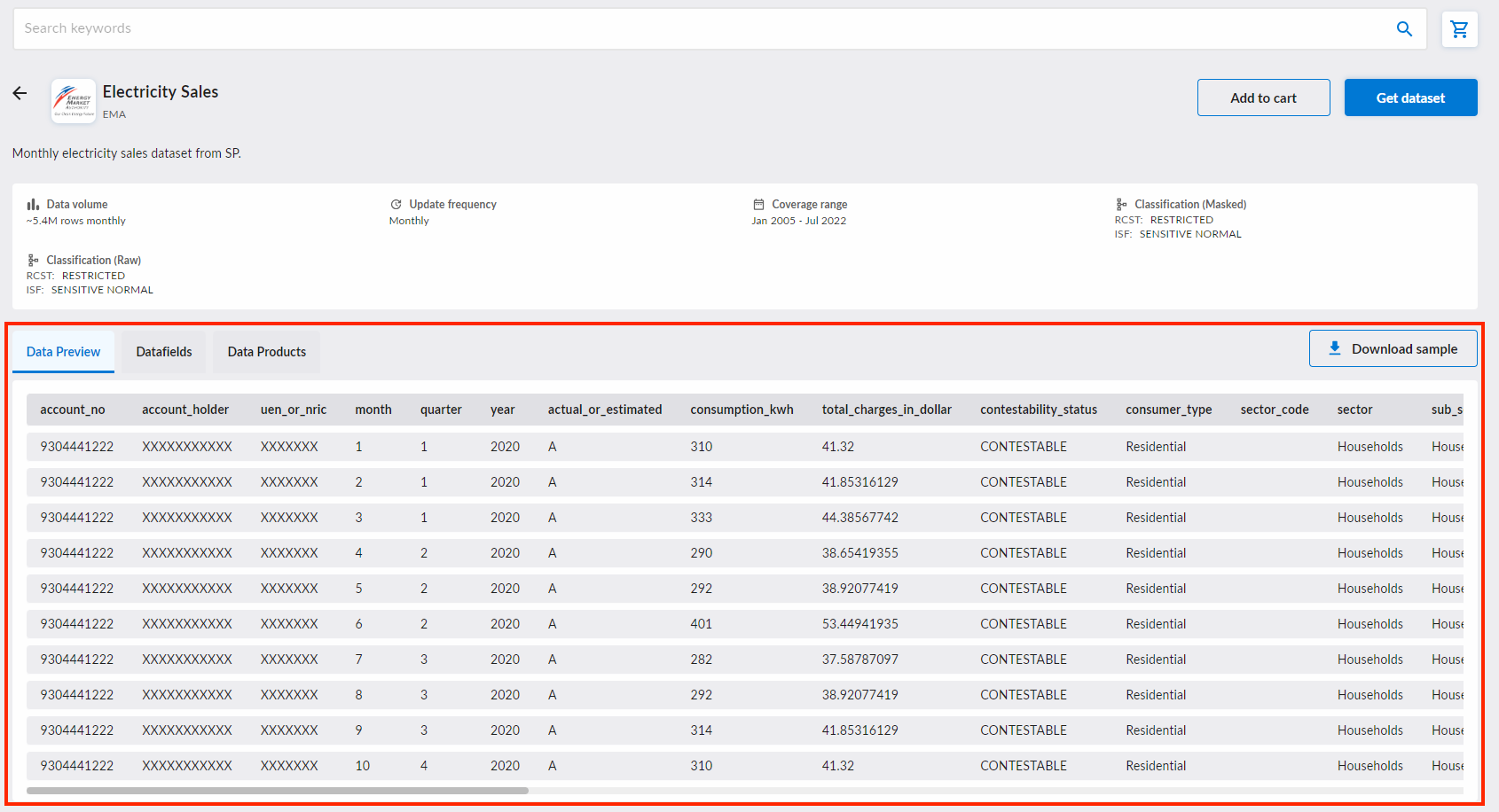
For datasets with previews available, you can click into the dataset's page to view a sample preview.
Select Datasets
Add Datasets to Your Cart
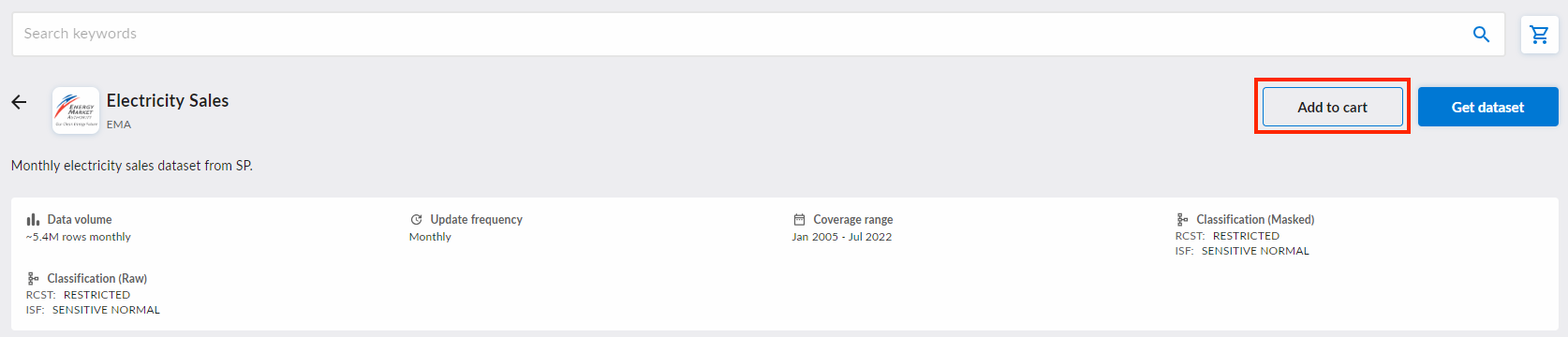
Use the cart to temporarily store datasets of interest before making a data request:
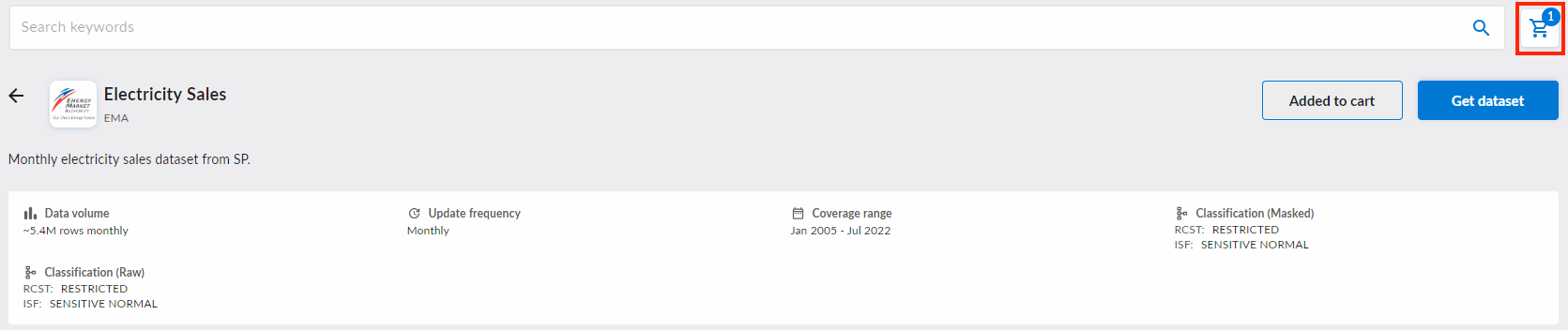
- Click "Add to Cart" for the dataset you want.
Manage Your Cart
To view datasets in your cart:
- Click the Cart Icon to preview datasets you have added.
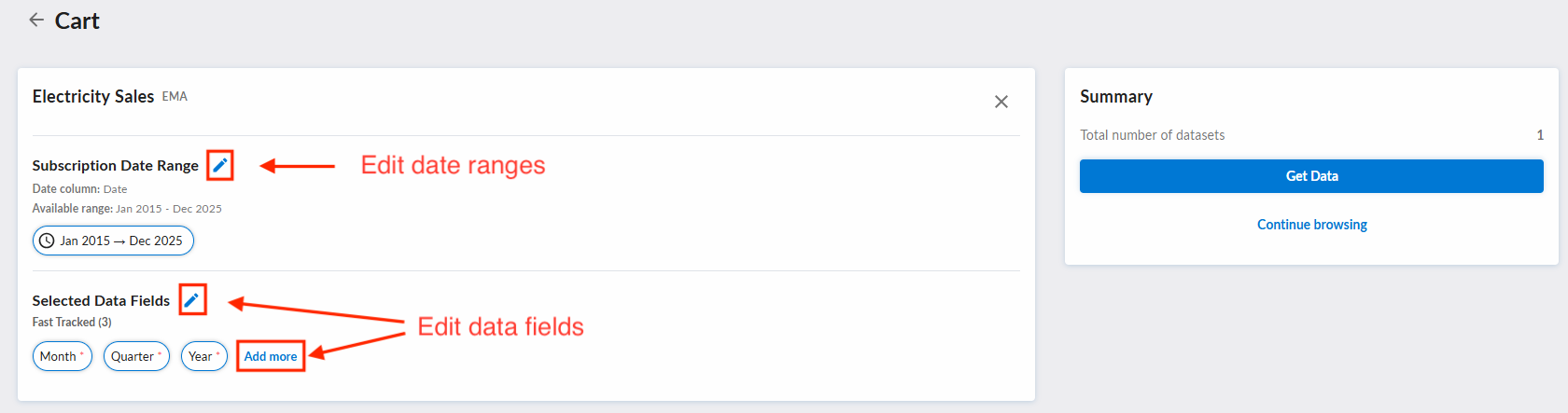
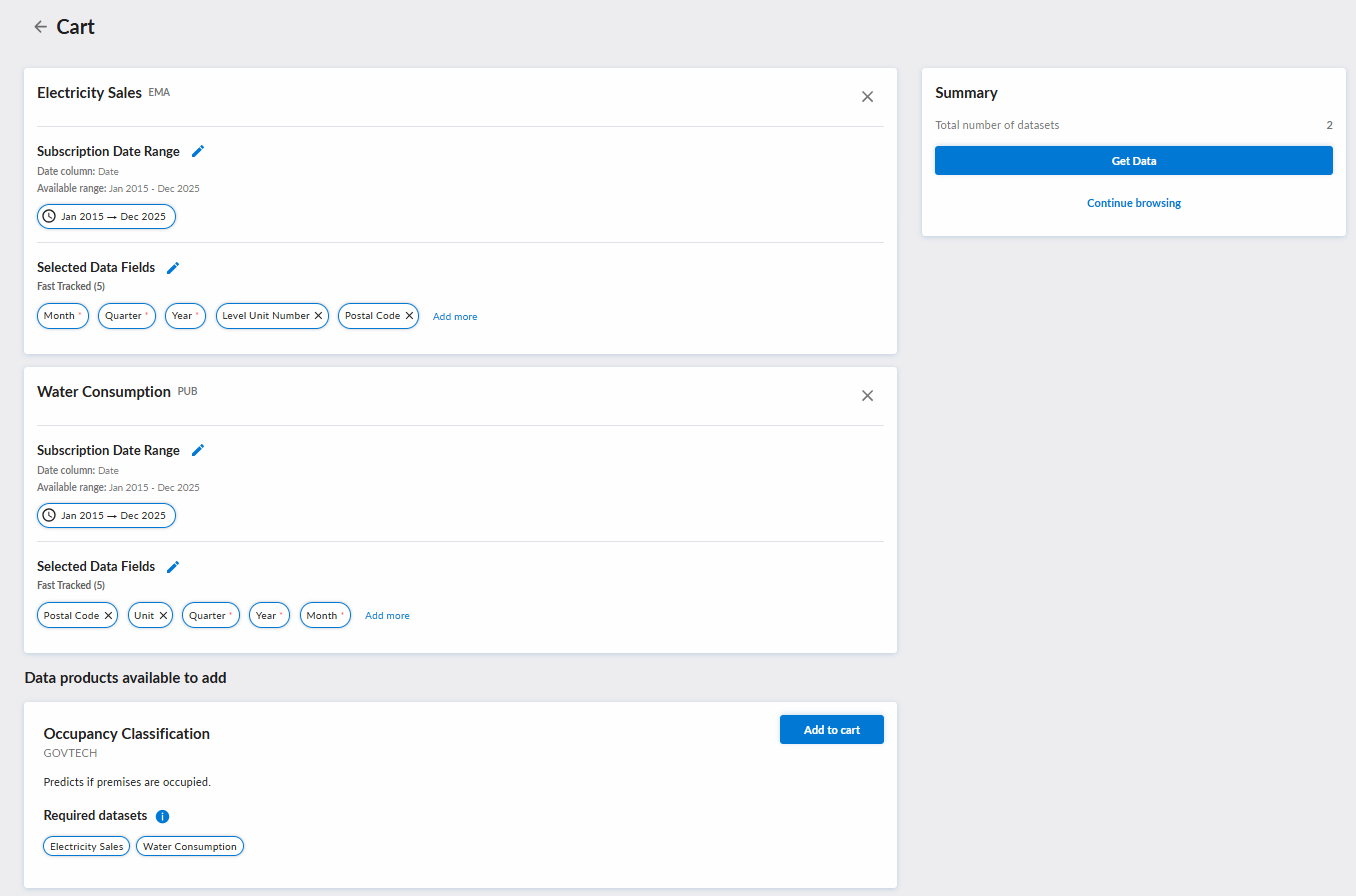
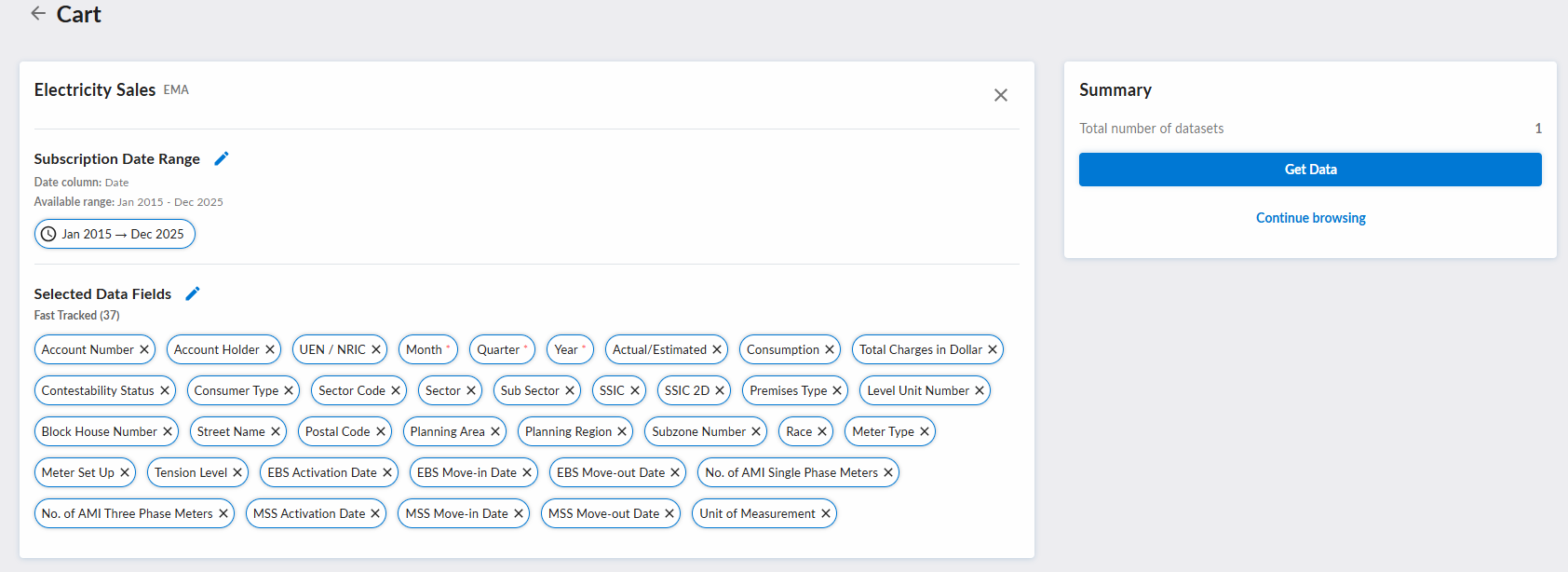
In the cart page, you can manage the added datasets and change their date ranges and their datafields. If you want to change the subscription date ranges, click on the 'edit' icon next to "Subscription Date Range". If you want to access more datafields, click on the 'edit' icon next to "Selected Data Fields" or click on the "Add more" button.
Upon clicking the 'edit' icon next to 'Subscription Date Range', a pop-up will appear for you to select your desired date range:
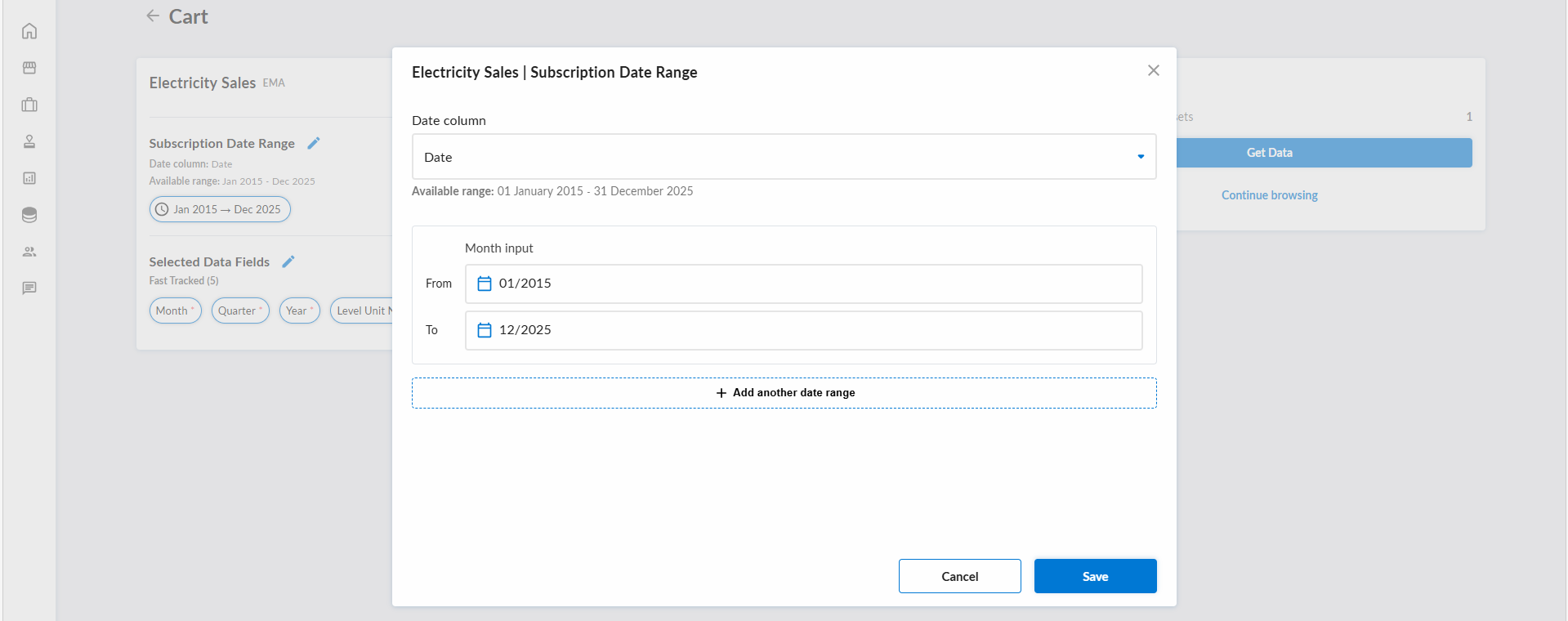
For how to define the date ranges, please refer to this guide for more details.
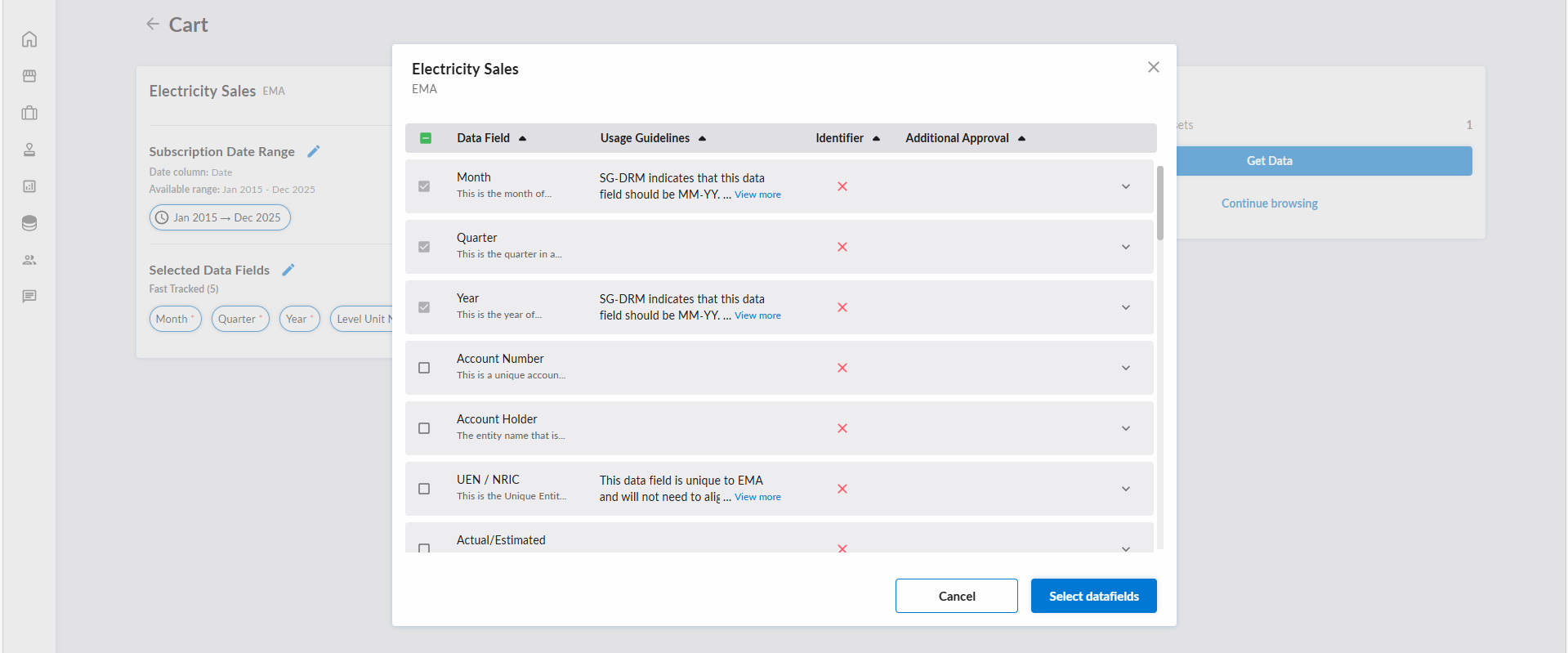
Upon clicking the 'edit' icon next to 'Selected Data Fields', a pop-up will appear for you to select your desired data fields:
Add Suggested Data Products
If you have added datasets that fulfil the dataset requirements of data products, said data products will be suggested to you.
You can add the suggested data products into your cart by clicking on the 'Add to cart' button.
Proceed to Submit your Data Request
Once you are ready:
- Click "Get Data" to be redirected to the data request form, where you can fill in the required details and submit your data request.
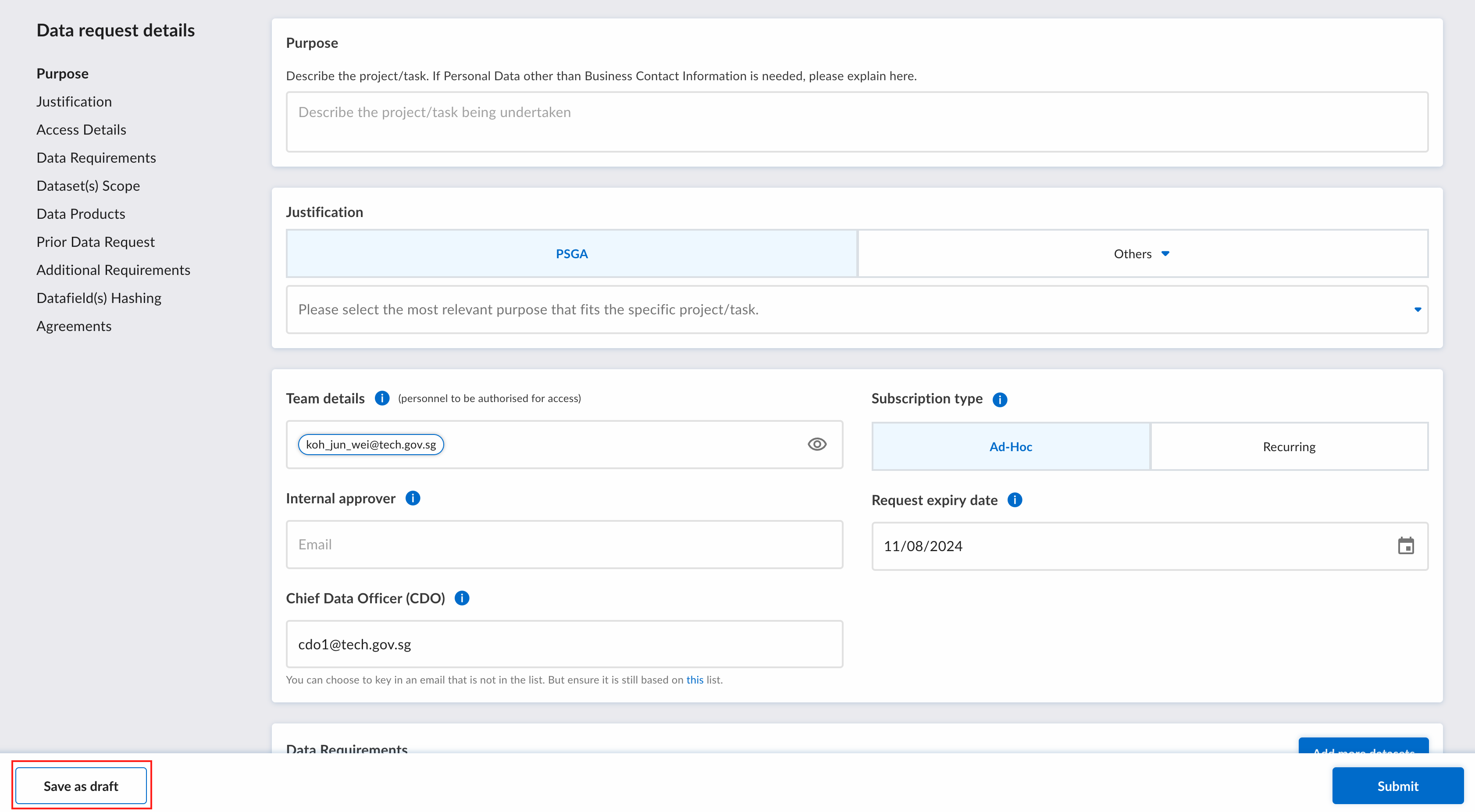
You can save your data request as draft by clicking "Save as draft" button on the bottom left of the screen